Adjusting the brightness of your computer screen is one of the simplest yet most impactful ways to improve your viewing experience. Whether you’re working late into the night, trying to conserve battery life, or just want to reduce eye strain, knowing how to control your display’s brightness is essential. This article delves into the mechanics of LED displays, the importance of brightness adjustment, and practical methods to increase your computer’s brightness effectively.
Understanding LED Displays and Brightness
What Is an LED Display?
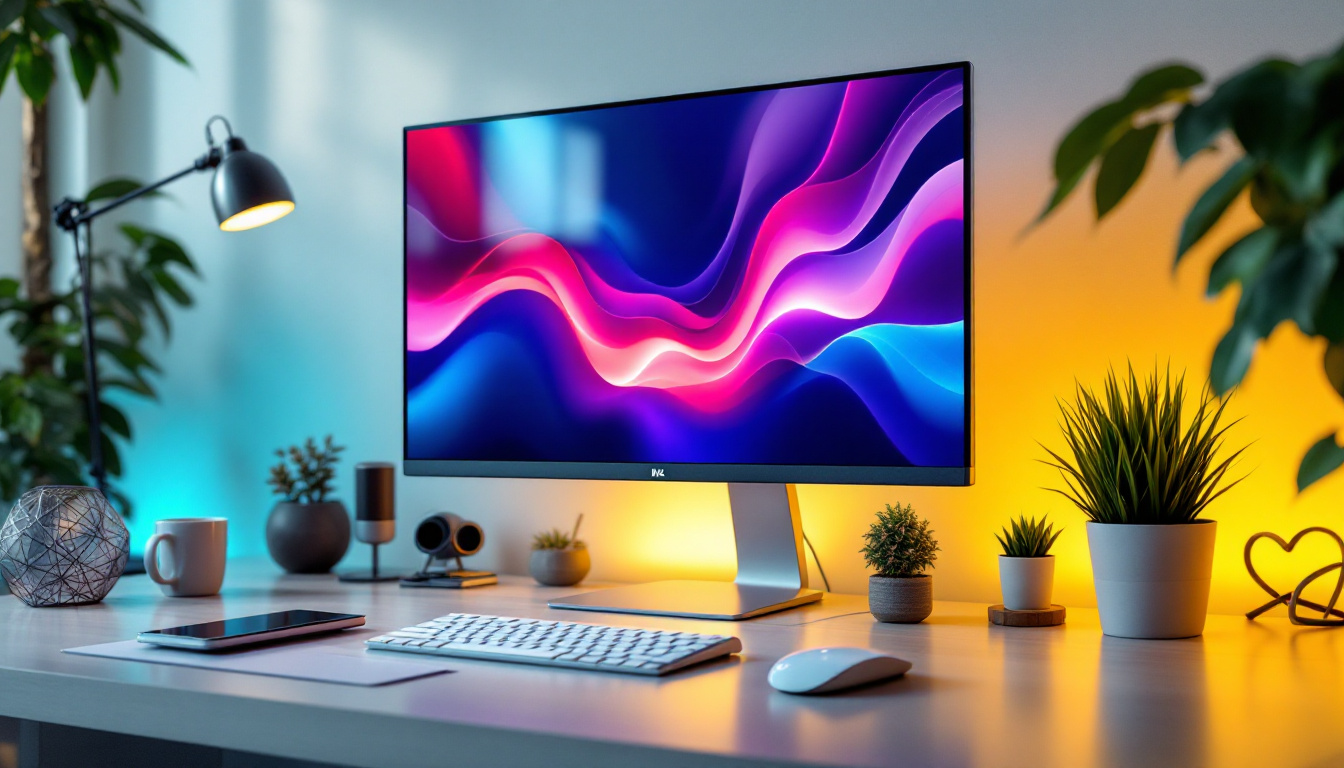
LED, or Light Emitting Diode, displays have become the standard for most modern computer screens, including laptops and monitors. Unlike older LCDs that relied on cold cathode fluorescent lamps (CCFL) for backlighting, LED displays use arrays of tiny light-emitting diodes to illuminate the screen. This technology offers several advantages such as better energy efficiency, thinner panels, higher contrast ratios, and improved color accuracy. The transition to LED technology has not only enhanced the visual experience for users but has also paved the way for innovations in display design, including ultra-thin screens and flexible displays that can be integrated into various surfaces.
LED displays work by shining light through liquid crystals that modulate the light to create images. The brightness of the display is controlled by adjusting the intensity of the LED backlight. This means that when you increase the brightness setting, the LEDs emit more light, making the screen easier to see in bright environments. Additionally, advancements in LED technology, such as local dimming and quantum dot enhancements, have further improved the overall picture quality, allowing for deeper blacks and more vibrant colors. As a result, LED displays are not only favored for their functionality but also for their ability to deliver an immersive viewing experience, whether for gaming, professional work, or media consumption.
Why Brightness Matters
Brightness is more than just a comfort setting; it directly affects your visual clarity and eye health. Insufficient brightness can cause eye strain, headaches, and fatigue, especially when working for extended periods. Conversely, excessive brightness can lead to glare and discomfort, particularly in dimly lit environments. It is crucial to find a balance that accommodates both the content being viewed and the surrounding lighting conditions. Many modern devices now incorporate automatic brightness adjustment features that utilize ambient light sensors to optimize screen brightness in real-time, enhancing user comfort and reducing the risk of eye strain.
According to a study published in the Journal of Ophthalmology, improper screen brightness is a significant contributor to digital eye strain, affecting nearly 60% of computer users worldwide. Adjusting brightness to match ambient lighting conditions can reduce these symptoms and improve productivity. Furthermore, research indicates that prolonged exposure to screens with high brightness levels can disrupt sleep patterns by affecting melatonin production, leading to longer-term health issues. Therefore, understanding the importance of brightness settings not only enhances immediate comfort but also plays a vital role in maintaining overall well-being in our increasingly digital lives. By being mindful of how we adjust our displays, we can create a more conducive environment for both work and leisure activities, ensuring that our screens serve us well without compromising our health.
How to Increase Your Computer’s Brightness
Using Keyboard Shortcuts
Most laptops and some desktop keyboards come equipped with dedicated keys to adjust screen brightness quickly. These are usually marked with a sun icon or something similar and are often found on the function keys (F1–F12). For example, on many Windows laptops, pressing the Fn key along with the brightness up key (often F3 or F4) increases the brightness.
This method is the fastest and most intuitive way to change brightness without interrupting your workflow. However, the exact key combination varies by manufacturer, so consulting your device’s manual or support website can be helpful.
Adjusting Brightness in Windows Settings
If keyboard shortcuts are unavailable or inconvenient, Windows provides several ways to adjust brightness through software controls:
- Action Center: Click the notification icon on the taskbar to open the Action Center. A brightness slider is typically available here for quick adjustments.
- Settings App: Navigate to Settings > System > Display. Here, you’ll find a brightness slider that lets you fine-tune the display’s brightness.
- Power Options: In the Control Panel under Power Options, you can set different brightness levels for when your laptop is plugged in or running on battery.
These options allow for more precise control and can be customized based on your needs throughout the day.
Increasing Brightness on macOS
Mac users can adjust brightness using the following methods:
- Keyboard Keys: The F1 and F2 keys typically control brightness on MacBooks.
- System Preferences: Go to System Preferences > Displays and use the brightness slider.
- Touch Bar: On MacBook Pros with a Touch Bar, brightness controls are available on the Touch Bar interface.
macOS also offers an option to automatically adjust brightness based on ambient light, which can be toggled in the Displays preferences.
Using Third-Party Software
For users who want more granular control or automated brightness adjustments, third-party applications can be very useful. Apps like f.lux and Iris not only adjust brightness but also modify color temperature to reduce blue light exposure, which is linked to disrupted sleep patterns.
These programs often allow scheduling brightness changes based on time of day or ambient light sensors, providing a more personalized and health-conscious display experience.
Factors Affecting Brightness and How to Optimize It
Ambient Lighting Conditions
The brightness of your computer screen should ideally complement the ambient lighting in your environment. In brightly lit rooms or outdoors, higher brightness settings improve visibility and reduce glare. Conversely, in dark rooms, lower brightness reduces eye strain and prevents the screen from feeling overwhelming.
Many modern devices include ambient light sensors that automatically adjust brightness. While convenient, these sensors may not always perfectly match your preferences, so manual adjustments might still be necessary.
Display Quality and Brightness Limits
Not all LED displays are created equal. The maximum brightness of a screen is determined by its hardware capabilities. Typical laptop screens range from 200 to 400 nits (a unit measuring brightness), while high-end monitors can reach 600 nits or more.
If your screen seems too dim even at maximum brightness, it might be due to hardware limitations or aging backlights. In such cases, external monitors or professional calibration tools can help achieve better brightness and color accuracy.
Power Settings and Battery Life
On portable devices, brightness settings impact battery longevity. Higher brightness consumes more power, reducing the time you can use your device unplugged. Balancing brightness with battery life is crucial for mobile users.
Windows and macOS both offer power-saving modes that automatically reduce brightness to extend battery life. Users can customize these settings to prioritize either performance or endurance.
Troubleshooting Brightness Issues
Brightness Slider Missing or Grayed Out
Sometimes, users may find that the brightness control is missing or disabled. This issue often stems from outdated or corrupted display drivers. Updating your graphics driver through the device manager or manufacturer’s website usually resolves this problem.
In Windows, running the built-in troubleshooter for display issues can also help identify and fix related problems.
Screen Appears Dim Despite High Brightness Settings
If your screen remains dim even when brightness is set to maximum, check for the following:
- Power Source: Some laptops automatically reduce brightness when running on battery power.
- Adaptive Brightness: Disable adaptive or automatic brightness settings, as these can override manual adjustments.
- Hardware Issues: Backlight degradation or faulty display components might require professional repair or replacement.
Color Calibration and Brightness
Brightness adjustments can affect color perception. For professionals working in graphic design, photography, or video editing, proper calibration is essential. Using calibration tools or software ensures that brightness and color settings are accurate and consistent across devices.
Enhancing Your Viewing Experience Beyond Brightness
Contrast and Color Settings
Brightness is just one aspect of display quality. Adjusting contrast and color settings can further improve visibility and reduce eye strain. Most operating systems and monitors provide options to tweak these parameters.
For instance, increasing contrast can make text and images pop, while adjusting color temperature can create a warmer or cooler screen tone, which influences comfort during prolonged use.
Blue Light Filters and Night Mode
Exposure to blue light emitted by LED screens can interfere with sleep cycles and cause eye discomfort. Many devices now include built-in blue light filters or night mode settings that reduce blue light emission during evening hours.
Using these features in conjunction with appropriate brightness levels can significantly enhance comfort, especially for users who spend long hours in front of screens.
Physical Screen Adjustments
Sometimes, adjusting the physical position of your monitor can improve perceived brightness and reduce glare. Positioning the screen to avoid direct light sources, using anti-glare screen protectors, or adjusting the angle can make a noticeable difference.
Conclusion
Understanding how to turn up your computer’s brightness and the technology behind LED displays empowers you to create a more comfortable and efficient workspace. Proper brightness adjustment not only enhances visibility but also protects your eyes and conserves battery life. Whether using keyboard shortcuts, software settings, or third-party applications, a well-lit screen tailored to your environment can make all the difference.
Remember that brightness is just one part of the visual experience. Combining brightness control with contrast adjustments, color calibration, and blue light filtering will provide the best results for your health and productivity. If you encounter persistent brightness issues, consider updating drivers, checking hardware, or consulting a professional to ensure your display performs optimally.
Explore Cutting-Edge Brightness with LumenMatrix
Ready to take your visual experience to the next level? LumenMatrix is at the forefront of LED display technology, offering a wide array of innovative solutions that bring your content to life. From the comfort of your indoor space to the dynamic environment outdoors, our LED displays are designed to provide exceptional brightness and clarity. Whether you’re looking to enhance your brand’s visibility or create an immersive experience for your audience, our Indoor and Outdoor LED Wall Displays, Vehicle LED Displays, and more are tailored to meet your needs. Don’t just adjust your brightness—redefine it with LumenMatrix. Check out LumenMatrix LED Display Solutions today and see the difference for yourself.