In today’s digital age, understanding your monitor’s resolution is essential for optimizing your viewing experience, whether for work, gaming, or multimedia consumption. The resolution of your LED display directly impacts image clarity, sharpness, and overall visual quality. However, many users remain unaware of how to determine their monitor’s resolution or why it matters.
This comprehensive guide will explain what monitor resolution is, why it is important, and provide clear, step-by-step methods to find the resolution of your LED display. Additionally, it will cover how resolution affects performance and offer tips on selecting the right resolution for your needs.
What Is Monitor Resolution and Why Does It Matter?
Understanding Monitor Resolution
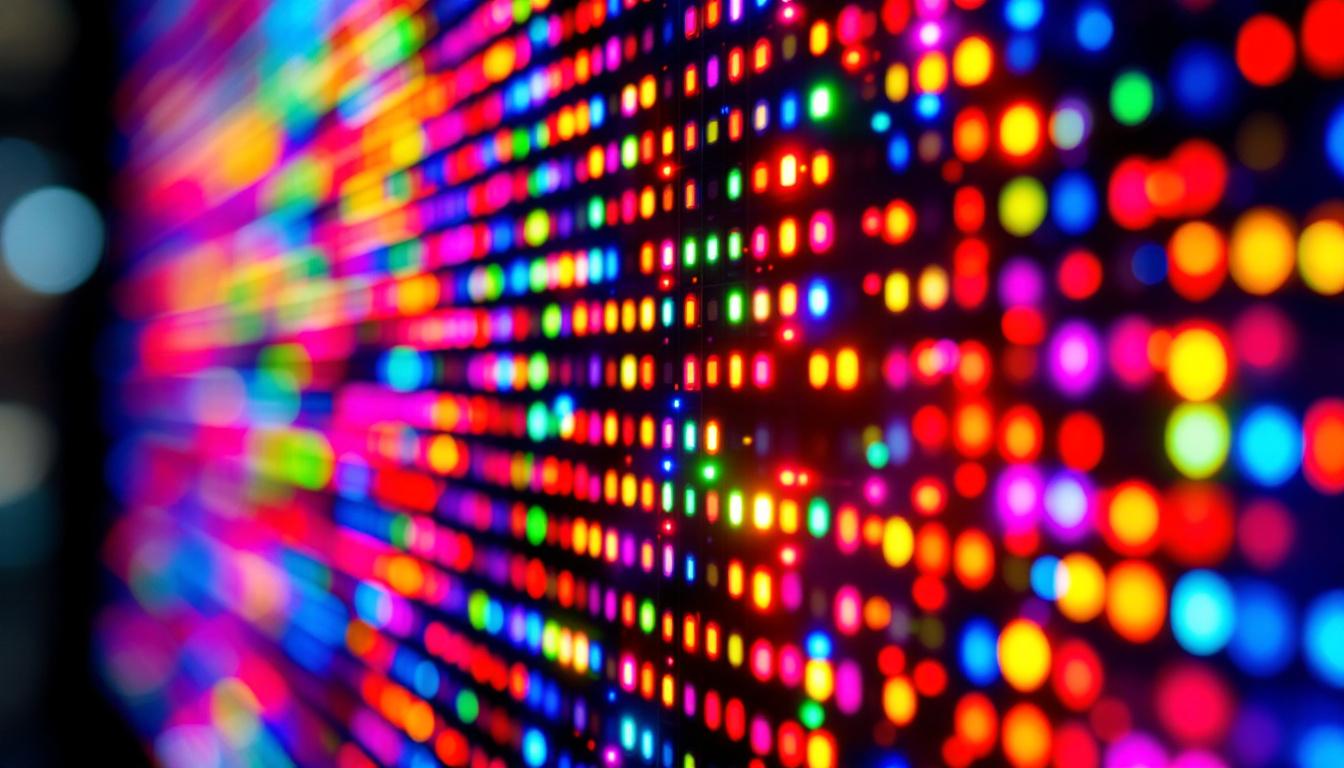
Monitor resolution refers to the number of distinct pixels displayed on the screen, typically expressed as width × height (e.g., 1920 × 1080). Each pixel is a tiny dot that emits light to form images. The higher the number of pixels, the more detail and clarity the screen can produce.
For LED displays, resolution is a critical specification because it determines how sharp and detailed the images and text appear. Common resolutions include Full HD (1920 × 1080), Quad HD (2560 × 1440), and 4K Ultra HD (3840 × 2160). Each step up in resolution offers a significant increase in image quality, assuming the screen size and viewing distance remain constant. Additionally, newer technologies such as 8K resolution (7680 × 4320) are emerging, pushing the boundaries of visual fidelity even further. This leap in pixel density can create an almost lifelike experience, particularly beneficial for applications like virtual reality or high-end gaming, where every detail matters.
Why Resolution Impacts User Experience
Resolution affects everything from productivity to entertainment. Higher resolutions allow more content to fit on the screen, which is beneficial for multitasking and professional applications such as graphic design, video editing, and data analysis. Gamers benefit from higher resolutions because they provide more immersive and detailed visuals, enhancing gameplay realism. Furthermore, in professional environments, higher resolutions can lead to improved accuracy in tasks that require precision, such as CAD design or detailed photo editing, where clarity can make a significant difference in the final output.
Conversely, a low resolution on a large screen can result in pixelation, where individual pixels become visible, leading to a grainy or blurry image. This can cause eye strain and reduce overall satisfaction with the display. Understanding your monitor’s resolution helps you adjust settings appropriately and ensures compatibility with your computer’s graphics capabilities. Moreover, it’s important to consider the aspect ratio in conjunction with resolution, as this can affect how content is displayed. For instance, a widescreen monitor with a resolution of 2560 × 1080 offers a different viewing experience compared to a standard 1920 × 1080 monitor, making it vital to choose a resolution and aspect ratio that aligns with your specific usage needs and preferences.
How to Find the Resolution of Your Monitor
Using Windows Settings
If you are using a Windows PC, finding your monitor’s resolution is straightforward:
- Right-click on the desktop and select Display settings.
- Scroll down to the Display resolution section.
- The current resolution will be displayed, typically marked as “Recommended” for your monitor.
This setting shows the resolution your operating system is currently using, which usually matches your monitor’s native resolution for optimal display quality. It’s important to note that running your display at a lower resolution than its native setting can lead to a less sharp image, as the pixels will be stretched to fill the screen. Conversely, setting a higher resolution than the monitor supports can result in a distorted or blank screen.
Additionally, Windows provides an option to change the scaling settings, which can help make text and other items easier to read, especially on high-resolution displays. This feature is particularly beneficial for users with 4K monitors, where scaling can significantly enhance the user experience by making interface elements larger and more accessible.
Using macOS System Preferences
For Mac users, follow these steps:
- Click the Apple menu and select System Preferences.
- Choose Displays.
- Under the Display tab, the current resolution will be shown. You can select “Default for display” or “Scaled” to view other supported resolutions.
macOS typically chooses the best resolution automatically, but users can manually adjust it if needed. When scaling is adjusted, macOS intelligently resizes the interface, ensuring that text remains crisp and images look sharp. This flexibility is particularly advantageous for creative professionals who require precise color and detail in their work, allowing them to tailor their display settings to fit their specific needs.
Moreover, Apple’s Retina displays are designed to deliver stunning visuals, and understanding how to manage resolution settings can help users fully leverage this technology. Users may also find it useful to explore the “Night Shift” feature in the Displays settings, which adjusts the color temperature of the display to reduce eye strain during evening hours.
Checking Your Monitor’s Manual or Manufacturer Website
If you want to confirm the native resolution rather than the current setting, consult the monitor’s user manual or visit the manufacturer’s website. The native resolution is the fixed number of pixels the display was designed to show, which provides the best image quality.
For example, a popular 24-inch LED monitor might have a native resolution of 1920 × 1080 (Full HD), while a 27-inch model could support 2560 × 1440 (Quad HD). The manufacturer’s specifications will provide this information clearly. Additionally, some monitors come with features like HDR (High Dynamic Range) support, which can enhance the viewing experience by providing a wider color gamut and improved contrast ratios when paired with the correct resolution.
Understanding the native resolution is crucial for gamers and graphic designers, as it can significantly affect performance and visual fidelity. Many modern monitors also support multiple resolutions, allowing users to switch between settings based on their specific tasks, whether it’s gaming, video editing, or general productivity.
Using Third-Party Software Tools
There are also software tools that provide detailed information about your display, including resolution, refresh rate, and color depth. Applications like Speccy, DisplayFusion, or HWiNFO can help users who want more technical details about their hardware.
These tools are especially useful for troubleshooting or when using multiple monitors with different resolutions. They can also provide insights into your graphics card capabilities, helping you determine if your system can handle higher resolutions or refresh rates. For gamers, knowing the refresh rate is particularly important, as a higher refresh rate can lead to smoother gameplay and a more responsive experience.
Furthermore, some of these applications can monitor system performance in real-time, allowing users to make informed decisions about their display settings based on current hardware performance. This can be invaluable for users who frequently switch between demanding applications, ensuring that their monitor settings are optimized for each task at hand.
How Resolution Affects LED Display Performance
Impact on Image Quality and Clarity
Higher resolution means more pixels per inch (PPI), which results in finer detail and smoother edges. This is particularly noticeable when viewing high-definition videos, detailed graphics, or small text. For example, a 4K display on a 27-inch monitor will produce crisper images than a Full HD display of the same size.
However, resolution alone does not guarantee superior image quality. Factors such as panel type, color accuracy, brightness, and contrast ratio also play significant roles. LED displays often use IPS or VA panels, which offer better color reproduction and viewing angles compared to older TN panels.
Performance Considerations for Gaming and Professional Use
Higher resolutions demand more from your computer’s graphics processing unit (GPU). Running games or graphic-intensive applications at 4K resolution requires a powerful GPU to maintain smooth frame rates. Users with mid-range or older graphics cards might prefer 1080p or 1440p resolutions to balance visual quality and performance.
In professional environments, higher resolution monitors allow for more workspace and finer control over detail. For example, photographers and video editors benefit from 4K or higher resolutions to accurately assess image quality and make precise adjustments.
Scaling and Compatibility Issues
Sometimes, increasing resolution can make text and icons appear too small, especially on smaller monitors. Operating systems offer scaling options to enlarge interface elements without sacrificing sharpness. However, improper scaling can cause blurry images or UI inconsistencies.
It is important to use the native resolution of your LED display whenever possible and adjust scaling settings thoughtfully to ensure a comfortable and clear viewing experience.
Choosing the Right Resolution for Your LED Monitor
Consider Your Monitor Size and Viewing Distance
The ideal resolution depends largely on the size of your monitor and how far you sit from it. For smaller monitors (under 24 inches), Full HD (1920 × 1080) is generally sufficient and provides sharp images at typical desk distances.
For larger monitors (27 inches and above), Quad HD (2560 × 1440) or 4K (3840 × 2160) resolutions offer noticeable improvements in clarity. Sitting closer to a large screen with a low resolution can reveal pixelation, while higher resolutions maintain image sharpness even at close range.
Match Resolution to Your Usage Needs
For general office work, web browsing, and streaming, Full HD is often adequate and less demanding on hardware. Gamers and creative professionals should consider higher resolutions to enhance detail and immersion.
It is also worth noting that some applications and games may not support ultra-high resolutions fully, so checking compatibility is essential before upgrading.
Budget and Hardware Limitations
Higher resolution monitors tend to be more expensive and require more powerful computers. When selecting a resolution, balance your budget with your hardware capabilities and intended use. Investing in a high-quality monitor with a native resolution that matches your needs will provide the best long-term satisfaction.
Additional Tips for Optimizing Your Monitor’s Resolution
Keep Graphics Drivers Updated
Ensuring your graphics card drivers are up to date helps maintain compatibility with your monitor’s resolution and can improve performance and stability. Manufacturers regularly release updates that optimize resolution handling and fix bugs.
Calibrate Your Display
Calibration tools can adjust color, brightness, and contrast to maximize image quality at your chosen resolution. Many operating systems include built-in calibration wizards, or you can use dedicated hardware calibrators for professional accuracy.
Use Proper Cables and Ports
To achieve the best resolution, use high-quality cables such as HDMI 2.0, DisplayPort 1.4, or USB-C that support the bandwidth required for your monitor’s maximum resolution and refresh rate. Older cables may limit the resolution or cause flickering and artifacts.
Conclusion
Understanding how to find the resolution of your LED monitor and why it matters is key to optimizing your digital experience. Whether you are a casual user, gamer, or professional, knowing your display’s resolution helps you make informed decisions about settings, hardware upgrades, and usage habits.
By following the methods outlined above, you can easily identify your monitor’s resolution and adjust it to suit your needs. Remember that resolution is just one aspect of display quality, so consider other factors such as panel type, refresh rate, and color accuracy when evaluating your LED monitor.
Ultimately, choosing the right resolution and maintaining your display properly will enhance your viewing comfort, productivity, and enjoyment for years to come.
Discover the Perfect Resolution with LumenMatrix
Now that you understand the importance of monitor resolution and how to find the right one for your needs, take the next step with LumenMatrix. As a pioneer in LED display technology, LumenMatrix offers a wide array of innovative LED display solutions tailored to your unique requirements. Whether you’re looking for an Indoor LED Wall Display, a vibrant Outdoor LED Wall Display, or specialized options like Vehicle LED Displays and LED Sports Displays, LumenMatrix has the cutting-edge technology to elevate your visual experience. Experience the difference in clarity and engagement with our LED displays. Check out LumenMatrix LED Display Solutions today and transform the way you share your message.