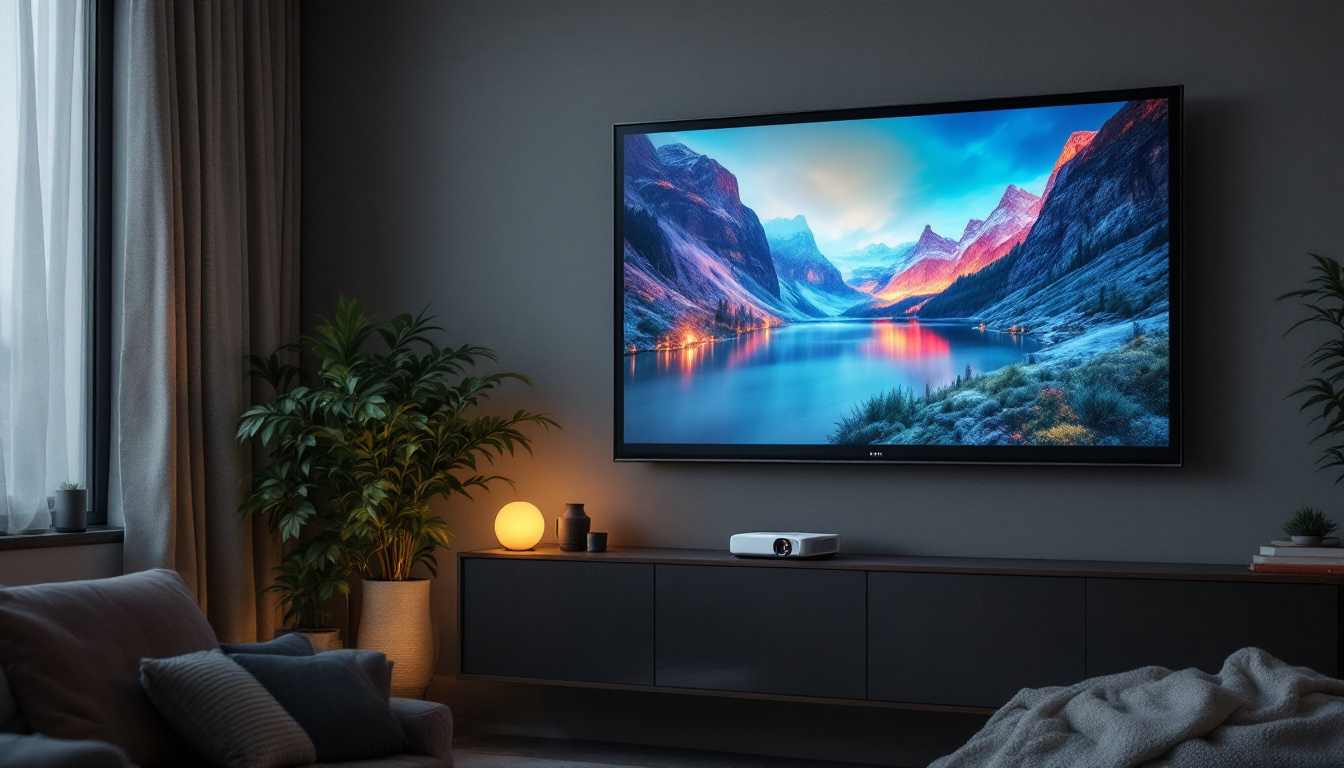
In the digital age, monitors have become indispensable tools for work, entertainment, and communication. Yet, many users occasionally encounter a frustrating issue: lines appearing on their monitor screens. These lines can range from faint streaks to bold bands, disrupting the viewing experience and raising concerns about the health of the display. Understanding why these lines appear, especially on LED displays, is crucial for troubleshooting and maintaining your monitor’s longevity.
Understanding LED Displays: The Basics
LED, or Light Emitting Diode, displays have become the standard in modern monitors due to their superior brightness, energy efficiency, and color accuracy compared to older technologies like CCFL LCDs and CRTs. Unlike traditional LCDs that use fluorescent backlighting, LED displays utilize light-emitting diodes to illuminate the screen, allowing for thinner panels and better contrast ratios. This advancement in technology has not only improved visual quality but has also contributed to a more sustainable approach to display manufacturing, as LED technology consumes significantly less power and has a longer lifespan than its predecessors.
LED monitors come in two primary types: edge-lit and direct-lit. Edge-lit LED displays position the LEDs around the edges of the screen, using light guides to spread illumination evenly. Direct-lit LED displays, on the other hand, have LEDs placed directly behind the screen, offering more uniform brightness and better local dimming capabilities. The choice between these types often depends on the intended use; for instance, gamers and graphic designers may prefer direct-lit displays for their enhanced color depth and contrast, while casual users might find edge-lit models sufficient for everyday tasks.
Despite these advantages, LED monitors are not immune to technical issues, including the appearance of lines on the screen. These lines can stem from a variety of causes, ranging from hardware malfunctions to software glitches. In some cases, they may indicate a problem with the monitor’s internal circuitry or a loose connection, while in others, they could be a result of outdated drivers or incorrect display settings. Regular maintenance and updates can often mitigate these issues, ensuring that users enjoy the best possible performance from their displays.
Additionally, the evolution of LED technology has led to the emergence of newer variants, such as OLED (Organic Light Emitting Diode) and Mini-LED displays. OLED technology offers even deeper blacks and a wider color gamut by allowing each pixel to emit its own light, eliminating the need for backlighting entirely. Mini-LED, on the other hand, enhances traditional LED displays by using smaller diodes that enable more precise control over local dimming zones, resulting in improved contrast and brightness levels. As these technologies continue to develop, they promise to further revolutionize the way we experience visual content, making it more immersive and lifelike than ever before.
Common Causes of Lines on LED Monitor Screens
1. Hardware Issues
Hardware problems are among the most frequent reasons for lines appearing on LED screens. One common culprit is a damaged or loose video cable. HDMI, DisplayPort, or VGA cables that are frayed, bent, or improperly connected can cause signal interference, resulting in horizontal or vertical lines.
Another hardware-related cause is a failing graphics card. When the GPU (graphics processing unit) is overheating, damaged, or malfunctioning, it can produce artifacts such as lines, flickering, or color distortions on the monitor. Users who experience lines only when running graphic-intensive applications may want to inspect their GPU’s health.
Additionally, the internal components of the monitor itself can degrade over time. Issues with the display panel’s ribbon cables or the T-Con (timing controller) board can cause persistent lines. The T-Con board controls the timing of the pixels on the screen, and any fault here can manifest as lines or flickering. Regular maintenance, such as cleaning dust from vents and ensuring proper airflow, can help prolong the life of these components and prevent such issues from arising.
2. Software and Driver Conflicts
While hardware is often the first suspect, software can also play a significant role. Outdated or corrupted graphics drivers can cause display anomalies, including lines on the screen. Regularly updating drivers from the GPU manufacturer’s website can prevent such issues. It’s also advisable to uninstall any unnecessary software that may conflict with the graphics drivers, as this can lead to unexpected display behavior.
Operating system bugs or conflicts with recently installed software can also interfere with display output. In some cases, performing a system restore or booting in safe mode can help isolate whether the problem is software-related. Users should also consider running diagnostic tools that come with their operating systems, as these can identify and resolve issues that may not be immediately apparent. Keeping the operating system updated is crucial, as patches often address bugs that could affect display performance.
3. External Interference and Environmental Factors
Electromagnetic interference (EMI) from nearby devices such as routers, speakers, or mobile phones can sometimes cause lines or flickering on LED monitors. Ensuring proper cable shielding and maintaining a clutter-free workspace can reduce this risk. Furthermore, using high-quality cables that are designed to minimize interference can also help maintain a clear signal and improve overall display quality.
Environmental factors like extreme temperatures or humidity can also affect monitor performance. LED displays are generally robust but prolonged exposure to harsh conditions may accelerate component wear, leading to visual defects. For instance, high humidity can lead to condensation inside the monitor, potentially causing short circuits or other electrical issues. It’s advisable to keep monitors in controlled environments, away from direct sunlight or heat sources, to ensure optimal performance and longevity. Regularly checking the monitor’s surroundings can help mitigate these risks and maintain a clear, uninterrupted display.
Diagnosing Lines on Your LED Monitor
Before jumping to conclusions or costly repairs, it’s important to systematically diagnose the source of the lines on your monitor. This process involves a series of steps to isolate the problem.
Step 1: Check the Cables and Connections
Start by inspecting all video cables for visible damage. Unplug and securely reconnect them to both the monitor and the computer. If possible, try using a different cable to rule out cable faults.
Step 2: Test with Another Device
Connect your monitor to a different computer or laptop. If the lines disappear, the issue likely lies with your original computer’s hardware or software. Conversely, if the lines persist, the monitor itself may be at fault.
Step 3: Update or Reinstall Graphics Drivers
Visit the website of your graphics card manufacturer (such as NVIDIA, AMD, or Intel) and download the latest drivers. Installing updated drivers can resolve many display issues caused by software conflicts.
Step 4: Inspect Monitor Settings and Reset
Access your monitor’s on-screen display (OSD) menu and reset it to factory settings. Sometimes, incorrect configurations or custom settings can cause display anomalies.
Step 5: Check for Overheating
Ensure your computer’s cooling system is functioning properly. Overheating GPUs or CPUs can cause graphical glitches. Cleaning dust from fans and vents can improve airflow and reduce heat buildup.
Preventing Lines on LED Monitors: Best Practices
Prevention is always better than cure, especially when it comes to delicate electronics like LED monitors. Adopting a few simple habits can help maintain your monitor’s health and reduce the likelihood of lines appearing on the screen.
Use High-Quality Cables and Connectors
Investing in well-made, shielded cables can minimize signal interference and physical wear. Avoid bending cables sharply or placing heavy objects on them.
Keep Your System Updated
Regularly update your operating system and graphics drivers to ensure compatibility and fix known bugs that could affect display output.
Maintain Proper Ventilation
Ensure your computer and monitor have adequate airflow to prevent overheating. Avoid placing monitors in direct sunlight or near heat sources.
Handle with Care
Physical shocks or pressure on the screen can damage internal components. Use monitor stands or mounts that provide stable support and avoid touching the screen surface unnecessarily.
When to Seek Professional Repair or Replacement
Despite best efforts, some issues may require professional intervention. Persistent lines that do not resolve after troubleshooting often indicate hardware failure within the monitor.
Repairing components like the T-Con board or replacing internal cables can be complex and costly. In many cases, especially with older monitors, replacement may be more economical and practical.
For monitors under warranty, contacting the manufacturer or authorized service centers is recommended. Attempting self-repair can void warranties and potentially cause further damage.
Emerging Technologies and the Future of LED Displays
The display industry continues to evolve rapidly, with innovations aimed at enhancing image quality and durability. Technologies such as OLED (Organic LED) and MicroLED are gaining traction, offering deeper blacks, faster response times, and improved energy efficiency.
MicroLED displays, in particular, promise to eliminate many issues associated with traditional LED panels, including uniformity problems that can cause lines or color inconsistencies. However, these technologies are currently more expensive and less widespread.
As these advancements become mainstream, consumers can expect more reliable displays with fewer visual defects, improving the overall user experience.
Conclusion
Lines appearing on LED monitor screens can be caused by a variety of factors, from simple cable issues to complex hardware failures. Understanding the underlying technology and systematically diagnosing the problem can save time and money. Regular maintenance, careful handling, and timely software updates are key to preventing these issues.
While some problems can be fixed at home, persistent or severe display anomalies often require professional repair or replacement. Staying informed about emerging display technologies can also help users make better purchasing decisions, ensuring a clearer, more vibrant viewing experience for years to come.
Explore Cutting-Edge LED Solutions with LumenMatrix
If you’re looking to elevate your visual experience and avoid common display issues, LumenMatrix offers a suite of innovative LED display solutions tailored to your needs. From captivating Indoor LED Wall Displays to dynamic Outdoor LED Wall Displays, and specialized options like Vehicle LED Displays and LED Sports Displays, our products are designed to enhance brand visibility and audience engagement. Embrace the future of visual communication with our All-in-One LED Displays, LED Transparent Displays, and more. Check out LumenMatrix LED Display Solutions today and transform the way you share your message with the world.