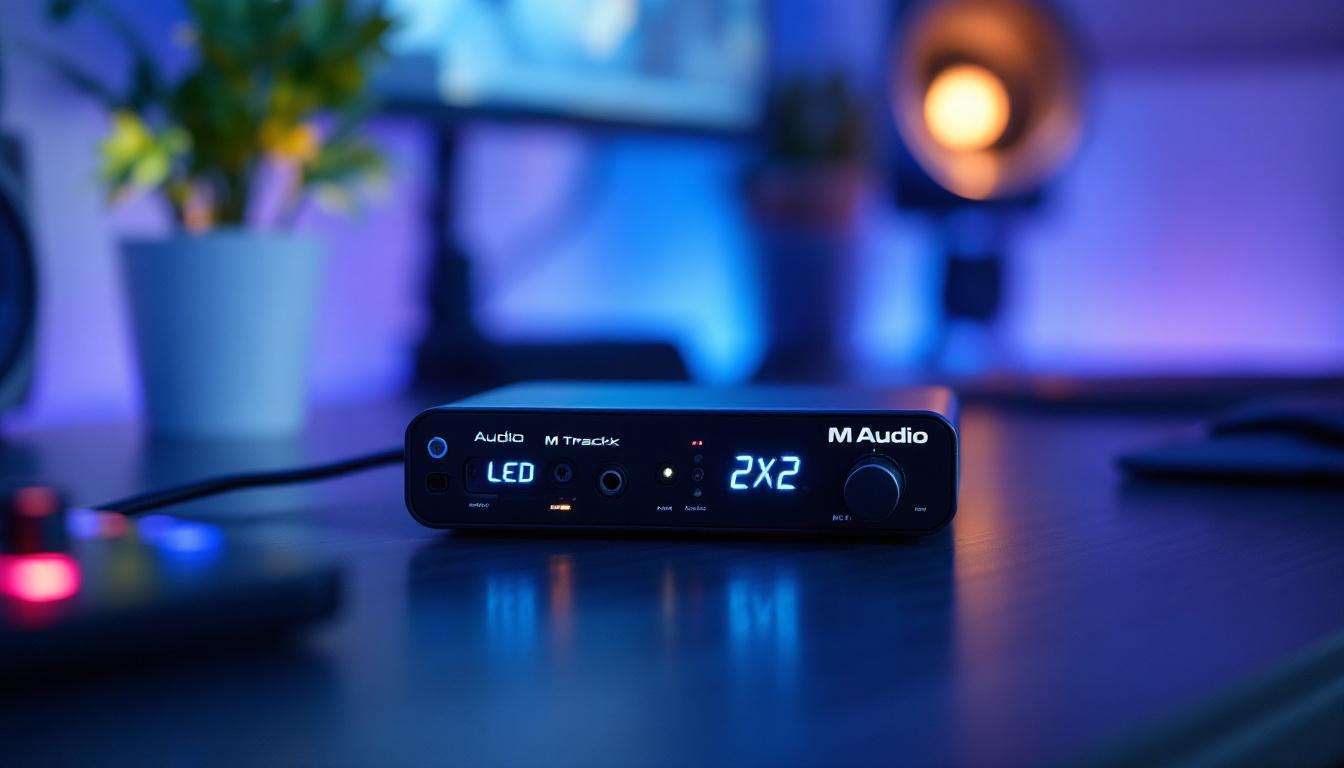
The M Audio M Track 2X2 is a popular audio interface widely used by musicians, podcasters, and audio engineers for its reliable performance and user-friendly features. Among its many functionalities, the LED display on the device plays a crucial role in providing real-time feedback about the interface’s status and audio levels. Understanding what the LED indicators mean can greatly enhance your workflow, ensuring optimal sound quality and preventing common issues such as clipping or connection problems.
Overview of the M Audio M Track 2X2 Interface
The M Track 2X2 is a compact, USB-powered audio interface designed to deliver high-quality audio input and output for home studios and mobile recording setups. It features two combo XLR/1/4″ inputs, two balanced outputs, MIDI connectivity, and a headphone output with dedicated volume control. Its rugged metal chassis and intuitive controls make it a favorite among both beginners and seasoned professionals.
One of the standout features of the M Track 2X2 is its LED display system, which provides visual cues about the device’s operational status. This feature is particularly valuable during recording and mixing sessions, as it helps users monitor signal levels and connectivity at a glance without needing to rely solely on software interfaces.
Additionally, the M Track 2X2 supports high-resolution audio recording up to 24-bit/192 kHz, ensuring that every nuance of your sound is captured with remarkable clarity. This level of detail is essential for musicians and producers who demand the best from their recordings, whether they are tracking vocals, instruments, or electronic sounds. The interface also includes a direct monitoring feature that allows users to hear their input signals in real time, eliminating any latency issues that can disrupt the creative flow.
Moreover, the M Track 2X2 comes bundled with a suite of software, including popular digital audio workstations (DAWs) and virtual instruments, providing users with everything they need to start producing music right out of the box. This comprehensive package not only enhances the overall value of the interface but also empowers users to explore their creativity without the need for additional investments in software. With its combination of portability, functionality, and affordability, the M Track 2X2 is an excellent choice for anyone looking to elevate their audio production experience.
Understanding the LED Display on the M Track 2X2
What the LEDs Represent
The LED display on the M Track 2X2 primarily consists of a set of lights that indicate input signal levels, output status, and power connectivity. These LEDs are strategically placed near the input gain knobs and output volume controls to give immediate feedback on signal strength and clipping risk.
Typically, the LEDs are color-coded: green for safe signal levels, yellow for caution, and red for clipping or distortion. This color scheme is standard in audio equipment, allowing users to quickly interpret the status of their audio signals and make necessary adjustments.
Input Signal LEDs
Each input channel on the M Track 2X2 has a dedicated LED meter that lights up in response to the incoming audio signal. When the signal is at a healthy level, the green LEDs will illuminate, indicating that the input is active and receiving sound. As the input level increases, yellow LEDs will light up, signaling that the level is approaching the upper limit.
If the input signal becomes too strong, the red LED will flash, warning the user that the signal is clipping. Clipping occurs when the audio level exceeds the maximum limit the interface can handle, resulting in distortion and degraded sound quality. Recognizing this early allows users to reduce the gain and maintain clean audio.
Output and Headphone LEDs
The output section also features LEDs that provide feedback on the interface’s output levels. These LEDs help monitor the volume being sent to connected speakers or headphones. Similar to the input LEDs, green indicates normal levels, yellow signals caution, and red warns of potential clipping or distortion.
Monitoring these LEDs is essential during mixing and playback to ensure that the output is clean and free from unwanted distortion. It also helps prevent damage to speakers or headphones caused by excessively high volumes.
Power and Connectivity Indicators
In addition to signal level LEDs, the M Track 2X2 includes LEDs that indicate power status and USB connectivity. A solid LED light typically confirms that the interface is properly powered and recognized by the computer. If the LED is off or blinking, it may indicate a connection issue or that the device is not receiving sufficient power.
These indicators are particularly useful when troubleshooting hardware problems or ensuring that the interface is ready for use before starting a recording session.
How to Interpret LED Signals for Optimal Performance
Maintaining Proper Input Levels
One of the most common challenges when using audio interfaces is managing input gain to avoid clipping while maintaining a strong signal. The LED display on the M Track 2X2 serves as an invaluable guide in this process. Users should aim to keep the input LEDs predominantly green and occasionally yellow during peak passages.
Consistently hitting the red LED means the input gain is too high, which can introduce distortion and reduce the clarity of recordings. To correct this, simply lower the gain knob for the respective input channel until the red LED stops flashing.
Ensuring Clean Output Signals
Just as important as input levels, output levels must be monitored to prevent distortion and protect audio equipment. The output LEDs help users maintain a balanced mix by indicating when the output volume is within a safe range.
When the output LEDs frequently reach the yellow or red zones, it’s advisable to lower the output volume or adjust the mix levels within your digital audio workstation (DAW). This practice ensures that playback is clear and free from unwanted artifacts.
Recognizing Power and Connection Issues
The power and USB connectivity LEDs provide quick insight into the interface’s operational status. If the power LED fails to illuminate, check the USB cable and port, as well as the computer’s power settings. A blinking LED might suggest driver issues or insufficient power supply, especially when using USB hubs or longer cables.
Ensuring stable connectivity is crucial for uninterrupted recording sessions and reliable audio performance.
Troubleshooting Common LED Display Issues
LEDs Not Lighting Up
If none of the LEDs on the M Track 2X2 are lighting up, the first step is to verify the USB connection. Use a different USB cable or port to rule out hardware faults. Additionally, ensure that the device drivers are correctly installed and up to date, as outdated drivers can prevent the interface from communicating with the computer.
Power supply issues may also cause the LEDs to remain off. Since the interface is bus-powered, insufficient power from the USB port can be a culprit. Connecting directly to the computer’s USB port instead of a hub often resolves this problem.
LEDs Stuck on One Color
Occasionally, users might notice the LEDs stuck on a single color, such as green or red, regardless of the actual audio input or output. This can indicate a firmware glitch or a hardware malfunction. Restarting the device and the computer can sometimes reset the LEDs.
If the issue persists, reinstalling the latest drivers from the M Audio website or contacting customer support may be necessary to address potential hardware defects.
Inconsistent LED Behavior
Flickering or erratic LED behavior can often be traced back to driver conflicts or USB power fluctuations. Ensuring that the interface is connected directly to a reliable USB port and updating the drivers can help stabilize the LED indicators.
Additionally, closing other audio applications that might interfere with the interface’s operation can improve LED responsiveness and overall performance.
Maximizing the Use of the M Track 2X2 LED Display
Integrating LED Feedback into Your Workflow
Using the LED display effectively can streamline recording and mixing processes. By routinely monitoring input and output LEDs, users can maintain optimal signal levels, reducing the need for extensive post-processing and minimizing audio artifacts.
In fast-paced recording environments, the LED display offers immediate visual confirmation that signals are within acceptable ranges, allowing engineers and musicians to focus more on performance and creativity.
Combining LED Indicators with Software Tools
While the LED display provides essential hardware-level feedback, combining it with software meters in your DAW can offer a comprehensive view of your audio signals. Software meters often provide more detailed visualizations, but the hardware LEDs serve as a reliable backup and quick reference.
This dual-layer monitoring approach ensures that users can catch potential issues early, whether they arise from hardware or software sources.
Regular Maintenance and Firmware Updates
Keeping the M Track 2X2’s firmware and drivers up to date is vital for maintaining accurate LED display functionality. Manufacturers frequently release updates that improve device stability, fix bugs, and enhance compatibility with the latest operating systems.
Regularly checking the M Audio website for updates and following recommended installation procedures will help ensure that the LED indicators remain reliable and informative throughout the lifespan of the device.
Conclusion
The LED display on the M Audio M Track 2X2 is more than just a visual accessory—it is an essential tool for managing audio signal integrity and ensuring smooth operation. By understanding what each LED indicator represents and how to interpret their signals, users can optimize their recording and mixing workflows, prevent common audio issues, and protect their equipment.
Whether you are a beginner learning the basics of audio interfaces or a professional seeking precise control over your sound, mastering the LED display on the M Track 2X2 will enhance your overall audio experience and contribute to producing high-quality recordings.
Enhance Your Audio Experience with LumenMatrix
Now that you’ve mastered the LED display of your M Audio M Track 2X2, take the next step in elevating your audio productions with LumenMatrix’s advanced LED display technology. Whether you’re looking to create an immersive studio environment or showcase your work with striking visuals, LumenMatrix offers a wide range of LED display solutions, from Indoor and Outdoor LED Walls to Custom and All-in-One LED Displays. Experience the synergy of exceptional sound and captivating visuals. Check out LumenMatrix LED Display Solutions and transform your creative space today.