In today’s digital world, the quality and performance of display screens have become critical factors for both personal and professional use. Whether you are a graphic designer, a gamer, or simply someone who spends hours in front of a computer, understanding the technology behind your monitor can significantly enhance your experience. One common issue that users encounter is the appearance of lines on the screen, which can be both distracting and indicative of deeper problems. This article delves into the intricacies of LED displays, the causes of screen lines, and how to address them effectively.
Understanding LED Display Technology
LED, or Light Emitting Diode, technology has revolutionized the way screens are designed and utilized. Unlike traditional LCDs that rely on cold cathode fluorescent lamps (CCFL) for backlighting, LED displays use light-emitting diodes, which offer several advantages including better energy efficiency, thinner panels, and improved brightness and contrast ratios.
Modern LED monitors are typically categorized into two types: edge-lit and direct-lit. Edge-lit LED displays position the LEDs along the edges of the screen, allowing for slimmer designs, whereas direct-lit monitors have LEDs placed directly behind the screen, providing more uniform illumination.
One key benefit of LED technology is its ability to produce vibrant colors and deep blacks, which is essential for applications requiring high color accuracy such as photo editing and video production. Additionally, LED displays generally have faster response times compared to older LCDs, reducing motion blur and improving the overall visual experience.
How LED Screens Work
At the core of an LED display is the liquid crystal layer, which controls the passage of light to create images. The LEDs serve as the light source, shining through the liquid crystals. By adjusting the orientation of these crystals, the screen can control the intensity and color of each pixel. This process happens millions of times per second, creating the dynamic images users see.
Advancements such as Quantum Dot technology have further enhanced LED displays by improving color gamut and brightness. Quantum dots are semiconductor nanocrystals that emit precise colors when illuminated by LEDs, allowing for more vivid and lifelike images. These innovations have made LED displays not only popular in consumer electronics but also in professional environments, where color fidelity is paramount.
Moreover, LED technology has paved the way for flexible and curved displays, which can adapt to various viewing environments and enhance the immersive experience. This flexibility opens up new possibilities in design, allowing manufacturers to create screens that fit seamlessly into a variety of spaces, from home theaters to commercial advertising. As the technology continues to evolve, we can expect to see even more innovative applications, such as transparent displays that blend into their surroundings, further pushing the boundaries of visual technology.
Common Causes of Lines on LED Monitor Screens
Lines appearing on a monitor screen can be frustrating and may signal underlying hardware or software issues. Understanding the root causes is essential for effective troubleshooting and repair.
Physical Damage and Hardware Issues
One of the most frequent causes of screen lines is physical damage to the display panel. This can occur due to accidental drops, pressure applied to the screen, or manufacturing defects. When the delicate layers within the panel are compromised, horizontal or vertical lines may appear.
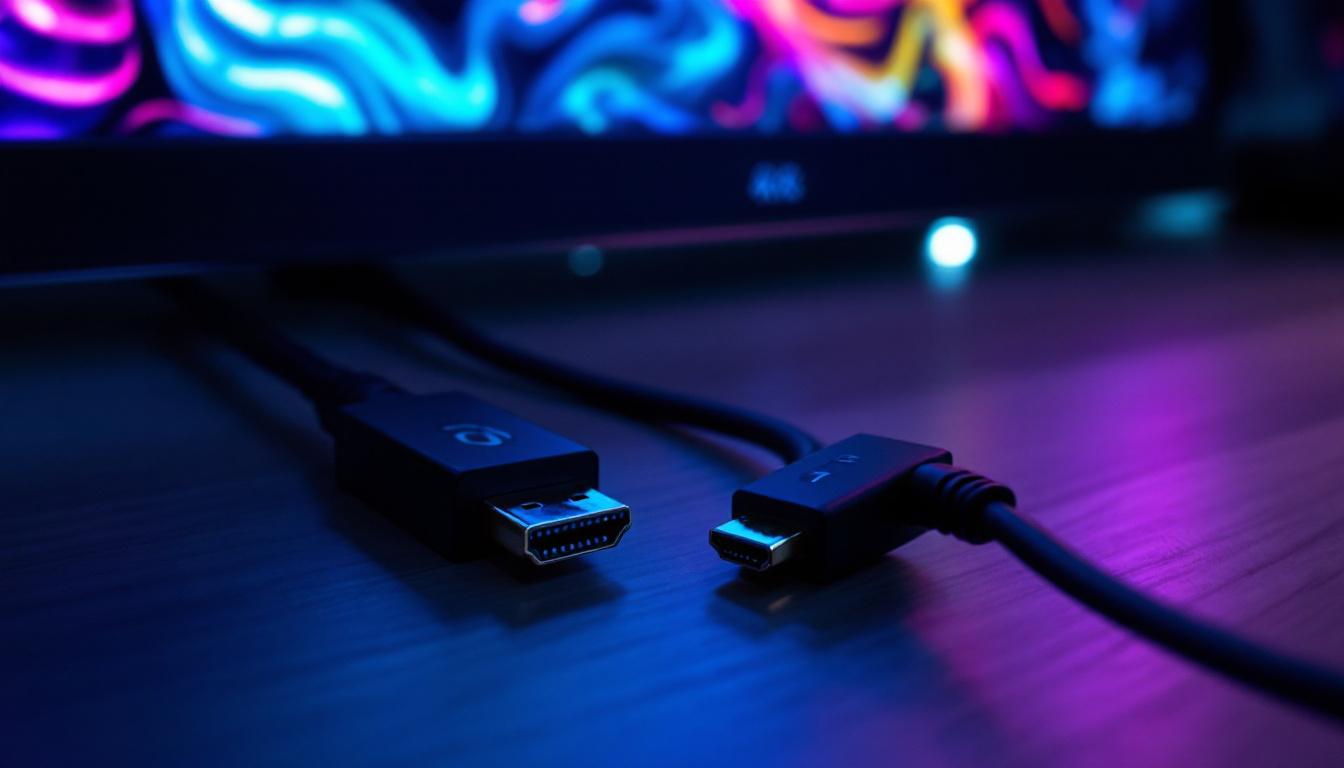
Another hardware-related cause is a faulty or loose video cable connection. HDMI, DisplayPort, or VGA cables that are damaged or improperly connected can result in intermittent lines or flickering on the screen. Ensuring secure and undamaged cables is a simple first step in diagnosing the problem.
Additionally, issues with the graphics card or the monitor’s internal circuitry can cause persistent lines. Overheating, aging components, or manufacturing defects can degrade performance over time, leading to visual artifacts.
Software and Driver Conflicts
While hardware is often the culprit, software problems can also cause lines on the screen. Outdated or corrupted graphics drivers may fail to render images correctly, resulting in display anomalies. Regularly updating drivers from the manufacturer’s website can prevent such issues.
Operating system glitches or conflicts between software applications can sometimes manifest as screen lines. Running diagnostics or booting the computer in safe mode can help isolate whether the problem is software-related.
Environmental Factors
Environmental conditions, such as electromagnetic interference from nearby devices, can occasionally affect monitor performance. Although modern monitors are well shielded, placing them near strong magnets, routers, or other electronic devices might introduce lines or flickering.
Power supply inconsistencies, such as voltage fluctuations or using incompatible power adapters, can also impact the display’s stability. Using a surge protector and ensuring the monitor receives stable power can mitigate these risks.
Diagnosing and Troubleshooting Screen Lines
Before considering costly repairs or replacements, several diagnostic steps can help identify the cause of screen lines on an LED monitor.
Step 1: Check Cable Connections
Start by inspecting all video cables for damage and ensure they are firmly connected to both the monitor and the computer. If possible, try using a different cable or port to rule out cable-related issues.
Step 2: Test with Another Device
Connecting the monitor to a different computer or device can help determine if the problem lies with the monitor itself or the original computer’s graphics system. If lines persist on another device, the monitor is likely at fault.
Step 3: Update Graphics Drivers
Visit the graphics card manufacturer’s website to download and install the latest drivers. This can resolve many display-related problems caused by software incompatibilities or bugs.
Step 4: Adjust Display Settings
Sometimes, incorrect resolution or refresh rate settings can cause display anomalies. Access the display settings on your computer and ensure they match the monitor’s native resolution and recommended refresh rate.
Step 5: Perform a Monitor Self-Test
Many modern monitors include a built-in self-test feature that can help identify hardware issues. Refer to the monitor’s manual to initiate this test, which typically displays a series of colors or patterns to check for defects.
When to Repair or Replace Your LED Monitor
Deciding whether to repair or replace a monitor depends on the severity of the issue, the cost of repairs, and the age of the device.
Repair Considerations
Minor issues such as loose cables, driver updates, or simple hardware fixes can often be resolved inexpensively. If the monitor is still under warranty, contacting the manufacturer for support or replacement is advisable.
For physical damage like cracked panels or faulty internal components, repair costs can be substantial. In many cases, replacing the monitor might be more economical, especially if the device is several years old.
Replacement Factors
Newer LED monitors offer significant improvements in resolution, color accuracy, and energy efficiency. Investing in a modern display can enhance productivity and reduce eye strain, particularly for users who spend long hours in front of screens.
When selecting a replacement, consider factors such as screen size, resolution (4K and above are becoming increasingly common), refresh rate (important for gamers), and additional features like HDR support and USB-C connectivity.
Preventing Screen Lines and Maintaining Your LED Monitor
Proper care and maintenance can extend the lifespan of your LED monitor and minimize the risk of screen lines and other issues.
Handle with Care
Avoid applying pressure to the screen and protect it from accidental drops or impacts. Using a screen protector can add an extra layer of defense against scratches and minor damage.
Maintain Cleanliness
Dust and debris can accumulate around ports and vents, potentially causing overheating or connection problems. Regularly clean your monitor with a soft, lint-free cloth and ensure that ventilation areas are unobstructed.
Use Quality Cables and Accessories
Invest in high-quality cables from reputable brands and avoid using damaged or worn-out connectors. Proper cable management can also prevent accidental disconnections or damage.
Keep Software Updated
Regularly update your operating system and graphics drivers to ensure compatibility and optimal performance. Many manufacturers release firmware updates for monitors that can fix bugs and improve functionality.
Optimize Environmental Conditions
Place your monitor away from strong electromagnetic sources and ensure it receives stable power supply. Using surge protectors and uninterruptible power supplies (UPS) can safeguard your device from electrical damage.
The Future of LED Display Technology
LED technology continues to evolve rapidly, with innovations aimed at enhancing image quality, energy efficiency, and user experience.
MicroLED is one of the most promising advancements on the horizon. Unlike traditional LEDs, MicroLEDs are microscopic and can be individually controlled, offering superior brightness, contrast, and color accuracy without the burn-in issues associated with OLED displays.
Additionally, flexible and transparent LED displays are emerging, opening new possibilities for design and application in various industries including automotive, retail, and wearable technology.
As these technologies mature, users can expect even more immersive and reliable display experiences, reducing common issues such as screen lines and improving overall durability.
Conclusion
Lines on an LED monitor screen can be a symptom of various underlying issues ranging from simple cable problems to complex hardware failures. Understanding the fundamentals of LED display technology and the common causes of screen lines empowers users to diagnose and address these problems effectively.
Regular maintenance, careful handling, and timely software updates are key strategies to prevent screen issues and extend the life of your monitor. When problems do arise, a systematic approach to troubleshooting can often save time and money.
With ongoing advancements in LED and related display technologies, the future holds exciting potential for clearer, more vibrant, and more reliable screens that cater to the diverse needs of today’s digital users.
Explore Cutting-Edge LED Displays with LumenMatrix
If you’re looking to elevate your visual experience and avoid common screen issues, LumenMatrix offers an extensive range of innovative LED display solutions tailored to your needs. From captivating Indoor and Outdoor LED Wall Displays to dynamic Vehicle and Sports LED Displays, and even customizable options like Floor and Transparent LED Displays, LumenMatrix is at the forefront of transforming visual communication. Discover how our All-in-One LED Display solutions can enhance engagement and bring your brand’s message to life with unparalleled clarity and impact. Check out LumenMatrix LED Display Solutions today and step into the future of display technology.