In today’s digital age, the quality of your monitor can significantly impact your computing experience. Whether you’re a gamer, a graphic designer, or simply browsing the web, understanding your monitor’s resolution and how LED technology works is essential. This comprehensive guide will help you identify your monitor’s resolution, explain what LED displays are, and explore why resolution matters more than ever in 2024.
Understanding Monitor Resolution: What Does It Mean?
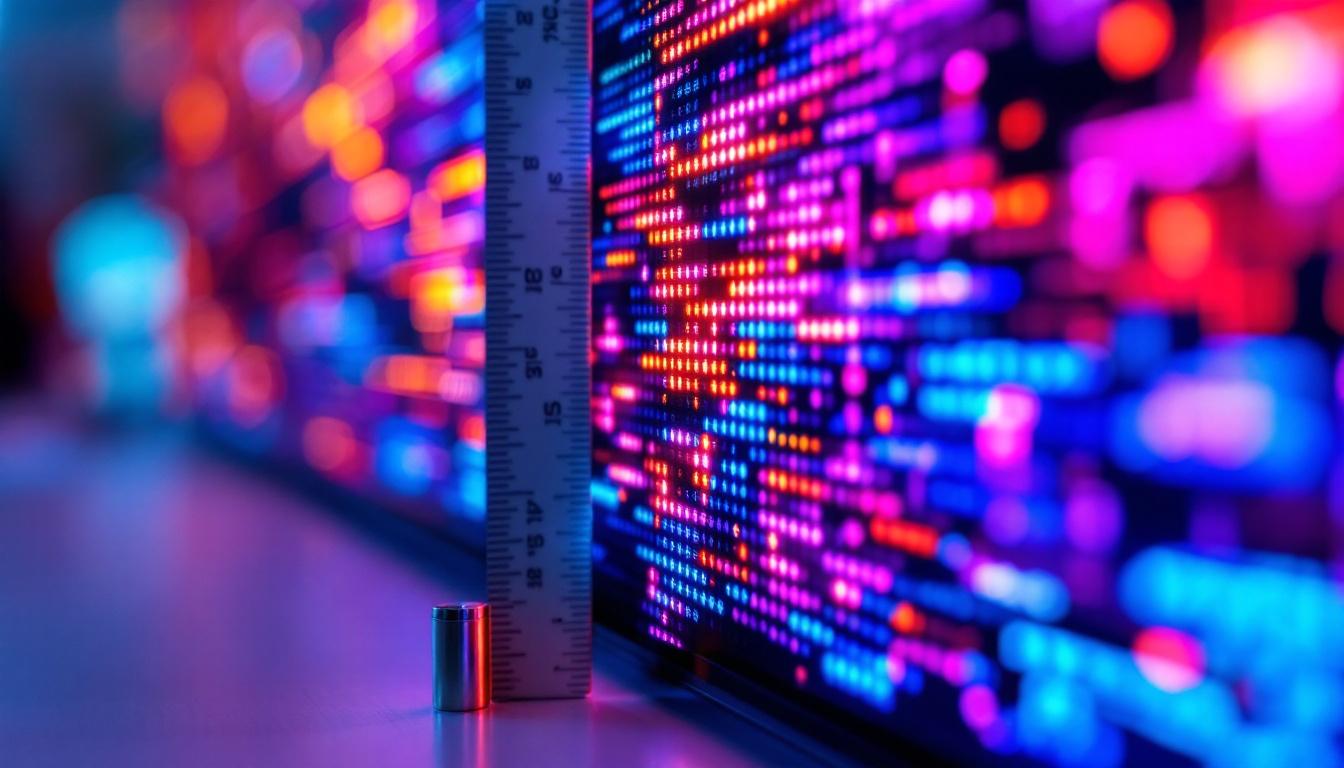
Monitor resolution refers to the number of pixels displayed on the screen, typically noted as width × height (e.g., 1920×1080). Each pixel is a tiny dot that emits light and color, collectively forming the images you see. The higher the resolution, the more pixels are packed into the screen, resulting in sharper and clearer images.
For example, a Full HD (FHD) resolution of 1920×1080 means the screen displays 1,920 pixels horizontally and 1,080 pixels vertically, totaling over 2 million pixels. In contrast, a 4K resolution (3840×2160) contains over 8 million pixels, offering four times the detail of Full HD.
Resolution is critical because it affects how much information can be displayed on your screen at once and how crisp images and text appear. A higher resolution allows for more workspace and finer detail, which is particularly important for tasks like photo editing, video production, and immersive gaming.
Common Monitor Resolutions in 2024
As of 2024, several standard resolutions dominate the market, each catering to different needs and budgets:
- 1366×768 (HD): Often found in budget laptops and smaller monitors. Suitable for basic tasks but lacks sharpness for detailed work.
- 1920×1080 (Full HD): The most common resolution, balancing quality and affordability. Ideal for everyday use, gaming, and media consumption.
- 2560×1440 (QHD or 2K): Offers a noticeable improvement in clarity and workspace over Full HD, popular among gamers and professionals.
- 3840×2160 (4K UHD): Provides ultra-high definition with exceptional detail, favored by creatives and enthusiasts.
- 5120×2880 (5K) and beyond: Used primarily in high-end professional environments requiring extreme detail, such as video editing and CAD applications.
In addition to resolution, it’s essential to consider pixel density, measured in pixels per inch (PPI), which can significantly impact the viewing experience. A higher PPI means that pixels are packed more closely together, resulting in finer details and smoother edges. For instance, a 27-inch monitor with a 4K resolution will have a much higher PPI than a 50-inch 4K TV, making it a better choice for tasks requiring precision, such as graphic design or detailed spreadsheets.
Moreover, advancements in display technology have led to the emergence of various resolutions tailored for specific applications. For example, ultrawide monitors, which often come in resolutions like 3440×1440, provide an immersive experience for gaming and multitasking by offering a wider field of view. Similarly, gaming monitors with high refresh rates and lower response times are becoming increasingly popular, as they enhance the overall visual experience by reducing motion blur and providing smoother gameplay, making resolution just one part of the equation when selecting a monitor.
How to Check Your Monitor’s Resolution
Determining your monitor’s resolution is straightforward and can be done through your operating system or physical inspection of your display settings.
Checking Resolution on Windows
On Windows 10 and 11, follow these steps:
- Right-click on the desktop and select Display settings.
- Scroll down to the Display resolution section.
- The current resolution will be shown, often marked as (Recommended) if it matches your monitor’s native resolution.
It’s important to use the native resolution of your LED monitor for the best image quality. Using a lower resolution can cause blurriness or distortion.
Checking Resolution on macOS
For Mac users:
- Click the Apple menu and select System Preferences.
- Choose Displays.
- Under the Display tab, you’ll see the current resolution. You can select Default for display or choose Scaled to see other options.
Using Online Tools and Software
Several websites and software tools can detect your screen resolution automatically. These tools are useful if you want a quick confirmation or are troubleshooting display issues. Examples include WhatIsMyScreenResolution.net and browser-based diagnostic tools.
What Is an LED Monitor? How Does It Work?
LED stands for Light Emitting Diode, a technology used to illuminate LCD (Liquid Crystal Display) panels. Despite the name, LED monitors are essentially LCD screens with LED backlighting, which replaced the older cold cathode fluorescent lamps (CCFLs).
The Role of LED Backlighting
The LED backlight shines through the LCD panel, which controls the color and intensity of each pixel. This combination allows the monitor to produce bright, vibrant images with improved energy efficiency compared to CCFL-backlit displays.
LED backlighting comes in two main types:
- Edge-lit LED: LEDs are placed around the edges of the screen, allowing for thinner monitors but sometimes uneven brightness.
- Full-array LED: LEDs are distributed evenly behind the entire screen, providing better uniformity and contrast, especially when paired with local dimming technology.
Advantages of LED Monitors
LED monitors have become the industry standard due to several benefits:
- Energy Efficiency: LEDs consume less power than CCFLs, reducing electricity costs and environmental impact.
- Improved Brightness and Contrast: LED backlighting can achieve higher brightness levels and deeper blacks, enhancing image quality.
- Thinner and Lighter Designs: The compact size of LEDs allows manufacturers to produce slim, lightweight monitors.
- Longer Lifespan: LEDs generally last longer than traditional backlighting methods, ensuring durability.
Why Monitor Resolution and LED Technology Matter Together
While resolution determines the detail and clarity of the image, LED technology influences how vibrant and accurate that image appears. Combining a high-resolution panel with quality LED backlighting creates a superior viewing experience.
Impact on Visual Performance
For users working with high-resolution content—such as 4K videos or detailed graphic designs—LED monitors can display colors more vividly and maintain consistent brightness across the screen. This is crucial for color-critical work where accuracy is paramount.
Gamers also benefit from LED monitors with higher refresh rates and faster response times, which reduce motion blur and input lag, enhancing gameplay smoothness.
Energy and Cost Considerations
LED monitors tend to be more energy-efficient, which is beneficial for both personal users and businesses managing large fleets of computers. Over time, the savings on electricity and replacement costs can be substantial.
Choosing the Right Resolution for Your Needs
Selecting the appropriate monitor resolution depends on your specific use case, budget, and hardware compatibility.
For Everyday Use
Full HD (1920×1080) remains the most practical choice for general computing tasks such as web browsing, office work, and streaming video. It offers good clarity on screens ranging from 21 to 27 inches and is widely supported by most software and hardware.
For Creative Professionals
Graphic designers, photographers, and video editors benefit from higher resolutions like QHD (2560×1440) or 4K (3840×2160). These resolutions provide more screen real estate and finer detail, allowing for precise editing and multitasking.
For Gamers
Gaming monitors often prioritize refresh rate and response time alongside resolution. While 4K gaming is becoming more accessible, many gamers prefer QHD at 144Hz or higher for a balance of sharp visuals and smooth performance. LED technology enhances contrast and color vibrancy, making games more immersive.
For Business and Productivity
Monitors with resolutions of 1920×1080 or 2560×1440 are common in office settings, providing enough space for multiple windows and applications. Ultrawide monitors with resolutions like 3440×1440 are gaining popularity for their ability to replace multi-monitor setups.
How to Optimize Your Monitor’s Resolution and Settings
Using your monitor at its native resolution ensures the best image quality. However, other settings can also enhance your viewing experience.
Adjusting Display Scaling
On high-resolution monitors, text and icons may appear too small. Display scaling adjusts the size of interface elements without sacrificing clarity. Both Windows and macOS offer scaling options to improve readability.
Calibrating Color and Brightness
For accurate color representation, especially important in creative work, calibrate your monitor using built-in tools or external calibration devices. Adjust brightness and contrast to comfortable levels to reduce eye strain.
Updating Graphics Drivers
Keeping your graphics card drivers up to date ensures compatibility with your monitor’s resolution and features. Manufacturers regularly release updates to improve performance and fix bugs.
Future Trends in Monitor Resolution and LED Technology
The monitor industry continues to evolve rapidly, driven by advances in display technology and user demands.
Mini-LED and Micro-LED Innovations
Mini-LED technology uses thousands of tiny LEDs for backlighting, offering even better contrast and brightness control than traditional LED monitors. Micro-LED, an emerging technology, promises self-emissive pixels with superior color accuracy and energy efficiency, potentially rivaling OLED displays.
Higher Resolutions and Refresh Rates
Resolutions beyond 8K are being explored, though widespread adoption depends on content availability and hardware support. Meanwhile, refresh rates exceeding 240Hz are becoming common in gaming monitors, paired with LED technology to deliver ultra-smooth visuals.
Adaptive Sync and HDR Support
Technologies like NVIDIA G-Sync and AMD FreeSync synchronize the monitor’s refresh rate with the graphics card, reducing screen tearing. High Dynamic Range (HDR) support enhances color depth and contrast, making images more lifelike.
Conclusion
Understanding your monitor’s resolution and the role of LED technology is key to maximizing your visual experience. Whether you’re checking your current setup or planning an upgrade, knowing how resolution impacts clarity and how LED backlighting enhances image quality will guide you in making informed decisions.
In 2024, LED monitors with high resolutions are more accessible than ever, offering options that cater to casual users, professionals, and gamers alike. By choosing the right resolution and optimizing your settings, you can enjoy sharper images, richer colors, and a more comfortable viewing experience.
Explore Cutting-Edge LED Display Solutions
Ready to elevate your visual experience with the latest in LED technology? Discover LumenMatrix’s innovative LED display solutions, designed to bring your content to life with unparalleled clarity and vibrancy. From immersive indoor and outdoor displays to dynamic vehicle and sports applications, LumenMatrix offers a wide range of products to meet your unique needs. Embrace the future of visual communication and check out LumenMatrix LED Display Solutions today to see how we can enhance your brand visibility and audience engagement.