Adjusting the brightness of your LED monitor is more than just a matter of comfort—it plays a crucial role in eye health, energy consumption, and overall display performance. With the increasing prevalence of LED displays in laptops, desktops, and televisions, understanding how to effectively manage brightness settings can enhance your viewing experience while protecting your vision.
Understanding LED Monitor Brightness
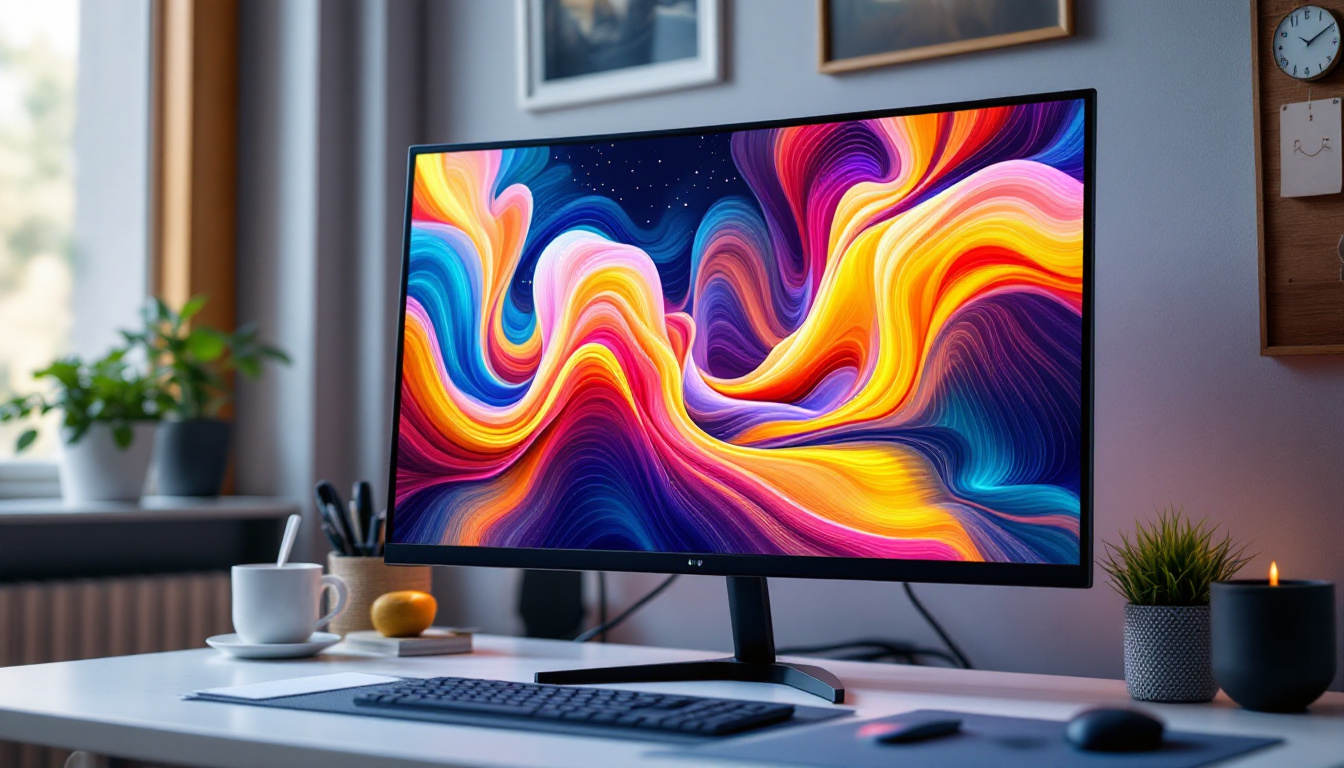
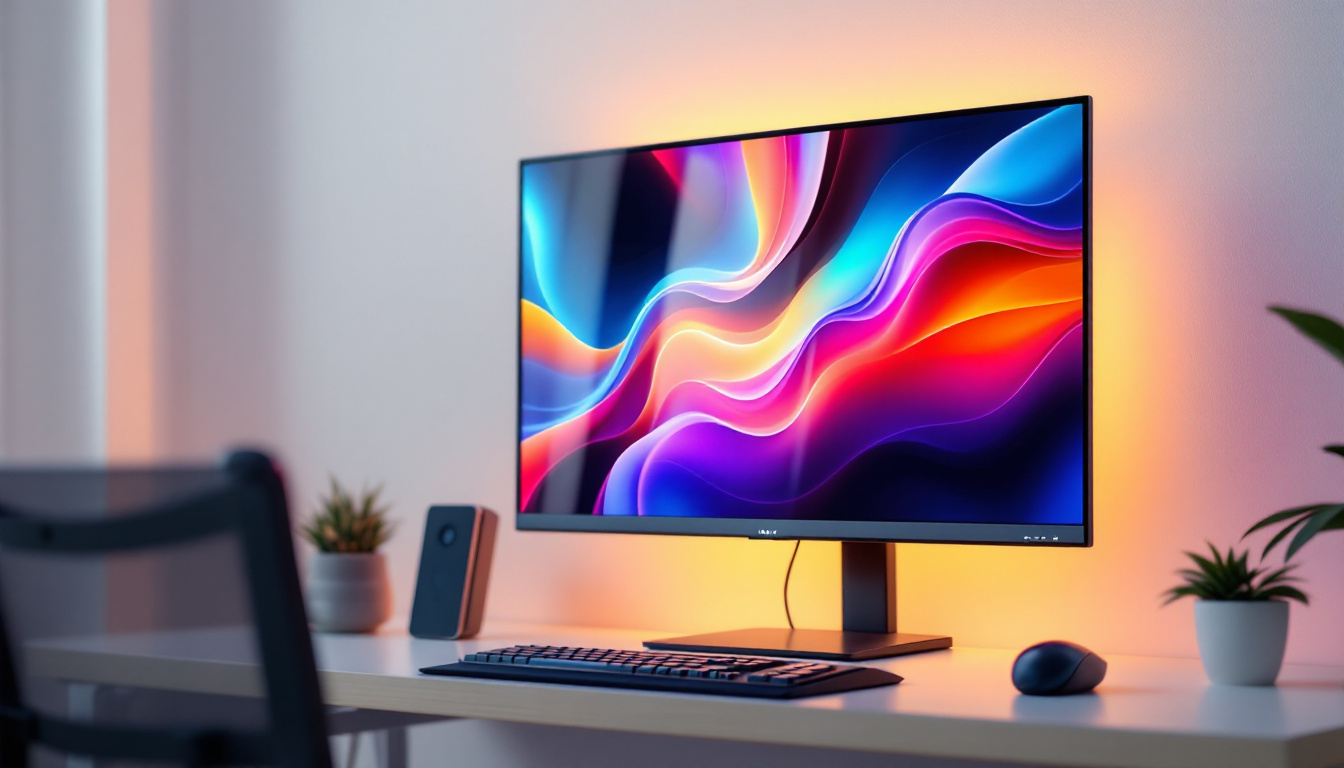
LED monitors utilize Light Emitting Diodes as a backlight source, which illuminates the liquid crystal display (LCD) panel to produce images. Unlike older technologies such as CCFL (Cold Cathode Fluorescent Lamp), LED backlighting offers better energy efficiency, thinner designs, and improved color accuracy. This advancement in technology has not only made monitors lighter and more portable but has also allowed for a wider range of colors and deeper blacks, enhancing the overall viewing experience. As a result, LED monitors are now the preferred choice for gamers, graphic designers, and anyone who values high-quality visuals.
Brightness in LED monitors is measured in nits (candelas per square meter). Typical office monitors range from 200 to 350 nits, while high-end displays can reach 600 nits or more, especially those designed for HDR (High Dynamic Range) content. HDR technology enhances the contrast between light and dark areas of the image, making it possible to see details that would otherwise be lost in shadows or highlights. However, excessively high brightness levels can cause eye strain and increase power consumption unnecessarily. It’s important for users to find a balance that suits their environment and personal comfort, particularly in varying lighting conditions.
Why Adjusting Brightness Matters
Proper brightness settings can reduce eye fatigue, especially for users who spend long hours in front of screens. According to the American Optometric Association, improper screen brightness is a common contributor to digital eye strain, which affects nearly 60% of computer users. Symptoms can include dryness, irritation, and difficulty focusing, which can significantly impact productivity and overall well-being. Additionally, lowering brightness can extend the lifespan of your monitor and save energy, reducing your environmental footprint. Some monitors even come equipped with adaptive brightness features that automatically adjust based on ambient light, ensuring optimal viewing conditions without the need for manual adjustments.
Moreover, the importance of brightness adjustment extends beyond mere comfort; it can also enhance the clarity of text and images. For instance, in brightly lit rooms, a higher brightness setting can make it easier to read fine print or view intricate graphics without squinting. Conversely, in dim environments, reducing brightness can help prevent glare and reflections that might distract from the content being viewed. This adaptability makes it crucial for users to familiarize themselves with their monitor’s settings and utilize them effectively to create a more pleasant and productive workspace.
Methods to Decrease Monitor Brightness
There are several ways to adjust the brightness of an LED monitor, ranging from hardware controls to software solutions. Each method has its advantages and limitations depending on the device and user preferences.
Using Monitor’s Built-in Controls
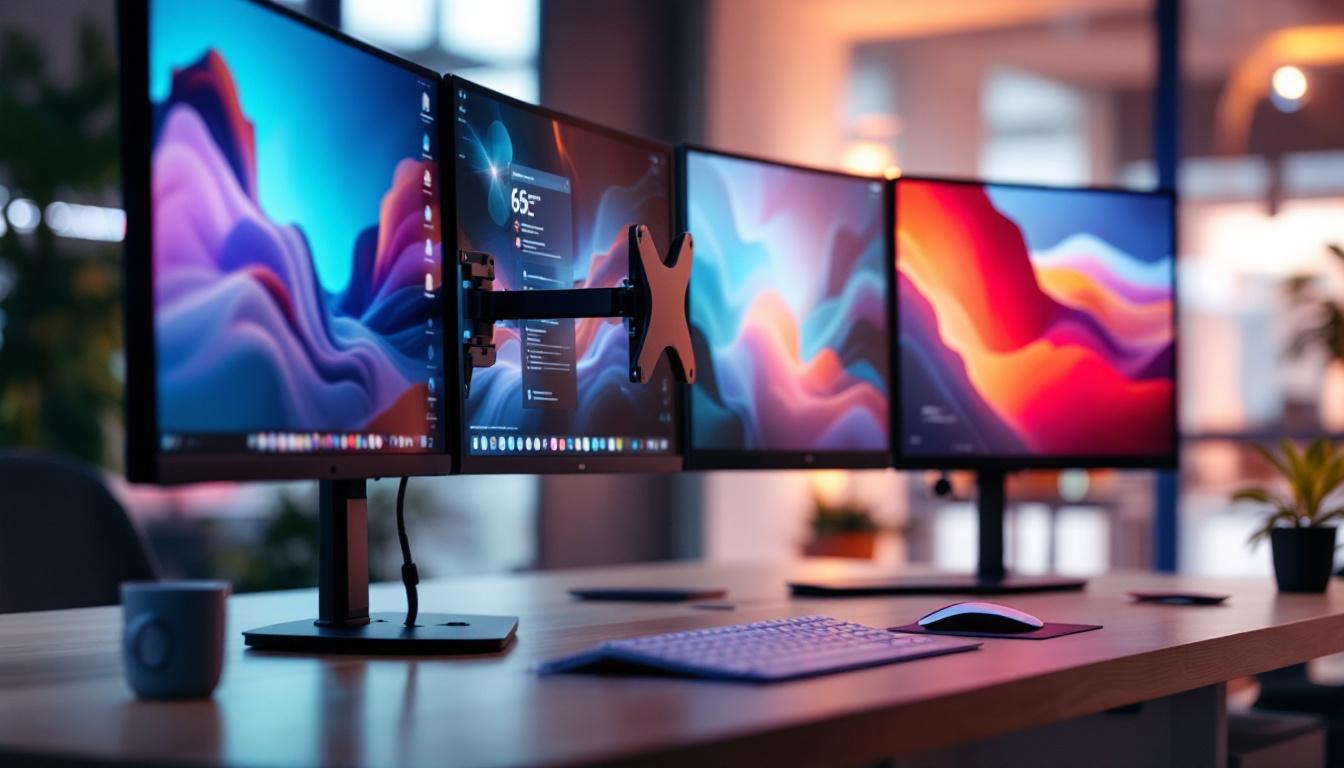
Most LED monitors come with physical buttons or touch-sensitive controls that allow users to adjust brightness, contrast, and other display settings. These controls are typically located on the front, bottom, or side bezel of the monitor.
To decrease brightness using these controls:
- Locate the brightness button or access the on-screen display (OSD) menu.
- Navigate to the brightness setting.
- Use the buttons to reduce the brightness level to a comfortable setting.
This method provides direct control over the hardware and is effective regardless of the operating system or software installed. Many users appreciate the tactile feedback of physical buttons, which can be quicker to navigate than software menus, especially in low-light conditions.
Additionally, some monitors offer preset modes, such as “Reading” or “Night,” which automatically adjust brightness and color settings to suit specific tasks. These presets can be particularly beneficial for users who frequently switch between different activities, as they eliminate the need for constant manual adjustments.
Adjusting Brightness via Operating System Settings
Modern operating systems include built-in tools to manage display brightness, especially on laptops and portable devices with integrated LED screens.
- Windows: Users can adjust brightness through the Action Center or Settings > System > Display. The brightness slider allows for fine-tuning in real-time.
- macOS: Brightness can be changed using the keyboard function keys or System Preferences > Displays.
- Linux: Brightness controls are available in system settings or via command-line tools such as
xrandr.
These software-based adjustments modify the backlight intensity and sometimes the gamma curve, providing a flexible way to tailor brightness without accessing the monitor physically. Furthermore, many operating systems now include adaptive brightness features that automatically adjust the screen brightness based on ambient light conditions, enhancing user comfort and reducing eye strain.
For users who prefer a more customized experience, accessibility settings often allow for additional adjustments, such as high contrast modes or color filters, which can further enhance visibility and reduce glare in various lighting environments.
Using Third-Party Software Solutions
For users who want more granular control or automated brightness adjustments, third-party applications offer advanced features. Programs like f.lux, Dimmer, and Display Tuner can adjust brightness and color temperature based on ambient lighting conditions or user schedules.
These tools are particularly useful for reducing blue light exposure during evening hours, which can interfere with circadian rhythms and sleep quality. By decreasing brightness and shifting color tones, they contribute to healthier screen use habits. Some applications even offer features that allow users to set specific brightness levels for different times of the day, ensuring optimal comfort whether working late at night or during bright daylight hours.
Moreover, many of these applications come with additional functionalities, such as screen dimming beyond the monitor’s minimum brightness settings, which can be a game-changer for users who find even the lowest brightness setting too harsh for their eyes.
Hardware Calibration Tools
Professional users such as graphic designers and photographers often require precise brightness and color calibration. Devices like colorimeters and spectrophotometers can measure and adjust monitor brightness to industry standards.
Calibration software paired with these tools ensures that the display produces accurate colors and consistent brightness, which is essential for color-critical work environments. By regularly calibrating their monitors, professionals can maintain the integrity of their work, ensuring that what they see on screen matches the final output, whether it be print or digital.
In addition to brightness adjustments, these calibration tools can also help in fine-tuning other display parameters such as contrast, saturation, and gamma settings. This comprehensive approach to monitor calibration is vital for achieving the highest quality in visual projects, as even minor discrepancies can lead to significant issues in professional outcomes.
Factors Affecting Brightness Adjustment
While decreasing brightness is generally straightforward, several factors influence how effective and comfortable the adjustment will be.
Ambient Lighting Conditions
The surrounding environment significantly impacts how bright a screen appears. In brightly lit rooms or outdoor settings, higher brightness levels may be necessary to maintain visibility. Conversely, in dim or dark environments, reducing brightness prevents glare and eye strain.
Adaptive brightness features available on many modern devices use ambient light sensors to automatically adjust screen brightness. This dynamic adjustment helps maintain optimal visibility while minimizing discomfort.
Display Panel Type and Quality
Not all LED monitors are created equal. Variations in panel technology—such as IPS (In-Plane Switching), TN (Twisted Nematic), or VA (Vertical Alignment)—affect brightness uniformity and color reproduction.
Higher-quality panels tend to maintain consistent brightness across the screen and offer better dimming capabilities without color distortion. Lower-end monitors may exhibit uneven brightness or color shifts when brightness is decreased significantly.
Power Settings and Battery Life
On portable devices like laptops, reducing screen brightness is one of the most effective ways to extend battery life. According to tests by laptop manufacturers, lowering brightness from maximum to around 50% can increase battery endurance by up to 30%.
Power-saving modes typically include automatic brightness reduction to optimize energy consumption without compromising usability.
Common Challenges and Solutions
Users may encounter difficulties when trying to decrease monitor brightness, especially with external displays or older hardware.
Brightness Controls Not Working
Sometimes, brightness adjustment buttons or software sliders may be unresponsive. This issue can stem from outdated or missing graphics drivers, incorrect monitor connections, or hardware malfunctions.
To resolve this:
- Update your graphics card drivers from the manufacturer’s website.
- Ensure the monitor is connected via a cable that supports brightness control, such as DisplayPort or HDMI.
- Check the monitor’s menu settings for any locked or disabled controls.
Screen Flickering or Color Distortion
Significant brightness reduction can sometimes cause flickering or color shifts, particularly on lower-quality panels or if the backlight is PWM (Pulse Width Modulation) controlled.
To mitigate this:
- Use software that adjusts brightness via gamma correction rather than backlight dimming.
- Consider upgrading to a monitor with flicker-free technology.
- Calibrate the display using professional tools to balance brightness and color accuracy.
Tips for Optimal Brightness Settings
Finding the right brightness level is a balance between visibility, comfort, and energy efficiency. Here are some practical tips:
Match Brightness to Ambient Light
Adjust your monitor brightness to complement the lighting in your environment. Avoid overly bright screens in dark rooms and increase brightness in well-lit spaces.
Take Regular Breaks
Even with ideal brightness settings, prolonged screen time can cause eye strain. Follow the 20-20-20 rule: every 20 minutes, look at something 20 feet away for at least 20 seconds.
Use Blue Light Filters
Reducing blue light exposure alongside brightness can improve comfort, especially during night use. Many monitors and operating systems offer built-in blue light reduction modes.
Regularly Clean Your Screen
Dust and smudges can reduce screen clarity, prompting users to increase brightness unnecessarily. Keeping your monitor clean helps maintain optimal visibility at lower brightness levels.
Conclusion
Decreasing monitor brightness on LED displays is a simple yet impactful adjustment that enhances visual comfort, reduces eye strain, and conserves energy. Whether through built-in hardware controls, operating system settings, or specialized software, users have multiple options to tailor their display brightness to their needs.
Understanding the technology behind LED backlighting and considering environmental factors ensures that brightness adjustments are both effective and safe. By implementing best practices and troubleshooting common issues, users can enjoy a healthier and more enjoyable screen experience.
Explore Advanced LED Brightness Control with LumenMatrix
Now that you understand the importance of managing monitor brightness for optimal visual comfort and energy efficiency, take the next step with LumenMatrix. As a pioneer in LED display technology, LumenMatrix offers an extensive range of innovative LED display solutions tailored to your unique needs. From Indoor and Outdoor LED Walls to specialized displays for vehicles, sports, and custom applications, our products are designed to elevate your visual experience and brand presence. Experience the difference in clarity and engagement with our cutting-edge LED displays. Check out LumenMatrix LED Display Solutions today and transform the way you communicate visually.