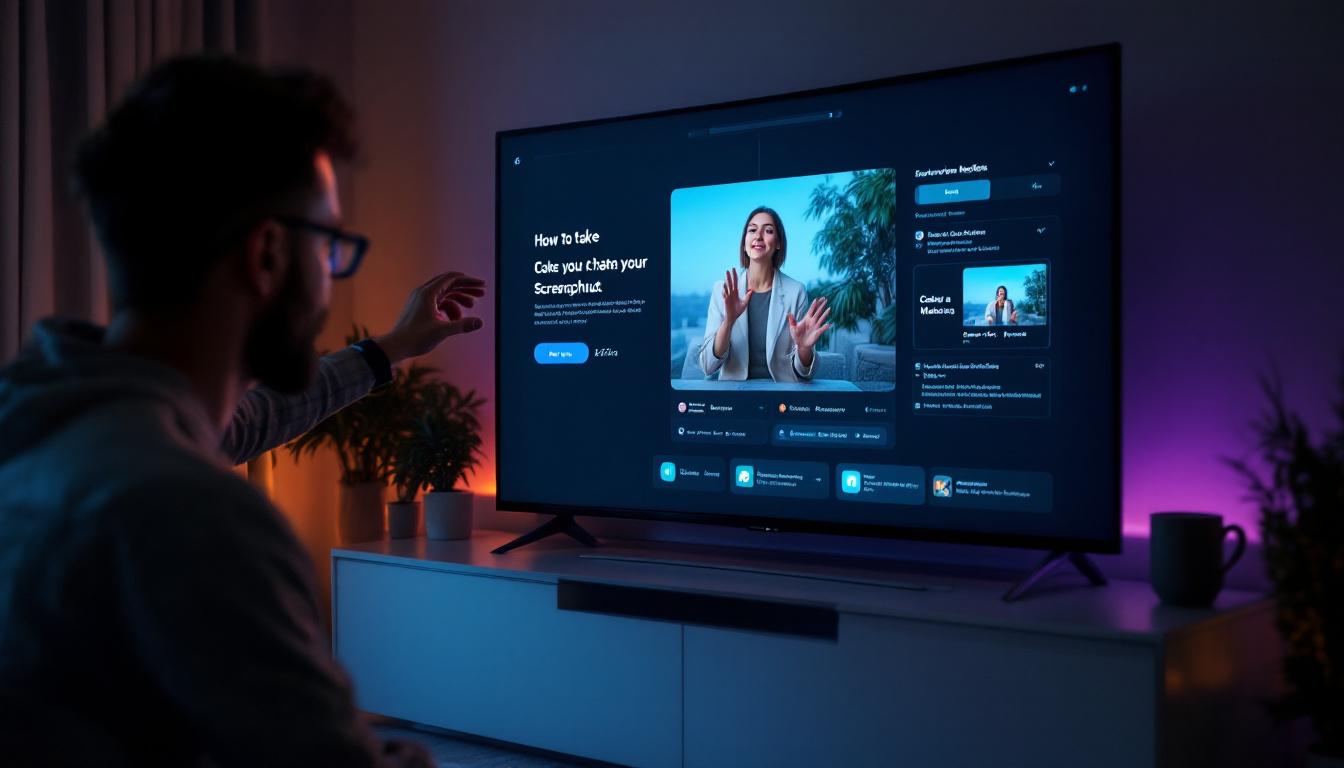
Taking a screenshot on a large screen TV, especially an LED display, might seem like a straightforward task, but it often raises questions due to the variety of devices and operating systems involved. Whether you want to capture a memorable moment from a streaming service, save a gaming achievement, or document an error message, knowing how to take a screenshot on your large screen TV can be incredibly useful.
This article delves into the nuances of capturing screenshots on LED TVs, exploring different methods based on the TV’s operating system, connected devices, and available tools. It also explains the technology behind LED displays to provide a better understanding of what you’re working with.
Understanding LED Displays and Their Role in Screen Capture
LED TVs, or Light Emitting Diode televisions, have become the dominant technology in large screen displays due to their superior brightness, energy efficiency, and color accuracy compared to older LCD or plasma screens. Unlike traditional LCDs that use cold cathode fluorescent lamps (CCFLs) for backlighting, LED TVs use LEDs, which allow for thinner panels and better contrast ratios. This advancement in technology not only enhances the viewing experience but also contributes to a more immersive environment for activities such as gaming and movie watching, where vibrant colors and deep blacks can make a significant difference.
When it comes to screenshots, the display technology itself doesn’t directly affect the ability to capture an image. Instead, the capability depends primarily on the software environment of the TV or the connected device. However, understanding the LED display’s high resolution and color fidelity helps in appreciating the quality of screenshots you can expect. The clarity provided by LED technology means that even the smallest details in a scene can be captured, making it an excellent choice for anyone looking to preserve high-quality images from their favorite shows or games.
Why Screenshot Quality Matters on Large Screen LED TVs
Large screen LED TVs often support resolutions ranging from Full HD (1920×1080) to 4K Ultra HD (3840×2160) and beyond. Capturing screenshots at these resolutions ensures that images are crisp and detailed, which is especially important for gaming, presentations, or professional use. The ability to view fine details can be crucial for gamers who rely on precision and clarity to enhance their performance, as well as for professionals who may need to showcase high-quality visuals during meetings or presentations.
However, some streaming services and content providers implement digital rights management (DRM) protections that can restrict the ability to take screenshots or record content directly from the TV. This is a crucial consideration when attempting to capture images from subscription-based platforms. Additionally, understanding the limitations imposed by these protections can guide users in finding alternative methods for capturing content, such as using external capture devices or software that complies with copyright regulations. This knowledge not only empowers users to navigate the complexities of digital content but also enhances their overall experience with large screen LED TVs, ensuring they can enjoy their favorite media without unnecessary frustration.
Methods to Take Screenshots on Large Screen LED TVs
The method to take a screenshot varies significantly depending on the TV’s operating system and connected hardware. Here are the most common approaches:
1. Using Smart TV Built-in Features
Many modern smart TVs, including those from Samsung (Tizen OS), LG (webOS), Sony (Android TV), and others, have built-in screenshot capabilities, though these features are not always prominently advertised.
- Samsung Smart TVs: Some Samsung models allow screenshots via the SmartThings app on your smartphone. After connecting your TV and phone to the same network, you can mirror the TV screen and capture images directly from the app.
- LG webOS TVs: LG TVs may support screenshot functionality through developer tools or third-party apps available in their app store, though this is less common for general users.
- Android TV (Sony, TCL, etc.): Android TV devices often support screenshots through developer options or via connected Android devices using ADB (Android Debug Bridge) commands.
While these options can work, they often require some technical knowledge or additional devices, which may not be practical for all users. Moreover, the ease of accessing these features can vary widely between different models and software versions, leading to potential frustration for those unfamiliar with their TV’s capabilities. It’s advisable to consult the user manual or online support resources specific to your TV model for detailed instructions on how to utilize these built-in features effectively.
2. Using External Devices for Screenshot Capture
One of the most reliable ways to capture screenshots from a large screen LED TV is by using external devices connected to the TV. This is especially useful if the TV itself lacks built-in screenshot functionality.
- Game Consoles: Consoles like the PlayStation 5, Xbox Series X, and Nintendo Switch have dedicated screenshot buttons that capture the current screen output. When connected to a large screen LED TV, these screenshots maintain the TV’s resolution and quality.
- Streaming Devices: Devices such as Amazon Fire Stick, Roku, or Apple TV generally do not support screenshots directly, but you can use screen mirroring to a PC or smartphone and capture the screen from there.
- HDMI Capture Cards: For professional or high-quality screenshots, HDMI capture cards connected to a computer can record or take still images of the TV’s output in real time. This method is commonly used by content creators and streamers.
Using external devices not only enhances the quality of the screenshots but also provides flexibility in how you can edit or share them afterward. For instance, with game consoles, the captured images can often be directly uploaded to social media platforms, allowing for instant sharing of gaming highlights. Similarly, HDMI capture cards can be used in conjunction with software that allows for real-time editing, making it a favorite among gamers and content creators who want to produce high-quality visual content without sacrificing resolution.
3. Using Screen Mirroring and Mobile Devices
Screen mirroring allows you to display your TV’s content on a smartphone, tablet, or computer, where you can then take a screenshot using the device’s native tools.
For example, if you have a Samsung Smart TV and a Samsung smartphone, you can use the Smart View feature to mirror the TV screen on your phone. Similarly, Apple users can use AirPlay to mirror content from an Apple TV to an iPhone or iPad.
This method is convenient and doesn’t require additional hardware, but the quality of the screenshot may be limited by the resolution of the mirroring device. Additionally, users should be aware that the performance of screen mirroring can be influenced by the strength of the Wi-Fi connection, which may lead to latency or reduced image quality. To optimize this experience, ensuring a strong and stable network connection is crucial, as it can significantly enhance the clarity and responsiveness of the mirrored display, resulting in better screenshots.
Step-by-Step Guide: Taking a Screenshot on Popular Smart TV Platforms
To provide practical assistance, here’s a detailed guide on how to capture screenshots on some of the most popular smart TV platforms.
Samsung Smart TVs
Samsung TVs do not have a universal screenshot button on the remote, but you can capture the screen using the SmartThings app:
- Ensure your Samsung TV and smartphone are connected to the same Wi-Fi network.
- Download and open the SmartThings app on your smartphone.
- Add your TV to the app if it isn’t already connected.
- Use the app’s screen mirroring feature to display the TV screen on your phone.
- Take a screenshot on your smartphone using its native screenshot function.
Note that some content, especially DRM-protected streaming videos, may not appear in the mirrored screen.
LG webOS TVs
LG TVs generally do not offer direct screenshot functionality for users. However, developers or advanced users can enable developer mode and use the LG Connect Apps or third-party tools to capture the screen.
Alternatively, you can use HDMI capture devices connected to your LG TV’s input source to record or screenshot the output.
Android TV (Sony, TCL, etc.)
Android TV offers more flexibility due to its Android base:
- Enable Developer Options on your Android TV by navigating to Settings > About > Build number and pressing it multiple times.
- Connect your Android TV to a PC via the same network.
- Use Android Debug Bridge (ADB) commands on your PC to capture screenshots. The command is
adb exec-out screencap -p > screenshot.png. - Transfer the screenshot file from the TV to your PC for viewing and editing.
This method requires some technical knowledge but provides high-quality screenshots.
Legal and Ethical Considerations When Taking Screenshots on TVs
While capturing screenshots is generally legal for personal use, it’s important to be aware of copyright and content protection laws. Many streaming services, such as Netflix, Disney+, and Amazon Prime Video, employ DRM to prevent unauthorized copying or distribution of their content.
Attempting to bypass these protections or distribute captured content without permission can lead to legal consequences. Always use screenshots responsibly and respect content creators’ rights.
Tips for Enhancing Screenshot Quality on Large Screen TVs
To ensure your screenshots are clear and useful, consider the following tips:
- Use High-Resolution Sources: Capture screenshots from 4K or Full HD content to maximize clarity.
- Adjust TV Settings: Optimize brightness, contrast, and color settings on your TV before capturing to improve image quality.
- Minimize Reflections and Glare: If capturing a photo of the TV screen (less recommended), ensure the room lighting minimizes reflections.
- Use Direct Capture Methods: Whenever possible, use software or hardware-based screenshot tools rather than photographing the screen with a camera.
Conclusion
Taking a screenshot on a large screen LED TV involves understanding both the technology of the display and the software environment it operates within. While LED technology ensures vibrant and high-resolution images, the ability to capture these images depends largely on the TV’s operating system and connected devices.
Whether using built-in smart TV features, external devices like game consoles and HDMI capture cards, or screen mirroring techniques, there are multiple ways to capture screenshots effectively. Users should also be mindful of legal considerations, especially when dealing with protected content.
By following the methods and tips outlined in this article, anyone can confidently capture high-quality screenshots on their large screen LED TV, enhancing their viewing and sharing experience.
Explore Cutting-Edge LED Display Solutions with LumenMatrix
Now that you’re equipped with the knowledge to capture high-quality screenshots from your large screen LED TV, why not experience the pinnacle of LED display technology with LumenMatrix? As a pioneer in the field, LumenMatrix offers an extensive range of LED display modules designed to bring your visual content to life. From vibrant Indoor and Outdoor LED Wall Displays to innovative solutions like Vehicle LED Displays and LED Sports Displays, LumenMatrix is committed to revolutionizing visual communication. Elevate your brand’s presence and engage your audience like never before. Check out LumenMatrix LED Display Solutions and see how they can transform your viewing experience.