In today’s digital workspace, optimizing your monitor setup can significantly enhance productivity and comfort. One popular adjustment among professionals, developers, and gamers alike is rotating a monitor to a vertical orientation. This configuration, often referred to as “portrait mode,” can improve readability, streamline multitasking, and offer a fresh perspective on your digital environment.
This article delves into the practical steps for making an LED monitor vertical, the benefits of doing so, and important considerations to keep in mind. Whether you’re using your monitor for coding, reading lengthy documents, or managing multiple windows, understanding how to switch to vertical mode can transform your experience.
Why Choose a Vertical Monitor Setup?
Before diving into the technical details, it’s useful to understand why many users opt for vertical monitors. The vertical orientation is not just a stylistic choice; it offers tangible advantages depending on your workflow.
Improved Reading and Coding Experience
One of the most common reasons for rotating a monitor vertically is to enhance reading comfort. When viewing long documents, articles, or code, a vertical screen allows you to see more lines at once without excessive scrolling. This is especially beneficial for software developers who often work with lengthy scripts or logs.
According to a 2023 survey by the International Ergonomics Association, 47% of developers reported that vertical monitors helped reduce neck strain and improved focus during extended coding sessions.
Moreover, the vertical setup can also aid in better comprehension of text-heavy materials. Research has shown that users can process information more efficiently when it is presented in a format that aligns with natural reading habits. By minimizing the need to scroll, vertical monitors allow for a more immersive reading experience, which can be particularly advantageous for students and researchers who frequently sift through academic papers or lengthy reports.
Better Multitasking and Workspace Efficiency
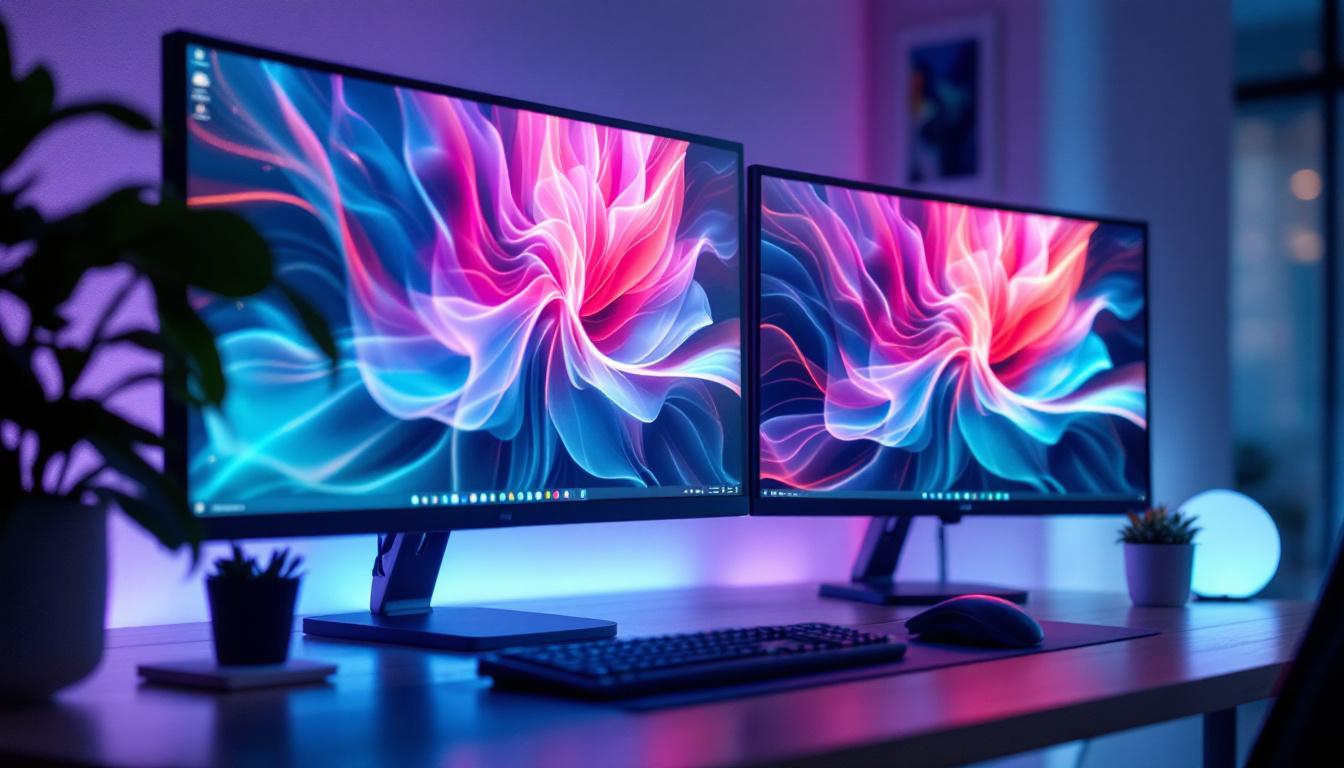
Vertical monitors can complement a traditional horizontal display by providing additional screen real estate for sidebars, chat windows, or reference materials. This setup is popular among financial analysts, graphic designers, and content creators who juggle multiple applications simultaneously.
For instance, having a vertical monitor dedicated to emails or social media feeds allows users to keep their main screen uncluttered, enhancing overall workflow efficiency.
In addition, the vertical orientation can facilitate a more organized workspace. By dedicating a monitor for specific tasks—like tracking project timelines or monitoring social media interactions—users can create a streamlined environment that minimizes distractions. This organization not only boosts productivity but also allows for a more visually appealing setup, as users can arrange their screens to suit their personal preferences and work habits.
Enhanced Gaming and Streaming Experience
While less common, some gamers and streamers use vertical monitors to display chat windows, streaming controls, or game stats. This orientation can keep essential information visible without interrupting gameplay.
Furthermore, vertical monitors can provide a unique perspective for certain types of games, particularly those that involve extensive vertical scrolling or exploration. For instance, puzzle games and platformers can benefit from a vertical display, allowing players to see more of the game environment without needing to pan around. This can lead to a more engaging and immersive gaming experience, as players can maintain a better awareness of their surroundings and react more swiftly to in-game events.
Understanding LED Monitor Rotation Capabilities
Not all monitors are designed to rotate easily, so it’s important to understand the hardware features that support vertical orientation.
Monitor Stand and VESA Compatibility
The ability to physically rotate your monitor depends largely on the stand or mount. Many modern LED monitors come with stands that support pivot functionality, allowing the screen to rotate 90 degrees clockwise or counterclockwise.
If your monitor does not have a pivoting stand, you can purchase a VESA-compatible monitor arm or mount. VESA (Video Electronics Standards Association) mounts follow a standardized hole pattern on the back of the monitor, enabling easy attachment to adjustable arms that support rotation, tilt, and height adjustments. These mounts not only enhance the flexibility of your workspace but also help in maintaining an ergonomic posture, reducing strain on your neck and eyes during extended use.
Check Your Monitor’s Specifications
Before attempting to rotate your monitor, consult the user manual or manufacturer’s website to confirm if your model supports pivoting. Some monitors may only support tilt or swivel but not full rotation. Attempting to force a rotation on an unsupported monitor can damage the hardware.
In addition to checking the specifications, it is also beneficial to explore the software settings associated with your operating system. Many systems, such as Windows and macOS, provide built-in options for screen orientation adjustments. This means that once you physically rotate your monitor, you can easily change the display settings to match the new orientation. Understanding both the hardware and software aspects of monitor rotation can significantly enhance your productivity, especially for tasks like coding, graphic design, or reading lengthy documents, where a vertical layout can provide a more natural viewing experience.
How to Make Your Monitor Vertical: Step-by-Step Guide
Once you’ve confirmed your monitor can physically rotate, the next step is to adjust the display settings on your computer to match the new orientation.
Physical Rotation of the Monitor
1. Power off your monitor and computer to avoid any accidental damage during the adjustment.
2. Gently grasp the monitor frame and rotate it 90 degrees clockwise or counterclockwise, depending on your preference.
3. Ensure the monitor is securely attached to the stand or mount and that cables have enough slack to accommodate the rotation.
Adjusting Display Settings on Windows
After physically rotating the monitor, update the display settings to match the vertical orientation.
- Right-click on the desktop and select Display settings.
- Under the Display section, select the monitor you rotated (if you have multiple monitors).
- Scroll down to the Display orientation dropdown menu.
- Select Portrait or Portrait (flipped) depending on the direction you rotated the monitor.
- Click Apply. Your screen will adjust to the new orientation.
- Confirm the change if prompted.
Adjusting Display Settings on macOS
Mac users can follow these steps to rotate their display:
- Click the Apple menu and select System Preferences.
- Choose Displays.
- Hold down the Option key and click on the Rotation dropdown menu (this option appears only when holding Option).
- Select 90° or 270° to set the display to portrait mode.
- Confirm the change when prompted.
Adjusting Display Settings on Linux
Linux users can rotate their display using system settings or command line:
- Navigate to Settings > Displays and look for the rotation option. Select Portrait or Portrait (inverted).
- Alternatively, use the terminal command:
xrandr --output [display_name] --rotate leftorright, replacing[display_name]with your monitor’s identifier.
Optimizing Your Vertical Monitor Setup
Simply rotating your monitor is just the first step. To get the most out of a vertical display, consider these optimization tips.
Adjust Resolution and Scaling
Vertical monitors often have different optimal resolutions compared to horizontal setups. Ensure your display resolution matches the native resolution of your monitor to maintain image clarity.
Additionally, adjust scaling settings to make text and icons comfortable to read. For example, Windows allows you to increase scaling percentages under Display settings, which can be particularly helpful for high-resolution monitors.
Customize Your Workspace Layout
Take advantage of the vertical space by rearranging windows and applications. For developers, placing code editors or terminal windows vertically can reduce eye movement and improve focus.
Use virtual desktops or window management tools to further organize your workspace. Applications like Microsoft PowerToys for Windows or Magnet for macOS can help snap windows to specific sections of the screen efficiently.
Consider Ergonomics and Viewing Distance
Adjust your chair height and monitor position so that the top of the screen is at or slightly below eye level. This helps maintain a neutral neck posture and reduces strain.
Ensure the viewing distance is about an arm’s length away (roughly 20-30 inches), which is ideal for most LED monitors to reduce eye fatigue.
Common Issues and Troubleshooting
While rotating a monitor is generally straightforward, some users may encounter challenges. Here are a few common issues and how to address them.
Display Does Not Rotate After Physical Adjustment
If the screen remains in landscape mode after physically rotating the monitor, double-check the display orientation settings on your computer. The operating system must be instructed to rotate the image to match the physical position.
Image Appears Cropped or Distorted
This can happen if the resolution or scaling settings are incorrect. Reset the display resolution to the monitor’s native resolution and adjust scaling as needed.
Monitor Stand Does Not Support Rotation
If your monitor stand doesn’t pivot, consider purchasing a VESA-compatible adjustable arm. These mounts offer greater flexibility and can improve desk ergonomics.
Colors or Brightness Seem Off After Rotation
Sometimes, rotating a monitor can affect color calibration. Use built-in calibration tools or third-party software to recalibrate your display for accurate colors and brightness.
Conclusion: Is a Vertical Monitor Right for You?
Making a monitor vertical can be a game-changer for many users, especially those who work extensively with text, code, or multitasking environments. The vertical orientation maximizes screen real estate for reading and managing multiple windows, reduces neck strain, and can even enhance certain gaming or streaming setups.
Before making the switch, ensure your monitor supports rotation and that your workspace can accommodate the new setup ergonomically. With the right adjustments and optimization, a vertical LED monitor can significantly boost productivity and comfort.
As technology evolves, more monitors are coming with built-in pivot functionality, making vertical setups easier than ever. Whether you’re a developer, designer, or casual user, experimenting with a vertical monitor could unlock new ways to interact with your digital world.
Discover the Perfect Vertical LED Display with LumenMatrix
Ready to elevate your digital workspace with a vertical monitor setup? LumenMatrix is at the forefront of LED display innovation, offering a wide array of solutions tailored to your needs. From Indoor LED Wall Displays to Custom LED Displays, our products are designed to enhance your productivity and transform your visual experience. Embrace the future of visual communication and check out LumenMatrix LED Display Solutions today to find the perfect fit for your professional or personal space.