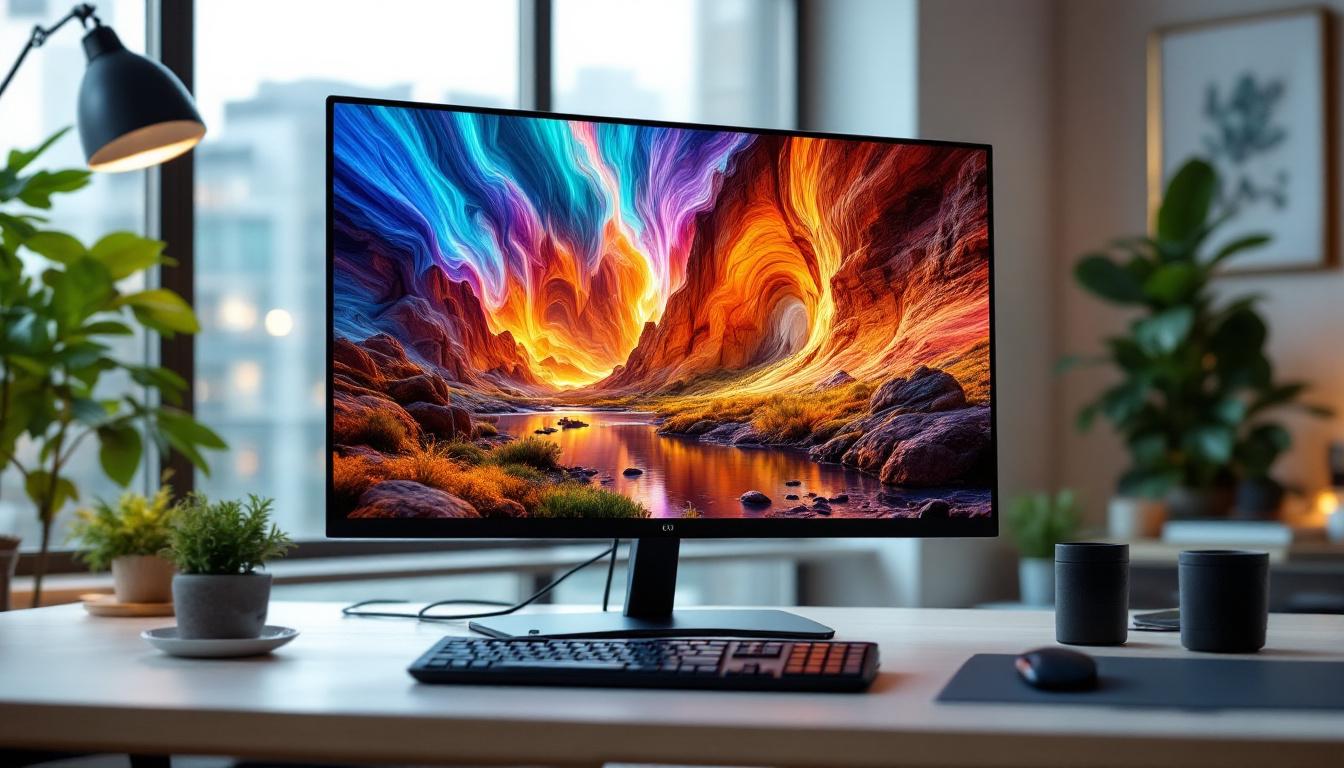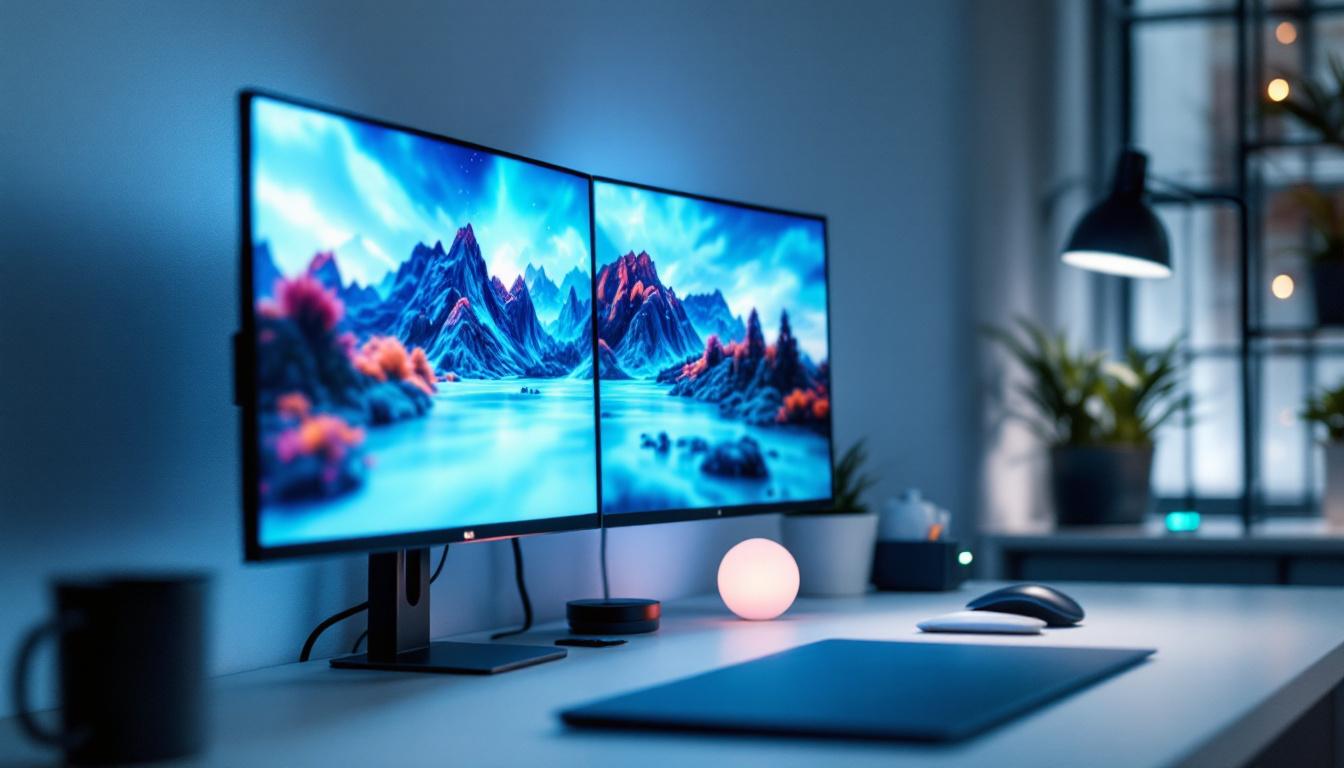
In today’s digital age, the ability to extend or duplicate your display across multiple screens has become essential for productivity, presentations, gaming, and entertainment. Whether you’re a professional looking to boost your workspace efficiency or a tech enthusiast eager to optimize your setup, understanding how to display on two screens is invaluable. This article delves into the fundamentals of dual-screen setups, with a particular focus on LED displays — the most popular and versatile screen technology available.
Understanding Dual-Screen Setups: Why Use Two Screens?
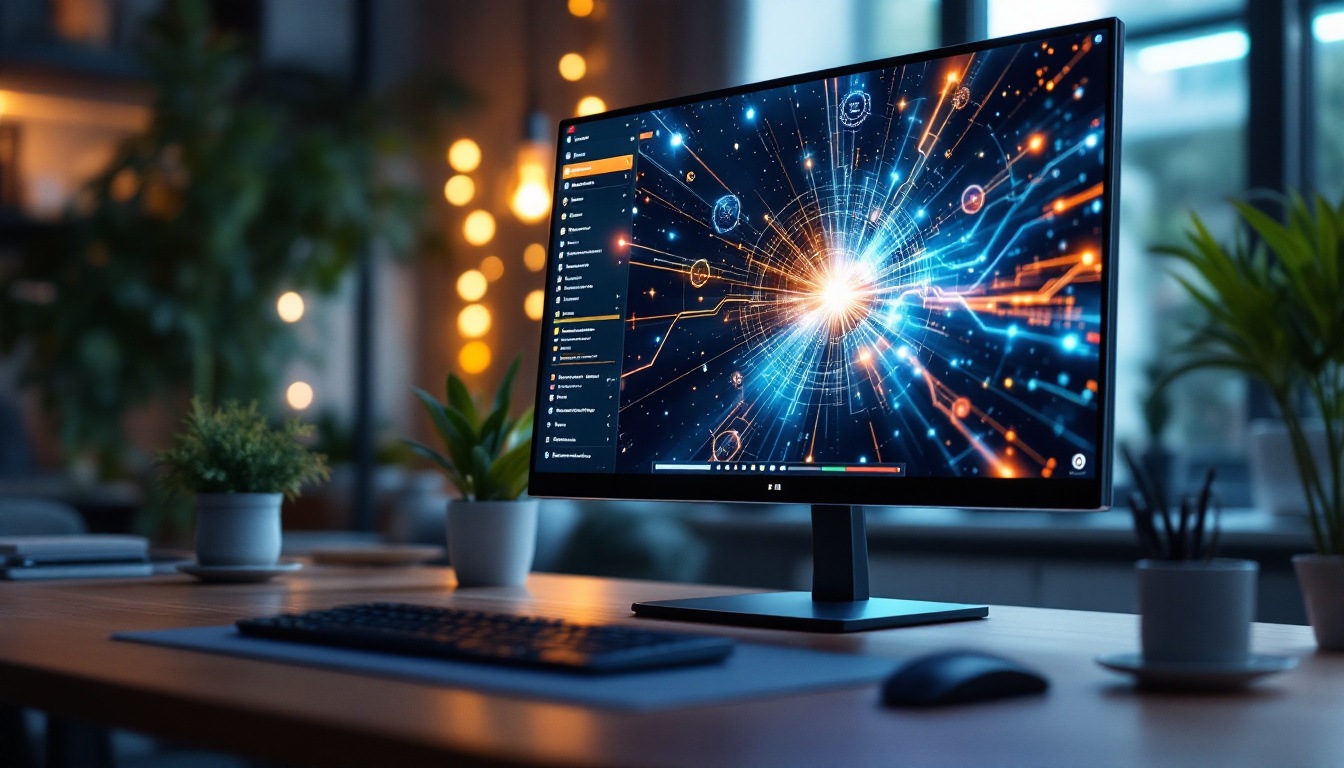
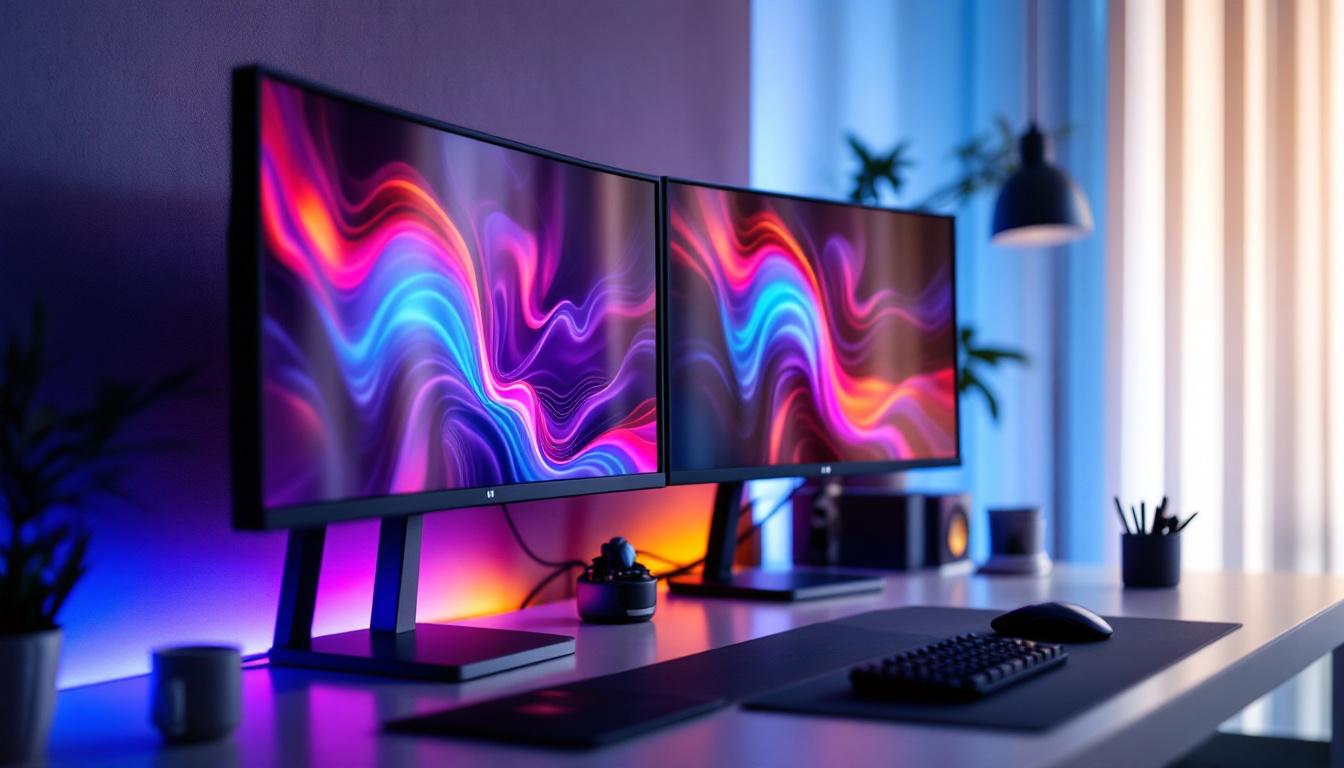
Using two screens simultaneously can transform how you interact with your computer or media device. Dual-screen configurations allow you to multitask more effectively, enhance visual workflows, and create immersive environments for gaming or media consumption.
According to a study by the University of Utah, users working with dual monitors can increase productivity by up to 30%. This improvement stems from reduced time switching between windows and better organization of tasks. For professionals such as graphic designers, video editors, and software developers, having two screens means more space for tool palettes, timelines, or code editors, which streamlines their workflow.
From a practical standpoint, dual-screen setups are also beneficial in collaborative environments. For instance, during presentations, one screen can be dedicated to speaker notes while the other displays the main content to the audience. In retail or public information systems, LED displays are often paired to create larger, more impactful visual canvases.
Moreover, the versatility of dual-screen setups extends beyond traditional office tasks. Gamers, for example, can utilize one screen for gameplay while the other is reserved for chat applications, strategy guides, or streaming software, allowing for a more engaging and interactive experience. This setup not only enhances gameplay but also fosters community interaction, as players can easily communicate without interrupting their gaming flow. Additionally, content creators can benefit from dual screens by using one for editing software and the other for monitoring social media or viewer engagement, creating a seamless workflow that enhances creativity and responsiveness.
Furthermore, the rise of remote work has made dual-screen setups increasingly popular among telecommuters. With the ability to have video conferencing on one screen while accessing documents or spreadsheets on another, employees can maintain focus and efficiency in their work. This arrangement minimizes distractions and allows for a more organized approach to handling multiple tasks, which is particularly crucial in fast-paced work environments. As technology continues to evolve, the integration of dual-screen setups into everyday work and leisure activities is likely to become even more prevalent, making it an essential consideration for anyone looking to optimize their digital experience.
What Is an LED Display and Why Choose It?
Basics of LED Display Technology
LED stands for Light Emitting Diode, a technology that uses tiny semiconductor diodes to emit light when an electric current passes through them. LED displays are widely favored because they offer high brightness, excellent color accuracy, and energy efficiency compared to older display technologies like LCDs with CCFL backlighting or plasma screens.
LED displays can be found in various forms, including traditional computer monitors, large video walls, and portable screens. Their versatility and scalability make them ideal for dual-screen setups, whether for personal use or commercial applications.
Advantages of LED Displays for Dual-Screen Use
One of the key benefits of LED displays is their slim profile and lightweight design, which makes them easy to position side-by-side or mount on adjustable arms. Additionally, LED screens typically have faster refresh rates and lower response times, which is crucial for gaming or video editing where motion clarity matters.
LED technology also supports a wide color gamut and high dynamic range (HDR), enhancing the visual experience when working with graphics or watching high-definition content. Moreover, LED displays consume less power and generate less heat, contributing to a more comfortable and eco-friendly workspace.
How to Set Up Two LED Screens: Step-by-Step Guide
Step 1: Check Compatibility and Ports
Before connecting two LED screens, ensure your computer or device supports multiple displays. Most modern laptops and desktops come equipped with at least two video output ports such as HDMI, DisplayPort, USB-C, or VGA. It’s important to verify the types of ports available on both your computer and the LED screens.
For example, if your PC has an HDMI and a DisplayPort output, and your LED monitors have corresponding inputs, you can connect each screen directly. If the ports don’t match, adapters or docking stations may be necessary to bridge the connection.
Step 2: Physically Connect the Screens
Once you have the correct cables and adapters, connect each LED screen to your computer’s video output ports. Power on the monitors and the computer, then wait for the system to detect the new displays automatically.
For dual-screen setups involving laptops, some users prefer docking stations or USB-C hubs that support video output. These devices simplify cable management and often provide additional USB ports and charging capabilities.
Step 3: Configure Display Settings
After connecting the screens, configure how you want them to function. On Windows, right-click the desktop and select “Display settings.” On macOS, go to “System Preferences” > “Displays.”
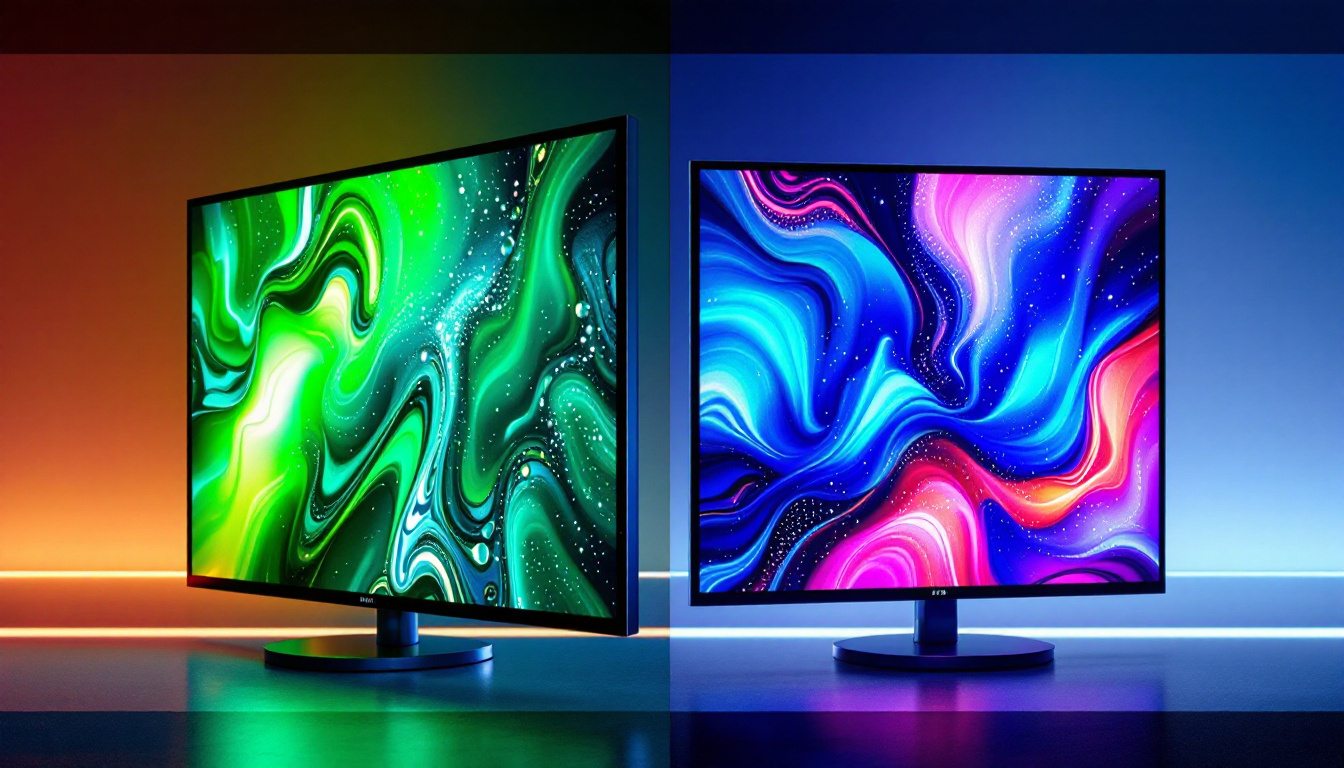
You can choose to “Duplicate” the displays, showing the same content on both screens, or “Extend” the desktop, allowing you to move windows freely between the two. Extended mode is generally preferred for productivity, while duplication is useful for presentations.
Adjust the resolution and orientation of each screen to match your preferences. It’s also helpful to set the primary display, which controls where the taskbar or dock appears.
Step 4: Optimize Screen Arrangement
In the display settings, you can drag the screen icons to reflect their physical placement on your desk. This ensures that moving the mouse cursor between screens feels natural and intuitive. For example, if your second screen is positioned to the left, arrange the virtual layout accordingly.
Additionally, calibrate the color profiles if necessary, especially if the two LED displays have different color characteristics. This step is crucial for professionals working in color-sensitive fields.
Common Challenges and How to Troubleshoot
Screen Not Detected
If one of your LED screens isn’t detected, first check all cable connections and ensure that the monitor is powered on. Try swapping cables or ports to isolate the issue. Updating your graphics drivers can also resolve detection problems.
On Windows, using the “Detect” button in display settings can prompt the system to recognize connected monitors. On macOS, resetting the NVRAM or PRAM sometimes helps with display recognition issues.
Resolution and Scaling Issues
Sometimes, the two screens may have different native resolutions, causing scaling problems where text or images appear too large or too small. Adjust the scaling settings individually for each monitor to achieve a consistent look.
For example, a 4K LED monitor paired with a 1080p screen will require different scaling percentages to ensure usability and readability across both displays.
Performance and Lag
Running dual LED displays can put additional strain on your graphics card, especially if you’re using high resolutions or demanding applications. If you experience lag or stuttering, consider lowering the refresh rate or resolution temporarily. Upgrading your GPU or using an external graphics dock may be necessary for intensive tasks.
Advanced Dual-Screen Configurations with LED Displays
Video Walls and Multi-Display Arrays
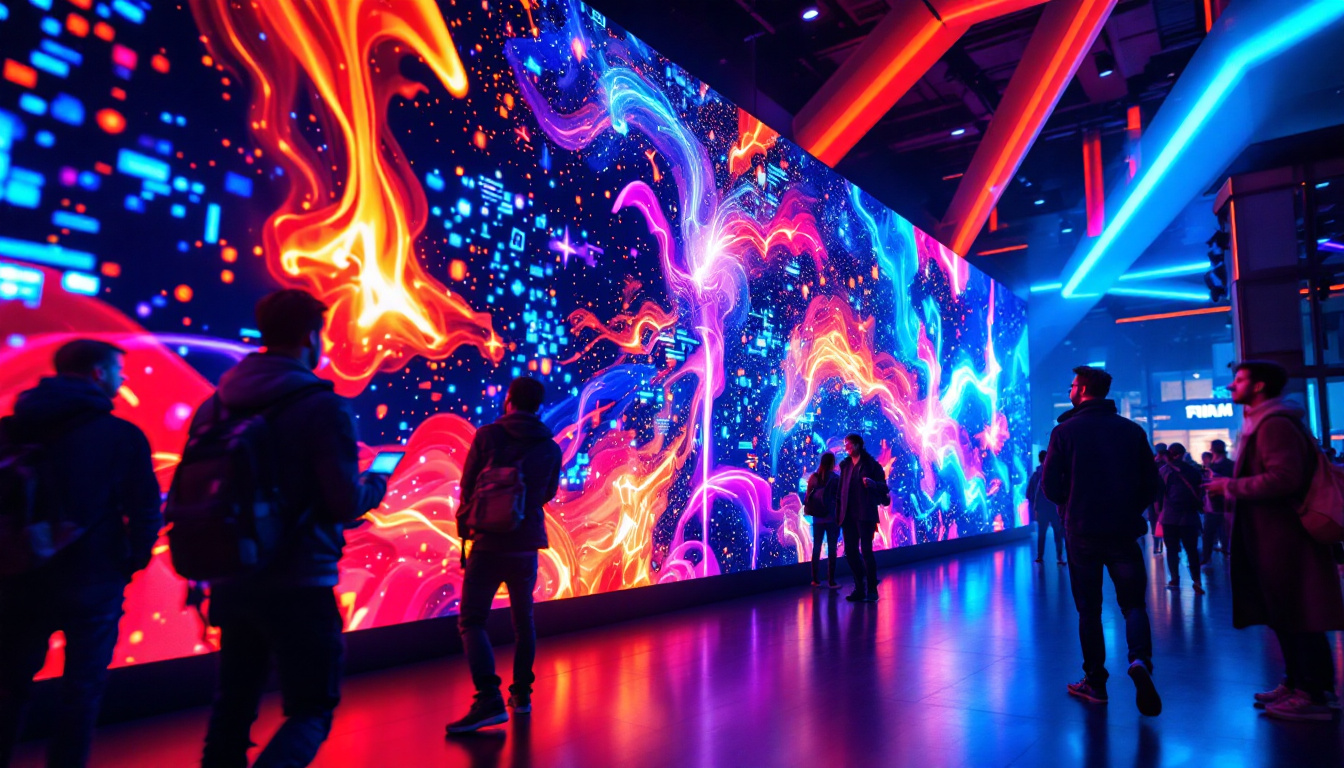
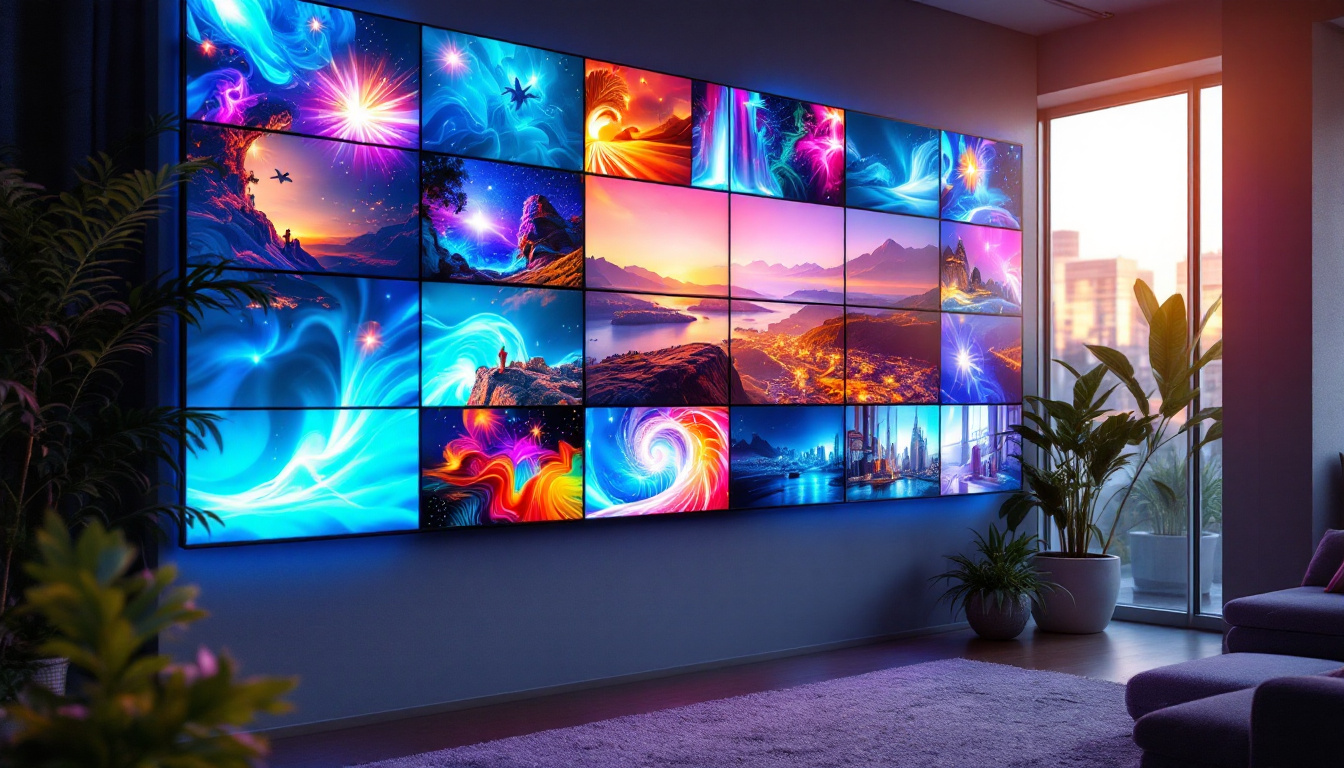
Beyond simple dual-screen setups, LED displays can be combined to form video walls — large arrays of screens that act as a single, expansive display. These are common in control rooms, advertising billboards, and event venues.
Video walls require specialized hardware and software to synchronize content across multiple LED panels seamlessly. Technologies like daisy-chaining via DisplayPort Multi-Stream Transport (MST) or using video wall controllers enable these configurations.
Wireless Dual Screen Solutions
For users seeking a cable-free experience, wireless display technologies such as Miracast, AirPlay, or proprietary solutions from manufacturers allow streaming content to a second LED screen without physical connections. While convenient, wireless setups may introduce latency and are generally better suited for presentations rather than high-performance tasks.
Using USB-C and Thunderbolt for Dual LED Displays
Modern LED monitors increasingly support USB-C or Thunderbolt connections, which can carry video, audio, data, and power through a single cable. These interfaces simplify dual-screen setups, especially for laptops with limited ports.
Thunderbolt 3 and 4, in particular, support daisy-chaining multiple displays, reducing cable clutter and enhancing workspace aesthetics.
Choosing the Right LED Displays for Your Dual-Screen Setup
Size and Resolution Considerations
When selecting LED displays for a dual-screen setup, consider the size and resolution to ensure a harmonious visual experience. Matching screen sizes and resolutions can prevent awkward scaling and alignment issues.
For office productivity, 24 to 27-inch monitors with 1080p or 1440p resolution are popular choices. For creative professionals, 4K LED displays offer the detail and color fidelity needed for high-end work.
Panel Type and Color Accuracy
LED displays come with various panel types, including IPS (In-Plane Switching), VA (Vertical Alignment), and TN (Twisted Nematic). IPS panels are favored for their superior color accuracy and wide viewing angles, making them ideal for dual-screen setups where color consistency is important.
VA panels offer better contrast ratios but may have narrower viewing angles, while TN panels are typically faster but less color-accurate.
Ergonomics and Connectivity
Adjustable stands that allow height, tilt, and swivel adjustments are essential for comfortable dual-screen use. VESA mount compatibility enables mounting on arms or wall brackets, freeing up desk space.
Ensure the monitors have multiple input options and support for daisy-chaining or USB hubs to streamline your setup.
Conclusion
Setting up two LED screens can significantly enhance your computing experience, whether for work, gaming, or entertainment. Understanding the technology behind LED displays, the steps to connect and configure dual monitors, and how to troubleshoot common issues will empower you to create an efficient and visually pleasing multi-screen environment.
As LED technology continues to evolve, with advances in resolution, color accuracy, and connectivity, dual-screen setups will become even more accessible and versatile. Investing time in selecting the right displays and configuring them properly ensures you get the most out of your dual-screen experience.
Enhance Your Dual-Screen Setup with LumenMatrix
Ready to take your dual-screen experience to the next level? Discover LumenMatrix’s innovative LED display solutions tailored to meet your needs. Whether you’re looking to create a dynamic workspace, an immersive gaming setup, or an engaging retail display, LumenMatrix offers a wide range of options including Indoor and Outdoor LED Wall Displays, Vehicle LED Displays, and more. Elevate your visual communication and captivate your audience with our cutting-edge technology. Check out LumenMatrix LED Display Solutions today and transform your space with unparalleled clarity and impact.