In today’s digital workspace, multi-monitor setups have become increasingly common. Whether for productivity, gaming, or professional design, using multiple screens simultaneously enhances efficiency and user experience. However, capturing screenshots across these multiple displays can sometimes be confusing, especially when dealing with LED displays and various operating systems. This article delves into the nuances of printing screens on multiple monitors, explains the technology behind LED displays, and offers practical tips for seamless screenshot capture.
Understanding Multi-Monitor Setups and Their Benefits
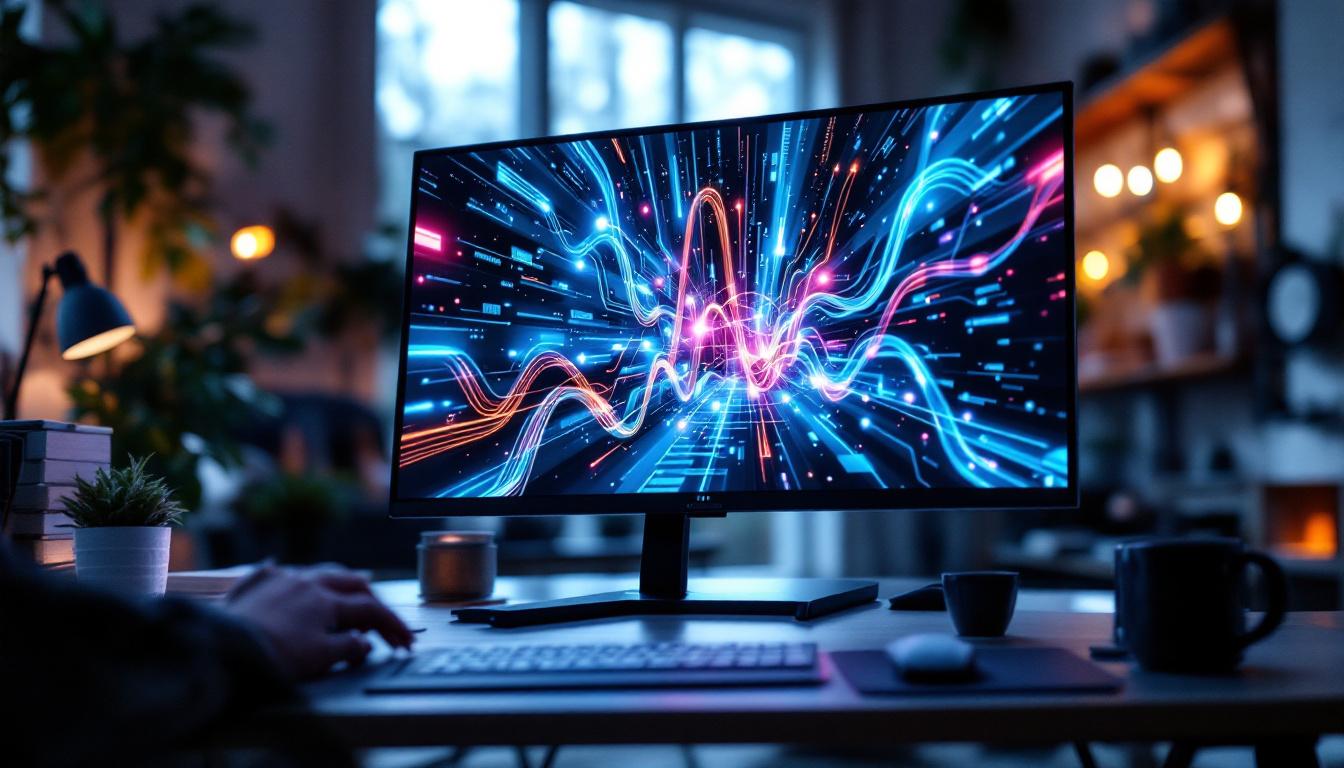
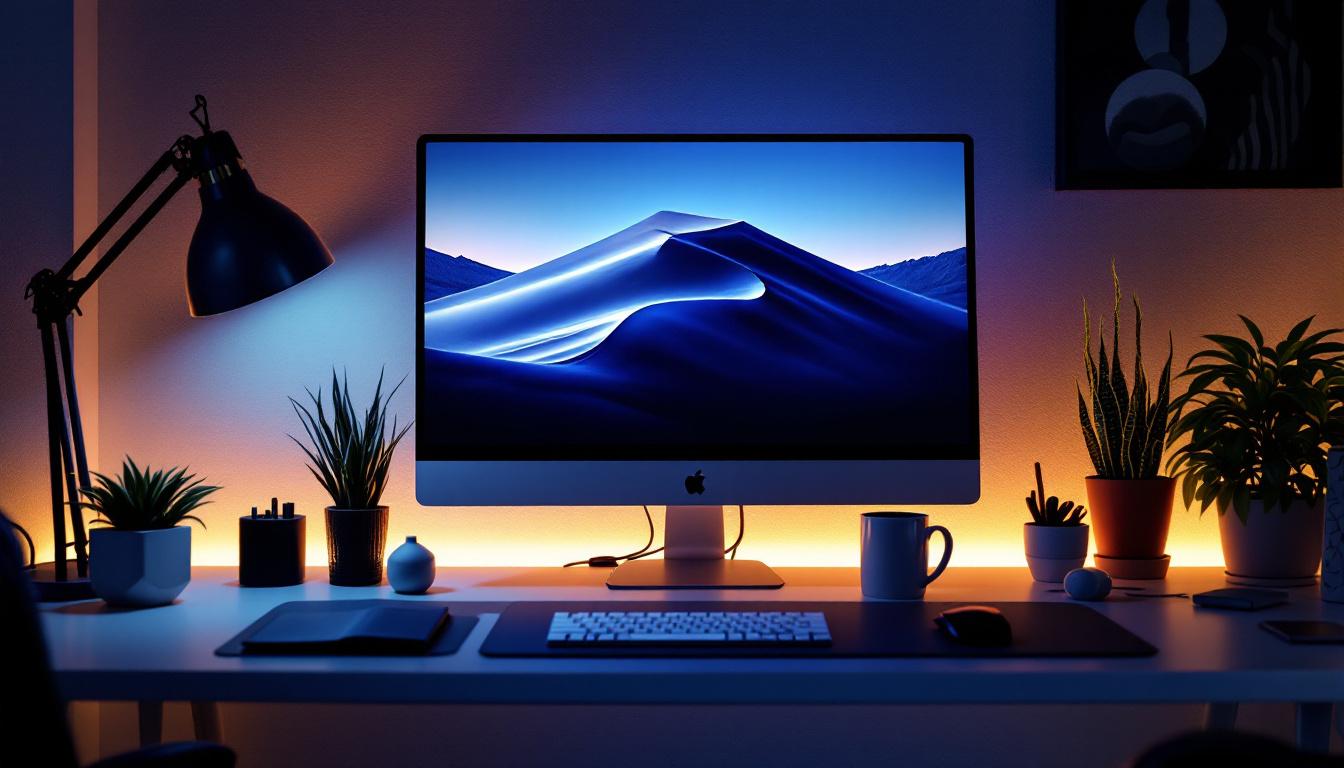
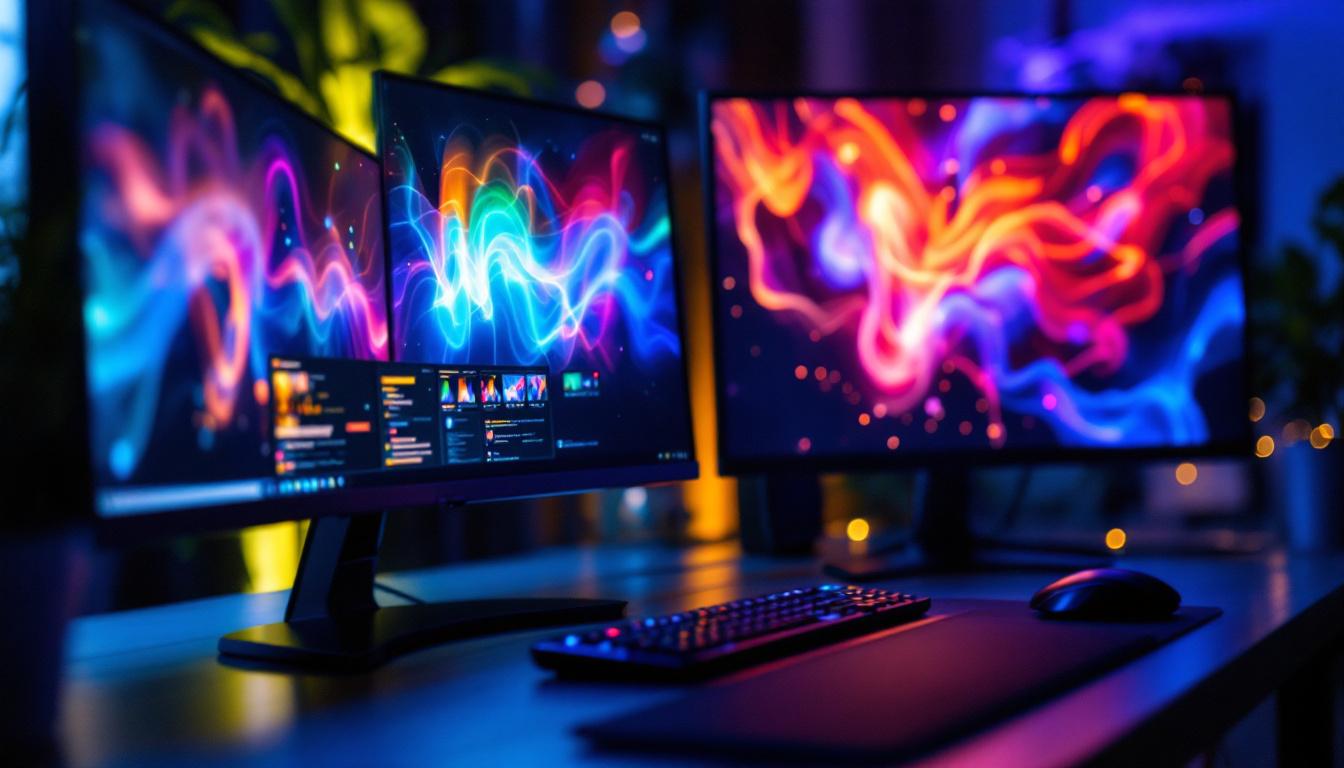
Multi-monitor configurations typically involve connecting two or more screens to a single computer. This setup is particularly popular among professionals in fields such as software development, graphic design, financial trading, and content creation. According to a 2023 survey by DisplayMate, nearly 45% of office workers use dual or triple monitor setups to boost productivity.
The benefits of multiple monitors include:
- Increased workspace: Users can spread applications and documents across screens, reducing the need to switch between windows constantly.
- Enhanced multitasking: For example, video editors can have their timeline on one screen and preview on another.
- Improved focus and efficiency: Studies show that multi-monitor users can complete tasks up to 20-30% faster than those using a single display.
However, with this expanded workspace comes the challenge of managing screen captures effectively, especially when the displays differ in resolution, orientation, or technology type. Users may find themselves needing to adjust their workflow to accommodate the unique characteristics of each monitor, which can include varying color profiles and refresh rates. This is particularly important for graphic designers and photographers, who rely on color accuracy and consistency across their displays to ensure that their work translates well across different mediums.
Additionally, the physical arrangement of monitors can significantly impact user experience. For instance, an ergonomic setup where screens are positioned at eye level and at an appropriate distance can help reduce strain on the neck and eyes, promoting longer periods of productive work. Many professionals opt for adjustable monitor arms or stands to customize their workspace further, allowing for a more comfortable and efficient working environment. Furthermore, the integration of software solutions that facilitate window management can enhance the usability of multi-monitor setups, allowing users to snap windows to specific screens or create custom layouts that suit their workflow preferences.
How LED Displays Work in Multi-Monitor Environments
The Basics of LED Display Technology
LED (Light Emitting Diode) displays have become the standard for modern monitors due to their superior brightness, contrast, and energy efficiency compared to older LCD or CRT screens. In essence, an LED display is an LCD panel backlit by LEDs, which can be arranged in different configurations such as edge-lit or full-array to enhance image quality. The full-array configuration, for instance, allows for local dimming, which can significantly improve the display’s contrast ratio by dimming specific areas of the screen while keeping others bright, thus providing a more dynamic viewing experience.
LED technology offers several advantages in multi-monitor setups:
- Consistent color and brightness: This ensures uniformity across screens, which is critical for tasks like photo editing.
- Thin and lightweight design: Easier to arrange multiple monitors ergonomically, allowing for a more flexible workspace that can adapt to various user needs.
- Energy efficiency: Reduces power consumption even when multiple displays are active, making it a more sustainable choice for both home and office environments.
Moreover, advancements in LED technology have led to the development of OLED (Organic Light Emitting Diode) displays, which offer even deeper blacks and wider viewing angles. This technology is particularly beneficial in creative industries where color accuracy is paramount. As a result, users can achieve a more immersive experience, whether they are gaming, designing, or watching movies across multiple screens.
Challenges with Multiple LED Displays
Despite these benefits, multi-monitor setups with LED displays can present challenges, especially when capturing screenshots. Differences in resolution, scaling settings, and color profiles can lead to inconsistent or partial screenshots if not managed correctly. This inconsistency can be particularly frustrating for professionals who rely on precise visual outputs, such as graphic designers or video editors, where every pixel counts.
For instance, a 4K LED monitor paired with a Full HD LED monitor will have different pixel densities, which can cause screenshots to appear distorted or cropped if the capturing tool doesn’t account for these variations. Additionally, the calibration of each monitor plays a crucial role; if one monitor is calibrated for a warmer color temperature and another for a cooler one, the resulting images may not match visually, complicating workflows. Ensuring that all displays are properly calibrated and configured to the same settings can mitigate these issues, but it often requires additional time and expertise.
Another challenge arises from the physical arrangement of the monitors. Users must consider factors such as bezels, which can create visual interruptions when viewing across multiple screens. The thickness and placement of these bezels can disrupt the continuity of the image, making it essential to choose monitors with ultra-thin bezels for a more seamless multi-display experience. Additionally, software solutions that allow for virtual desktops or window management can help users optimize their workflow across different screens, ensuring that each monitor serves its intended purpose without overlap or distraction.
How to Print Screen Multiple Monitors: Step-by-Step Guide
Using Built-in Operating System Tools
Most operating systems provide native methods to capture screenshots across multiple monitors.
Windows
On Windows 10 and 11, pressing the Print Screen (PrtScn) key captures the entire virtual desktop, including all connected monitors. The image is copied to the clipboard and can be pasted into image editors like Paint or Photoshop.
Alternatively, Windows + Print Screen saves the screenshot directly to the “Screenshots” folder within the “Pictures” library. This method captures all monitors as one wide image, preserving their relative positions.
macOS
Mac users can capture multiple monitors by pressing Command + Shift + 3, which saves a screenshot of all displays to the desktop. The images are combined into a single file that reflects the arrangement of the monitors.
Linux
In Linux environments, tools like gnome-screenshot or Spectacle (for KDE) allow users to capture all connected displays. The key combination Print Screen typically captures all monitors, but users should verify their specific desktop environment’s shortcuts.
Third-Party Tools for Advanced Screenshot Management
While built-in tools are convenient, third-party applications offer enhanced functionality for multi-monitor screenshot capture, including selective area capture, automatic saving, and editing capabilities.
- Snagit: A popular choice for professionals, Snagit supports multi-monitor setups and can capture scrolling windows, timed screenshots, and video recordings.
- ShareX: A free, open-source tool that offers extensive customization, including multi-monitor capture and automated workflows.
- Lightshot: Lightweight and user-friendly, Lightshot allows quick captures and easy sharing but may have limited multi-monitor support.
These tools typically detect the full extent of the virtual desktop across all monitors, ensuring that screenshots include every display’s content without cropping.
Best Practices for Capturing Screenshots on Multiple LED Monitors
Calibrate and Align Your Displays
Before capturing screenshots, ensure your monitors are properly calibrated and physically aligned. Consistent color profiles and brightness levels across LED displays help produce screenshots that accurately represent your workspace.
Most operating systems provide display calibration tools, and hardware calibration devices can further enhance color accuracy, especially for professional users.
Adjust Display Scaling and Resolution
Discrepancies in resolution and scaling settings can cause issues in multi-monitor screenshots. For example, Windows allows different scaling percentages for each monitor to accommodate varying pixel densities.
To avoid distorted screenshots, consider setting uniform scaling across your monitors when possible. If that’s not feasible, use screenshot tools that handle mixed DPI settings gracefully.
Organize Your Desktop Layout
The relative positioning of monitors in your operating system’s display settings determines how screenshots are captured. For example, if your secondary monitor is positioned to the left of the primary monitor, the screenshot will reflect this arrangement.
Properly organizing your virtual desktop layout ensures that screenshots accurately represent your physical setup, making it easier to interpret and share captured images.
Common Issues and Troubleshooting Tips
Partial or Cropped Screenshots
One of the most frequent problems when printing screen on multiple monitors is capturing only one display or having parts of the image cut off. This usually happens when using tools that default to capturing the active window or a single monitor.
Solution: Use the full-screen capture shortcut (e.g., Print Screen on Windows) or select options in third-party tools to capture the entire desktop. Verify that your monitors are correctly configured in the display settings.
Black or Blank Screens in Captures
Occasionally, screenshots may show black or blank areas, especially on monitors using HDR (High Dynamic Range) or certain hardware acceleration features.
Solution: Disable hardware acceleration in applications or update your graphics drivers. Some screenshot tools have compatibility modes to handle HDR content properly.
Inconsistent Color or Resolution in Screenshots
Differences in color profiles or resolution scaling can lead to screenshots that look different from what’s displayed on the monitors.
Solution: Calibrate your displays and use screenshot tools that support high-DPI environments. Avoid mixing monitors with vastly different resolutions if consistent screenshots are critical.
Future Trends in Multi-Monitor and Screenshot Technology
As display technology advances, multi-monitor setups are evolving beyond traditional LED panels. OLED and Mini-LED displays are gaining traction for their superior contrast and color accuracy, which will influence how screenshots are captured and processed.
Moreover, software innovations are making multi-monitor management more intuitive. Features like virtual desktops, AI-powered screen capture, and cloud-based sharing platforms are streamlining workflows for users with complex setups.
Looking ahead, integration between hardware and software will likely improve, allowing seamless capture of multi-monitor content with minimal user intervention. This will be especially beneficial for remote work, online collaboration, and content creation industries.
Conclusion
Printing screen on multiple monitors, especially LED displays, requires an understanding of both the hardware and software involved. By leveraging built-in operating system tools, third-party applications, and best practices for display calibration and layout, users can capture accurate and comprehensive screenshots across all their monitors.
As multi-monitor setups become more prevalent, mastering these techniques will enhance productivity and communication, whether for professional tasks or personal use. Staying informed about emerging display technologies and screenshot tools will ensure users can adapt to future advancements with ease.
Explore Cutting-Edge LED Display Solutions with LumenMatrix
Ready to elevate your multi-monitor setup and create an unparalleled visual experience? Discover LumenMatrix’s innovative LED display technology, designed to bring your digital workspace to life. Whether you’re looking for an Indoor LED Wall Display for your office, an Outdoor LED Wall Display for impactful advertising, or specialized solutions like Vehicle LED Displays and LED Sports Displays, LumenMatrix has you covered. Embrace the future of visual communication with our Custom LED Display options and captivate your audience like never before. Check out LumenMatrix LED Display Solutions today and transform the way you share your message.