In today’s fast-paced digital environment, dual monitor setups have become increasingly popular among professionals, gamers, and everyday users alike. They offer enhanced productivity, improved multitasking, and a more immersive viewing experience. However, when it comes to capturing screenshots or “print screen” functions on dual monitors, many users find themselves confused or frustrated. This article delves into the nuances of taking screenshots on dual LED display monitors, explaining the technology behind LED screens, and providing practical tips for seamless screen capture.
Understanding Dual Monitor Setups and Their Benefits
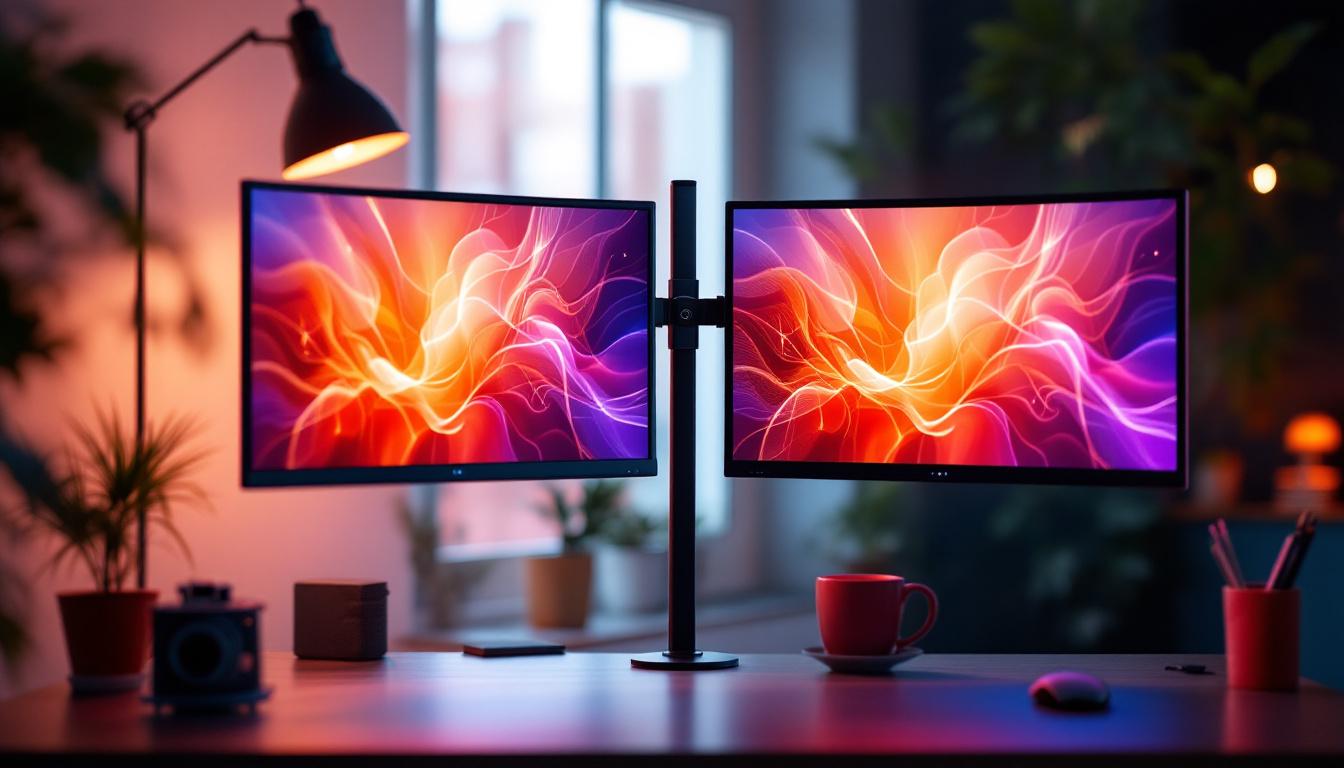
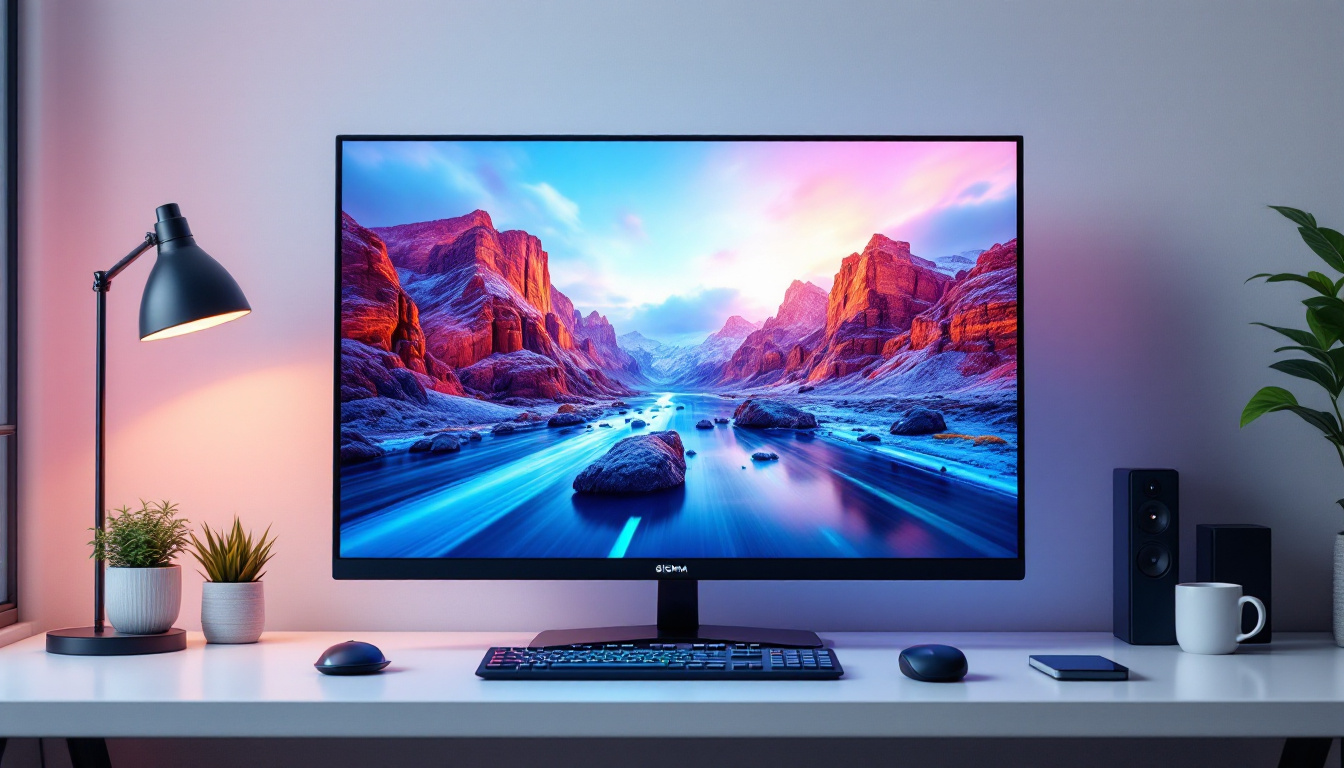
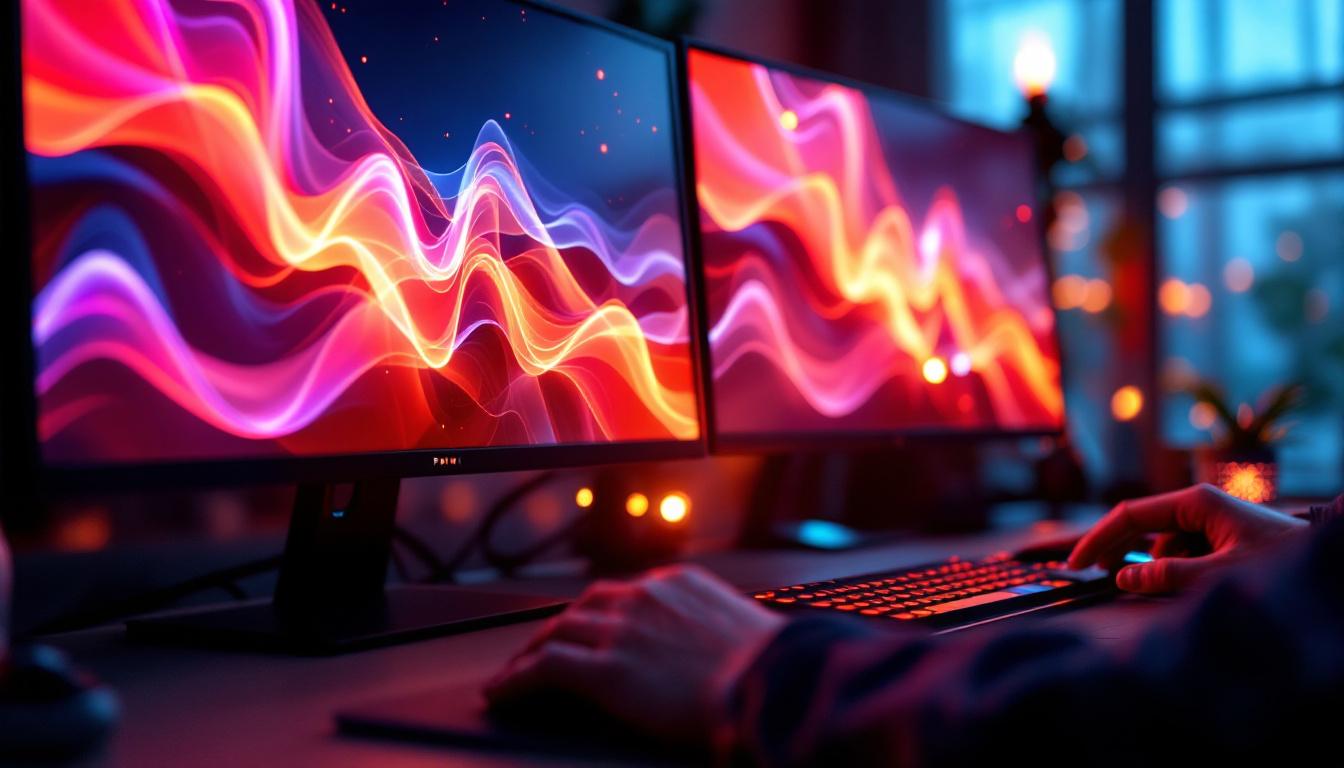
Dual monitor configurations involve connecting two separate display screens to a single computer system. This setup allows users to extend their desktop workspace, enabling multiple applications or windows to be open and visible simultaneously. According to a 2023 survey by TechSpot, over 60% of office workers who use computers regularly prefer dual or multi-monitor setups for increased productivity.
The benefits of dual monitors include:
- Enhanced Multitasking: Users can work on a document on one screen while referencing data or browsing the web on the other.
- Improved Workflow: Designers, video editors, and programmers can spread their tools and timelines across two screens, reducing the need to constantly switch tabs.
- Better Gaming Experience: Gamers enjoy wider fields of view and more immersive gameplay when using dual monitors.
While dual monitors boost efficiency and user experience, they also introduce complexity when it comes to capturing screenshots, especially if the displays are LED-based with different resolutions or scaling settings. Users may find that managing different display settings can be a bit of a learning curve, particularly when trying to align windows across screens. Additionally, the physical space required for dual monitors can be a consideration; users need to ensure their desks can accommodate the extra screen without feeling cramped.
Moreover, the choice of monitors can significantly impact the overall experience. For example, some users prefer ultrawide monitors that provide a seamless view, while others opt for two separate monitors to maintain flexibility in positioning. The resolution and refresh rate of the monitors also play a crucial role, especially for gamers and graphic designers who require high fidelity and responsiveness. Ultimately, the right dual monitor setup can transform the way individuals approach their work or leisure activities, making it an investment worth considering for anyone looking to enhance their computing experience.
What Are LED Displays and Why Are They Popular?
LED (Light Emitting Diode) displays have revolutionized the visual technology landscape. Unlike older LCDs that use cold cathode fluorescent lamps (CCFL) for backlighting, LED monitors employ light-emitting diodes, which provide several advantages.
Key Advantages of LED Displays
LED displays offer brighter images, better contrast ratios, and more vibrant colors. They are also more energy-efficient and have thinner profiles, making them ideal for modern workspaces. According to the Display Industry Association, LED monitors consume up to 25% less power than traditional LCDs, contributing to lower electricity bills and reduced environmental impact.
Additionally, LED technology supports higher refresh rates and faster response times, which are crucial for gaming and professional graphic work. The ability to produce deep blacks and vivid colors enhances visual clarity, making LED displays the preferred choice for dual monitor setups.
LED Monitor Variants and Their Impact on Dual Displays
There are several types of LED monitors, including edge-lit LED, full-array LED, and OLED (organic LED). Each type affects image quality and viewing angles differently. When using dual monitors, mismatched LED types or varying resolutions can cause discrepancies in color accuracy and brightness between screens, which may complicate screenshot captures.
Understanding your LED monitors’ specifications is essential for achieving consistent results, especially when capturing or sharing screen content across both displays.
How to Print Screen on Dual Monitors: Challenges and Solutions
Capturing screenshots on a single monitor is straightforward with the standard “Print Screen” (PrtScn) key or built-in tools. However, dual monitor setups introduce new challenges, such as:
- Capturing Both Screens Simultaneously: Users often want to capture the entire extended desktop spanning both monitors.
- Capturing a Specific Monitor: Sometimes, only one screen’s content is relevant.
- Handling Different Resolutions and Scaling: Screens with different pixel densities can produce uneven or distorted screenshots.
Default Print Screen Behavior on Dual Monitors
By default, pressing the Print Screen key captures the entire visible desktop across all connected monitors. This means if you have two 1920×1080 LED monitors side by side, the screenshot will be a combined image of 3840×1080 pixels. The image will include everything visible on both screens, preserving the layout of windows and applications.
However, this combined screenshot can be unwieldy if only one monitor’s content is needed. Additionally, if the monitors have different resolutions or orientations (one in portrait mode, the other in landscape), the resulting image may appear uneven or require cropping.
Capturing Screenshots of a Single Monitor
To capture only one monitor’s content, users can employ several methods:
- Using Alt + Print Screen: This shortcut captures the currently active window, which can be on either monitor.
- Snipping Tools: Built-in utilities like Windows Snipping Tool or Snip & Sketch allow users to select specific screen areas or windows.
- Third-Party Software: Applications such as Greenshot, ShareX, or Lightshot offer advanced options to capture specific monitors or custom regions with ease.
These methods are particularly useful when working with dual LED monitors that have different resolutions or color settings, ensuring that the screenshot focuses on the desired content without extra editing.
Dealing with Resolution and Scaling Differences
One common issue with dual LED monitors is that they may have different native resolutions or Windows scaling settings. For example, a 4K monitor paired with a 1080p monitor can cause screenshots to appear misaligned or blurry on one screen.
To mitigate this:
- Set both monitors to their native resolution for the best clarity.
- Adjust scaling settings in the display preferences to match as closely as possible.
- Use screenshot tools that support multi-monitor setups and handle scaling automatically.
By aligning resolutions and scaling, users can ensure that screenshots taken across dual LED monitors are sharp and accurately represent what’s displayed.
Advanced Tips for Professional Screenshot Capture on Dual LED Monitors
For professionals who rely heavily on screen captures—such as graphic designers, software developers, and content creators—there are advanced techniques and tools that enhance the screenshot experience on dual LED monitors.
Utilize Dedicated Screenshot Software
While built-in tools are sufficient for casual use, dedicated screenshot software offers features like:
- Multi-monitor support with automatic detection of active screens.
- Customizable hotkeys for capturing full screens, active windows, or selected regions.
- Annotation and editing tools to highlight or obscure parts of the screenshot.
- Direct upload or sharing options to streamline workflows.
Programs like Snagit and ShareX are popular among professionals for their reliability and feature-rich interfaces. They also handle the nuances of LED display color profiles, ensuring screenshots maintain color fidelity.
Calibrate Your LED Monitors for Consistent Color
Color calibration is crucial when working across dual LED monitors, especially in fields like photography or video production. Calibration tools and software can adjust brightness, contrast, and color temperature to ensure both screens display colors consistently.
Consistent color across monitors means that screenshots will more accurately reflect what users see, reducing the risk of miscommunication or errors in visual work.
Consider Hardware Solutions for Screen Capture
In some cases, hardware capture devices such as external capture cards can be used to record or capture screen content directly from the video output. This method is especially useful for gamers or video producers who need high-quality captures without software overhead.
While more expensive and complex, hardware solutions bypass many software limitations and can handle multi-monitor setups with ease.
Common Issues and Troubleshooting When Printing Screen on Dual LED Monitors
Despite best practices, users may encounter issues when capturing screenshots on dual LED monitors. Some common problems include:
Blank or Black Screens in Screenshots
This issue often arises due to software conflicts or graphics driver problems. Updating the graphics driver and ensuring that screenshot software has the necessary permissions can resolve this.
Incorrect or Cropped Screenshots
When monitors have differing resolutions or orientations, screenshots may be cropped or misaligned. Adjusting display settings and using software that supports multi-monitor setups can help.
Color Inconsistencies
Color differences between monitors can make screenshots look inaccurate. Calibrating monitors and using color-managed screenshot tools are effective solutions.
Print Screen Key Not Responding
Sometimes, the Print Screen key may not function due to keyboard issues or software conflicts. Testing with an external keyboard or using alternative screenshot methods can diagnose the problem.
Conclusion: Mastering Print Screen on Dual LED Monitor Setups
Dual monitor setups with LED displays offer significant advantages in productivity, entertainment, and professional work. However, capturing screenshots across these setups requires understanding the underlying technology and available tools. By recognizing the challenges posed by different resolutions, scaling, and LED display types, users can select appropriate methods and software to capture high-quality screenshots efficiently.
Whether using built-in shortcuts, advanced screenshot applications, or hardware capture devices, mastering the print screen function on dual LED monitors enhances workflow and ensures that digital content is accurately preserved and shared.
As LED technology continues to evolve and multi-monitor setups become more prevalent, staying informed about best practices for screen capture will remain essential for both casual users and professionals alike.
Explore Cutting-Edge LED Display Solutions with LumenMatrix
Ready to elevate your dual monitor setup and enhance your visual experience? Discover LumenMatrix’s innovative LED display technology, designed to bring your content to life with unparalleled clarity and vibrancy. Whether you’re looking to boost your brand’s visibility or create an immersive environment for gaming and professional work, LumenMatrix has a solution for you. From Indoor and Outdoor LED Wall Displays to Custom and All-in-One LED solutions, the possibilities are endless. Check out LumenMatrix LED Display Solutions today and transform your digital engagement.