Adjusting the brightness of your LED monitor is a fundamental step in optimizing your viewing experience, reducing eye strain, and conserving energy. While it may seem straightforward, understanding how brightness works on LED displays and how to adjust it properly can significantly enhance both comfort and display performance. This article explores the essentials of monitor brightness, the technology behind LED displays, and practical methods to adjust brightness effectively.
Understanding LED Monitor Brightness
LED monitors use light-emitting diodes as their backlighting source, which differs from older LCD monitors that relied on cold cathode fluorescent lamps (CCFLs). This shift to LED technology has brought about improvements in brightness, contrast, energy efficiency, and color accuracy. The advancements in LED technology have not only enhanced the visual experience but have also made monitors more environmentally friendly, as they consume less power and have a longer lifespan compared to their CCFL counterparts.
Brightness on an LED monitor is typically measured in nits, where one nit equals one candela per square meter (cd/m²). For most indoor environments, a brightness level between 200 and 350 nits is considered comfortable and sufficient for clear visibility. However, the optimal brightness can vary depending on ambient lighting conditions and the content being viewed. For instance, a brightly lit room may require a higher brightness setting to counteract glare, while a dimly lit environment may benefit from a lower setting to reduce strain on the eyes and enhance viewing comfort.
Why Brightness Matters
Proper brightness adjustment is crucial for several reasons. Firstly, it helps reduce eye fatigue and discomfort, especially during prolonged use. Excessively bright screens can cause glare, while screens that are too dim may force your eyes to strain to see details clearly. This is particularly important for users who spend long hours in front of their monitors, such as gamers, programmers, or graphic designers, as improper brightness can lead to headaches and decreased productivity.
Secondly, brightness impacts color perception and image quality. Overly bright displays can wash out colors, while under-bright displays may appear dull or muddy. Ensuring the right brightness balance is essential for tasks requiring color accuracy, such as photo editing or graphic design. Additionally, the ability to adjust brightness can enhance the viewing experience for movies and games, where dynamic lighting plays a significant role in immersion and enjoyment.
LED Backlighting and Brightness Control
LED backlighting allows for more precise control of brightness compared to older technologies. Many modern monitors employ local dimming, where sections of the backlight can be dimmed independently to improve contrast ratios. This technology enhances the viewing experience by delivering deeper blacks and brighter whites, making it particularly beneficial for high-definition content and HDR (High Dynamic Range) media. As a result, users can enjoy a more vibrant and lifelike representation of images and videos, which is crucial for both entertainment and professional applications.
Brightness control on LED monitors is usually managed through the monitor’s on-screen display (OSD) menu, but it can also be adjusted via operating system settings or third-party software. Understanding these options is key to achieving the best results. Some monitors even feature adaptive brightness settings that automatically adjust based on the surrounding light conditions, providing a seamless viewing experience. This capability not only enhances comfort but also contributes to energy savings, as the monitor can lower brightness when less light is needed, extending its lifespan and reducing power consumption.
Methods to Adjust Monitor Brightness
There are several ways to adjust the brightness of an LED monitor, each with its advantages and limitations. Selecting the appropriate method depends on your specific needs, the hardware you are using, and the environment in which you work.
Using Monitor’s On-Screen Display (OSD) Controls
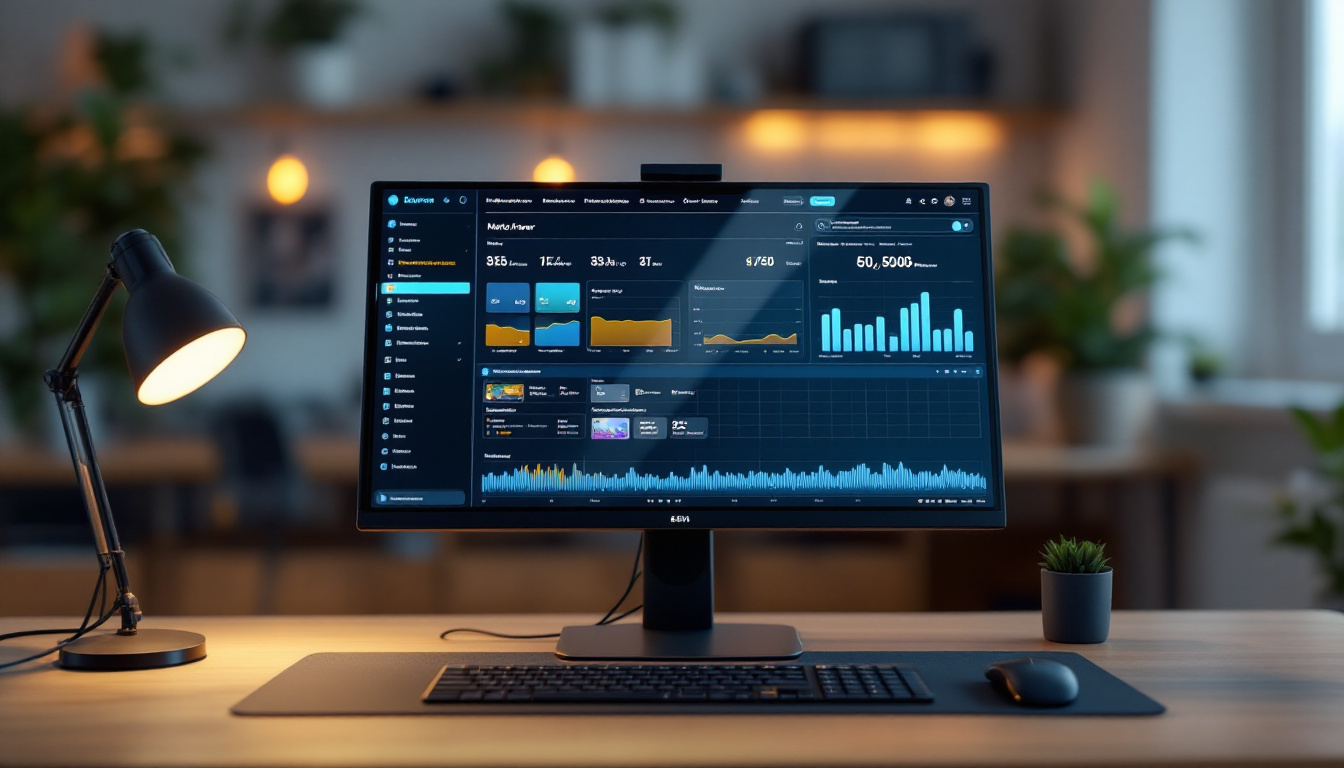
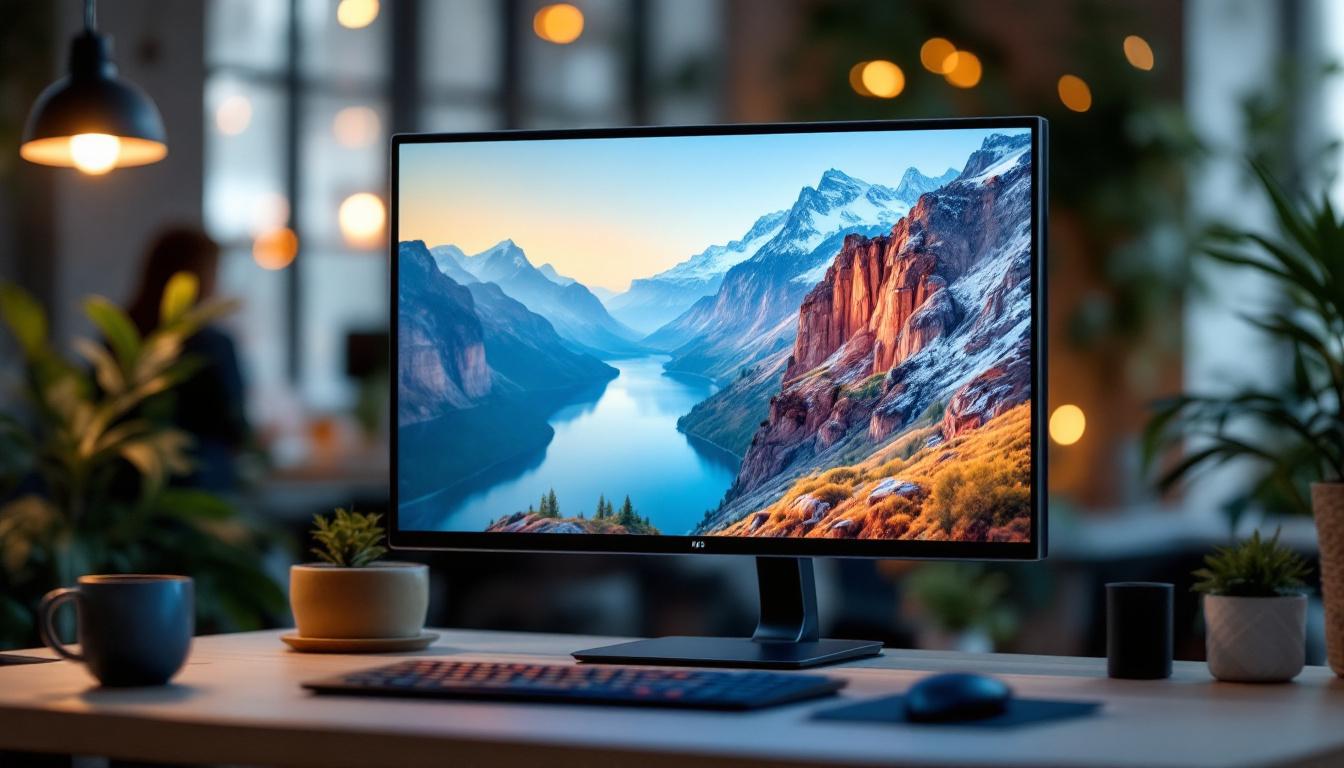
The most direct and reliable method to adjust brightness is through the monitor’s built-in OSD controls. These controls are typically accessed via physical buttons or a joystick located on the monitor’s bezel.
Once in the OSD menu, navigate to the brightness settings. Most monitors allow you to adjust brightness in increments, often from 0% to 100%. Some models also offer presets such as “Standard,” “Reading,” “Cinema,” or “Game,” which adjust brightness and other settings optimized for specific use cases.
Adjusting brightness through the OSD ensures the backlight intensity changes at the hardware level, providing consistent results regardless of software or operating system.
Adjusting Brightness via Operating System Settings
Modern operating systems provide built-in tools to adjust screen brightness, especially useful for laptops and all-in-one PCs with integrated displays. For example, Windows users can adjust brightness through the Action Center or Display Settings, while macOS users can use the System Preferences or the Touch Bar on supported MacBooks.
These software controls often communicate with the monitor’s hardware to change brightness. However, for external LED monitors connected via HDMI or DisplayPort, software-based brightness adjustments may be limited or less effective, as the signal sent to the monitor does not always include brightness control commands.
Using Third-Party Software
Several third-party applications allow for brightness adjustment, often by modifying the gamma or color profile rather than the actual backlight intensity. Examples include f.lux, Display Tuner, and Dimmer. These apps are particularly useful for users who want to adjust brightness dynamically based on time of day or ambient light conditions.
While these software solutions can reduce perceived brightness and help reduce blue light exposure, they do not physically change the LED backlighting. Therefore, they may not be as effective in very bright environments or for tasks requiring precise color fidelity.
Automatic Brightness Adjustment with Ambient Light Sensors
Some modern monitors and laptops come equipped with ambient light sensors that automatically adjust screen brightness based on surrounding light conditions. This feature helps maintain optimal visibility and reduces eye strain by adapting the display to the environment.
While convenient, automatic brightness adjustment may not always align with user preferences or specific tasks. It’s often beneficial to have manual override options to fine-tune brightness according to personal comfort.
Best Practices for Brightness Adjustment
Adjusting brightness is not just about setting the screen to the highest or lowest level. It requires a thoughtful approach that considers environmental factors, user needs, and the type of content being displayed.
Match Brightness to Ambient Lighting
One of the most important factors in brightness adjustment is ambient lighting. In brightly lit rooms or near windows, higher brightness levels help maintain screen visibility and prevent washout. Conversely, in dimly lit or dark rooms, lower brightness settings reduce glare and eye strain.
A simple rule of thumb is to adjust your monitor brightness so that it matches the surrounding light intensity. This balance reduces the contrast between the screen and the environment, making viewing more comfortable.
Consider the Content You Are Viewing
Different types of content may require different brightness settings. For example, watching movies or playing games with dark scenes often benefits from higher brightness and contrast to reveal details. Meanwhile, reading documents or browsing the web might be more comfortable at moderate brightness levels.
Professionals working with color-critical applications should calibrate their monitors using specialized tools to ensure brightness and color accuracy meet industry standards.
Use Calibration Tools for Precision
For users who require precise brightness and color settings, such as photographers, graphic designers, and video editors, using a hardware calibration device is highly recommended. Devices like colorimeters measure the display’s output and create custom profiles to optimize brightness, contrast, and color accuracy.
Calibration ensures that the brightness level is not only comfortable but also consistent and accurate across different devices and viewing conditions.
Common Issues and Troubleshooting
While adjusting monitor brightness is generally straightforward, users may encounter certain issues that affect their ability to set the desired brightness level.
Brightness Controls Not Working
If the brightness adjustment buttons on your monitor or keyboard do not respond, it could be due to driver issues, incorrect display settings, or hardware malfunctions. Updating your graphics drivers and monitor firmware can often resolve these problems.
For external monitors, ensure that the connection cables (HDMI, DisplayPort, DVI) are securely connected and support brightness control signals. Sometimes, switching ports or cables can fix the issue.
Screen Flickering or Backlight Bleeding
Improper brightness settings can sometimes cause screen flickering or highlight backlight bleeding, where light leaks around the edges of the screen. Reducing brightness or enabling local dimming features can mitigate these effects.
If flickering persists, it may be related to the monitor’s refresh rate or power supply, and consulting the manufacturer’s support may be necessary.
Excessive Eye Strain Despite Adjustments
If eye strain continues even after adjusting brightness, consider additional factors such as screen position, glare from external light sources, and blue light exposure. Using anti-glare screen protectors, adjusting monitor height and angle, and enabling blue light filters can complement brightness adjustments for better eye comfort.
Energy Efficiency and Brightness
Adjusting monitor brightness not only impacts viewing comfort but also influences energy consumption. LED monitors are generally more energy-efficient than older display technologies, but running them at maximum brightness can still increase power usage.
Lowering brightness to appropriate levels can contribute to reduced electricity bills and a smaller environmental footprint. According to the U.S. Department of Energy, reducing monitor brightness by 50% can cut energy consumption by up to 40%, depending on the model.
Eco-Friendly Brightness Settings
Many monitors include eco or power-saving modes that automatically adjust brightness and other settings to minimize energy use. Activating these modes is a simple way to balance performance and sustainability.
For businesses and organizations managing multiple workstations, implementing standardized brightness settings can lead to significant cumulative energy savings.
Conclusion
Adjusting the brightness of an LED monitor is a vital aspect of ensuring a comfortable and high-quality viewing experience. Understanding the technology behind LED backlighting, the various methods available for brightness adjustment, and best practices tailored to your environment and tasks can make a substantial difference.
Whether using the monitor’s OSD controls, operating system settings, or third-party software, the goal is to find a brightness level that reduces eye strain, enhances image quality, and supports energy efficiency. For professionals requiring precise calibration, investing in hardware calibration tools is advisable.
By paying attention to brightness and its impact, users can enjoy clearer visuals, improved comfort, and a more sustainable use of their LED displays.
Discover LumenMatrix LED Display Solutions
Now that you understand the importance of adjusting monitor brightness for optimal viewing comfort and energy efficiency, take the next step with LumenMatrix. As a pioneer in LED display technology, LumenMatrix offers a wide array of innovative solutions, from Indoor and Outdoor LED Wall Displays to specialized options like Vehicle, Sports, and Floor LED Displays. Embrace the future of visual communication with our Custom, All-in-One, and Transparent LED Displays designed to captivate and engage your audience. Elevate your brand’s visibility and create unforgettable visual experiences. Check out LumenMatrix LED Display Solutions today and see the difference cutting-edge technology can make.