In today’s digital age, the clarity and quality of your computer screen can significantly impact your productivity, entertainment experience, and even eye health. One of the key factors influencing these aspects is the screen resolution. With the widespread use of LED displays, understanding how to change your computer’s screen resolution and the technology behind LED screens is essential. This comprehensive guide will walk you through the basics of screen resolution, explain LED display technology, and provide step-by-step instructions on how to adjust your computer’s screen resolution for optimal performance.
Understanding Screen Resolution and Its Importance
What Is Screen Resolution?
Screen resolution refers to the number of pixels displayed on your computer screen, typically expressed as width × height (e.g., 1920×1080). Pixels are the tiny dots that make up the images on your screen. The higher the number of pixels, the sharper and more detailed the image appears. For example, a resolution of 3840×2160 (commonly known as 4K) offers four times the pixels of 1920×1080 (Full HD), resulting in clearer images and more workspace. This increase in pixel density not only enhances the visual experience but also allows for finer details to be rendered, making it particularly advantageous for activities such as gaming, where immersive graphics can significantly enhance the overall experience.
Why Does Screen Resolution Matter?
Choosing the right screen resolution affects several aspects of your computing experience. Higher resolutions provide sharper images and more screen real estate, which is beneficial for tasks like graphic design, video editing, and multitasking. Conversely, lower resolutions can make text and icons appear larger and easier to read, which might be preferable for users with visual impairments or on smaller screens. Additionally, the choice of resolution can influence the performance of your device; higher resolutions require more powerful graphics hardware, which can lead to increased energy consumption and heat generation. This is particularly relevant for laptop users who need to balance performance with battery life.
Moreover, incorrect resolution settings can lead to distorted images, blurry text, or black bars around the display. This can cause eye strain and reduce overall usability. Therefore, understanding and setting the correct resolution is crucial for both comfort and efficiency. It’s also worth noting that different types of screens, such as LCD, OLED, and Retina displays, can render colors and contrast differently even at the same resolution. This means that two screens with the same pixel count may still deliver vastly different viewing experiences, underscoring the importance of not only resolution but also the technology behind the display itself. As users become more aware of these nuances, they can make more informed decisions when selecting monitors or devices that best suit their needs.
The Basics of LED Display Technology
What Is an LED Display?
LED stands for Light Emitting Diode. An LED display uses tiny light-emitting diodes as pixels to create images on the screen. Unlike traditional LCD screens that use cold cathode fluorescent lamps (CCFL) for backlighting, LED displays use LED backlighting, which offers better brightness, contrast, and energy efficiency.
LED technology has become the standard for modern computer monitors and televisions due to its superior performance. It enables thinner panels, improved color accuracy, and longer lifespan. There are also different types of LED displays, including edge-lit and full-array LED, each with its own advantages. Edge-lit displays utilize LEDs positioned along the edges of the screen, allowing for a sleek design, while full-array displays feature a grid of LEDs behind the entire screen, providing more uniform brightness and enhanced local dimming capabilities for deeper blacks.
Advantages of LED Displays Over Other Technologies
Compared to older display technologies like CCFL-backlit LCDs or plasma screens, LED displays offer several benefits:
- Energy Efficiency: LED backlighting consumes less power, reducing electricity costs and environmental impact.
- Better Brightness and Contrast: LEDs can produce brighter images and deeper blacks, enhancing image quality.
- Longer Lifespan: LEDs have a longer operational life, often exceeding 50,000 hours.
- Thinner and Lighter Panels: LED technology allows for slimmer designs, making monitors more portable and aesthetically pleasing.
In addition to these advantages, LED displays are also known for their rapid response times, which is particularly beneficial for gaming and fast-paced video content. This quick response minimizes motion blur, providing a smoother viewing experience. Furthermore, advancements in LED technology have led to the development of OLED (Organic LED) displays, which offer even greater contrast ratios and color vibrancy by allowing individual pixels to emit their own light. This technology is becoming increasingly popular in high-end televisions and smartphones, pushing the boundaries of visual quality.
Moreover, LED displays are versatile and can be found in various applications beyond home entertainment. They are widely used in commercial settings, such as digital signage, billboards, and large-scale video walls, where their brightness and clarity can attract attention even in bright outdoor environments. The adaptability of LED technology also extends to the realm of smart displays, which integrate touch capabilities and interactivity, enhancing user engagement in both retail and educational contexts.
How to Check Your Current Screen Resolution
Windows Operating System
To check your current screen resolution on a Windows PC, follow these steps:
- Right-click on the desktop and select Display settings.
- Scroll down to the Display resolution section.
- The current resolution will be displayed, often marked as (Recommended) if it is the optimal setting.
This method works for Windows 10 and Windows 11. Knowing your current resolution helps determine if adjustments are necessary.
macOS Operating System
On a Mac, checking the screen resolution is straightforward:
- Click the Apple menu and select System Preferences.
- Choose Displays.
- Under the Display tab, you will see the current resolution. You can also select Scaled to view and change available resolutions.
Step-by-Step Guide to Changing Screen Resolution
Changing Screen Resolution on Windows
Adjusting your screen resolution on Windows is quick and easy. Here’s how:
- Right-click on the desktop and choose Display settings.
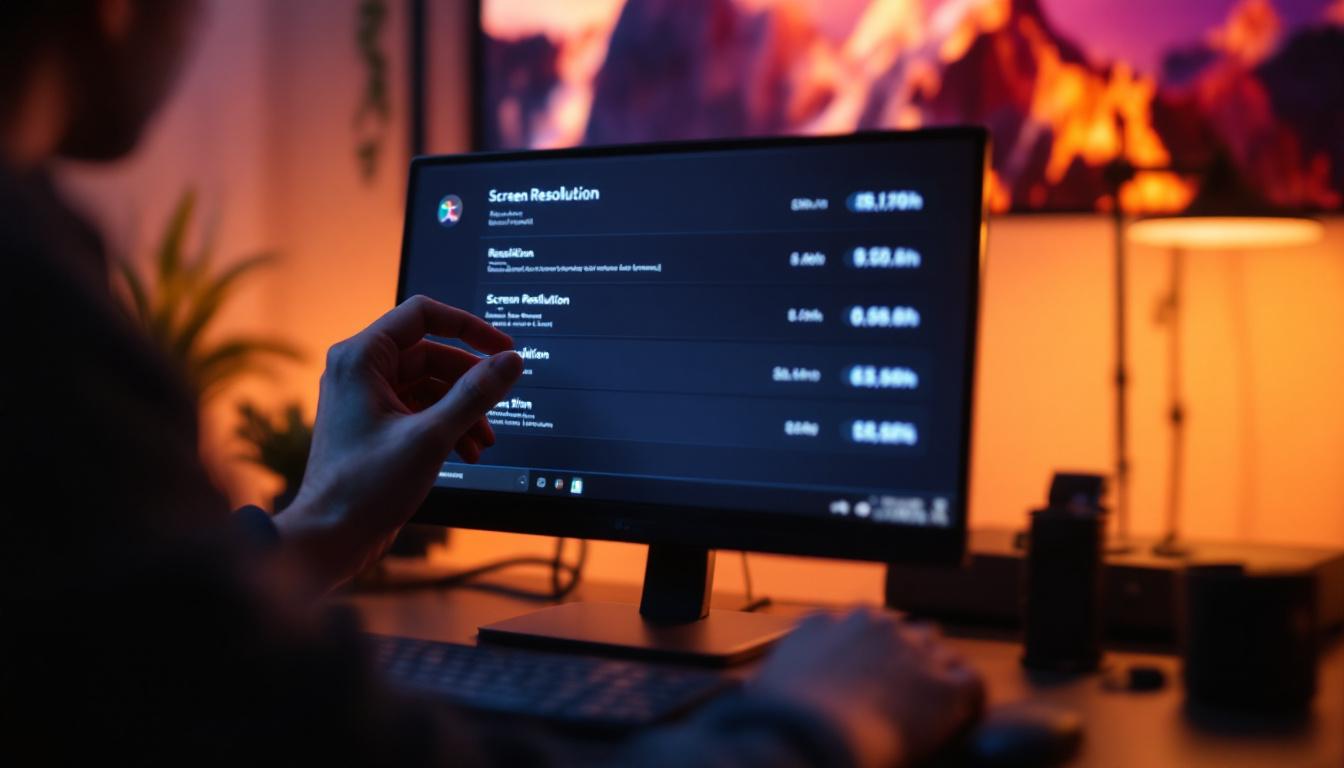
- Under the Display resolution dropdown, select the resolution you want to use.
- Click Apply. Your screen will adjust to the new resolution.
- A prompt will ask if you want to keep the changes. If the display looks good, click Keep changes. If not, choose Revert to return to the previous resolution.
It’s important to select a resolution supported by your monitor to avoid display issues. The recommended resolution is usually the native resolution of your LED display and provides the best image quality.
Changing Screen Resolution on macOS
To change the resolution on a Mac:
- Open System Preferences and click Displays.
- Select the Display tab.
- Choose Scaled to see available resolutions.
- Click on the resolution you want. The screen will adjust automatically.
Macs often optimize scaling to maintain clarity, so some resolutions may be labeled as “Default for display” or “More Space” to indicate different scaling options.
Optimizing Screen Resolution for Different Use Cases
For Work and Productivity
Higher resolutions like 2560×1440 (QHD) or 3840×2160 (4K) provide more screen real estate, allowing you to open multiple windows side by side. This is especially useful for professionals who multitask, such as software developers, graphic designers, and data analysts.
However, on smaller monitors, very high resolutions can make text and icons appear too small. In such cases, adjusting the scaling settings alongside resolution can improve readability without sacrificing workspace.
For Gaming
Gamers often balance resolution with frame rates. While 4K resolution offers stunning visuals, it requires powerful hardware to maintain smooth gameplay. Many gamers prefer 1920×1080 (Full HD) or 2560×1440 (QHD) resolutions for a good balance between image quality and performance.
Additionally, some games allow you to customize resolution settings independently, which can enhance the gaming experience based on your system’s capabilities.
For Watching Videos and Media Consumption
When watching videos, especially in high definition or 4K, matching your screen resolution to the video’s native resolution can improve image clarity and reduce scaling artifacts. LED displays with high contrast ratios and accurate color reproduction enhance the viewing experience.
Troubleshooting Common Resolution Issues
Screen Resolution Not Available
Sometimes, the desired resolution may not appear in your settings. This can happen due to outdated graphics drivers or hardware limitations. Updating your graphics card drivers from the manufacturer’s website often resolves this issue.
Blurry or Distorted Display
If your screen looks blurry after changing the resolution, it might be because the selected resolution is not the monitor’s native resolution. Always try to use the recommended or native resolution for the best clarity.
Screen Flickering or Black Bars
Flickering or black bars around the screen can indicate a mismatch between the resolution and the display’s aspect ratio. Adjusting both resolution and refresh rate settings can help fix these problems.
Additional Tips for Enhancing Your LED Display Experience
Adjusting Refresh Rate
Refresh rate, measured in hertz (Hz), indicates how many times your screen updates per second. Higher refresh rates (e.g., 120Hz or 144Hz) provide smoother motion, which is especially beneficial for gaming and video playback. You can adjust refresh rates in your display settings alongside resolution.
Calibrating Color and Brightness
LED displays often come with factory presets, but calibrating color, brightness, and contrast can improve image accuracy. Many operating systems include built-in calibration tools, or you can use third-party software and hardware calibrators for professional-grade adjustments.
Using Multiple Monitors
If you use multiple monitors, ensure each display is set to its native resolution for the best performance. Windows and macOS allow independent resolution settings for each monitor, which can optimize your workspace.
Conclusion
Understanding how to change your computer’s screen resolution and the technology behind LED displays empowers you to tailor your visual experience to your needs. Whether for work, gaming, or media consumption, selecting the right resolution enhances clarity, comfort, and productivity.
LED display technology continues to evolve, offering brighter, more energy-efficient, and visually stunning screens. By mastering resolution settings and optimizing your display, you can fully leverage the advantages of modern LED monitors and enjoy a superior computing experience.
Discover the Future of Visual Display with LumenMatrix
Ready to elevate your visual experience with the latest in LED technology? LumenMatrix is at the forefront of innovation, offering a wide array of LED display solutions that bring your content to life. From immersive Indoor LED Walls to dynamic Outdoor LED Displays and beyond, our products are designed to captivate and engage. Transform your space with our LED Sports Displays or make a statement on the move with Vehicle LED Displays. Explore the possibilities and revolutionize your visual communication today. Check out LumenMatrix LED Display Solutions and see the difference cutting-edge technology can make.