Can You Use TVs As Monitors: LED Display Explained
In today’s digital age, the line between televisions and computer monitors is increasingly blurred. With advancements in LED display technology, many users wonder if a TV can effectively replace a traditional monitor. The appeal is obvious: larger screens, often at a lower price point, can seem like a great deal for work, gaming, or entertainment. However, there are several technical and practical considerations to weigh before making the switch.
This article explores whether you can use TVs as monitors, focusing specifically on LED displays. It covers the differences in technology, performance factors, and practical advice to help you decide if a TV is a suitable alternative for your computing needs.
Understanding LED Displays: TVs vs. Monitors
What Is an LED Display?
LED, or Light Emitting Diode, displays are a type of LCD (Liquid Crystal Display) that use LEDs as a backlight source instead of traditional CCFL (Cold Cathode Fluorescent Lamp) backlighting. This technology offers brighter images, better energy efficiency, and thinner panels. Both modern TVs and monitors commonly use LED backlighting, but their design and optimization differ based on intended use.
Differences in Panel Technology and Design
While both TVs and monitors may use LED backlighting, the underlying panel technology and design priorities vary significantly. Computer monitors tend to use IPS (In-Plane Switching) or TN (Twisted Nematic) panels, optimized for faster response times, higher refresh rates, and better color accuracy. TVs, on the other hand, often use VA (Vertical Alignment) panels that emphasize high contrast ratios and vibrant colors for video content.
This distinction means that even if a TV and a monitor share the same LED backlight technology, their performance characteristics can be quite different. For example, a TV might deliver more vivid colors and deeper blacks but could have slower pixel response times, which may affect gaming or fast-paced work.
Screen Size and Resolution Considerations
TVs generally come in larger sizes, ranging from 32 inches to over 75 inches, while monitors typically range from 21 inches to 32 inches. The larger size of TVs can be appealing for immersive experiences, but it also introduces challenges related to pixel density and viewing distance.
Pixel density, measured in pixels per inch (PPI), directly impacts image sharpness. Monitors usually have higher PPI because they are viewed from closer distances. Using a large TV as a monitor at a close distance may result in visible pixels or a less sharp image, especially if the resolution is not sufficiently high (e.g., 4K or above).
Key Factors to Evaluate When Using a TV as a Monitor
Input Lag and Response Time
Input lag refers to the delay between a signal being sent from the computer and the TV displaying the image. High input lag can be frustrating, especially for gamers or users who require real-time feedback. Monitors generally have lower input lag, often under 10 milliseconds, while TVs may have higher lag due to additional image processing.
Many modern TVs include a “Game Mode” setting that reduces input lag by disabling certain processing features. When enabled, input lag can drop significantly, sometimes approaching monitor levels. However, it’s essential to check specific TV models and reviews, as performance varies widely.
Refresh Rate and Frame Rate Compatibility
Refresh rate, measured in Hertz (Hz), indicates how many times per second the screen updates. Higher refresh rates (e.g., 120Hz or 144Hz) provide smoother motion and are favored by gamers and video editors. Most TVs operate at 60Hz, though some newer models support 120Hz or higher.
Monitors designed for gaming often support 144Hz or even 240Hz, with adaptive sync technologies like G-Sync or FreeSync to reduce screen tearing and stuttering. While some TVs now include these features, they are less common and may not deliver the same performance as dedicated gaming monitors.
Color Accuracy and Calibration
Color accuracy is crucial for professionals working in photography, video editing, or graphic design. Monitors designed for these tasks often come factory-calibrated and support wide color gamuts such as AdobeRGB or DCI-P3.
TVs typically prioritize vivid colors and enhanced contrast for entertainment, which can lead to oversaturated or less accurate color reproduction. While some high-end TVs offer calibration options and support for HDR (High Dynamic Range), achieving professional-level color accuracy on a TV can be challenging without additional calibration tools.
Connectivity and Compatibility
Monitors usually feature DisplayPort and HDMI inputs, with DisplayPort offering advantages in bandwidth and support for higher refresh rates and resolutions. TVs primarily rely on HDMI inputs, which are compatible with most modern graphics cards but may limit certain advanced features.
Additionally, some TVs include smart features such as built-in streaming apps and USB ports, which are generally not necessary for monitor use but can add versatility. It’s important to ensure your computer’s graphics card supports the resolution and refresh rate of the TV you plan to use.
Practical Use Cases: When TVs Make Good Monitors
Casual Computing and Media Consumption
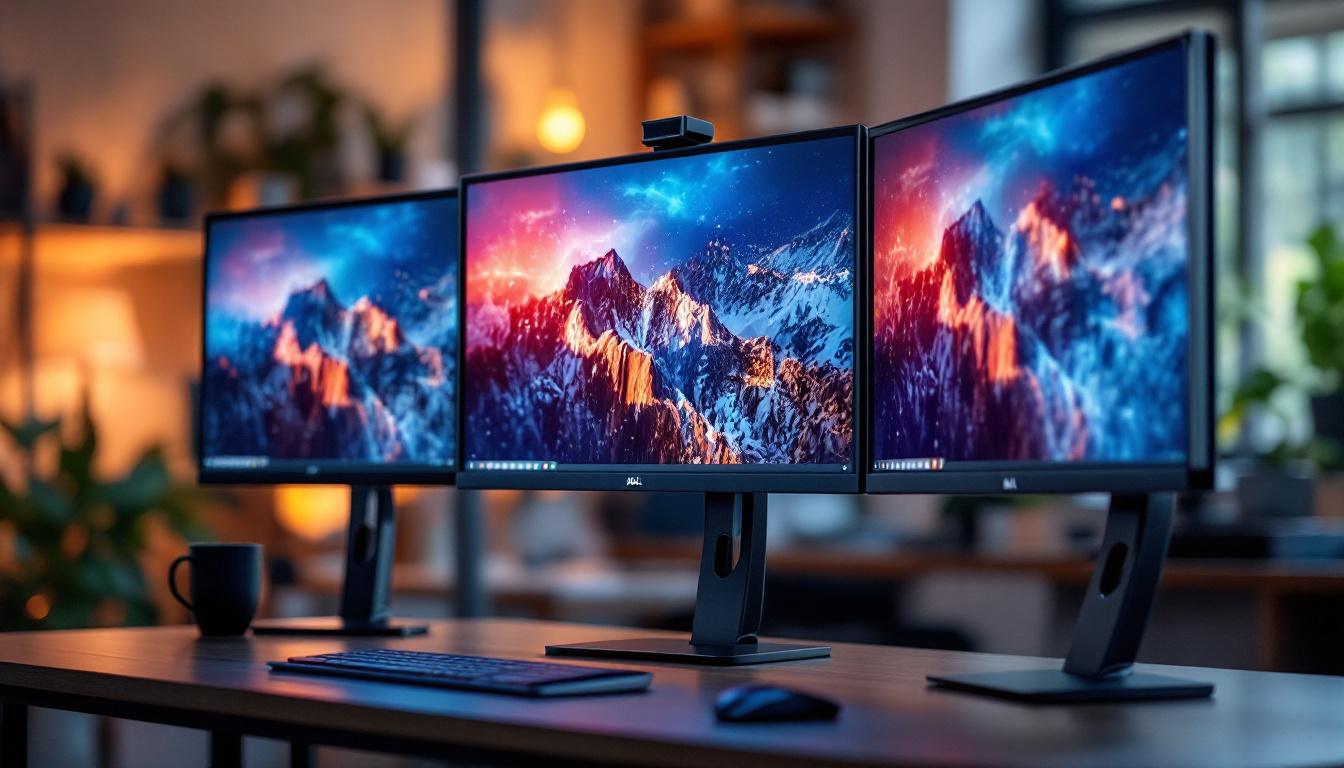
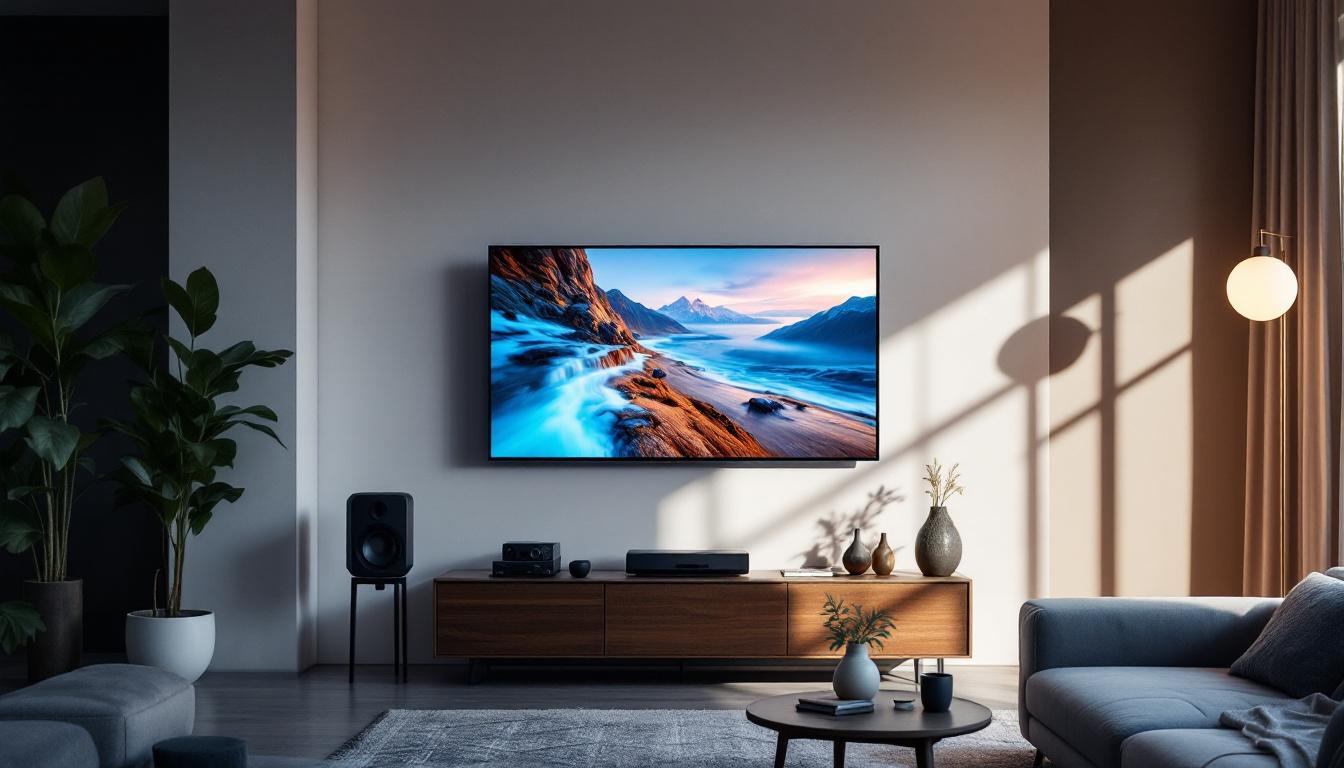
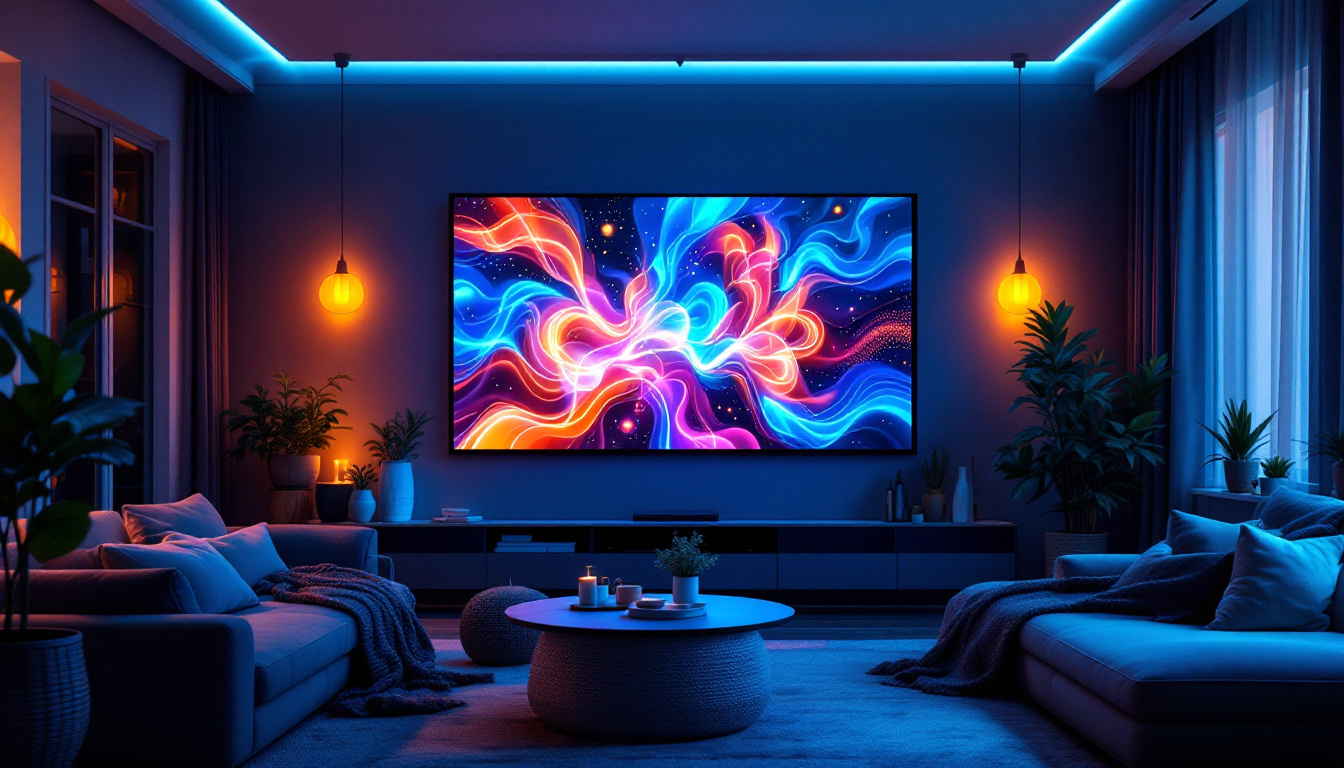
For users primarily interested in browsing the web, streaming videos, or office productivity, a TV can serve as an effective monitor. The larger screen size enhances media consumption and multitasking, especially when paired with a 4K resolution that maintains sharpness at typical viewing distances.
Many home offices and shared spaces benefit from using a TV as a secondary display for presentations, video calls, or entertainment. The cost-effectiveness of TVs compared to large monitors makes them an attractive option for these scenarios.
Gaming on a Budget or in a Living Room Setup
Console gamers often use TVs as monitors by default, as consoles are designed to output to TVs. For PC gamers, using a TV can work well if the model supports low input lag and higher refresh rates. Game Mode and HDMI 2.1 support (for 4K at 120Hz) are important features to look for.
However, competitive gamers or those requiring precise input timing may still prefer dedicated gaming monitors for their superior responsiveness and adaptive sync technologies.
Creative Work and Professional Use
Professionals in graphic design, video editing, and photography typically require monitors with precise color accuracy, uniform brightness, and reliable calibration. While some high-end TVs support HDR and wide color gamuts, they often lack the consistency and factory calibration of professional monitors.
Using a TV as a monitor for creative work is possible but may require additional calibration hardware and software, and even then, it might not meet the stringent standards of professional workflows.
Potential Drawbacks and How to Mitigate Them
Text Clarity and Scaling Issues
One common complaint when using a TV as a monitor is that text and UI elements appear blurry or too large. This is often due to the TV’s pixel structure and scaling algorithms, which are optimized for video rather than crisp text rendering.
To mitigate this, users should choose a TV with a native resolution that matches their computer’s output (preferably 4K for larger TVs) and adjust scaling settings within the operating system. Some TVs also have “PC Mode” or “Just Scan” options to improve clarity.
Viewing Distance and Ergonomics
Because TVs are larger, they are typically viewed from farther away. Using a TV as a monitor at a close distance can cause eye strain and neck discomfort due to the need to move your head to see different parts of the screen.
To avoid this, consider your desk setup and viewing distance. A larger desk or wall mounting the TV at an appropriate height can improve ergonomics. Alternatively, smaller TVs (32-43 inches) can be more manageable as monitors.
Power Consumption and Heat
TVs often consume more power than monitors, especially larger models with high brightness settings. This can lead to increased electricity costs and heat output, which may be a concern in small or poorly ventilated rooms.
Choosing energy-efficient models and adjusting brightness settings can help reduce power consumption. Monitors generally have lower power requirements, which is a consideration for long-term use.
How to Choose the Right TV for Use as a Monitor
Resolution and Size Balance
For a TV to function well as a monitor, resolution and size must be balanced. A 4K TV between 32 and 43 inches is often ideal, providing sharp images without overwhelming desk space. Larger TVs require sitting farther back to maintain image clarity and comfort.
Check Input Lag and Refresh Rate Specifications
Look for TVs with input lag under 20 milliseconds and refresh rates of at least 60Hz. If gaming is a priority, seek models supporting 120Hz and HDMI 2.1. Reading user reviews and professional tests can provide insight into real-world performance.
Enable Game or PC Mode
Ensure the TV has a Game Mode or PC Mode that reduces processing delay and improves image clarity. This setting is crucial for minimizing input lag and avoiding scaling issues.
Connectivity Options
Verify that the TV has sufficient HDMI ports and supports the required resolutions and refresh rates. Some newer TVs also support DisplayHDR standards, which can enhance visual quality if your content and GPU support it.
Conclusion: Are TVs a Viable Alternative to Monitors?
Using a TV as a monitor is increasingly feasible thanks to advancements in LED display technology. For casual users, media consumption, and some gaming scenarios, a TV can provide a large, immersive display at a competitive price. However, there are trade-offs in input lag, color accuracy, and ergonomics that may limit their suitability for professional or competitive use.
Choosing the right TV—ideally a 4K model with low input lag, appropriate size, and Game Mode—can mitigate many common issues. Ultimately, whether a TV can replace a monitor depends on your specific needs, budget, and workspace setup. Understanding the technical differences and practical considerations outlined in this article will help you make an informed decision.
Discover the Future of Visual Displays with LumenMatrix
Ready to elevate your viewing experience with the latest in LED display technology? LumenMatrix offers a wide range of innovative solutions tailored to meet your needs, whether for business, entertainment, or creative projects. From immersive Indoor LED Wall Displays to dynamic Outdoor LED Wall Displays, and from versatile Vehicle LED Displays to sleek LED Poster Displays, our products are designed to captivate and engage. Embrace the revolution in visual communication with LumenMatrix’s cutting-edge digital signage and LED display solutions. Check out LumenMatrix LED Display Solutions today and transform your space into a vibrant hub of visual excellence.