In today’s fast-paced digital world, maximizing productivity and enhancing visual experience are top priorities for professionals and enthusiasts alike. A dual monitor setup has become an essential tool for many, offering expanded screen real estate and improved workflow. Among the various display technologies available, LED displays stand out for their vibrant colors, energy efficiency, and sleek design. This article delves into the intricacies of dual monitor setups with LED displays, providing a comprehensive diagrammatic explanation and exploring the benefits, setup considerations, and troubleshooting tips to help you make the most of your dual-screen experience.
Understanding Dual Monitor Setups
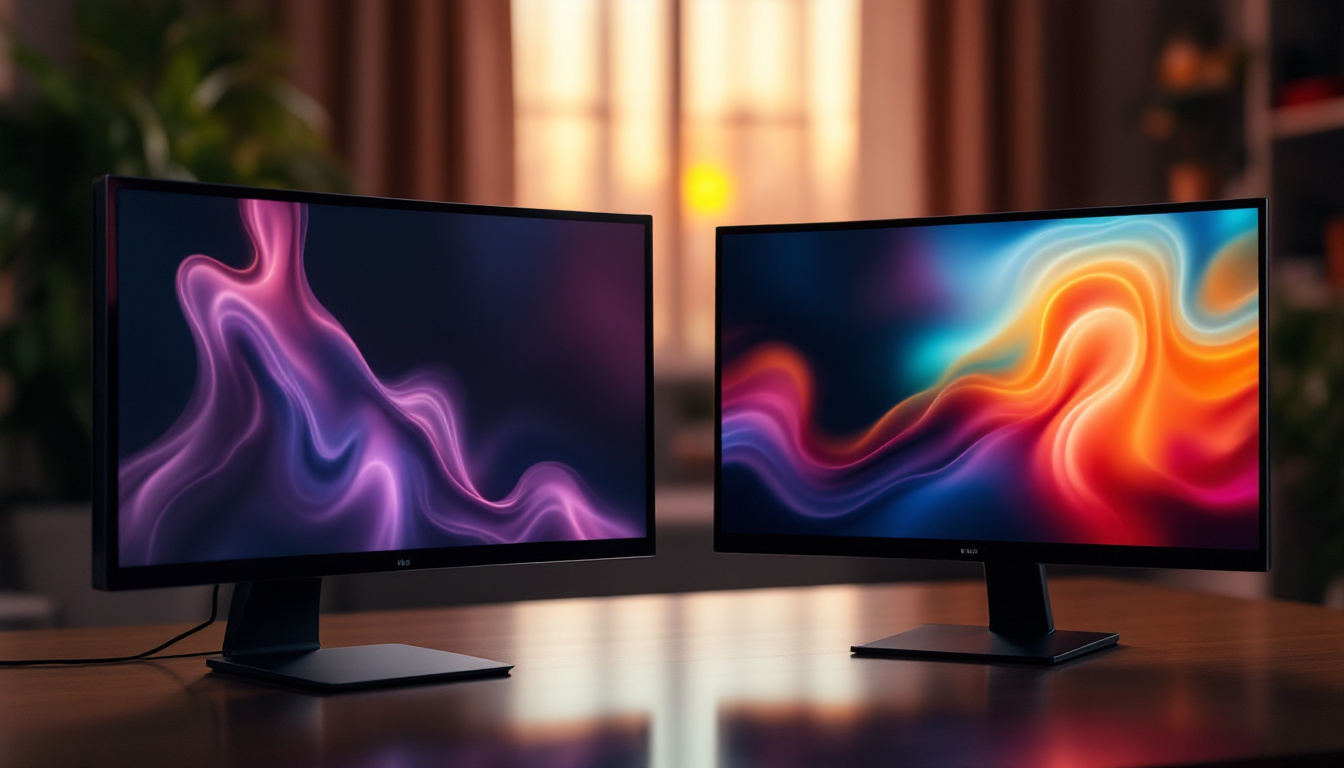
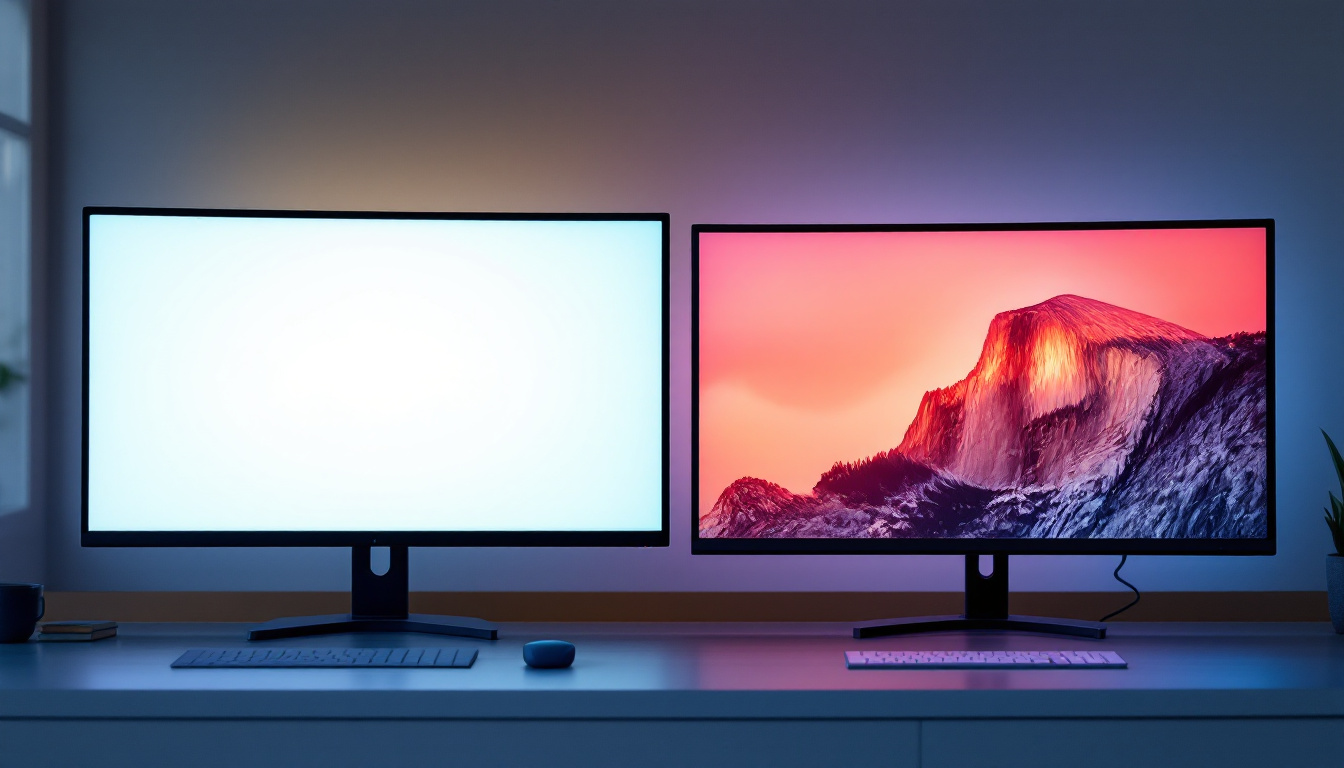
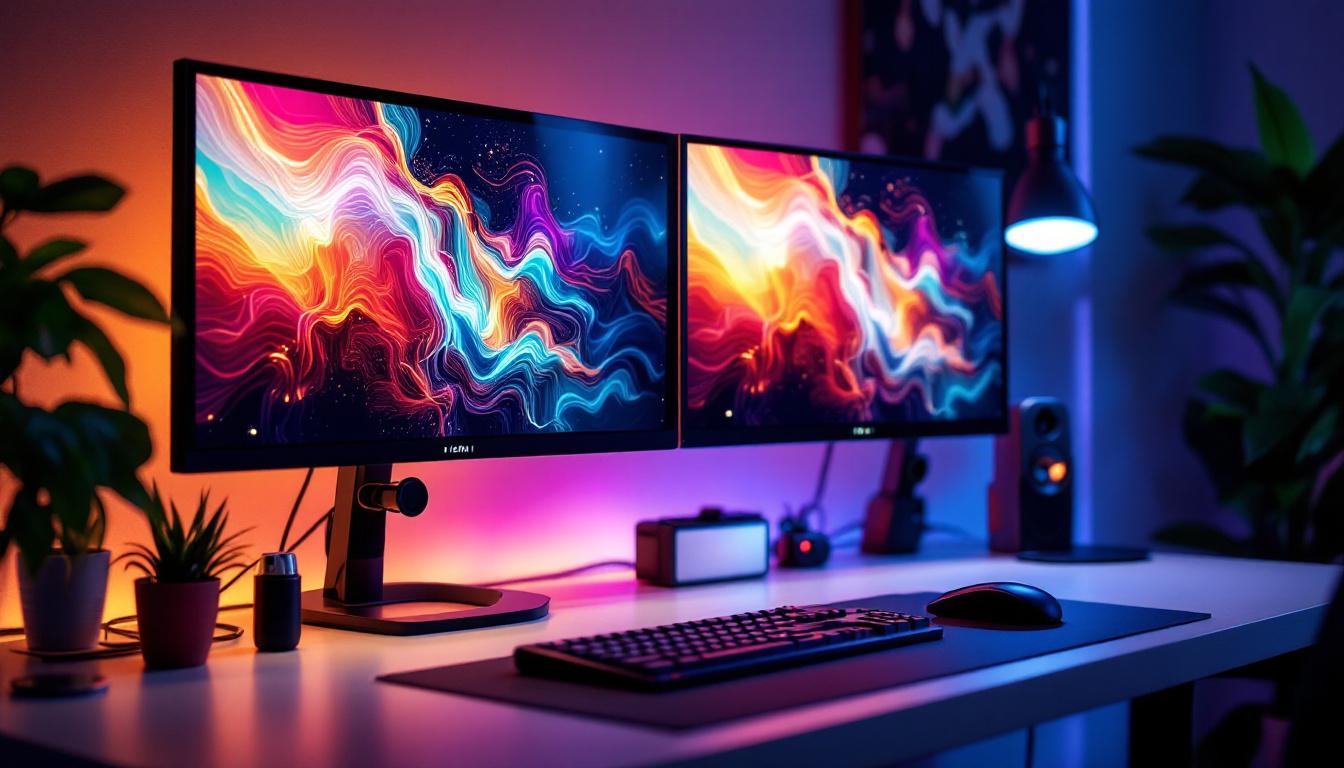
Dual monitor setups involve connecting two separate display screens to a single computer system, allowing users to extend or duplicate their desktop workspace. This configuration is widely used in diverse fields such as graphic design, software development, financial trading, and gaming. The ability to view multiple applications or documents simultaneously enhances multitasking capabilities and reduces the need to constantly switch between windows.
According to a study by the University of Utah, users with dual monitors can increase productivity by up to 42%, highlighting the tangible benefits of this setup. The key to leveraging this productivity boost lies in understanding how to configure and optimize your dual monitor system effectively.
Types of Dual Monitor Configurations
There are primarily two ways to configure dual monitors: extended mode and mirrored mode. Extended mode allows the desktop to span across both screens, effectively doubling the workspace. This is ideal for tasks that require multiple open windows, such as coding on one screen while referencing documentation on the other. Mirrored mode, on the other hand, displays the same content on both monitors, which is useful for presentations or collaborative work where multiple viewers need to see the same screen.
Choosing the right configuration depends on your specific needs and the nature of your work. Extended mode is generally preferred for productivity, while mirrored mode suits demonstration purposes.
LED Display Technology Explained
LED, or Light Emitting Diode, displays have revolutionized the monitor industry by offering superior image quality and energy efficiency compared to traditional LCD and CRT monitors. Understanding how LED technology works is crucial for appreciating its advantages in a dual monitor setup.
How LED Displays Work
LED monitors are essentially LCD screens that use LED backlighting instead of the older cold cathode fluorescent lamps (CCFL). This backlighting method involves an array of tiny LEDs positioned behind or along the edges of the screen, illuminating the liquid crystal layer to produce images. The use of LEDs allows for thinner panels, better brightness control, and more accurate color reproduction.
There are two main types of LED backlighting: edge-lit and full-array. Edge-lit LED displays place LEDs along the edges of the screen, enabling slimmer designs but sometimes causing uneven brightness. Full-array LED displays have LEDs spread evenly behind the screen, offering superior contrast and uniform lighting, often with local dimming capabilities for deeper blacks.
Advantages of LED Displays in Dual Monitor Setups
LED monitors offer several benefits that make them ideal for dual monitor configurations:
- Energy Efficiency: LED backlighting consumes significantly less power than CCFL, reducing energy costs and heat output.
- Improved Brightness and Contrast: LED displays provide higher brightness levels and better contrast ratios, enhancing image clarity and reducing eye strain during extended use.
- Color Accuracy: Modern LED monitors support wider color gamuts and better color calibration, essential for professionals in design and media.
- Slim Profile: The thin design of LED monitors allows for flexible placement and easier alignment in dual setups.
Diagramming a Dual Monitor Setup with LED Displays
Visualizing a dual monitor setup is key to understanding the connections, components, and optimal arrangement. Below is a detailed explanation of the typical elements involved, accompanied by a conceptual diagram outline.
Key Components of the Setup
A standard dual monitor setup with LED displays includes the following components:
- Computer or Laptop: The central processing unit that drives the displays. It must have sufficient video output ports to support two monitors.
- LED Monitors: Two LED display panels, ideally matched in size and resolution for uniformity.
- Video Cables: HDMI, DisplayPort, DVI, or VGA cables depending on the monitor and computer ports.
- Graphics Card: A dedicated or integrated GPU capable of handling dual outputs.
- Monitor Stands or Mounts: Adjustable stands or VESA mounts to align and position the monitors ergonomically.
Conceptual Diagram Explanation
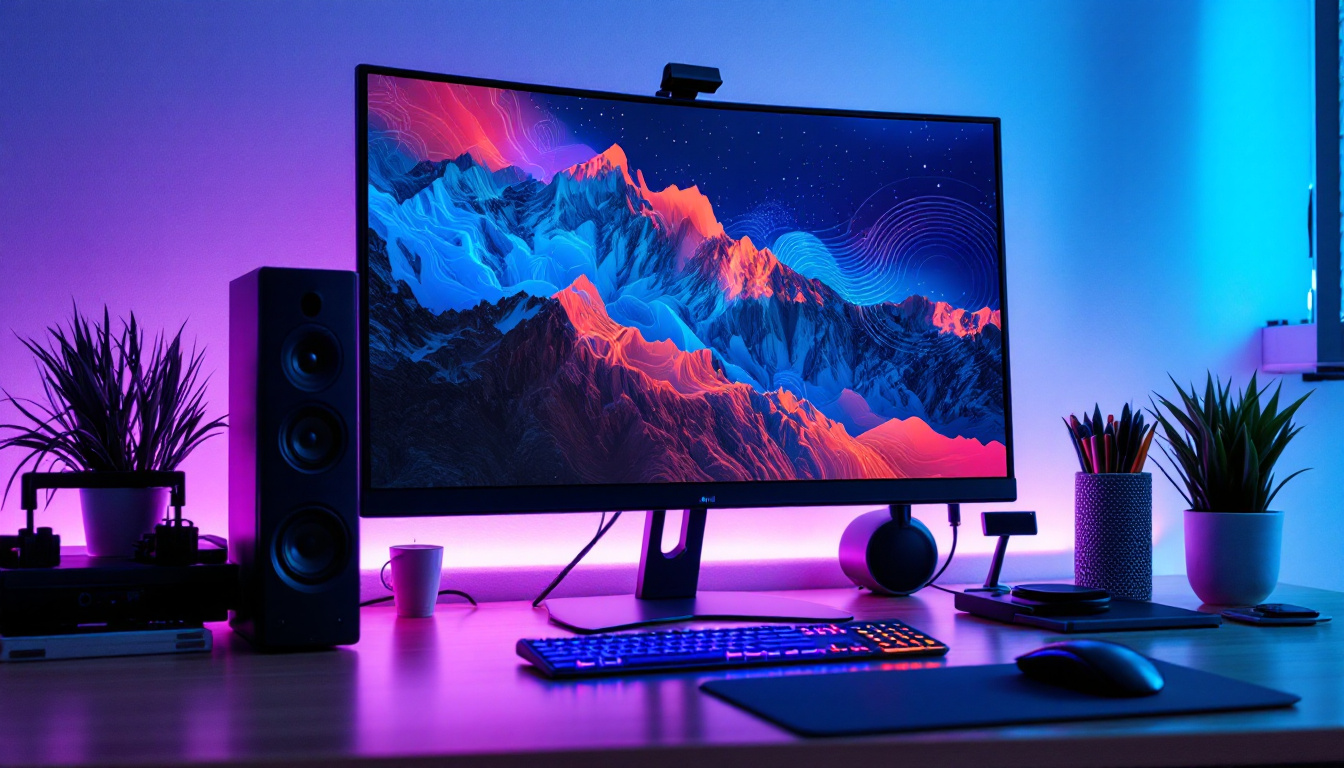
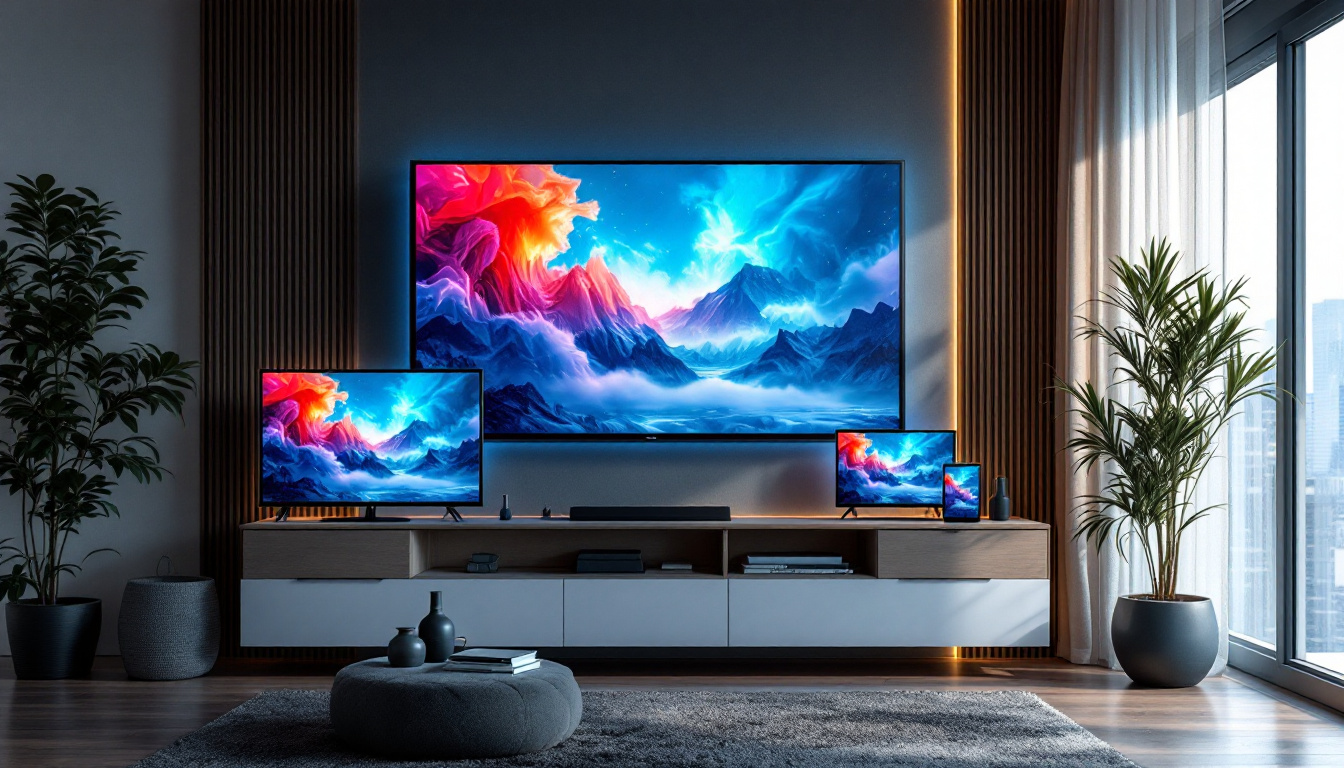
Imagine a straightforward layout where the computer sits centrally, with two LED monitors positioned side by side on either side. Each monitor connects to the computer’s video output ports via appropriate cables. The graphics card inside the computer manages the signal distribution, enabling either extended or mirrored display modes.
Additional peripherals such as a keyboard, mouse, and speakers are connected to the computer, completing the workstation. Power cables for each monitor plug into a power strip or surge protector, ensuring safety and convenience.
Sample Dual Monitor Setup Diagram
While this is a textual description, a typical dual monitor setup diagram would include:
- Two LED monitors labeled as Monitor 1 and Monitor 2.
- Lines representing HDMI or DisplayPort cables connecting each monitor to the computer’s graphics card outputs.
- The computer tower or laptop depicted centrally with labeled ports.
- Power connections for each monitor.
- Optional peripherals like keyboard and mouse connected to the computer.
This schematic helps users identify the necessary hardware and understand the flow of signals and power within the setup.
Setting Up Your Dual LED Monitor System
Proper setup is essential to harness the full potential of a dual monitor system. This section outlines the step-by-step process to configure your LED displays efficiently.
Step 1: Verify Hardware Compatibility
Before purchasing or connecting monitors, ensure your computer supports dual displays. Check the available video output ports and confirm that your graphics card can handle two monitors simultaneously. Modern GPUs typically support multiple outputs via HDMI, DisplayPort, or USB-C.
Step 2: Choose Matching LED Monitors
Select monitors with similar specifications—size, resolution, refresh rate, and color calibration—to maintain consistency across screens. For example, two 27-inch 2560×1440 LED monitors with 75Hz refresh rates provide a balanced viewing experience.
Step 3: Connect the Monitors
Use high-quality video cables to connect each monitor to the computer’s video outputs. Avoid mixing cable types if possible, as this can sometimes cause display issues. HDMI and DisplayPort are preferred for their support of high resolutions and refresh rates.
Step 4: Arrange Physical Placement
Position the monitors side by side at eye level, with minimal gaps. Adjustable stands or VESA mounts can help achieve ergonomic alignment, reducing neck and eye strain. Consider the viewing angle and ambient lighting to minimize glare.
Step 5: Configure Display Settings
Access your operating system’s display settings to configure the dual monitor setup. On Windows, navigate to Settings > System > Display, then select “Extend these displays” to enable extended mode. Arrange the monitors virtually to match their physical layout.
Adjust resolution, orientation, and scaling as needed. Calibrate color settings to ensure uniformity across both screens, especially important for creative professionals.
Optimizing Performance and Troubleshooting
Even with a well-planned setup, issues can arise. Understanding common problems and their solutions ensures a smooth dual monitor experience.
Common Issues and Fixes
- No Signal on Second Monitor: Check cable connections, ensure the monitor is powered on, and verify that the correct input source is selected on the monitor’s menu.
- Resolution Mismatch: Adjust display settings to match the native resolution of both monitors for crisp images.
- Color Inconsistency: Use built-in calibration tools or third-party software to align color profiles.
- Flickering or Display Artifacts: Replace cables, update graphics drivers, or test monitors individually to isolate the issue.
Enhancing Dual Monitor Productivity
Beyond hardware setup, software tools can enhance productivity. Applications like DisplayFusion or Windows’ built-in Snap Assist facilitate window management across multiple screens. Customizable hotkeys and profiles enable users to switch between different workspace layouts quickly.
Additionally, investing in ergonomic accessories such as monitor arms, anti-glare screen protectors, and blue light filters can improve comfort during prolonged use.
The Future of Dual Monitor LED Displays
As technology advances, dual monitor setups continue to evolve. Innovations in LED display technology, such as OLED and mini-LED, promise even better contrast ratios, color accuracy, and thinner designs. Meanwhile, ultrawide monitors and curved displays offer alternatives to traditional dual setups, catering to different user preferences.
Integration with USB-C and Thunderbolt ports simplifies connectivity, allowing for daisy-chaining multiple monitors with fewer cables. Furthermore, advancements in wireless display technology may eventually reduce the need for physical connections altogether.
Emerging Trends in Multi-Display Workstations
Hybrid setups combining LED monitors with tablets or secondary devices are gaining popularity, providing flexible and portable multi-screen environments. Additionally, the rise of virtual and augmented reality may redefine how multiple displays are utilized in professional and creative contexts.
Conclusion
A dual monitor setup featuring LED displays is a powerful way to enhance productivity, improve visual comfort, and create an immersive computing environment. Understanding the technology behind LED monitors, the components involved, and the best practices for setup ensures users can fully capitalize on the benefits of dual screens.
Whether for work, gaming, or creative pursuits, investing time in configuring and optimizing your dual monitor system pays dividends in efficiency and user satisfaction. As display technology continues to advance, staying informed about new developments will help you maintain a cutting-edge and effective workstation.
Explore Cutting-Edge Dual Monitor Solutions with LumenMatrix
Ready to elevate your workspace with a dual monitor setup that embodies the pinnacle of LED technology? LumenMatrix offers an extensive array of LED display solutions tailored to meet your needs. From immersive Indoor LED Walls to dynamic Outdoor LED Displays, and from versatile Vehicle LED Displays to sleek LED Poster Displays, our products are designed to transform your visual experience. Embrace the future of visual communication with our LED Sports Displays, interactive Floor LED Displays, innovative Custom LED Displays, convenient All-in-One LED Displays, and stunning LED Transparent Displays. Discover how LumenMatrix can amplify your brand’s visibility and captivate your audience. Check out LumenMatrix LED Display Solutions today and step into a world of unparalleled clarity and engagement.