In today’s digital age, screens are everywhere — from smartphones and televisions to billboards and computer monitors. Among the most popular display technologies is the LED (Light Emitting Diode) display, known for its brightness, energy efficiency, and versatility. However, users sometimes encounter pixelated lines or visual artifacts on these screens, which can be confusing and frustrating. Understanding why these pixelated lines appear, how LED displays function, and what can be done to address common issues is essential for consumers, technicians, and anyone interested in display technology.
Understanding LED Display Technology
LED displays have revolutionized the way we view digital content. Unlike older display technologies such as CRT (Cathode Ray Tube) or even LCD (Liquid Crystal Display) without LED backlighting, LED displays use tiny light-emitting diodes to create images. These diodes serve as individual pixels or subpixels, which collectively form the images on the screen.
There are primarily two types of LED displays commonly used today: direct-view LED displays and LED-backlit LCDs. Direct-view LED displays consist of an array of LEDs that directly emit light and color, making them ideal for large-scale applications like stadium screens and outdoor billboards. LED-backlit LCDs, on the other hand, use LEDs as a backlight source behind an LCD panel, which modulates the light to produce images. This type is prevalent in consumer electronics such as TVs, monitors, and smartphones.
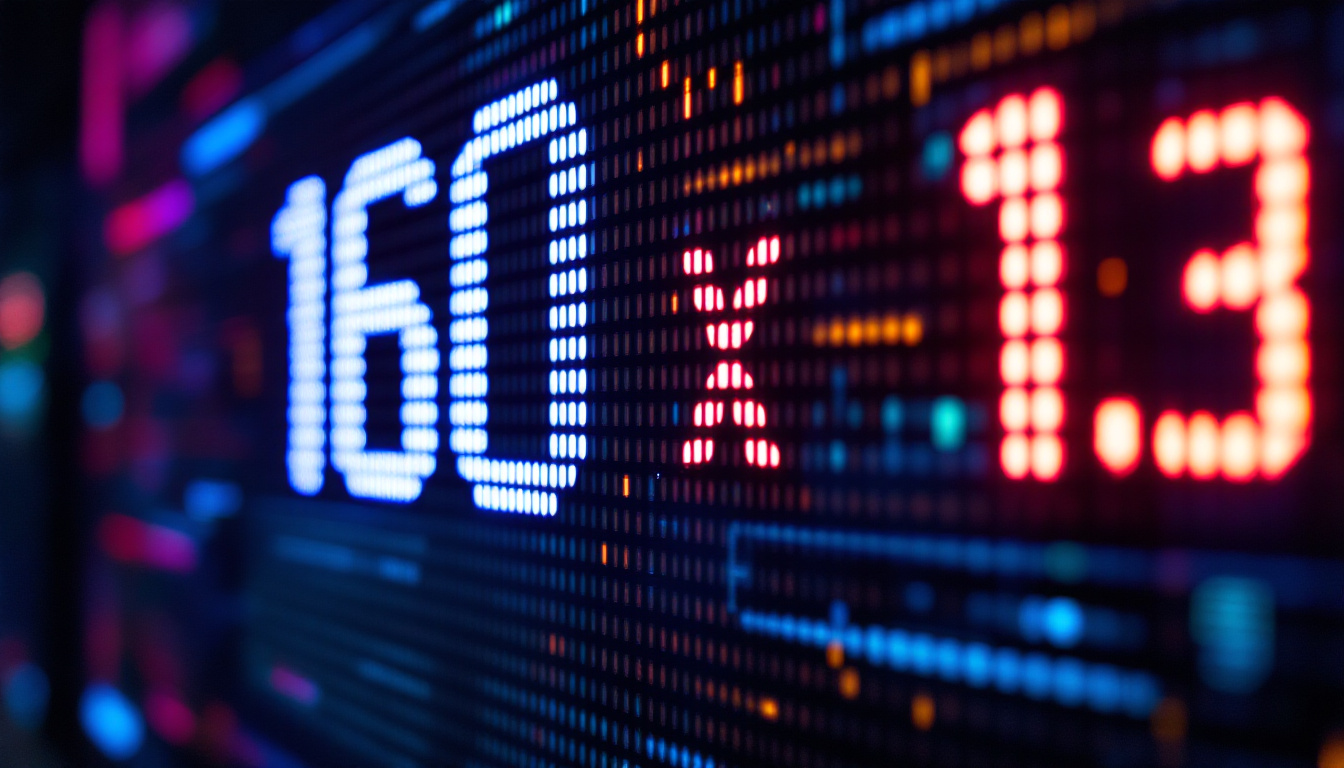
Each pixel in an LED display is made up of subpixels, typically red, green, and blue LEDs, which combine to produce a full spectrum of colors. The resolution of the display depends on the number of pixels and their arrangement. Higher pixel density results in sharper images, while lower density can lead to visible pixelation.
How Pixels and Lines Form on LED Screens
Pixels are the smallest controllable elements in a display, and lines on the screen are formed by the arrangement of these pixels. When pixels are illuminated in a linear pattern, they create lines or edges in the displayed image. However, when the resolution is insufficient or the image is scaled improperly, these lines can appear pixelated or jagged, especially along diagonal or curved edges.
Pixelation occurs when individual pixels become visible to the naked eye, breaking the illusion of a smooth image. This effect is more pronounced on screens with lower resolution or when content is displayed at a size larger than its native resolution. Additionally, pixelated lines can be caused by issues such as signal interference, hardware defects, or improper calibration.
To mitigate pixelation, many modern displays incorporate advanced technologies such as anti-aliasing and upscaling algorithms. Anti-aliasing smooths out the edges of images by blending the colors of the pixels along the borders, creating a more seamless transition. Upscaling algorithms, on the other hand, enhance lower-resolution content to fit higher-resolution screens, often using sophisticated techniques to predict and fill in missing pixel information for a more visually appealing outcome. These advancements have significantly improved the viewing experience, making it easier to enjoy high-quality visuals across various devices.
Moreover, the versatility of LED technology extends beyond just resolution and pixel arrangement. Innovations such as flexible LED displays and transparent screens are pushing the boundaries of what is possible in display technology. Flexible LED displays can bend and curve, allowing for creative installations and unique designs, while transparent screens offer the potential for augmented reality applications, blending digital content with the physical world. As research and development continue, the future of LED display technology promises even more exciting possibilities, enhancing both functionality and aesthetics in our digital interactions.
Common Causes of Pixelated Lines on LED Displays
Pixelated lines on an LED screen can stem from a variety of factors. Identifying the root cause is crucial for effective troubleshooting and repair.
1. Resolution and Scaling Issues
One of the most frequent causes of pixelation is the mismatch between the content resolution and the screen’s native resolution. For example, displaying a 720p video on a 4K LED screen without proper scaling can cause the image to appear blocky or pixelated. This happens because the display must interpolate or stretch the lower-resolution content to fit the higher-resolution panel, which can lead to visible pixel boundaries and jagged lines.
Scaling algorithms vary in quality; some may produce smoother images, while others exacerbate pixelation. Modern devices often use advanced scaling techniques such as bicubic or Lanczos filtering to minimize these artifacts, but older or cheaper devices may lack this capability.
2. Signal Interference and Connection Problems
Signal integrity plays a vital role in the quality of the displayed image. Poor-quality cables, loose connections, or electromagnetic interference can cause data corruption, resulting in distorted or pixelated lines. For instance, HDMI or DisplayPort cables that are damaged or not properly shielded can introduce noise, leading to visual artifacts.
Additionally, interference from nearby electronic devices or improper grounding can affect the signal, especially in environments with high electromagnetic activity. Ensuring high-quality, certified cables and secure connections can often resolve these issues.
3. Hardware Defects and Dead Pixels
Physical defects in the LED panel can cause pixelated lines or spots. Dead pixels are individual pixels that fail to light up, while stuck pixels remain permanently lit in one color. When these pixels form a line or cluster, they can appear as pixelated lines on the screen.
Manufacturing defects, physical damage, or prolonged usage can cause such issues. While some dead pixels may be repaired using software or pixel-fixing techniques, others might require panel replacement. It’s important to check the manufacturer’s dead pixel policy, as many companies allow replacements if the number of defective pixels exceeds a certain threshold.
4. Software and Driver Issues
Outdated or corrupted display drivers can cause rendering problems, including pixelated lines. Graphics drivers are responsible for communicating between the operating system and the display hardware, and any malfunction can result in improper image processing.
Updating to the latest drivers from the GPU manufacturer or reinstalling the display drivers can often fix these problems. Additionally, incorrect display settings or incompatible software can contribute to pixelation, so verifying the display configuration is essential.
How to Diagnose and Fix Pixelated Lines on LED Screens
Addressing pixelated lines requires a systematic approach to diagnose the underlying cause and apply the correct solution. Here are some steps to consider:
Step 1: Verify Resolution and Scaling Settings
Begin by ensuring that the content resolution matches the native resolution of the LED display. Most modern operating systems allow users to adjust display settings easily. For example, on Windows, navigate to Display Settings and select the recommended resolution.
If scaling is necessary, experiment with different scaling percentages or use software that supports high-quality scaling algorithms. Avoid stretching low-resolution content unnecessarily, as this will degrade image quality.
Step 2: Inspect Cables and Connections
Check all video cables for damage or loose connections. Replace any suspect cables with high-quality, certified alternatives. If possible, test the display with different cables or input sources to rule out signal interference.
Additionally, ensure that the environment is free from excessive electromagnetic interference. Keep power cables and video cables separated and grounded properly.
Step 3: Test for Hardware Defects
Use pixel test software or built-in diagnostic tools to identify dead or stuck pixels. If pixelated lines correspond with defective pixels, contact the manufacturer or a professional technician for repair or replacement options.
In some cases, gently massaging the affected area or applying pixel-fixing software can help revive stuck pixels, but these methods are not guaranteed.
Step 4: Update Software and Drivers
Ensure that the graphics drivers and display firmware are up to date. Visit the GPU manufacturer’s website to download the latest drivers. Reboot the system after installation and observe if the pixelation persists.
Also, check for operating system updates or patches that might address display-related bugs.
Preventive Measures and Best Practices for LED Display Maintenance
Preventing pixelated lines and other display issues involves proper care and maintenance of LED screens. Here are some recommended practices:
Maintain Optimal Display Settings
Always use the native resolution of the LED display for the best image quality. Avoid excessive scaling or stretching of content. Calibrate the display regularly using color calibration tools to ensure accurate color reproduction and sharpness.
Use Quality Accessories
Invest in high-quality cables and connectors that meet industry standards. Avoid cheap or uncertified accessories, as they can introduce signal degradation and interference.
Protect Against Physical Damage
Handle LED displays carefully to avoid physical impacts that can damage pixels. Use screen protectors if appropriate and keep the display away from extreme temperatures and humidity.
Regular Software Maintenance
Keep your system software, drivers, and firmware updated. Regularly scan for malware or software conflicts that might affect display performance.
The Future of LED Display Technology
LED display technology continues to evolve rapidly. Innovations such as microLED and miniLED promise even higher resolutions, better color accuracy, and improved energy efficiency. These advances will reduce pixelation issues by increasing pixel density and enhancing control over individual light emitters.
Furthermore, emerging technologies like quantum dot LEDs (QLED) and OLED (Organic LED) displays offer alternative approaches to achieving vivid colors and deep blacks, expanding the options for consumers and industries alike.
As these technologies mature, users can expect displays with fewer visual artifacts, including pixelated lines, and more immersive viewing experiences.
Conclusion
Pixelated lines on LED displays can arise from a variety of causes, ranging from resolution mismatches and signal issues to hardware defects and software problems. Understanding the fundamentals of LED technology and the factors that influence image quality is key to diagnosing and resolving these issues effectively.
By maintaining proper display settings, using quality accessories, and performing regular maintenance, users can minimize pixelation and enjoy the full benefits of LED display technology. As the industry advances, future innovations will continue to enhance display clarity and reliability, making pixelated lines a less common concern.
Explore Cutting-Edge LED Displays with LumenMatrix
If you’re looking to elevate your visual experience and say goodbye to pixelated lines, LumenMatrix is your go-to source for the latest in LED display technology. As a leader in the industry, we offer an extensive range of innovative solutions, from Indoor and Outdoor LED Wall Displays to specialized options like Vehicle and Sports LED Displays. Our mission is to transform your visual communication with displays that not only captivate your audience but also enhance your brand’s visibility. Don’t let pixelation hold you back. Check out LumenMatrix LED Display Solutions today and step into a world of unparalleled clarity and impact.