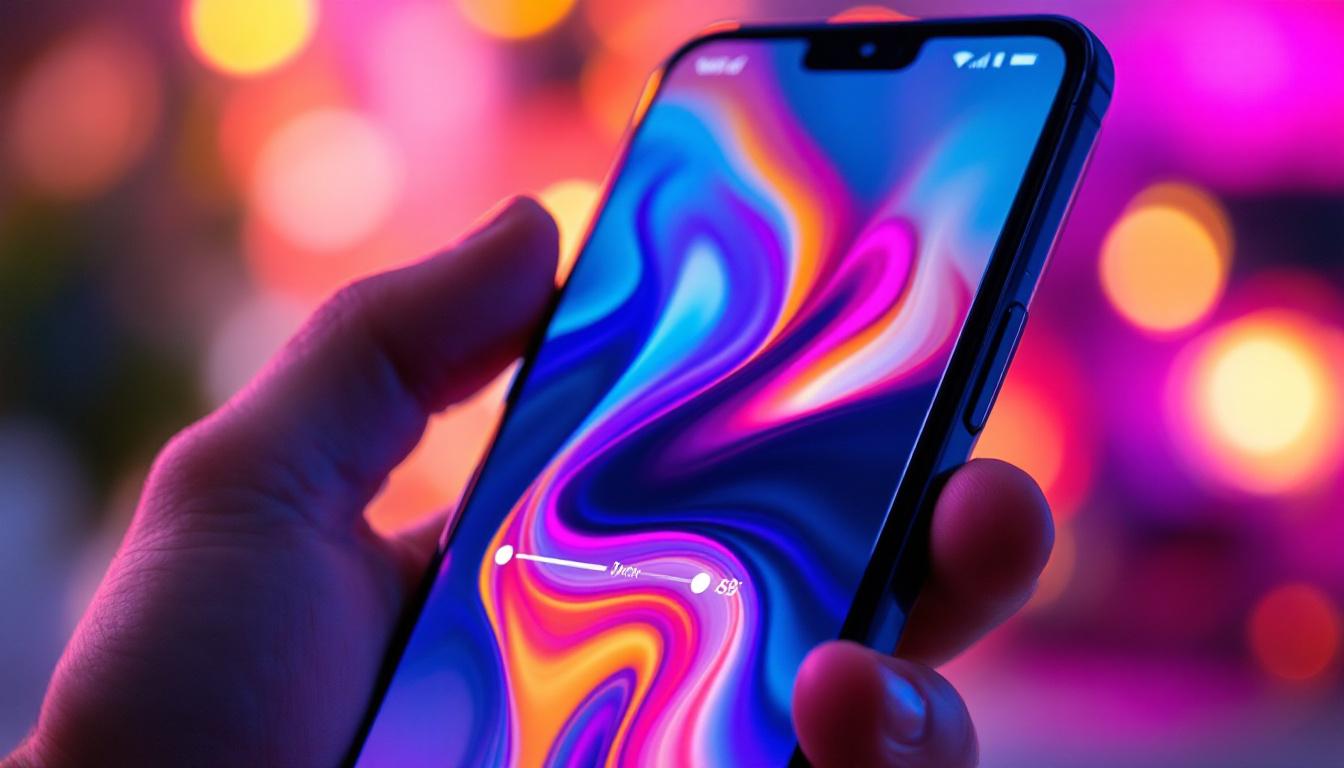
In today’s mobile-driven world, the clarity and brightness of your smartphone screen can significantly impact your user experience. Whether you’re browsing social media, watching videos, or navigating through apps, a bright and clear display ensures you get the most out of your device. Android phones, which dominate the global smartphone market with over 70% share as of 2024, come equipped with various display technologies, including LED-based screens. Understanding how to brighten your screen effectively and the underlying technology can help you optimize your phone’s visibility and battery life.
Understanding LED Displays on Android Phones
What is an LED Display?
LED stands for Light Emitting Diode, a technology that has revolutionized screen displays. On Android devices, the most common types of LED displays are OLED (Organic LED) and AMOLED (Active Matrix OLED). These displays use organic compounds that emit light when an electric current passes through them, allowing each pixel to light up independently.
This independence enables deeper blacks and higher contrast ratios compared to traditional LCDs, which rely on backlighting. The ability to control each pixel’s brightness individually means OLED and AMOLED screens can deliver vibrant colors and sharp images, making them popular choices for flagship Android phones. Additionally, the thin profile of these displays allows for sleeker device designs, contributing to the overall aesthetic appeal of modern smartphones.
Moreover, the rapid response times of LED displays enhance the user experience, particularly in gaming and video playback. With refresh rates that can reach up to 120Hz or more, users enjoy smoother animations and less motion blur, making interactions feel more fluid and responsive. This technology not only elevates entertainment experiences but also improves everyday tasks such as scrolling through social media feeds or navigating through apps.
How LED Displays Differ from LCDs
Unlike LCD (Liquid Crystal Display) screens, which require a separate backlight to illuminate pixels, LED displays generate their own light. This fundamental difference affects how brightness is managed. In LCDs, increasing brightness means intensifying the backlight, which can drain battery faster and sometimes cause light bleeding. LED displays, however, adjust the brightness of individual pixels, providing more precise control and often better energy efficiency.
For users, this means LED displays can offer brighter and clearer images without the same level of power consumption, especially when displaying darker content. This is a key reason why many Android manufacturers have shifted towards OLED and AMOLED displays in recent years. In addition to improved energy efficiency, these types of displays also contribute to a more immersive viewing experience, as they can achieve a wider color gamut and more accurate color reproduction. This is particularly beneficial for photographers and content creators who rely on precise color representation in their work.
Furthermore, the longevity of LED displays is another advantage over traditional LCDs. While LCDs can suffer from issues like screen burn-in or color fading over time, modern OLED and AMOLED screens are designed with advanced technologies that mitigate such problems. This durability ensures that users can enjoy consistent performance throughout the lifespan of their devices, making LED displays a wise investment for those looking to maximize their smartphone experience.
How to Brighten Your Android Phone Screen
Using the Built-In Brightness Controls
The most straightforward way to brighten your screen is through the Android system’s built-in brightness settings. You can access this by swiping down from the top of your screen to open the Quick Settings panel, where a brightness slider is prominently displayed. Sliding it to the right increases brightness, while sliding left dims the screen.
For more granular control, navigate to Settings > Display > Brightness level. Here, you can fine-tune the brightness beyond the Quick Settings slider. Many Android devices also offer an “Adaptive Brightness” or “Auto-Brightness” feature, which uses ambient light sensors to automatically adjust screen brightness based on your environment.
Why Adaptive Brightness Matters
Adaptive Brightness is designed to optimize your viewing experience while conserving battery life. For example, when you move from a dim room to bright sunlight, the screen will automatically brighten to maintain visibility. Conversely, in darker environments, it dims to reduce eye strain and save power.
While this feature is convenient, it’s not perfect. Sometimes the sensor might misjudge lighting conditions, leading to a screen that’s too dim or too bright. In such cases, manually adjusting the brightness or temporarily disabling adaptive brightness can help.
Adjusting Brightness Through Accessibility Features
Android also offers accessibility options that can affect screen brightness. Features like “Color Correction” or “High Contrast Text” can influence how bright or vivid the display appears. Users with visual impairments may find these settings helpful for enhancing screen readability without necessarily increasing overall brightness.
To explore these options, go to Settings > Accessibility > Visibility enhancements. Here, you can experiment with different settings to find a balance that suits your needs.
Advanced Tips to Enhance Screen Brightness and Visibility
Disabling Dark Mode and Night Light
Dark Mode and Night Light are popular features on Android phones that reduce blue light emissions and darken the UI to ease eye strain, especially at night. However, these modes can make your screen appear dimmer than usual. If you need a brighter display for daytime use, consider disabling these features temporarily.
Dark Mode can be toggled off via Settings > Display > Dark theme, and Night Light settings are found under Settings > Display > Night Light. Turning these off can significantly increase perceived brightness and color vibrancy.
Calibrating Your Screen for Better Brightness
Some Android phones allow manual color calibration and brightness adjustments beyond the default settings. This can be accessed through developer options or manufacturer-specific display settings. For example, Samsung’s “Screen Mode” lets users choose between Vivid, Natural, or AMOLED cinema modes, each affecting brightness and color saturation differently.
Calibrating your screen can improve visibility in bright environments and make colors pop without necessarily maxing out the brightness slider, which helps preserve battery life.
Using Third-Party Apps to Control Brightness
There are numerous apps available on the Google Play Store that offer advanced brightness controls. These apps can override system settings, enable brightness beyond the default maximum, or provide quick toggles for different lighting scenarios.
Examples include apps like “Lux Auto Brightness” or “Velis Auto Brightness,” which use sophisticated algorithms to adjust brightness more accurately than the native adaptive brightness feature. However, caution is advised when using third-party apps, as they may impact battery life or cause screen flicker if not properly optimized.
Common Issues Affecting Screen Brightness and How to Fix Them
Screen Appears Dim Even at Maximum Brightness
If your Android phone’s screen remains dim despite setting brightness to maximum, several factors could be at play. A common cause is a malfunctioning ambient light sensor, which may incorrectly adjust brightness. Try disabling adaptive brightness to see if manual control improves visibility.
Another possibility is power-saving modes that limit brightness to conserve battery. Check if any battery saver or power optimization settings are active and temporarily disable them to test the screen’s brightness.
Screen Brightness Fluctuates Unexpectedly
Unexpected brightness changes can be frustrating. This usually happens when adaptive brightness is enabled and the sensor misreads lighting conditions. Cleaning the sensor area, typically located near the front camera, can help improve accuracy.
If the problem persists, consider recalibrating the sensor or disabling adaptive brightness altogether. Software updates can also address such issues, so keeping your device’s firmware up to date is essential.
Battery Drain Related to High Brightness
Maximizing screen brightness is one of the biggest drains on smartphone battery life. LED displays, while more efficient than LCDs, still consume significant power when brightness is high. If you notice rapid battery depletion, try lowering brightness or enabling adaptive brightness to balance visibility and battery conservation.
Additionally, reducing screen timeout duration and closing unused apps can help extend battery life without compromising screen brightness.
Future Trends in Android Screen Brightness and LED Technology
Advancements in OLED and MicroLED Displays
Display technology continues to evolve rapidly. MicroLED, an emerging technology, promises even greater brightness, energy efficiency, and durability than current OLED displays. Unlike OLEDs, MicroLEDs use inorganic materials, which are less prone to burn-in and degradation over time.
As MicroLED technology becomes more affordable and widespread, future Android phones may feature screens that offer superior brightness and color accuracy while consuming less power.
AI-Powered Brightness Adjustment
Artificial intelligence is increasingly integrated into smartphone features, including screen brightness control. AI algorithms can learn user preferences and environmental patterns to adjust brightness more intelligently than traditional sensors.
This means your Android phone could anticipate when you need a brighter or dimmer screen based on your habits, location, and even the time of day, enhancing usability and battery efficiency.
Improved Eye Comfort Technologies
With growing awareness of digital eye strain, manufacturers are developing technologies that maintain screen brightness while reducing harmful blue light emissions. Innovations like flicker-free displays and dynamic color temperature adjustments aim to protect users’ eyes without sacrificing screen clarity.
These advancements will make it easier to enjoy bright, vivid displays for extended periods without discomfort.
Conclusion
Brightening the screen on your Android phone is more than just sliding a brightness bar; it involves understanding the technology behind LED displays and how various settings affect visibility and battery life. By leveraging built-in controls, accessibility features, and advanced calibration options, users can optimize their screen brightness for any environment.
Staying informed about common issues and upcoming display technologies ensures that you can make the most of your Android device’s screen capabilities today and in the future. Whether you’re under bright sunlight or in a dim room, knowing how to manage your screen brightness effectively enhances your overall smartphone experience.
Discover LumenMatrix’s Advanced LED Display Solutions
Ready to take your Android phone’s screen brightness to the next level? LumenMatrix is at the forefront of LED display innovation, offering a wide range of solutions that bring your visual experiences to life. From Indoor and Outdoor LED Wall Displays to specialized options like Vehicle and Sports Displays, LumenMatrix has the technology to illuminate your world. Embrace the future of visual communication with our All-in-One LED Displays and Custom LED solutions designed to captivate and engage. Check out LumenMatrix LED Display Solutions today and see how we can transform your space with vibrant clarity.