Interactive smart boards have become an indispensable tool in modern classrooms and corporate environments. Their ability to combine touch screen technology with vivid LED displays enables dynamic presentations, collaborative learning, and seamless communication. However, when the touch screen functionality of a smart board suddenly stops working, it can disrupt workflows, delay lessons, and cause significant frustration.
This article delves into the common causes behind smart board touch screen issues, explains the role of LED displays in these devices, and offers practical troubleshooting tips and maintenance advice. Whether you’re an educator, IT professional, or business user, understanding these aspects can help you quickly diagnose problems and restore your smart board to full functionality.
Understanding Smart Board Technology
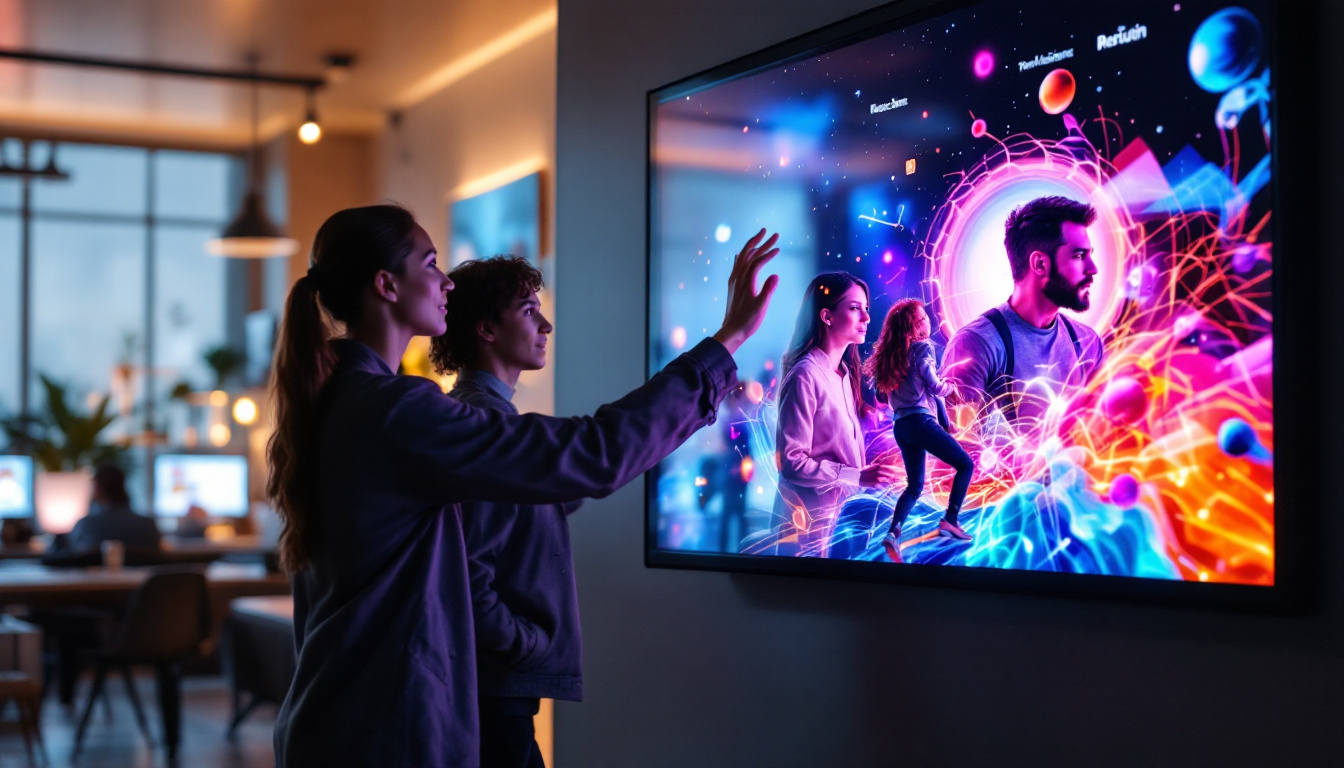
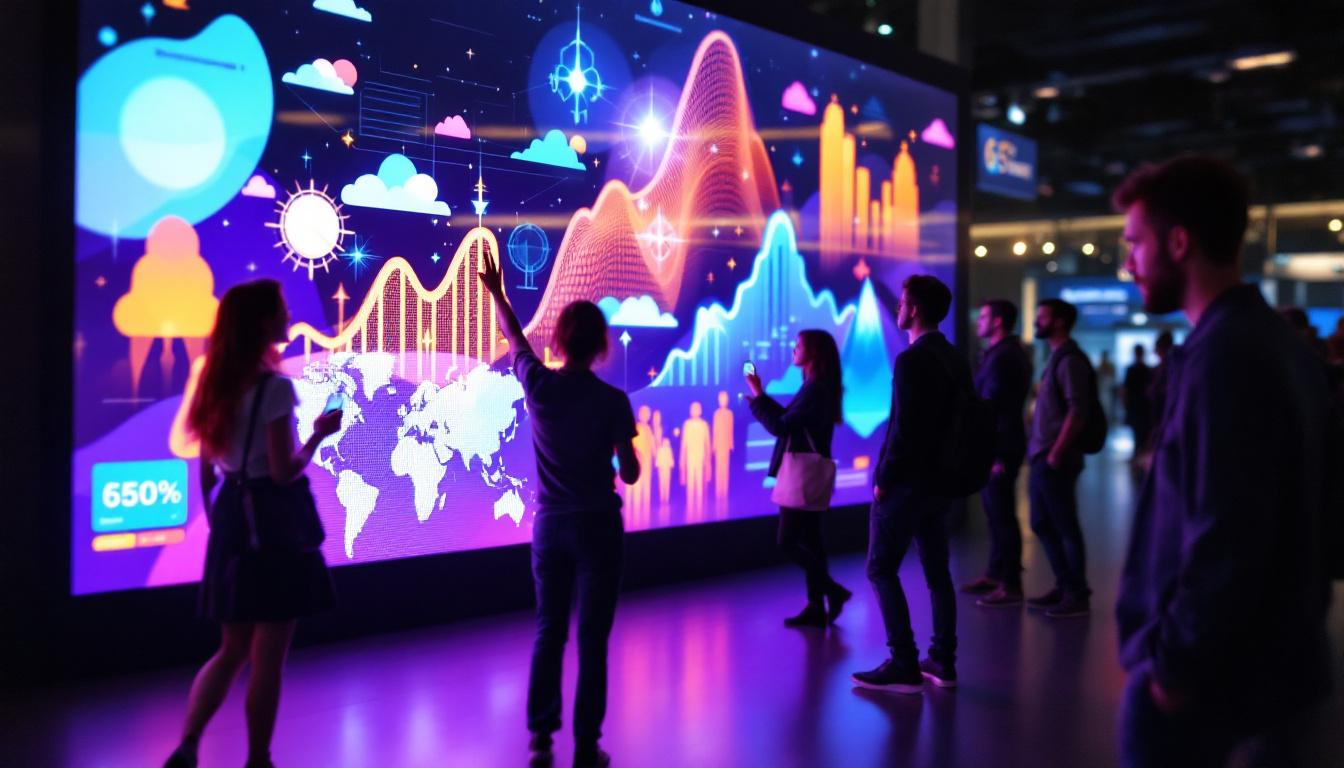
Smart boards integrate several technologies to create an interactive display surface. At their core, they combine a large LED or LCD screen with touch-sensitive layers that detect user input. The LED display provides bright, high-contrast visuals, while the touch screen allows users to interact directly with the content by tapping, swiping, or writing.
The touch interface typically relies on one of several technologies, such as infrared sensors, capacitive touch, or resistive touch layers. Each technology has its own strengths and vulnerabilities, which can influence the types of issues users experience. For instance, capacitive touch technology is known for its responsiveness and accuracy, making it ideal for applications that require precise input, such as drawing or writing. On the other hand, resistive touch screens are generally more affordable and can be operated with any object, including a stylus or even a finger, but they may not provide the same level of sensitivity and multi-touch capabilities.
The Role of the LED Display in Smart Boards
LED (Light Emitting Diode) displays have become the standard for modern smart boards due to their superior brightness, energy efficiency, and color accuracy compared to older LCD or projector-based systems. The LED panel is responsible for rendering the images and videos that users interact with, ensuring clear visibility even in brightly lit rooms.
Unlike traditional LCDs, LED displays use an array of tiny LEDs as a backlight or as individual pixels (in the case of OLEDs). This technology allows for thinner panels, faster refresh rates, and longer lifespans. However, the LED display is a complex electronic component that requires proper power management and cooling to function reliably. Furthermore, advancements in LED technology have led to the development of features such as 4K resolution and HDR (High Dynamic Range) capabilities, which enhance the visual experience by providing more vibrant colors and improved contrast. As a result, educators and presenters can deliver more engaging and visually appealing content, which can significantly enhance learning and retention among students.
Moreover, the integration of smart board technology in classrooms and corporate environments has transformed the way information is shared and consumed. With the ability to connect to various devices, such as laptops, tablets, and smartphones, users can easily display their screens on the smart board, facilitating collaboration and interactive discussions. This connectivity opens up a world of possibilities for remote learning and hybrid work environments, where participants can engage in real-time, regardless of their physical location. As smart board technology continues to evolve, we can expect even more innovative features that will further enhance interactivity and engagement in educational and professional settings.
Common Causes of Smart Board Touch Screen Failures
When a smart board’s touch screen stops responding, it’s important to identify whether the issue lies with the touch detection system, the LED display, or the connection between components. Here are some of the most frequent causes:
1. Calibration Errors
Touch screens require periodic calibration to accurately map finger or stylus positions to the display coordinates. If calibration drifts or is disrupted, the touch input may register incorrectly or not at all. This is often the simplest issue to fix by recalibrating the device through the smart board’s settings menu or accompanying software.
2. Faulty or Loose Connections
Smart boards rely on multiple cables connecting the touch sensor to the main processing unit and the LED display. Over time, these cables can become loose, damaged, or disconnected, especially in high-traffic environments where the board is frequently moved or adjusted. Checking all physical connections is a critical first troubleshooting step.
3. Software and Driver Issues
Touch screen functionality depends heavily on software drivers that interpret touch signals and communicate with the operating system. Outdated, corrupted, or incompatible drivers can cause the touch screen to stop working. Ensuring that the latest drivers and firmware are installed can often resolve these problems.
4. Environmental Interference
Infrared-based touch systems can be affected by strong ambient light sources, such as direct sunlight or intense fluorescent lighting, which interfere with the sensors. Similarly, capacitive touch screens may be less responsive if the user is wearing gloves or if the screen surface is dirty or wet.
5. Hardware Malfunctions
Physical damage to the touch sensor layer, LED display panel, or internal circuitry can cause permanent touch screen failure. Cracks, scratches, or liquid damage may impair the board’s ability to detect input or display images correctly. In such cases, professional repair or replacement may be necessary.
Diagnosing LED Display Issues in Smart Boards
While touch screen problems are common, sometimes the root cause lies in the LED display itself. Understanding the signs of LED-related issues can help differentiate between display and touch sensor problems.
Symptoms of LED Display Malfunctions
Indicators of LED display problems include:
- Flickering or inconsistent brightness
- Dead pixels or color distortion
- Screen not turning on despite power being supplied
- Unusual lines or artifacts appearing on the screen
These symptoms suggest that the LED panel or its power supply circuitry may be failing, which can indirectly affect touch screen performance if the display is not rendering correctly.
How LED Display Issues Affect Touch Functionality
Even if the touch sensor hardware is intact, an unresponsive or malfunctioning LED display can make it appear as though the touch screen is not working. For example, if the screen is blank or frozen, touch inputs cannot be registered or displayed. Additionally, some smart boards integrate touch detection with the display controller, so LED panel faults can disrupt the entire system.
Troubleshooting and Fixing Smart Board Touch Screen Problems
Resolving touch screen issues requires a systematic approach to isolate and address the underlying cause. The following steps can guide users through common troubleshooting procedures.
Step 1: Restart and Reconnect
Begin by powering off the smart board and disconnecting it from power and any connected devices. Wait a few minutes before reconnecting and powering it back on. This simple reset can clear temporary glitches in hardware or software.
Step 2: Check Physical Connections
Inspect all cables linking the touch sensor, LED display, and computer. Ensure connectors are firmly seated and free of dust or damage. If possible, try swapping cables to rule out faulty wiring.
Step 3: Clean the Screen Surface
Use a soft, lint-free cloth slightly dampened with a screen-safe cleaner to remove fingerprints, dust, or smudges. Avoid harsh chemicals or abrasive materials that could damage the touch sensor.
Step 4: Recalibrate the Touch Screen
Access the smart board’s calibration utility through the device menu or software application. Follow the on-screen instructions to recalibrate the touch input, ensuring accurate response.
Step 5: Update Software and Drivers
Visit the manufacturer’s website to download the latest firmware and driver updates for your smart board model. Installing these updates can fix bugs and improve compatibility with your operating system.
Step 6: Test with Alternative Devices
Connect the smart board to a different computer or device to determine if the issue persists. If the touch screen works with another device, the problem may lie with the original computer’s settings or drivers.
Step 7: Consult Technical Support
If the above steps do not resolve the issue, contact the smart board manufacturer’s technical support team. Provide detailed information about the symptoms, troubleshooting steps taken, and any error messages encountered.
Preventive Maintenance for Smart Boards
Regular maintenance can significantly reduce the likelihood of touch screen and LED display failures, extending the lifespan of your smart board and ensuring consistent performance.
Keep the Screen Clean and Protected
Frequent cleaning with appropriate materials prevents buildup of dirt and oils that can interfere with touch sensitivity. Using a protective screen cover can also guard against scratches and impact damage.
Maintain Proper Environmental Conditions
Place the smart board in a location free from direct sunlight, excessive humidity, and extreme temperatures. Stable environmental conditions help preserve the integrity of both the LED display and touch sensors.
Regularly Update Software
Set reminders to check for and install software and firmware updates. Staying current helps avoid compatibility issues and benefits from manufacturer improvements.
Handle with Care
Train users on proper operation techniques to minimize physical stress on the board. Avoid pressing too hard on the screen or using sharp objects that could damage the touch layer.
When to Consider Professional Repair or Replacement
Despite best efforts, some smart board issues require expert intervention. Signs that professional repair or replacement may be necessary include:
- Persistent touch screen failure after all troubleshooting steps
- Visible physical damage to the LED display or touch surface
- Internal component failures diagnosed by technicians
- Outdated hardware incompatible with current software requirements
In many cases, manufacturers offer warranty services or authorized repair centers. For older models, it may be more cost-effective to invest in a new smart board with updated technology, improved reliability, and enhanced features.
Conclusion
Smart boards are powerful tools that enhance interactivity and engagement in educational and professional settings. Understanding the interplay between the touch screen and LED display components is crucial for diagnosing and resolving issues when the touch functionality stops working.
By systematically troubleshooting common causes such as calibration errors, connection problems, software glitches, and hardware malfunctions, users can often restore their smart boards without delay. Preventive maintenance and timely updates further contribute to the longevity and reliability of these devices.
When problems persist, seeking professional support ensures that the smart board continues to deliver the high-quality interactive experience that modern users expect.
Explore Cutting-Edge Smart Board Solutions with LumenMatrix
If you’re looking to elevate your interactive experiences, whether in educational settings or corporate environments, LumenMatrix offers an extensive range of LED display solutions tailored to your needs. As a leader in LED display technology, LumenMatrix is committed to enhancing your brand’s visibility and creating immersive visual experiences with products like Indoor and Outdoor LED Wall Displays, Vehicle LED Displays, and more. Embrace the future of visual communication and captivate your audience with our innovative LED display modules. Check out LumenMatrix LED Display Solutions today and transform the way you share your message.