Adjusting the size of your computer screen can significantly enhance your user experience, whether for work, gaming, or general browsing. With the prevalence of LED displays in modern monitors and laptops, understanding how to effectively change screen size and resolution is essential. This article delves into the technical aspects of LED displays, the factors influencing screen size adjustments, and practical methods to customize your viewing experience.
Understanding LED Displays: The Foundation of Modern Screens
LED, or Light Emitting Diode, technology has revolutionized the way computer screens are designed and function. Unlike traditional LCDs that rely on fluorescent backlighting, LED displays use light-emitting diodes for backlighting, resulting in brighter images, better contrast ratios, and more energy-efficient performance.
These displays come in various forms, including edge-lit and full-array LED backlighting, each offering different benefits. Edge-lit LED displays position LEDs along the edges of the screen, allowing for thinner designs but sometimes uneven brightness. Full-array LED displays distribute LEDs evenly behind the screen, providing superior uniformity and local dimming capabilities, which enhance picture quality.
Understanding these types is crucial because the physical screen size and the display technology impact how adjustments to screen size and resolution behave.
The Role of Screen Resolution and Physical Size
Screen size refers to the physical dimensions of your display, typically measured diagonally in inches. Resolution, on the other hand, denotes the number of pixels displayed on the screen, such as 1920×1080 (Full HD) or 3840×2160 (4K UHD). Both factors contribute to how content appears on your screen.
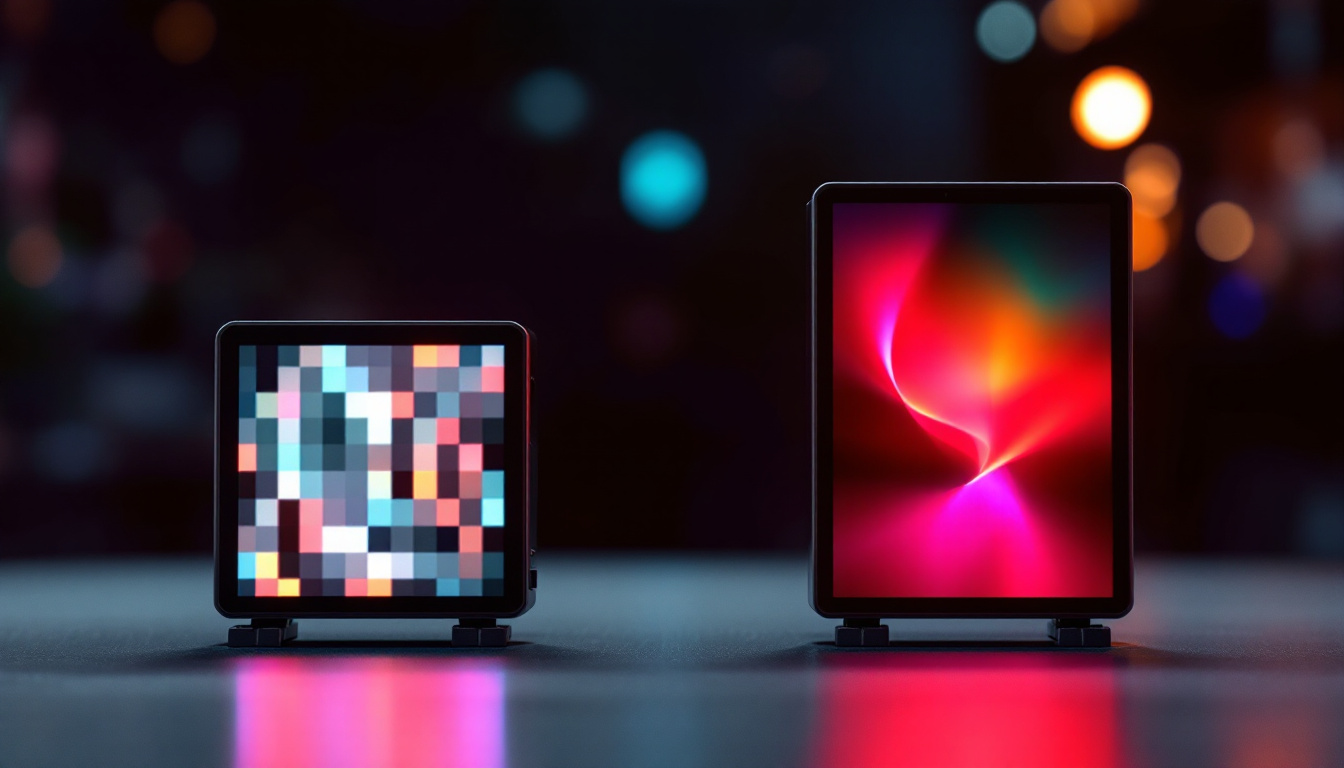
For example, a 24-inch LED monitor with a 1080p resolution will display content differently than a 27-inch monitor with the same resolution. The larger screen with the same pixel count will have larger pixels, resulting in less sharp images. Conversely, higher resolutions on the same screen size provide crisper visuals but can make text and icons appear smaller unless scaled.
Moreover, the advancements in LED technology have led to the emergence of OLED (Organic Light Emitting Diode) displays, which offer even more vibrant colors and deeper blacks due to their ability to turn off individual pixels completely. This technology is particularly favored in high-end televisions and smartphones, where color accuracy and contrast are paramount. As consumers become more discerning, the choice between LED and OLED can significantly impact the viewing experience, especially for activities like gaming or watching movies, where visual fidelity is critical.
Additionally, the aspect ratio of a screen, which is the ratio of its width to its height, plays a significant role in how content is displayed. Common aspect ratios include 16:9 for widescreen displays and 21:9 for ultrawide monitors, which provide a more immersive experience for gaming and cinematic content. Understanding the interplay between resolution, screen size, and aspect ratio can help users make informed decisions when selecting a display that best suits their needs and preferences.
Why Adjusting Screen Size Matters
Changing the size of your computer screen, or more precisely, adjusting the display scaling and resolution, is vital for several reasons. It affects readability, comfort, productivity, and even eye health.
Users with high-resolution displays often find that default settings make text and interface elements too small to read comfortably. Conversely, lower resolutions on large screens can make images appear pixelated and reduce workspace efficiency.
Improving Accessibility and Comfort
For individuals with visual impairments or those who spend extended hours in front of screens, adjusting display size can reduce eye strain and improve focus. Operating systems like Windows and macOS provide scaling options that enlarge interface elements without compromising image quality.
Moreover, ergonomic considerations suggest that optimal screen size and resolution settings can prevent posture-related issues caused by leaning forward or squinting at the screen.
Enhancing Productivity and Gaming Experience
Professionals working with detailed graphics, spreadsheets, or multiple windows benefit from higher resolution settings that maximize screen real estate. Gamers, on the other hand, might prefer lower resolutions for higher frame rates or adjust scaling to balance performance and visual clarity.
How to Change the Size of the Computer Screen on LED Displays
Adjusting the size of your computer screen can be done through several methods, primarily involving resolution changes and display scaling. The process varies slightly depending on your operating system and hardware.
Changing Screen Resolution on Windows
Windows users can easily modify screen size settings via the Display Settings menu:
- Right-click on the desktop and select Display settings.
- Under the Display section, find the Display resolution dropdown menu.
- Select the desired resolution from the list. Windows typically marks the recommended resolution for your display.
- Click Apply to change the resolution. The screen will adjust, and you can confirm the change or revert if the display is unsatisfactory.
Keep in mind that lowering resolution will make on-screen elements larger but less sharp, while increasing resolution will do the opposite.
Adjusting Display Scaling on Windows
To change the size of text, apps, and other items without altering resolution:
- Open Display settings as described above.
- Under Scale and layout, select a scaling percentage (e.g., 125%, 150%).
- Windows will automatically scale interface elements accordingly.
This method is ideal for high-resolution displays where default sizes are too small.
Changing Screen Resolution and Scaling on macOS
Mac users can adjust display size through System Preferences:
- Click the Apple menu and select System Preferences.
- Choose Displays.
- Under the Display tab, select Scaled.
- Choose a resolution option. macOS provides options optimized for Retina displays, balancing clarity and size.
macOS also automatically manages scaling to maintain sharpness while adjusting size.
Using Graphics Card Software for Advanced Adjustments
Many computers come equipped with dedicated graphics cards from manufacturers like NVIDIA, AMD, or Intel. These cards have their own control panels that offer advanced display settings beyond the operating system’s default options.
For example, NVIDIA’s Control Panel allows users to create custom resolutions, adjust scaling modes (such as aspect ratio or full-screen scaling), and tweak color settings. These tools can be particularly useful for gamers or professionals requiring precise display configurations.
Physical Adjustments and External Factors Affecting Screen Size
While software adjustments are the primary means to change screen size, physical factors and hardware settings also influence the viewing experience.
Monitor Size and Aspect Ratio
The physical size of your LED monitor is fixed, but choosing a monitor with an appropriate size and aspect ratio for your needs is crucial. Common aspect ratios include 16:9 (widescreen), 16:10, and ultrawide formats like 21:9.
Ultrawide monitors provide more horizontal space, which can be beneficial for multitasking and immersive gaming but may require specific resolution and scaling adjustments to optimize content display.
Adjusting Monitor Settings via On-Screen Display (OSD)
Most LED monitors feature an On-Screen Display menu accessible through buttons on the monitor itself. Here, users can adjust brightness, contrast, sharpness, and sometimes scaling options like pixel mapping or overscan.
While these settings do not change the physical size of the screen, they can affect perceived image size and clarity, complementing software adjustments.
Connecting to External Displays
When using laptops or desktops with multiple monitors, each display may have different native resolutions and sizes. It’s important to configure each screen individually to ensure consistent scaling and avoid awkward cursor jumps or mismatched window sizes.
Common Challenges and Troubleshooting Tips
Changing screen size and resolution can sometimes lead to issues such as blurry text, unsupported resolutions, or display flickering. Understanding how to troubleshoot these problems is important for maintaining an optimal viewing experience.
Dealing with Blurry or Fuzzy Text
Blurriness often occurs when the display scaling is set improperly or when non-native resolutions are used. To fix this:
- Always use the monitor’s native resolution for the sharpest image.
- Use the operating system’s recommended scaling settings.
- On Windows, enable ClearType Text Tuner to improve font rendering.
Unsupported Resolution Errors
If the selected resolution is not supported by your monitor, the screen may go black or display an error message. To avoid this:
- Check the monitor’s specifications for supported resolutions and refresh rates.
- Use the recommended resolution in display settings.
- If the screen goes black, wait for the system to revert automatically or restart in safe mode to reset settings.
Screen Flickering and Refresh Rate Issues
Screen flickering can be related to incompatible refresh rates or faulty cables. To address this:
- Adjust the refresh rate in display settings to match the monitor’s capabilities (commonly 60Hz, 75Hz, or higher).
- Use high-quality HDMI, DisplayPort, or DVI cables.
- Update graphics drivers to the latest version.
Future Trends in LED Display Technology and Screen Size Customization
The evolution of LED technology continues to influence how users interact with their screens. Innovations such as mini-LED and micro-LED displays promise even better brightness, contrast, and energy efficiency.
Additionally, advancements in software scaling algorithms and AI-driven display adjustments are making it easier to customize screen size and resolution dynamically based on user preferences and ambient conditions.
As 4K and 8K displays become more affordable and widespread, understanding how to manage screen size and resolution will remain a critical skill for users seeking the best visual experience.
Conclusion
Changing the size of your computer screen, particularly on LED displays, involves a combination of understanding hardware capabilities and utilizing software settings effectively. By grasping the relationship between physical screen size, resolution, and scaling, users can tailor their displays to enhance comfort, productivity, and enjoyment.
Whether adjusting settings on Windows, macOS, or through graphics card software, the key is to balance clarity and usability. Coupled with physical monitor adjustments and awareness of troubleshooting techniques, these strategies ensure an optimal viewing experience tailored to individual needs.
Discover the Future of Visual Display with LumenMatrix
Ready to take your visual experience to the next level? LumenMatrix is at the forefront of LED display innovation, offering a wide array of solutions that cater to your every need. From Indoor and Outdoor LED Walls to specialized displays for Vehicles, Sports, and even Custom configurations, LumenMatrix has the technology to transform your space. Experience the pinnacle of clarity, engagement, and brand visibility. Check out LumenMatrix LED Display Solutions today and see the difference cutting-edge technology can make.