In today’s digital age, connecting devices to a television has become a common need, whether for work presentations, gaming, streaming, or sharing photos and videos. Understanding how to display your screen on a TV, especially using LED displays, can significantly enhance your viewing experience. This article delves into the essentials of LED display technology, how to connect various devices to your TV, and tips for optimizing your setup.
Understanding LED Display Technology
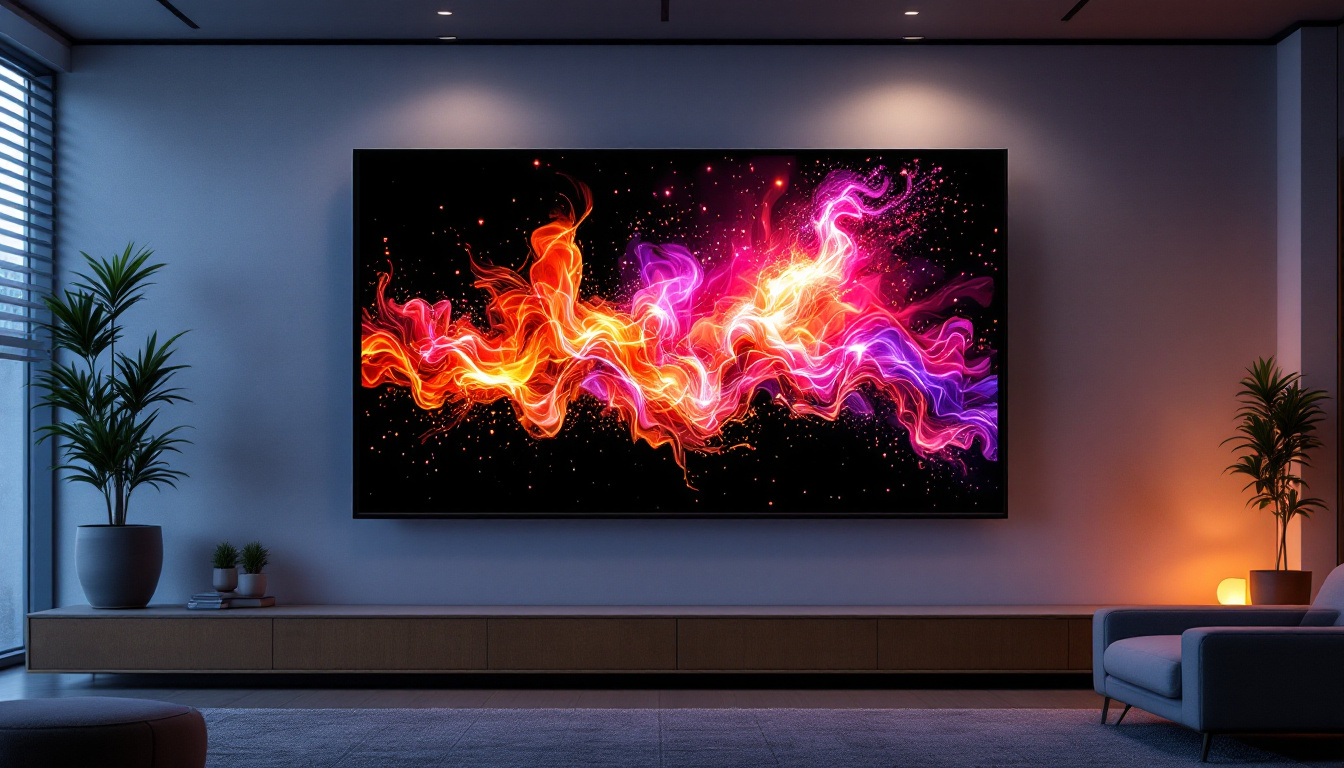
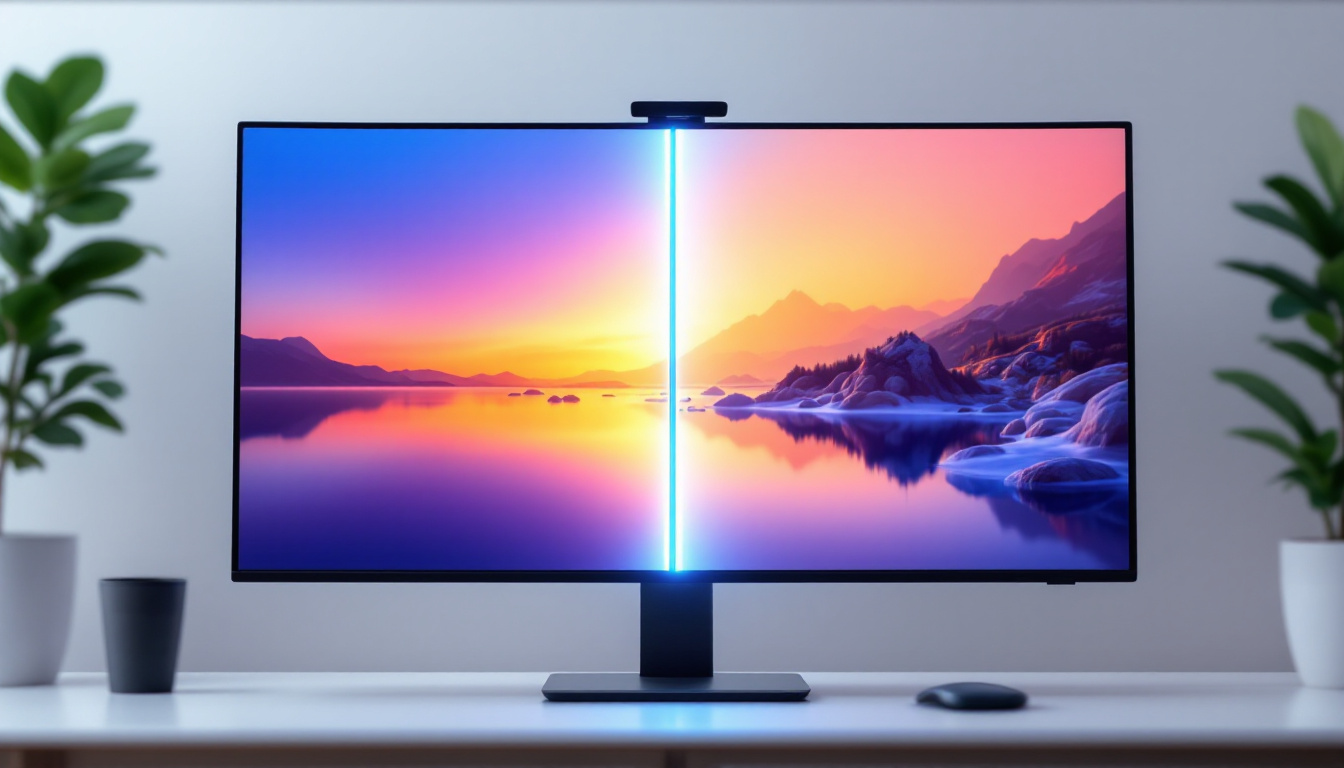
LED, or Light Emitting Diode, displays have revolutionized the way we view content on television screens. Unlike traditional LCDs that use cold cathode fluorescent lamps (CCFL) for backlighting, LED TVs use light-emitting diodes to illuminate the screen. This difference brings several advantages that affect picture quality, energy consumption, and design.
LED displays come in two main types: edge-lit and full-array. Edge-lit LED TVs place LEDs along the edges of the screen, allowing for thinner designs but sometimes uneven brightness. Full-array LED TVs position LEDs directly behind the screen in a grid, enabling better local dimming and contrast control. The choice between these two types often depends on the viewer’s needs; while edge-lit models may appeal to those looking for a sleek aesthetic, full-array models are favored by enthusiasts seeking the best possible picture quality.
Advantages of LED Displays
One of the primary benefits of LED displays is their superior brightness and contrast ratios. Modern LED TVs can achieve peak brightness levels exceeding 1,000 nits, which is especially beneficial for viewing HDR (High Dynamic Range) content. Additionally, LED technology offers better energy efficiency compared to older LCD and plasma models, reducing electricity consumption. This energy efficiency not only translates to lower utility bills but also contributes to a smaller carbon footprint, making LED displays a more environmentally friendly option.
Another advantage is the longer lifespan of LED panels. LEDs are more durable and less prone to burn-in issues, making them ideal for users who watch TV for extended periods or use their screens for static images like gaming HUDs or digital signage. Furthermore, advancements in LED technology, such as Quantum Dot and Mini-LED, have further enhanced color accuracy and brightness, providing viewers with an even more immersive experience. These innovations allow for a wider color gamut and improved viewing angles, ensuring that every seat in the room offers a fantastic view, regardless of where one is positioned.
How to Connect Your Device to an LED TV
Displaying your screen on an LED TV requires the right connection method, which depends on the type of device you’re using and the available ports on your TV. Below are the most common ways to connect various devices.
Using HDMI for High-Quality Connections
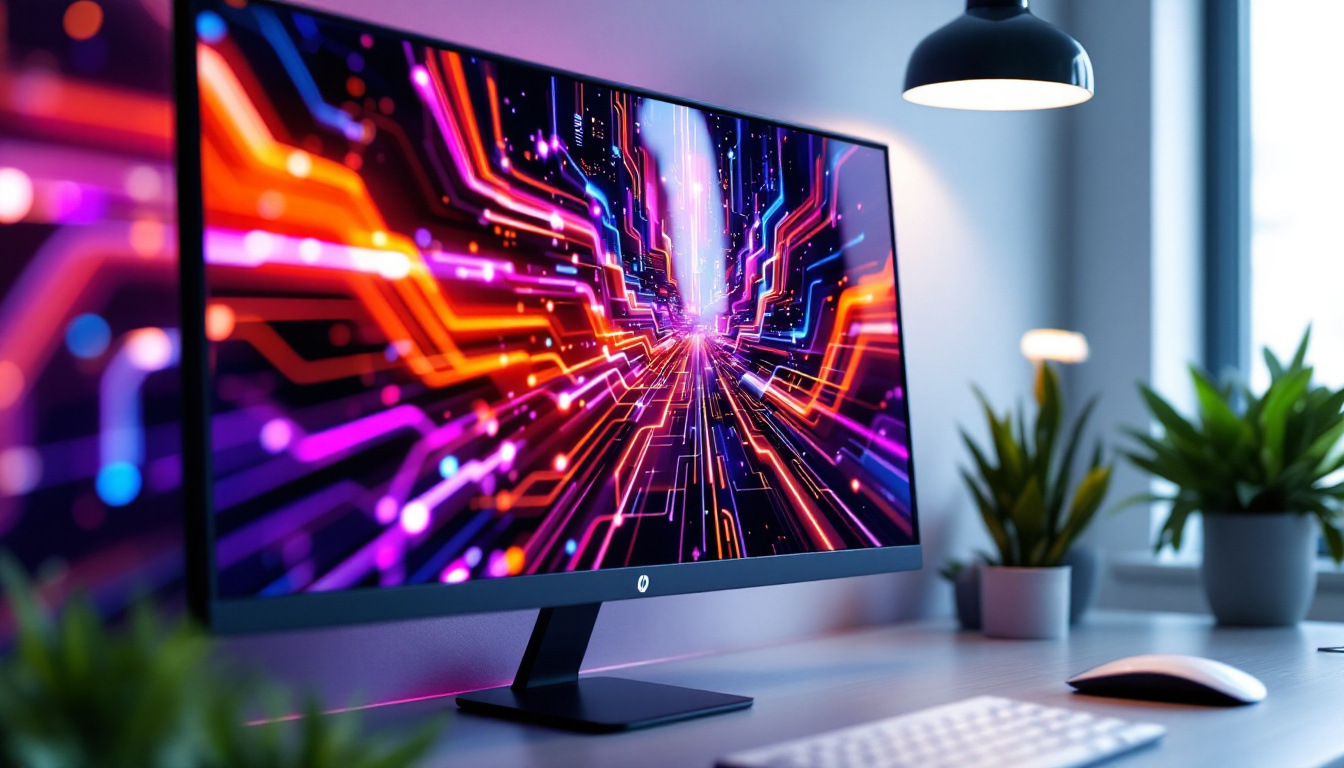
HDMI (High-Definition Multimedia Interface) is the most popular and straightforward way to connect laptops, desktops, gaming consoles, and streaming devices to an LED TV. HDMI supports both high-definition video and audio through a single cable, ensuring minimal setup hassle and excellent quality.
To connect via HDMI, simply plug one end of the HDMI cable into your device’s HDMI output port and the other end into the TV’s HDMI input port. Then, select the corresponding HDMI input on your TV using the remote control. Most modern devices automatically detect the TV and adjust the resolution accordingly.
Wireless Screen Mirroring Options
For users seeking a cable-free experience, wireless screen mirroring technologies are increasingly prevalent. Devices such as smartphones, tablets, and laptops often support protocols like Miracast, Apple AirPlay, or Google Cast, allowing you to mirror your screen wirelessly to compatible LED TVs.
For example, Apple users can use AirPlay to stream content from an iPhone or Mac to an Apple TV or AirPlay-compatible LED TV. Android users can leverage Google Cast or Miracast to achieve similar functionality. These options provide flexibility and convenience, especially in environments where running cables is impractical.
Using VGA or DVI for Older Devices
If you have an older computer or device that lacks HDMI output, VGA or DVI connections may be necessary. VGA transmits analog video signals, while DVI can carry digital video but usually no audio. In these cases, you may need additional adapters or separate audio cables to complete the setup.
It’s important to note that VGA and DVI connections do not support high-definition audio or the latest video resolutions, so HDMI or wireless options are preferable when available.
Optimizing Your Display Settings for the Best Experience
Once your device is connected to the LED TV, fine-tuning the display settings can dramatically improve your viewing experience. This includes adjusting resolution, scaling, refresh rate, and color calibration.
Adjusting Resolution and Scaling
Most modern LED TVs support resolutions up to 4K (3840 x 2160 pixels), but your device’s output resolution must match or be compatible. Setting your device to the native resolution of the TV ensures the sharpest image without distortion. For example, if your TV is 4K, setting your laptop to 1080p will still work but won’t utilize the full display potential.
Scaling settings control how content fits on the screen. Improper scaling can cause black bars or cropped images. On Windows, this can be adjusted in the Display Settings under “Scale and Layout,” while macOS users can find similar options in System Preferences.
Optimizing Refresh Rate and Response Time
The refresh rate, measured in hertz (Hz), indicates how many times per second the screen updates. Common refresh rates are 60Hz and 120Hz. Higher refresh rates provide smoother motion, which is particularly important for gaming and fast-paced video content.
Response time, the speed at which pixels change color, also impacts motion clarity. LED TVs generally have faster response times compared to older display types, reducing motion blur and ghosting effects.
Color Calibration and Picture Modes
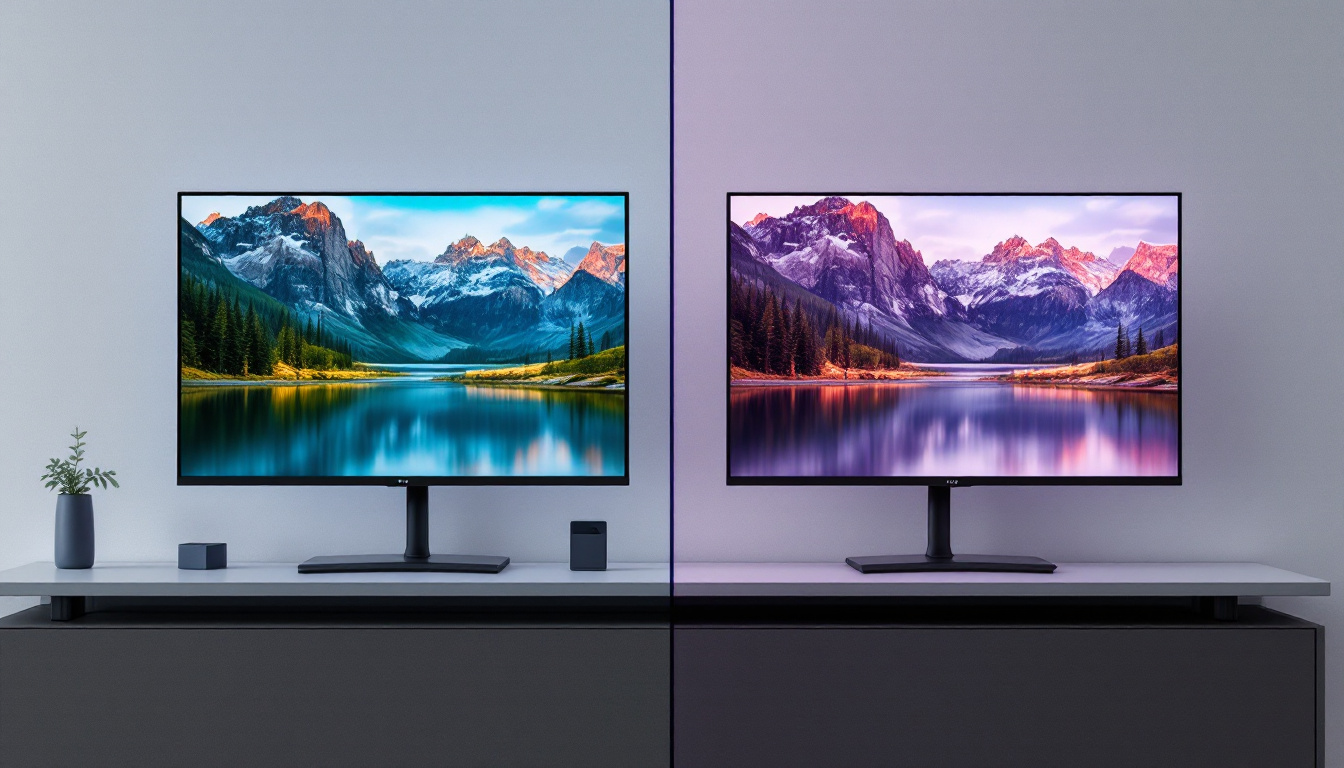
Most LED TVs come with preset picture modes such as Standard, Cinema, Game, and Vivid. Selecting the appropriate mode based on your usage can enhance color accuracy and viewing comfort. For instance, “Cinema” mode usually offers warmer colors suited for movies, while “Game” mode reduces input lag for gaming.
For those seeking professional-level color accuracy, using a calibration tool or software can help adjust brightness, contrast, gamma, and color temperature. This is particularly valuable for photographers, videographers, and content creators who rely on precise color representation.
Common Issues and Troubleshooting Tips
Despite the simplicity of connecting devices to LED TVs, users may encounter common issues such as no signal, poor image quality, or audio problems. Understanding how to troubleshoot these can save time and frustration.
No Signal or Black Screen
If your TV displays “No Signal” or a black screen after connecting your device, first verify that the correct input source is selected on the TV. Double-check the cable connections and try using a different HDMI port or cable if available.
Restarting both the TV and the connected device can also resolve temporary glitches. Additionally, ensure that your device’s display output is enabled and set to duplicate or extend the screen, depending on your preference.
Audio Not Playing Through TV
When video displays correctly but audio does not play through the TV speakers, the issue often lies in the audio output settings. On your device, check that the HDMI audio output is selected rather than the internal speakers or headphones.
Some older TVs or devices may require manual configuration to enable audio over HDMI. Refer to your device’s sound settings or user manual for detailed instructions.
Image Quality Issues
Blurry or stretched images can result from incorrect resolution or aspect ratio settings. Ensure your device’s output resolution matches the TV’s native resolution and that the aspect ratio is set to 16:9 for widescreen displays.
Also, inspect the HDMI cable for damage or try a higher-quality cable if you experience flickering or color distortion. Firmware updates for your TV or device can sometimes fix compatibility issues affecting image quality.
Future Trends in LED Display Technology
As technology advances, LED displays continue to evolve, offering enhanced features and capabilities. Innovations such as Mini-LED and Micro-LED are pushing the boundaries of brightness, contrast, and color accuracy.
Mini-LED and Micro-LED Displays
Mini-LED technology uses thousands of tiny LEDs for backlighting, providing more precise local dimming zones and improved contrast compared to traditional LED TVs. This results in deeper blacks and brighter highlights, enhancing HDR performance.
Micro-LED takes this a step further by using microscopic LEDs that serve as individual pixels, eliminating the need for backlighting altogether. This technology promises exceptional brightness, color fidelity, and energy efficiency, rivaling OLED displays but without the risk of burn-in.
Integration with Smart Home and IoT
Modern LED TVs increasingly integrate with smart home ecosystems, allowing voice control, automation, and seamless connectivity with other devices. Features like built-in assistants and compatibility with IoT platforms enhance user convenience and interactivity.
As these technologies mature, displaying your screen on a TV will become even more intuitive, with fewer cables and more wireless options, making LED displays central to the connected home experience.
Conclusion
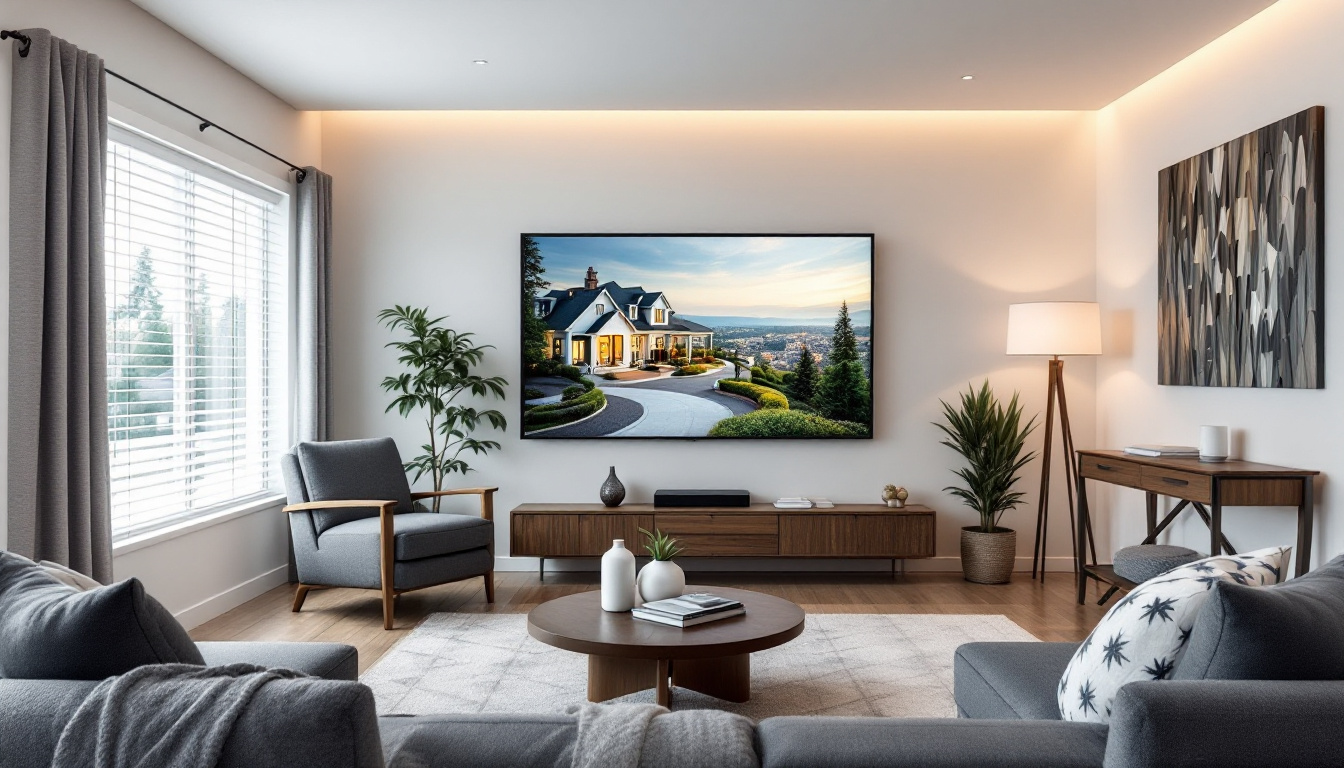
Displaying your screen on an LED TV is a versatile and accessible way to enjoy content on a larger, high-quality display. Understanding the fundamentals of LED technology, the various connection methods, and how to optimize settings ensures a smooth and enjoyable experience.
Whether using HDMI cables, wireless mirroring, or older connection standards, selecting the right approach for your devices and needs is key. By staying informed about emerging display technologies and troubleshooting common issues, users can maximize the benefits of their LED TV setups for entertainment, productivity, and beyond.
Explore Cutting-Edge LED Display Solutions
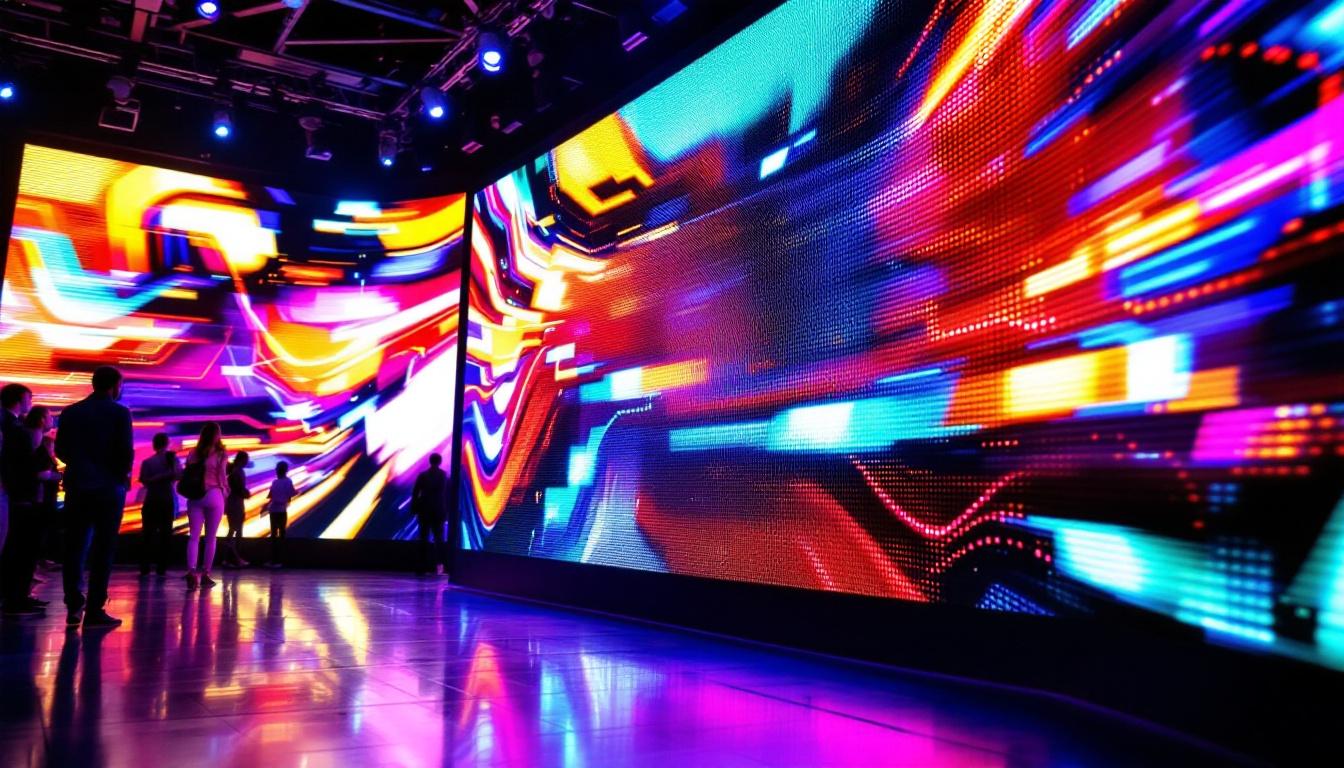
Ready to elevate your visual experience with the latest in LED technology? LumenMatrix offers a comprehensive range of innovative LED display solutions tailored to your needs. From captivating Indoor LED Walls to dynamic Outdoor LED Displays, and from versatile Vehicle LED Displays to sleek LED Poster Displays, our products are designed to revolutionize visual communication. Discover how our LED Sports Displays, Floor LED Displays, Custom LED Displays, All-in-One LED Displays, and LED Transparent Displays can enhance engagement and bring your brand’s message to life with unparalleled clarity and impact. Don’t just display your screen; transform it with LumenMatrix. Check out LumenMatrix LED Display Solutions today and step into the future of digital signage.