How To Use TV As A Monitor: LED Display Explained
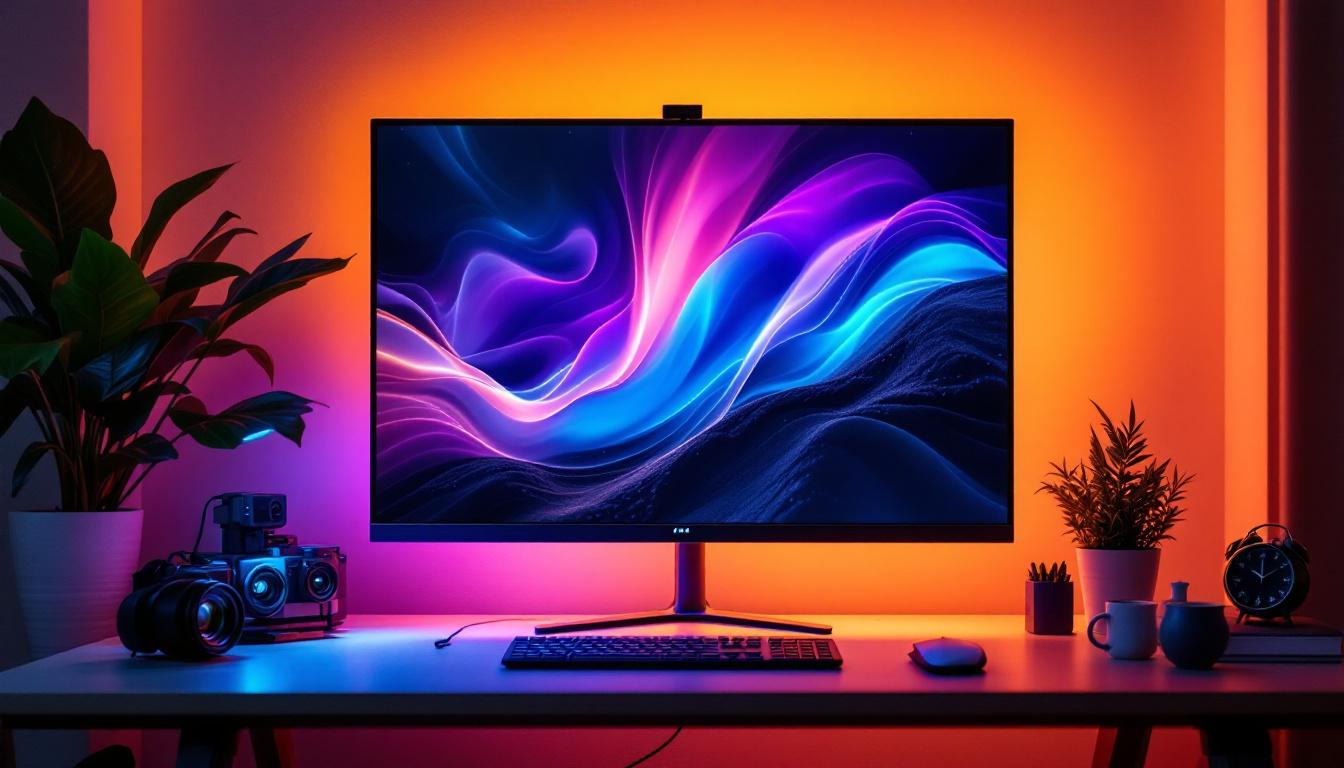
In today’s digital age, versatility in display options has become essential for both work and entertainment. Many people wonder if their television can double as a computer monitor, especially with the rise of LED TV technology. Using a TV as a monitor can be a cost-effective and practical solution, but it comes with its own set of considerations. This article explores how to use a TV as a monitor, focusing on LED displays, and explains the technical details, benefits, and potential drawbacks to help you make an informed decision.
Understanding LED Displays: What Sets Them Apart?
LED, or Light Emitting Diode, displays are a popular type of screen technology found in modern televisions and monitors. Unlike older LCD screens that use cold cathode fluorescent lamps (CCFL) for backlighting, LED TVs use light-emitting diodes to illuminate the screen. This technology offers several advantages including improved energy efficiency, better brightness, and thinner panels. The compact nature of LEDs allows manufacturers to create sleeker designs, which not only enhance aesthetics but also facilitate easier wall mounting and integration into various living spaces.
When considering a TV as a monitor, understanding the LED display technology is crucial. LED TVs come in two main types: edge-lit and full-array. Edge-lit LED TVs have LEDs positioned around the edges of the screen, which can sometimes cause uneven brightness. Full-array LED TVs have LEDs spread evenly behind the screen, offering better contrast and uniformity. These differences can impact your experience when using a TV as a computer monitor. For instance, gamers may prefer full-array models for their superior response times and color depth, which can enhance the overall gaming experience significantly.
Additionally, LED TVs often support higher resolutions such as 4K (3840 x 2160 pixels), which can provide crisp and clear images when connected to a computer. However, resolution alone does not guarantee a good monitor experience; factors like input lag, refresh rate, and color accuracy also play critical roles. Input lag, for example, can affect how quickly your actions on a keyboard or mouse are reflected on the screen, making it particularly important for fast-paced gaming or professional applications. Refresh rates, measured in hertz (Hz), determine how many frames per second the display can show, with higher rates providing smoother motion and reducing blurring during fast action scenes.
Moreover, many LED displays now come equipped with advanced technologies such as High Dynamic Range (HDR), which enhances the contrast and color range of the images displayed. HDR can make a significant difference in viewing experiences, especially in visually rich content like movies and video games. Furthermore, the integration of smart technology in many LED TVs allows users to access streaming services and apps directly, making them versatile devices not just for traditional viewing but also for modern digital content consumption. This versatility can be particularly appealing for those looking to maximize their investment in a display that serves multiple purposes.
Why Use a TV as a Monitor? Exploring the Benefits
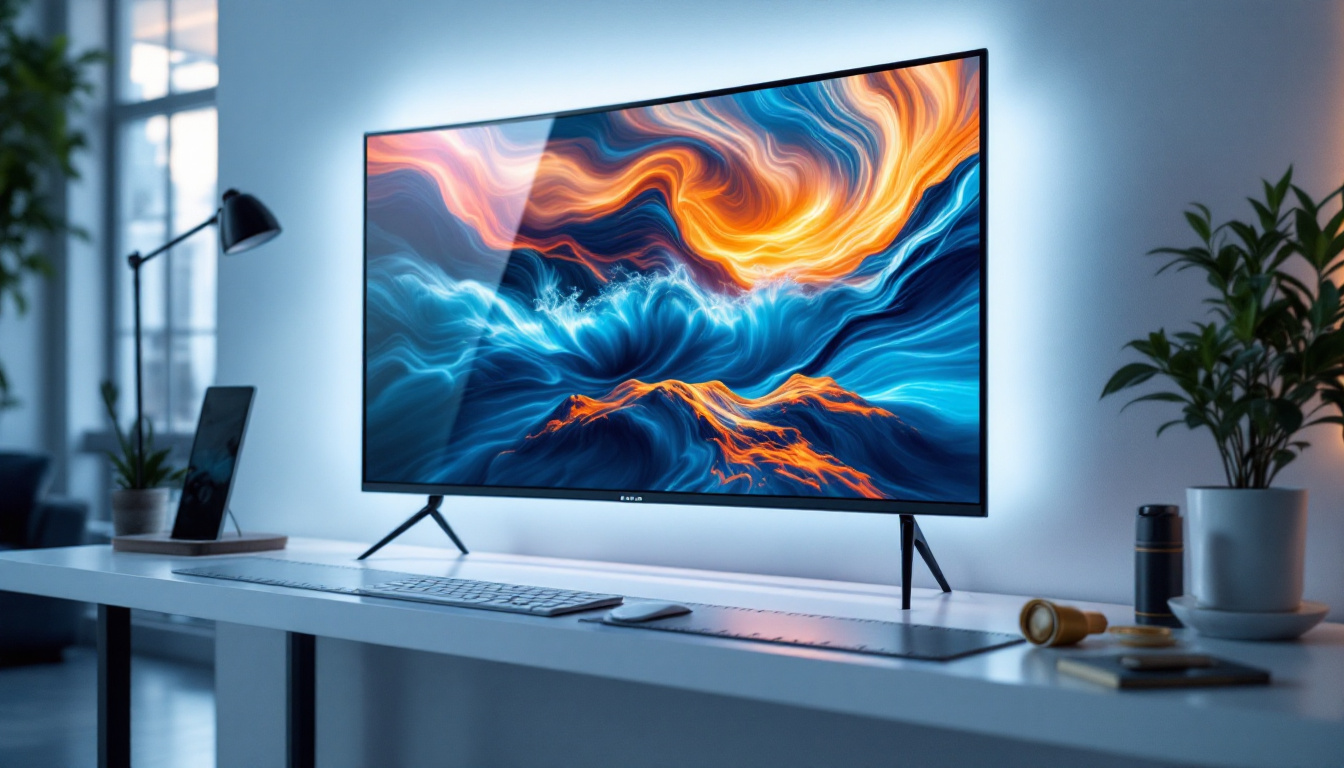
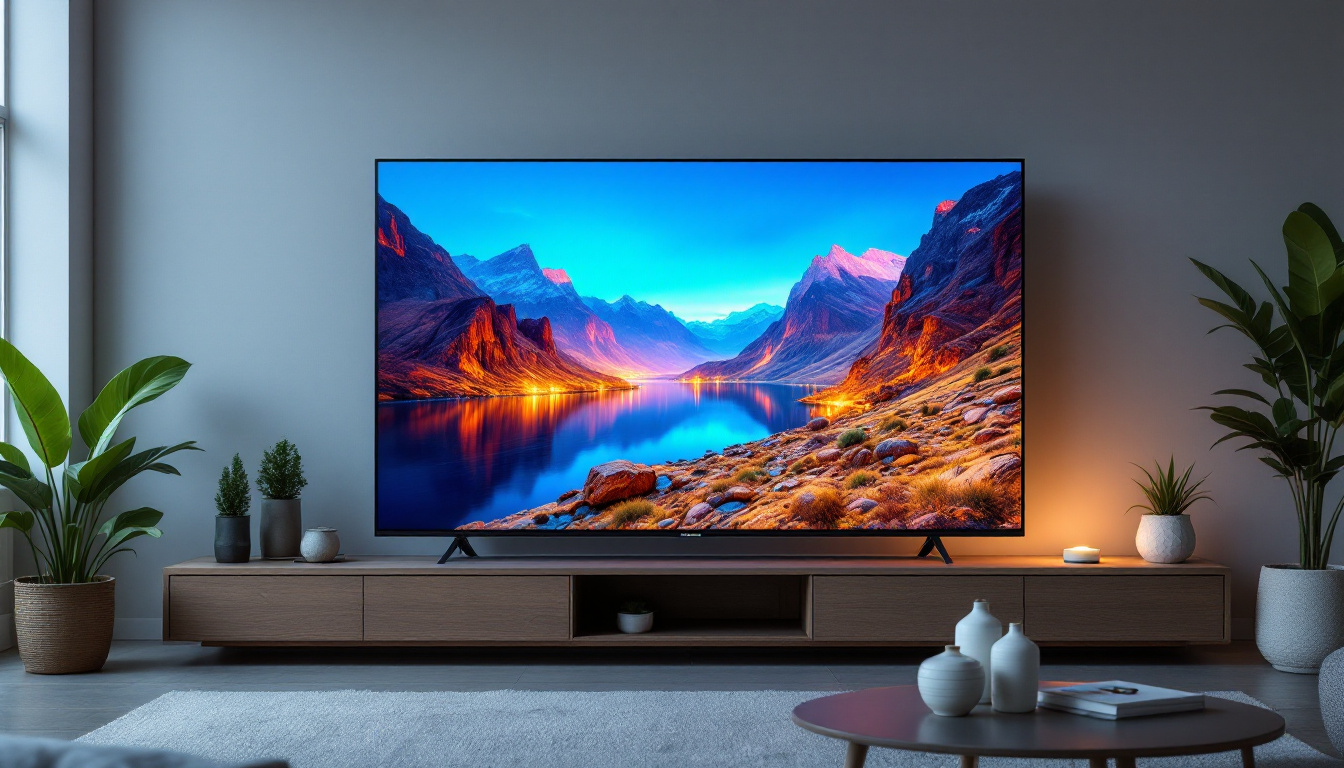
Using a TV as a monitor has become increasingly popular for several reasons. One of the primary benefits is screen size. TVs typically offer much larger screen real estate compared to traditional monitors, making them ideal for multitasking, gaming, or media consumption.
Cost-effectiveness is another major advantage. High-quality monitors with large screen sizes and 4K resolution can be expensive. In contrast, many LED TVs with similar specifications are available at competitive prices, providing a budget-friendly alternative.
Moreover, LED TVs often come with built-in speakers and multiple input options like HDMI ports, which can reduce the need for additional peripherals. This can simplify your setup and reduce clutter on your desk.
Key Considerations When Using a TV as a Monitor
Resolution and Screen Size
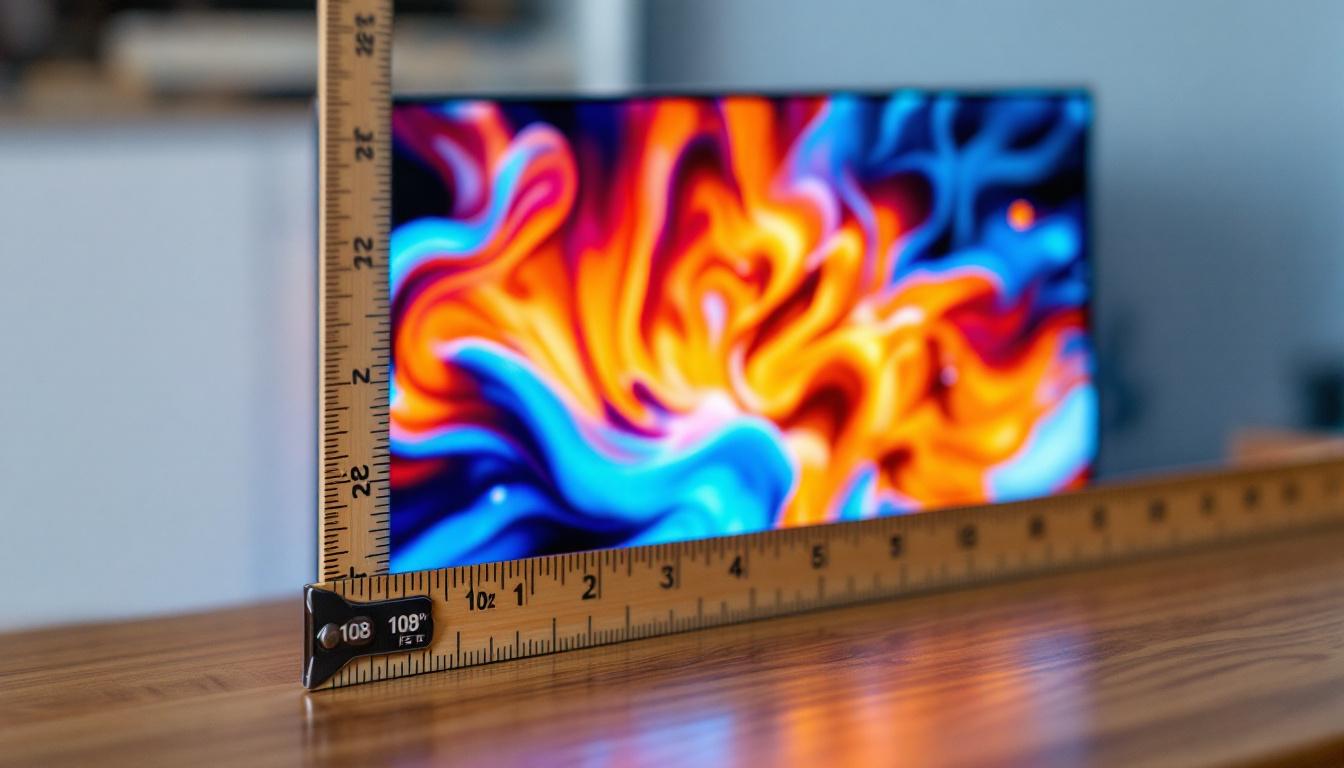
Choosing the right resolution and screen size is vital for a comfortable and productive experience. While 4K TVs offer stunning detail, a very large screen (50 inches or more) might not be practical for desktop use unless you have a spacious workspace. A 40 to 43-inch TV is often the sweet spot for combining size and usability.
Screen resolution should match your computer’s output settings to avoid scaling issues. For example, if your computer supports 1080p, using a 4K TV might require scaling adjustments to ensure text and icons are readable.
Input Lag and Refresh Rate
Input lag refers to the delay between a command from your keyboard or mouse and the corresponding action on the screen. TVs generally have higher input lag than dedicated monitors because they are optimized for video playback rather than real-time interaction. This can be a significant factor for gamers or professionals who require precise control.
Many modern LED TVs include a “Game Mode” or similar setting that reduces input lag by disabling certain image processing features. When using a TV as a monitor, enabling this mode is highly recommended.
Refresh rate is another important factor. Standard TVs usually have a 60Hz refresh rate, which is sufficient for most tasks but may not satisfy gamers who prefer 120Hz or higher for smoother motion. If gaming is a priority, look for TVs that support higher refresh rates and variable refresh rate technologies like HDMI 2.1 VRR or AMD FreeSync.
Color Accuracy and Viewing Angles
Color accuracy is essential for professionals working in graphic design, video editing, or photography. While LED TVs generally offer vibrant colors, they may not be calibrated for color-critical work out of the box. Some models allow for color calibration, but dedicated monitors often provide superior color fidelity.
Viewing angles on LED TVs are usually better than those on budget monitors, especially those with IPS panels. This means the image remains consistent even when viewed from the side, which can be beneficial in collaborative work environments.
Connectivity and Compatibility
Most modern LED TVs come equipped with multiple HDMI ports, USB inputs, and sometimes DisplayPort or VGA connections. HDMI is the most common interface for connecting a computer to a TV. It supports both video and audio signals, simplifying the connection process.
It’s important to ensure your computer’s graphics card supports the resolution and refresh rate of the TV. For 4K at 60Hz, HDMI 2.0 or DisplayPort 1.4 is typically required. Older computers might need adapters or may not support higher resolutions smoothly.
Step-by-Step Guide: How to Set Up Your TV as a Monitor
1. Choose the Right TV
Select an LED TV that fits your workspace and meets your resolution and refresh rate needs. Consider factors such as screen size, input lag, and available ports. Reading reviews and manufacturer specifications can help identify models suitable for use as a monitor.
2. Connect Your Computer to the TV
Use a high-quality HDMI cable to connect your computer’s graphics card to the TV. If your computer or TV supports DisplayPort or USB-C with video output, you may use those alternatives with appropriate adapters.
Once connected, power on both devices and select the correct input source on your TV (usually HDMI 1, HDMI 2, etc.).
3. Configure Display Settings
On your computer, navigate to the display settings. On Windows, this can be found under Settings > System > Display; on macOS, under System Preferences > Displays.
Set the resolution to match your TV’s native resolution, typically 1920×1080 for Full HD or 3840×2160 for 4K. Adjust scaling options to ensure text and icons are comfortable to read. You may also want to configure the TV as your primary display or extend your desktop.
4. Enable Game Mode or Similar Settings
Access your TV’s menu and enable “Game Mode” or any setting that reduces input lag. This disables unnecessary image processing and can improve responsiveness, especially for gaming or fast-paced tasks.
5. Calibrate Color and Brightness
Use built-in TV calibration tools or third-party software to adjust color balance, brightness, and contrast. Proper calibration ensures a more accurate and comfortable viewing experience, particularly for creative work.
Potential Drawbacks and How to Mitigate Them
While using a TV as a monitor has many advantages, there are some drawbacks to consider. Input lag and lower refresh rates can affect gaming performance. To mitigate this, always enable Game Mode and consider investing in a TV designed with gaming features.
Text clarity can suffer on very large TVs due to pixel density. Sitting too close to a large screen can cause eye strain. Adjust your viewing distance accordingly—ideally, sit far enough to see the whole screen comfortably without excessive head movement.
Color accuracy may not match professional monitors. For color-critical tasks, consider using a dedicated monitor or investing in calibration tools to improve your TV’s color output.
Conclusion: Is Using a TV as a Monitor Right for You?
Using an LED TV as a computer monitor can be a practical and cost-effective solution for many users. It offers large screen sizes, vibrant colors, and multiple connectivity options that can enhance both work and entertainment experiences. However, understanding the technical nuances such as input lag, refresh rate, and color accuracy is essential to ensure the setup meets your needs.
For casual users, gamers, and those seeking a budget-friendly large display, a modern LED TV with gaming features can be an excellent choice. Professionals requiring precise color fidelity and ultra-low latency may still prefer dedicated monitors. Ultimately, the decision depends on your specific use case, workspace, and budget.
By carefully selecting the right LED TV and properly configuring your system, you can enjoy the benefits of a large, bright, and versatile display that bridges the gap between traditional monitors and home entertainment.
Discover the Future of Visual Display with LumenMatrix
Ready to elevate your viewing experience with the latest in LED technology? Look no further than LumenMatrix, a pioneer in crafting immersive and dynamic visual displays. Whether you’re in need of an Indoor LED Wall Display for your office, an Outdoor LED Wall Display for impactful advertising, or any of our specialized solutions like Vehicle LED Displays and Custom LED Displays, LumenMatrix has you covered. Embrace the future of digital signage and let your message shine with unparalleled brightness and clarity. Check out LumenMatrix LED Display Solutions today and transform the way you share your vision with the world.