In today’s fast-paced digital environment, optimizing your workspace for efficiency and comfort is more important than ever. One way to enhance productivity and improve your viewing experience is by adjusting your monitor orientation from the traditional horizontal (landscape) mode to a vertical (portrait) mode. This is particularly useful for programmers, writers, graphic designers, and anyone who deals with long documents or vertical content.
This article will guide you through the process of making your LED monitor vertical, explain the benefits of this setup, and provide tips on how to get the most out of your vertical display.
Why Choose a Vertical Monitor Setup?
Before diving into the technical steps, it’s essential to understand why you might want to make your monitor vertical. The vertical orientation offers several advantages depending on your professional or personal needs.
Improved Productivity for Specific Tasks
Vertical monitors are especially beneficial for tasks that involve reading or editing long documents, coding, or browsing websites. For example, software developers often prefer vertical screens because they can view more lines of code without scrolling. Similarly, writers and editors can see more of their text, making it easier to spot errors and maintain flow.
Studies have shown that vertical monitors can increase productivity by up to 20% for coding tasks, as they reduce the need for constant scrolling and allow for better focus on the content. This increase in efficiency can be attributed to the way our eyes naturally scan text; a vertical layout aligns with our reading patterns, allowing for a more fluid and less interrupted workflow. Furthermore, the ability to see entire documents or code snippets at a glance can significantly enhance comprehension and retention, making vertical monitors a game-changer for professionals in these fields.
Better Use of Screen Real Estate
Many modern websites and mobile applications are designed with vertical scrolling in mind. A vertical monitor aligns better with this format, providing a more natural and immersive viewing experience. This is particularly useful for web designers and digital marketers who need to preview content as it would appear on smartphones or tablets. The vertical setup allows for a more accurate representation of user experience, enabling designers to fine-tune layouts and ensure that their designs are both visually appealing and functional on smaller screens.
Additionally, vertical monitors can help with multitasking. By having multiple windows open in a vertical orientation, users can easily compare documents side by side or keep communication tools like chat applications visible while working on other tasks. This enhanced multitasking capability can streamline workflows and make it easier to manage various projects simultaneously, ultimately leading to a more organized and efficient workspace.
Ergonomic Benefits
Adjusting your monitor to vertical can also promote better posture. When set up correctly, it encourages you to sit upright and reduces neck strain caused by looking down or sideways at a wide screen. This can be a significant advantage for people who spend long hours in front of the computer. The ergonomic benefits extend beyond just neck strain; a well-positioned vertical monitor can also alleviate back pain and reduce eye strain, contributing to overall well-being during long work sessions.
Moreover, the ability to adjust the height and angle of a vertical monitor allows for a more customized setup that caters to individual comfort levels. This flexibility can be particularly beneficial in shared workspaces or home offices where multiple users may have different preferences. By prioritizing ergonomics, you not only enhance your productivity but also invest in your long-term health, making a vertical monitor setup a smart choice for anyone looking to optimize their workspace.
Understanding LED Monitors and Their Orientation Capabilities
LED monitors are popular for their vibrant colors, energy efficiency, and slim profiles. Most modern LED displays support rotation, but understanding the hardware and software involved is crucial for a smooth transition to vertical orientation.
Hardware Considerations
Not all monitors come with built-in rotation stands. Before attempting to make your monitor vertical, check if your monitor stand supports pivoting. Many professional-grade monitors include a stand that allows 90-degree rotation. If your current stand does not support this, you might need to invest in a VESA-compatible monitor arm or stand that offers rotation functionality.
VESA mounts are standardized mounting interfaces that allow you to attach your monitor to adjustable arms or wall mounts. These accessories provide flexibility in positioning your monitor, including vertical orientation.
Software Support for Rotation
Once the physical rotation is possible, your computer’s operating system must support screen rotation. Most modern operating systems, including Windows, macOS, and Linux, have built-in options to rotate the display. Graphics drivers from manufacturers like NVIDIA, AMD, and Intel also provide rotation settings, sometimes with additional customization options.
Step-by-Step Guide: How to Make Your Monitor Vertical
Now that you understand the benefits and technical requirements, here is a detailed guide to help you rotate your LED monitor to a vertical position.
Step 1: Prepare Your Workspace
Before rotating your monitor, clear your desk to avoid damaging the screen or stand. If your monitor supports pivoting on its stand, gently rotate it 90 degrees clockwise or counterclockwise. If it doesn’t, consider using a VESA mount or an adjustable monitor arm for the rotation.
Step 2: Adjust Display Settings on Your Computer
Once your monitor is physically rotated, you need to adjust the display settings to match the new orientation.
For Windows 10 and 11:
- Right-click on the desktop and select Display settings.
- Scroll down to the Display orientation dropdown menu.
- Select Portrait or Portrait (flipped) depending on how your monitor is rotated.
- Click Apply and confirm the change.
For macOS:
- Open System Preferences and go to Displays.
- Hold the Option key and click on the Rotation dropdown menu (this option appears only when holding Option).
- Select 90° or 270° depending on your rotation.
- Confirm the change.
For Linux (Ubuntu example):
- Open Settings and navigate to Displays.
- Look for the Rotation option and select Portrait.
- Apply the changes.
Step 3: Calibrate Your Display
After rotation, some colors or sharpness may appear slightly different. Use your operating system’s display calibration tools or third-party software to adjust brightness, contrast, and color settings for optimal viewing.
Step 4: Organize Your Workspace
Arrange your desk and peripherals to accommodate the new monitor orientation. For example, you may want to reposition your keyboard and mouse for comfort or adjust lighting to reduce glare on the vertical screen.
Common Challenges and How to Overcome Them
While rotating your monitor is straightforward, some users encounter difficulties. Here are common issues and solutions.
Monitor Does Not Physically Rotate
If your monitor stand doesn’t support pivoting, avoid forcing it to prevent damage. Instead, invest in a VESA-compatible monitor arm or stand. These are widely available and often affordable, providing flexibility for multiple monitors as well.
Screen Orientation Does Not Change in Software
If the display settings do not offer rotation options, update your graphics drivers. Visit the manufacturer’s website to download the latest drivers for your GPU. Sometimes, third-party utilities provided by the GPU manufacturer can enable rotation features.
Image Appears Upside Down or Sideways
Try the alternative rotation options (e.g., Portrait vs. Portrait flipped) in your display settings until the image aligns correctly with your physical monitor orientation.
Text or Images Appear Blurry
Vertical orientation can sometimes highlight display scaling issues. Adjust the resolution to the monitor’s native resolution in display settings. Additionally, use ClearType Text Tuner on Windows or font smoothing options on macOS to improve text clarity.
Maximizing the Benefits of a Vertical Monitor
Once your monitor is set vertically, consider these tips to enhance your experience.
Use Multi-Monitor Setups Strategically
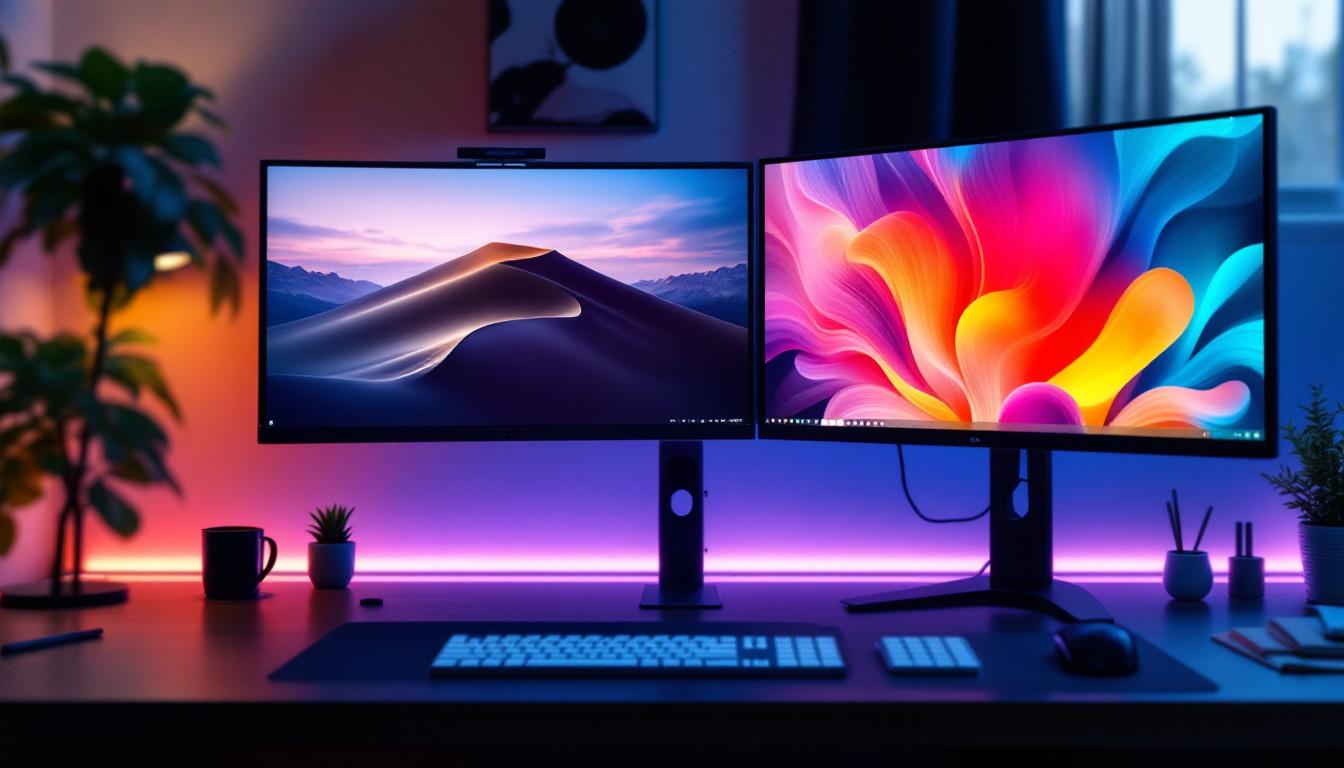
Many professionals use a vertical monitor alongside a horizontal one to maximize screen real estate. For example, a vertical monitor can display code or documents, while the horizontal monitor handles communication tools or design software.
Customize Your Workspace Layout
Arrange windows and applications to take full advantage of the vertical space. Many operating systems allow you to snap windows to halves or quarters of the screen, which can be particularly useful on a tall, narrow display.
Leverage Vertical-Friendly Applications
Some applications are optimized for vertical displays. Text editors, IDEs (Integrated Development Environments), and web browsers often have customizable layouts that work well in portrait mode. Explore plugins or extensions that enhance vertical viewing.
Maintain Proper Ergonomics
Ensure your monitor is at eye level to avoid neck strain. Use adjustable stands or arms to fine-tune the height and angle. Take regular breaks and practice good posture to maintain comfort during extended use.
Conclusion
Making your LED monitor vertical can significantly improve productivity, comfort, and the overall computing experience, especially for tasks involving long documents, coding, and vertical content. Understanding the hardware and software requirements is key to a successful setup.
By following the step-by-step guide and addressing common challenges, anyone can enjoy the benefits of a vertical monitor. Whether you are a professional looking to optimize your workflow or a casual user seeking a better way to consume content, vertical orientation is a versatile and valuable option.
Investing in a monitor stand or arm that supports rotation and keeping your graphics drivers up to date will ensure a smooth transition. With proper calibration and ergonomic adjustments, your vertical monitor setup can become an indispensable part of your workspace.
Enhance Your Vertical Viewing Experience with LumenMatrix
Ready to take your vertical monitor setup to the next level? LumenMatrix offers a wide range of innovative LED display solutions that can transform your workspace and captivate your audience. Whether you’re looking for an Indoor LED Wall Display to enrich your professional environment or a Custom LED Display to make a bold statement, LumenMatrix has the technology to bring your vision to life. Experience the ultimate in brand visibility and visual communication. Check out LumenMatrix LED Display Solutions today and see the difference for yourself.