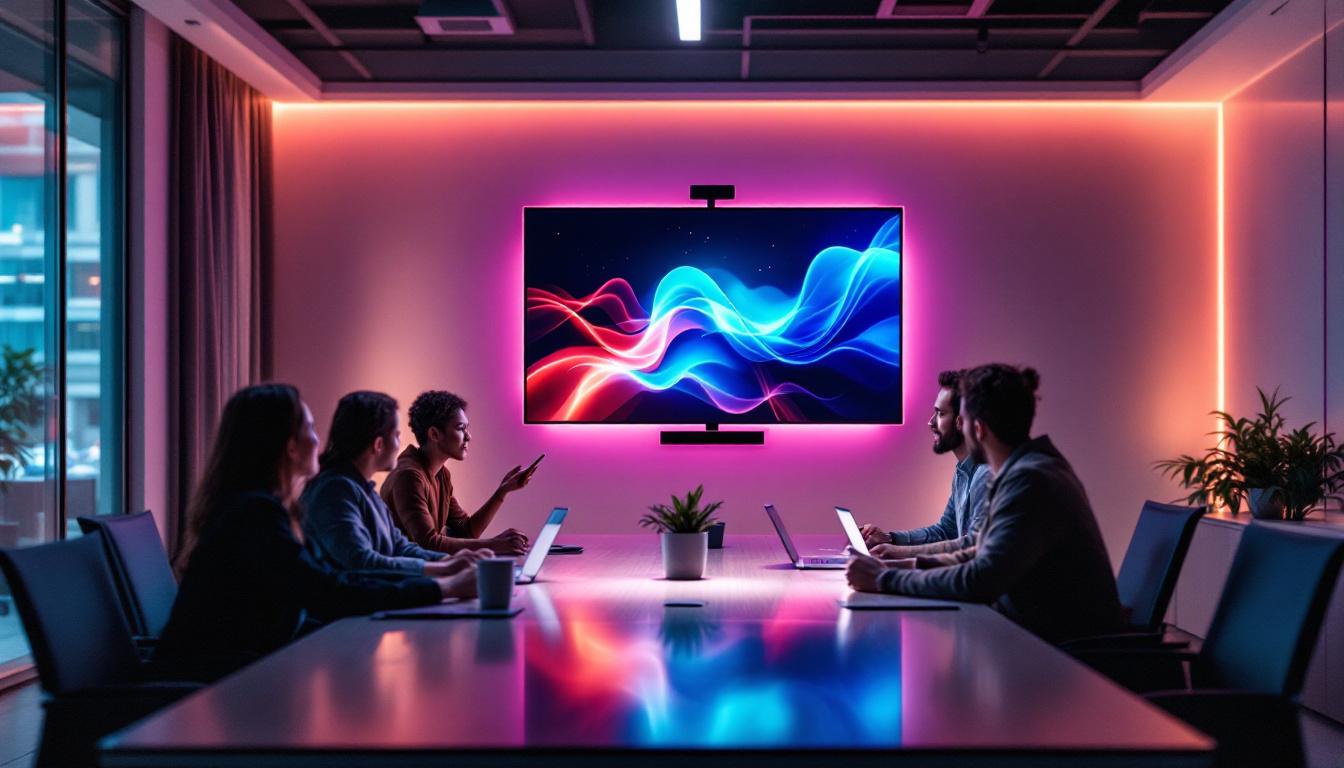
In today’s digital workspace, multi-monitor setups have become increasingly popular among professionals, gamers, and creative users alike. Having more than one display not only boosts productivity but also enhances the overall computing experience. One of the most appealing customization features for multi-monitor users is the ability to set different desktop backgrounds on each screen. This seemingly simple feature can transform your workspace, making it more organized, visually appealing, and tailored to your specific needs.
This article delves into the technical aspects of LED displays, explains how to configure different wallpapers for each monitor, and explores the benefits of this customization. Whether you’re a tech enthusiast or a casual user, understanding these concepts will help you optimize your multi-monitor setup.
Understanding LED Displays in Multi-Monitor Setups
What Are LED Displays?
LED (Light Emitting Diode) displays are a type of flat-panel display technology that uses light-emitting diodes to illuminate pixels. Compared to older technologies like LCDs with CCFL backlighting, LED displays offer better brightness, contrast, and energy efficiency. They have become the standard for modern monitors, including those used in multi-monitor configurations.
LED technology allows for thinner, lighter, and more vibrant screens, which is why they are preferred in both consumer and professional environments. When multiple LED monitors are connected to a single computer, they collectively create an extended desktop environment that can be customized extensively. This adaptability is particularly beneficial for professionals in fields such as graphic design, video editing, and programming, where screen real estate can significantly enhance productivity and workflow efficiency.
Moreover, the advancements in LED technology have led to the emergence of various types of displays, including OLED and QLED, each offering unique benefits such as deeper blacks and wider color gamuts. These innovations provide users with even more options for creating a multi-monitor setup that meets their specific needs, whether for immersive gaming experiences or detailed data analysis.
How Multi-Monitor Setups Work
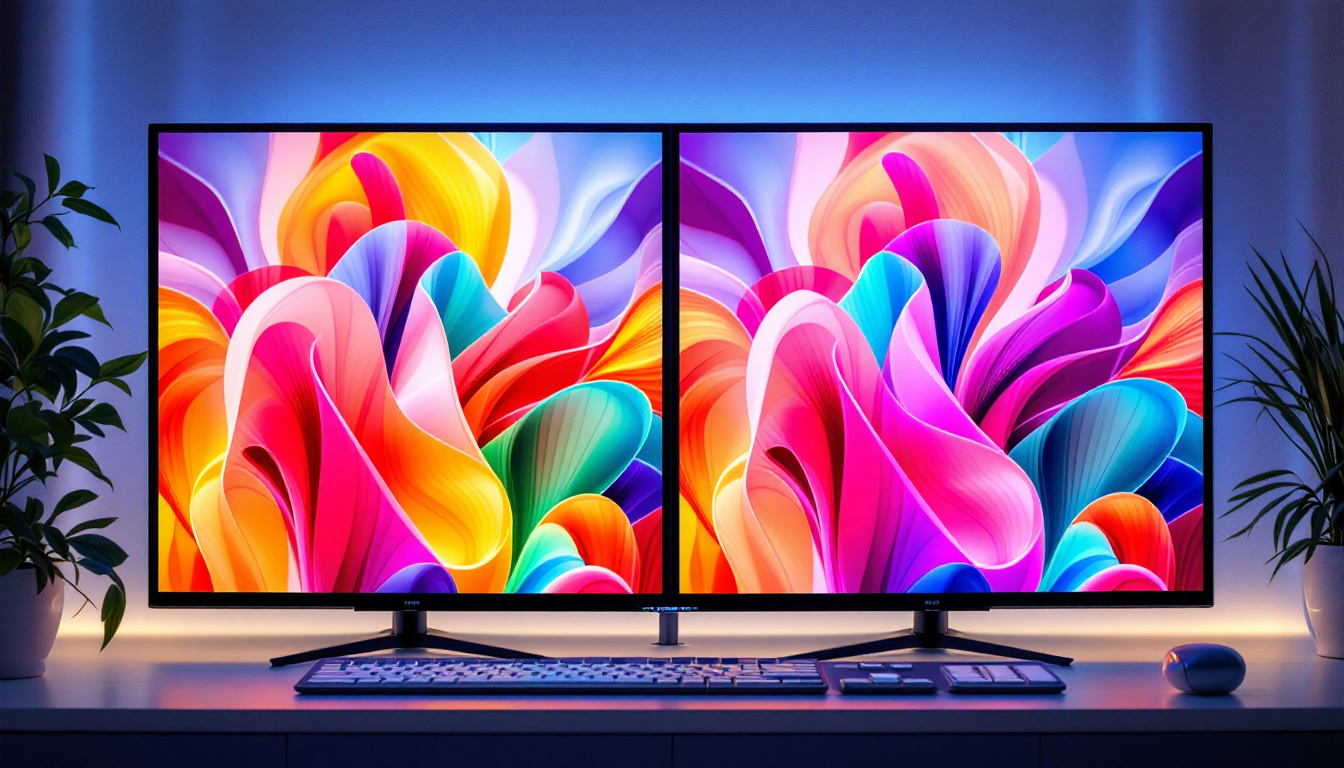
Multi-monitor setups typically involve connecting two or more monitors to a single computer using video outputs such as HDMI, DisplayPort, DVI, or USB-C. The operating system treats these monitors as one large desktop space, allowing windows and applications to be moved seamlessly across screens.
Each monitor in the setup can have its own resolution, refresh rate, and color profile, but the system usually aims to provide a cohesive visual experience. The ability to assign different desktop backgrounds to each monitor is a feature supported by modern operating systems and graphics drivers, enhancing the flexibility of these setups. Additionally, some users take advantage of specialized software that allows for further customization, such as creating virtual desktops or managing application windows more efficiently across multiple displays.
Furthermore, the arrangement of monitors can vary widely, with setups ranging from side-by-side configurations to more complex layouts that include monitors stacked vertically or angled for a more immersive experience. This versatility not only caters to personal preferences but also accommodates different types of work, such as coding, where multiple lines of code can be viewed simultaneously, or trading, where real-time data needs to be monitored across various platforms. As technology continues to evolve, the potential for multi-monitor setups expands, making them an increasingly popular choice for enhancing productivity and creativity in various fields.
Setting Different Desktop Backgrounds on Each Monitor
Windows Operating System
Windows 10 and Windows 11 natively support setting different wallpapers for each connected monitor. Here’s how to do it:
- Right-click on the desktop and select Personalize.
- Go to the Background section.
- Click Browse to select the images you want to use.
- Right-click on the desired image thumbnail and select Set for monitor 1, Set for monitor 2, etc.
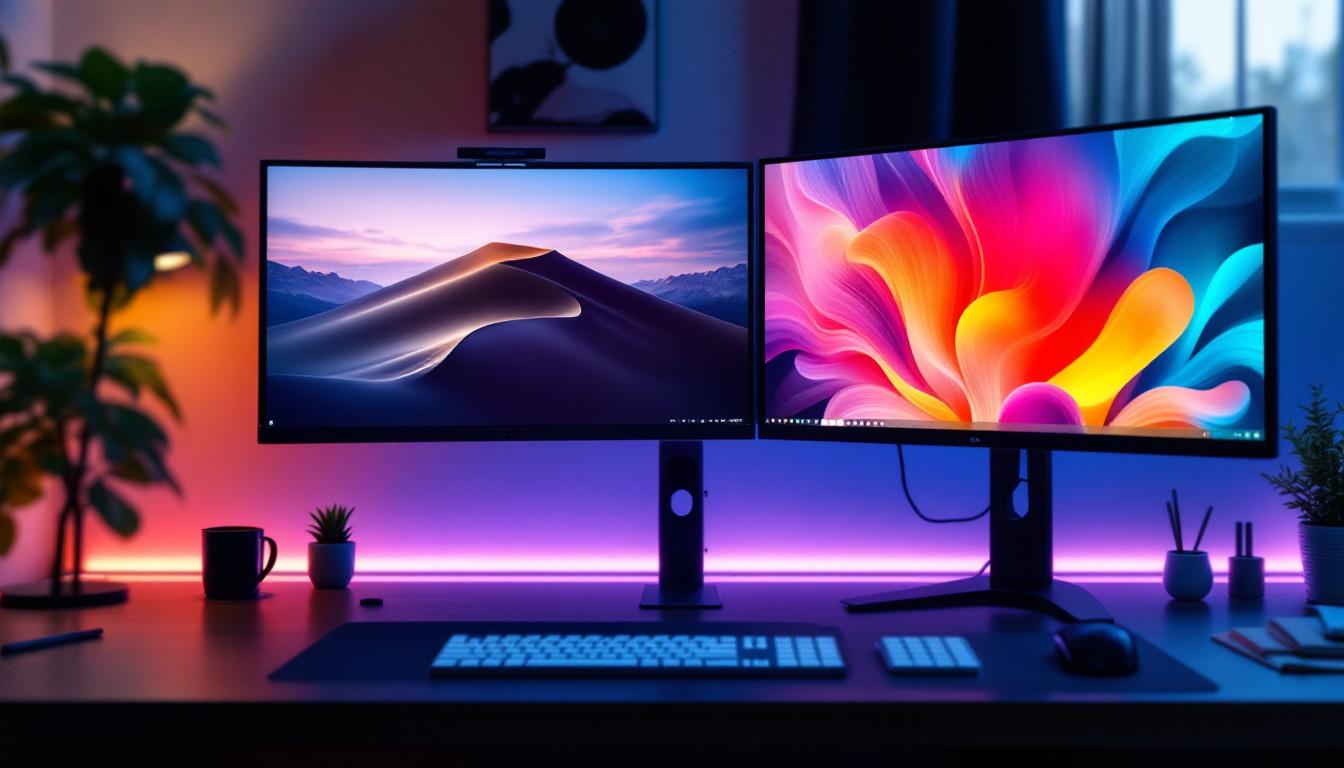
This method allows users to personalize each screen independently, making it easier to organize workspaces or simply enjoy different aesthetics on each monitor. For instance, you might choose a serene landscape for your primary monitor to create a calming work environment, while opting for a vibrant abstract design on your secondary monitor to invigorate your creative projects. This customization not only enhances your workspace visually but can also improve your productivity by creating distinct atmospheres for different tasks.
macOS Multi-Display Backgrounds
macOS also supports multiple monitors with different wallpapers, but the process is slightly different:
- Open System Preferences and go to Desktop & Screen Saver.
- Drag the settings window to the desired monitor.
- Select the wallpaper for that monitor.
- Repeat the process for each connected display.
macOS remembers these settings per display, allowing for a customized look across all screens. This feature is particularly beneficial for users who work with multiple applications simultaneously, as it allows for a more organized visual layout. For example, you could set a calming blue ocean scene on one monitor for focused tasks, while displaying a colorful cityscape on another for inspiration during brainstorming sessions. The ability to tailor each display not only enhances aesthetics but also contributes to a more efficient workflow.
Using Third-Party Software
For users seeking more advanced features, third-party applications like DisplayFusion, UltraMon, and Wallpaper Engine offer enhanced control over multi-monitor wallpapers. These tools provide options such as:
- Slideshow synchronization or independent slideshows per monitor.
- Custom scaling and positioning of images.
- Support for dynamic and animated wallpapers.
- Profiles for different monitor configurations.
These utilities are especially useful for users with complex setups or those who want to automate wallpaper changes based on time or activity. For instance, Wallpaper Engine allows users to create animated backgrounds that can change throughout the day, providing a fresh look every time you log in. Additionally, DisplayFusion offers features like multi-monitor taskbars and window snapping, which can significantly enhance productivity for users who rely on multiple screens for their work. With these tools, users can create a truly immersive and personalized desktop experience that reflects their unique style and workflow preferences.
Benefits of Different Backgrounds for Each Monitor
Improved Organization and Productivity
Assigning unique wallpapers to each monitor can help visually separate different types of tasks or projects. For example, a user might set a calming nature scene on one screen dedicated to communication tools, while using a more vibrant or minimalistic background on another screen for design work.
This visual distinction reduces cognitive load, making it easier to focus and switch contexts. Studies in workspace ergonomics suggest that such environmental cues can enhance task management and reduce errors.
Enhanced Aesthetic Appeal
Different wallpapers allow users to express their personality and preferences. For gamers, this might mean having game-themed backgrounds on one monitor and system information or chat windows on another. Creative professionals might use inspirational images or mood boards on secondary screens.
Customizing each display’s background can make the workspace more inviting and enjoyable, which can positively impact user satisfaction and motivation.
Optimized Use of Screen Real Estate
Multi-monitor setups often include screens of varying sizes and resolutions. By choosing wallpapers that fit each monitor’s dimensions and aspect ratio, users can avoid stretched or pixelated images, maintaining visual clarity and professionalism.
Moreover, certain wallpapers can be designed to span multiple monitors, creating panoramic views, but having distinct images allows for more flexibility and better use of screen real estate.
Technical Considerations for Multi-Monitor Wallpaper Customization
Resolution and Aspect Ratio Matching
When selecting wallpapers for each monitor, it’s important to consider the resolution and aspect ratio of each display. Using an image that matches the monitor’s native resolution ensures sharpness and prevents distortion.
For example, a 1920×1080 Full HD monitor requires a different wallpaper size than a 2560×1440 Quad HD display. Mismatched images can lead to stretching or black bars, detracting from the visual experience.
Color Calibration and Consistency
Different monitors, even of the same model, can display colors differently due to manufacturing variances and calibration settings. When using different wallpapers, color consistency might be less critical, but for professional work involving color accuracy, it’s essential to calibrate each display.
Calibration tools and software can help ensure that colors appear as intended across all screens, maintaining a cohesive look.
Graphics Card and Driver Support
The ability to set different wallpapers depends on the graphics card and its drivers. Modern GPUs from NVIDIA, AMD, and Intel support multi-monitor configurations with individual background settings. However, outdated drivers or hardware limitations might restrict this functionality.
Keeping drivers up to date and ensuring compatibility with your operating system will help avoid issues and unlock the full potential of your multi-monitor setup.
Future Trends in Multi-Monitor Displays and Customization
Advancements in Display Technology
Emerging display technologies such as OLED and MicroLED promise even better color accuracy, contrast, and thinner form factors. These advancements will enhance multi-monitor setups by providing more immersive and visually stunning environments.
Additionally, flexible and curved displays are gaining traction, offering new ways to arrange multiple screens ergonomically and aesthetically.
AI-Powered Personalization
Artificial intelligence is beginning to play a role in desktop customization. Future systems may automatically adjust wallpapers based on user behavior, time of day, or ambient lighting conditions, creating a dynamic and responsive workspace.
This level of personalization could extend to multi-monitor setups, where each screen adapts independently to optimize productivity and comfort.
Integration with Smart Home and IoT Devices
As smart home ecosystems grow, multi-monitor setups might integrate with other devices to create synchronized environments. For example, wallpapers could change to reflect weather conditions, calendar events, or notifications from connected devices, enhancing situational awareness.
This integration would make the desktop environment not just a passive background but an active part of the user’s digital lifestyle.
Conclusion
Setting different desktop backgrounds for each monitor in a multi-display setup is more than just a cosmetic choice. It reflects a deeper understanding of workspace ergonomics, technology capabilities, and personal preferences. LED displays, with their superior image quality and energy efficiency, provide an excellent foundation for these setups.
By leveraging native operating system features or third-party software, users can tailor their multi-monitor environments to boost productivity, enhance aesthetics, and make the most of their screen real estate. As display technology and AI continue to evolve, the future of multi-monitor customization promises to be even more dynamic and user-centric.
Whether you’re a professional seeking to optimize your workflow or a casual user wanting a more engaging desktop experience, exploring the possibilities of different backgrounds on each monitor is a worthwhile endeavor.
Discover the Future of Multi-Monitor Displays with LumenMatrix
Ready to elevate your multi-monitor setup to new heights of clarity, color, and performance? LumenMatrix is at the forefront of LED display innovation, offering a wide array of solutions that cater to every need—be it for indoor or outdoor environments, vehicles, sports arenas, or custom installations. Embrace the future of visual communication with our Indoor LED Wall Display, Outdoor LED Wall Display, and more, each designed to create immersive experiences and deliver your message with unparalleled impact. Don’t just take our word for it; check out LumenMatrix LED Display Solutions today and see the difference for yourself!