In today’s fast-evolving digital workspace, the demand for efficient multi-display setups has never been higher. Whether for creative professionals, financial analysts, or gamers, having multiple screens seamlessly connected and managed is crucial for productivity and immersive experiences. One technology that has significantly contributed to this capability is Multi-Stream Transport (MST). But how does MST work in conjunction with LED monitors, and what should users know about this technology? This article dives deep into the world of MST monitors, focusing on LED displays, their benefits, technical workings, and practical applications.
Understanding Multi-Stream Transport (MST)
What is Multi-Stream Transport?
Multi-Stream Transport is a feature of the DisplayPort 1.2 standard and later versions that allows multiple independent video streams to be transmitted over a single physical connection. This means a single DisplayPort output on a computer or laptop can drive multiple monitors through daisy-chaining or via an MST hub.
Unlike traditional setups that require separate video outputs for each monitor, MST simplifies cabling and reduces clutter. It enables users to expand their workspace without needing multiple graphics ports, which is especially beneficial for devices with limited outputs. This capability is particularly advantageous for professionals who rely on extensive screen real estate for tasks such as video editing, graphic design, or data analysis. By utilizing MST, users can create a more organized and efficient workspace, allowing for seamless multitasking across various applications.
How MST Differs from Other Multi-Display Technologies
While technologies like HDMI support multiple displays, they do not inherently support daisy-chaining multiple monitors via a single cable. MST’s ability to carry multiple streams over one cable is unique to DisplayPort and some USB-C implementations that carry DisplayPort signals.
This distinction is critical because MST allows for higher flexibility in monitor setups, including the ability to connect three or more monitors in a chain, provided the monitors support MST. This is a major advantage over traditional HDMI or DVI connections. Additionally, MST supports higher resolutions and refresh rates, making it ideal for high-performance displays. For instance, users can connect a 4K monitor alongside a 1080p monitor without sacrificing quality or performance. This versatility not only enhances productivity but also enriches the visual experience, catering to gamers and creative professionals alike who demand the best from their display setups.
The Role of LED Displays in MST Setups
Why LED Displays Are Preferred
LED (Light Emitting Diode) technology has become the standard for modern monitors due to its energy efficiency, brightness, and color accuracy. When combined with MST, LED displays provide an optimal viewing experience across multiple screens. The vivid colors and sharp contrasts offered by LED technology enhance the visual quality of presentations, gaming, and professional applications, making them a favorite among graphic designers and video editors.
LED monitors typically offer thinner panels, lower power consumption, and longer lifespans compared to older LCD technologies. These features make LED displays ideal for multi-monitor arrays where space, heat output, and energy costs are considerations. Additionally, many LED displays come with advanced features such as adaptive sync technology, which minimizes screen tearing and stuttering during fast-paced action, further enhancing the user experience in multi-monitor setups.
Technical Compatibility Between MST and LED Monitors
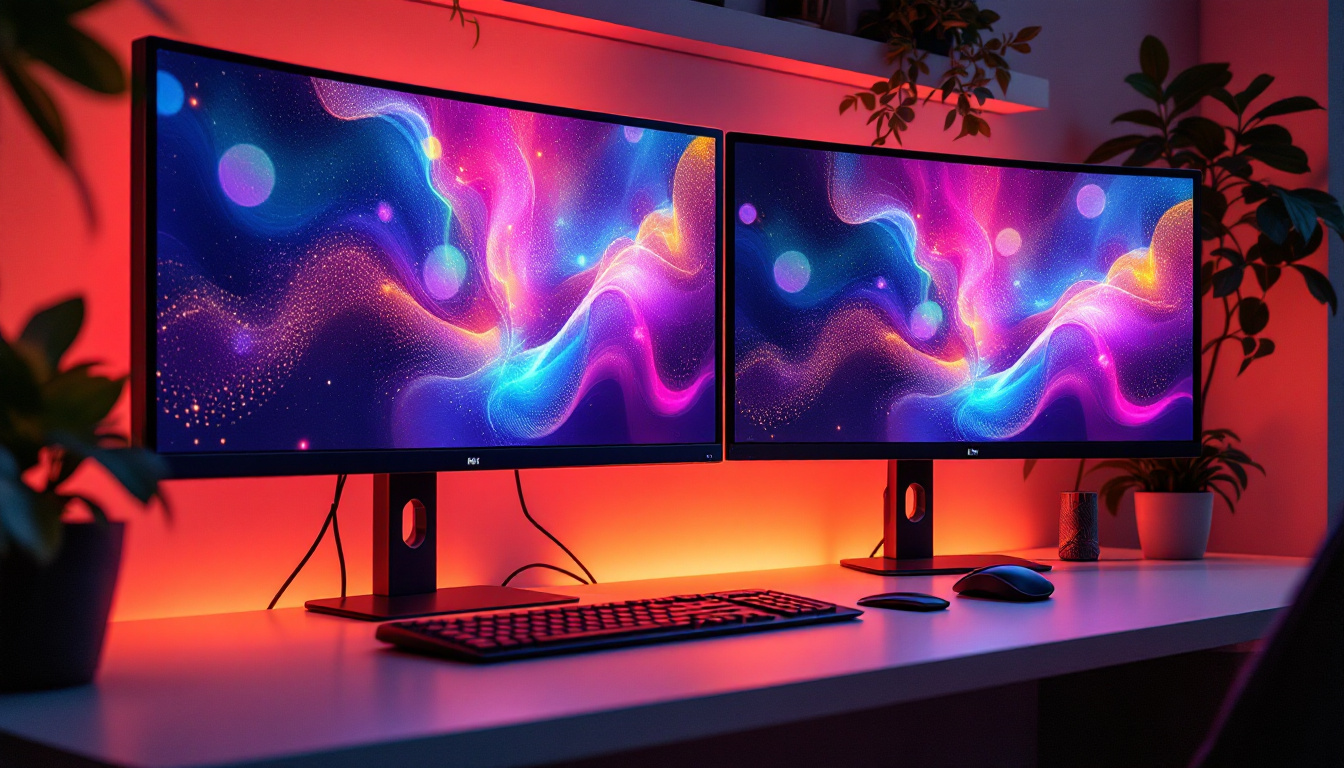
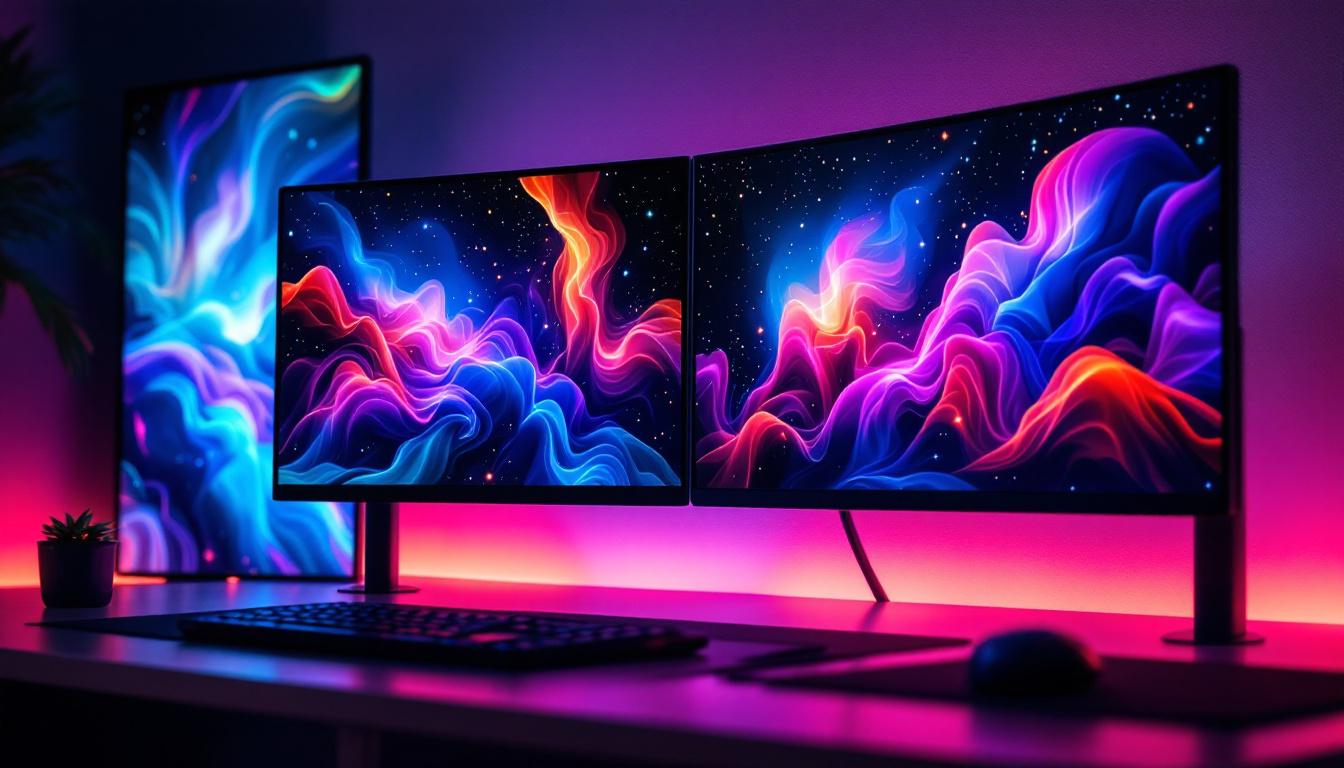
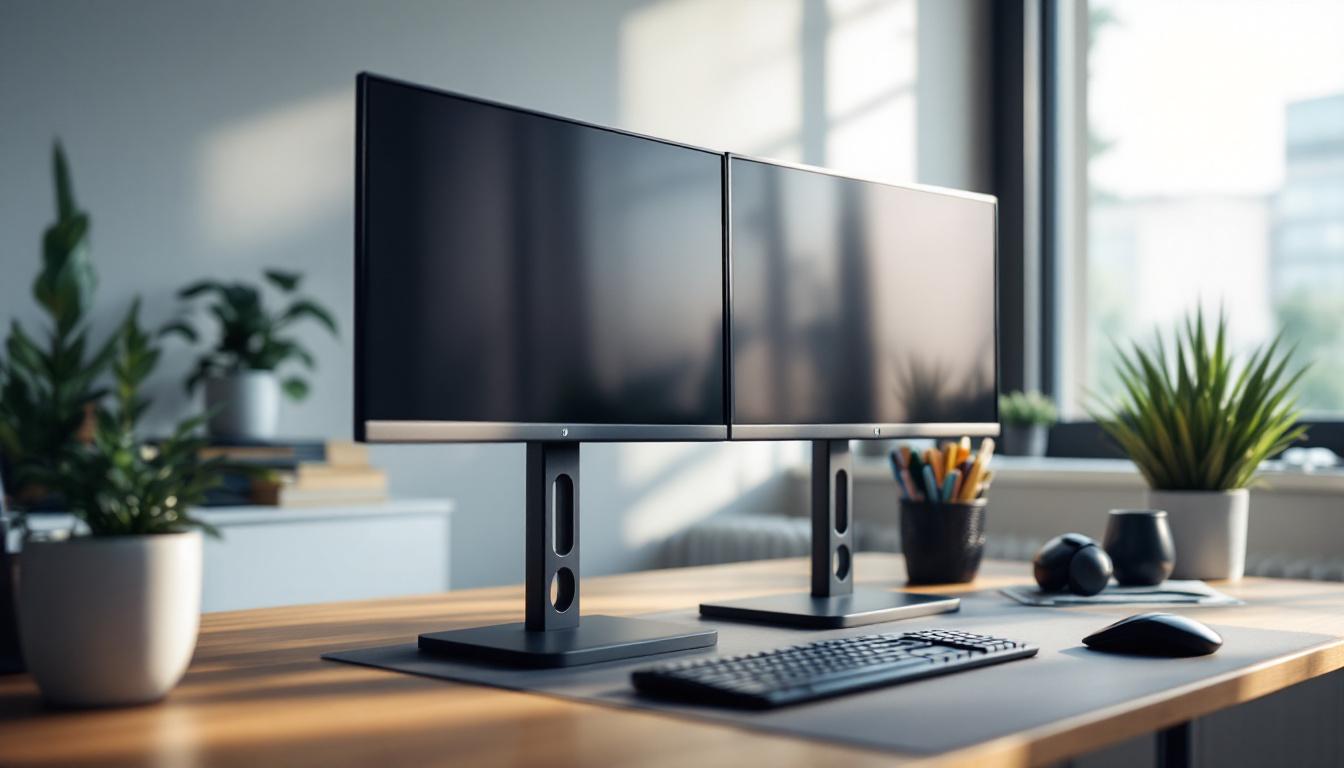
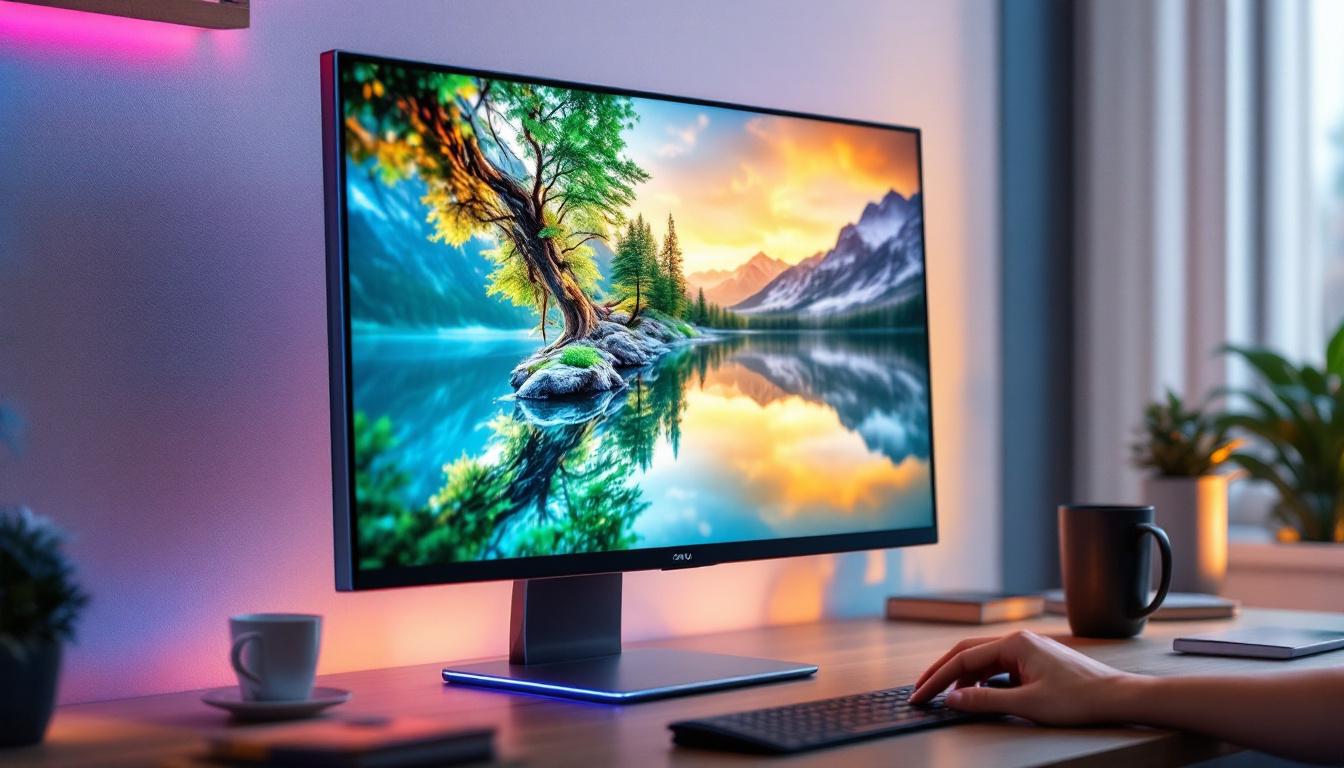
Most modern LED monitors come equipped with DisplayPort 1.2 or higher inputs that support MST. This compatibility is essential for daisy-chaining multiple monitors without additional hardware. For example, a user can connect a laptop’s DisplayPort output to the first LED monitor, then connect the second monitor to the first, and so on. This streamlined setup not only reduces cable clutter but also simplifies the process of managing multiple displays, allowing users to focus on their work without the distraction of tangled wires.
However, not all LED monitors support MST daisy-chaining. Some may have DisplayPort inputs but lack the necessary firmware or hardware to pass through multiple streams. It is important to verify MST support in the monitor’s specifications before planning a multi-monitor setup. Additionally, users should consider the resolution and refresh rate capabilities of each monitor in the chain, as these factors can affect overall performance and visual quality. Ensuring that all monitors in the setup are compatible can lead to a seamless and efficient workspace, maximizing productivity and enhancing the overall user experience.
Benefits of Using MST with LED Monitors
Enhanced Productivity and Workspace Efficiency
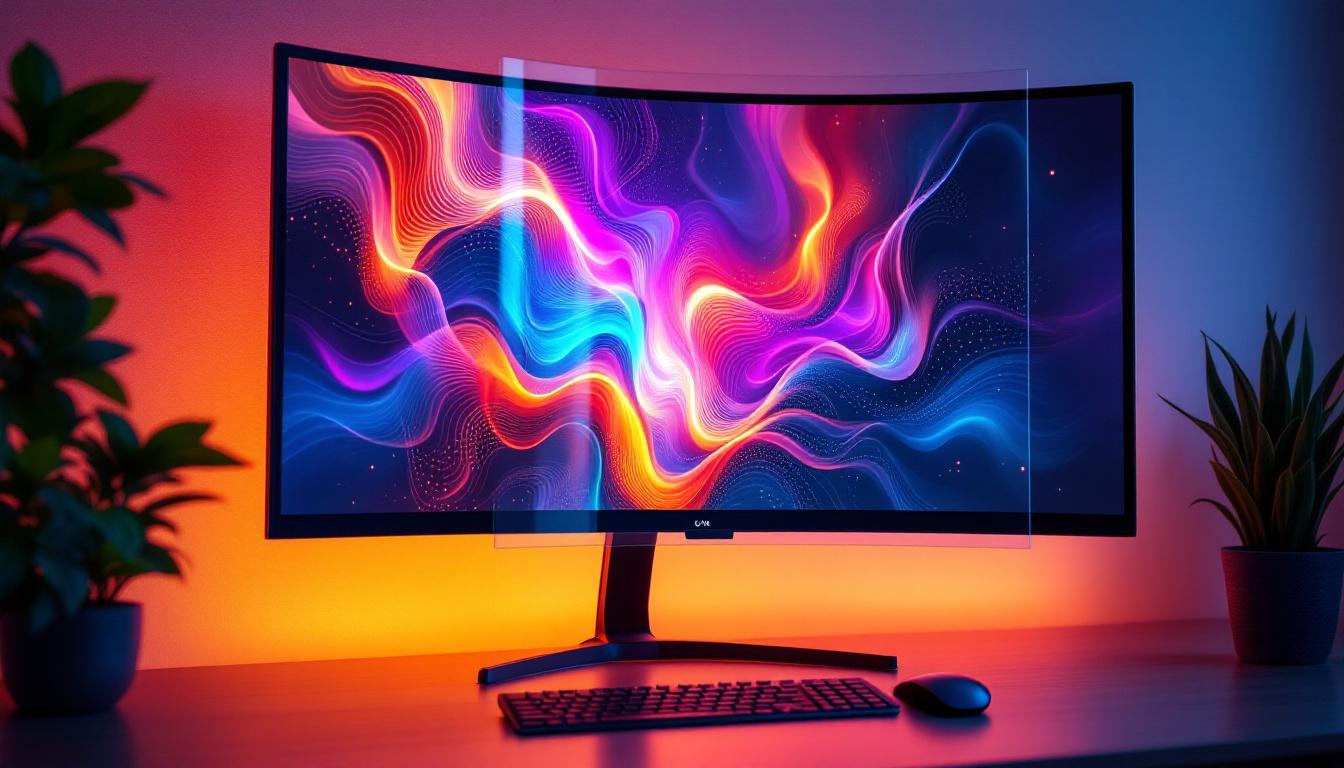
One of the most significant advantages of MST-enabled LED monitors is the ability to create expansive, high-resolution workspaces with minimal cabling. Professionals in sectors like finance, software development, and design benefit from having multiple screens displaying different applications simultaneously.
Studies have shown that multi-monitor setups can increase productivity by up to 42%, as users can multitask more effectively without constantly switching between windows. MST simplifies this by reducing the number of cables and adapters needed, making workspace management easier.
Improved Visual Quality and Performance
LED monitors paired with MST technology support high resolutions and refresh rates, which are crucial for tasks requiring detailed visuals such as video editing, CAD design, and gaming. MST supports resolutions up to 4K at 60Hz on each stream, depending on the bandwidth available on the DisplayPort connection.
This capability ensures that users do not have to compromise on image quality when expanding their display setup. Additionally, LED displays often feature better contrast ratios and color accuracy, enhancing the overall visual experience.
Cost and Space Savings
By using MST, organizations and individuals can reduce the number of graphics cards or docking stations required to support multiple monitors. This not only saves on hardware costs but also reduces desk clutter and cable management challenges.
For example, instead of installing three separate video outputs, a single MST-enabled DisplayPort output can handle all three monitors in a daisy chain. This streamlined setup is particularly advantageous in office environments where space is at a premium.
Setting Up an MST Monitor Chain with LED Displays
Requirements and Preparations
To set up an MST chain with LED monitors, users need:
- A source device (laptop or desktop) with a DisplayPort 1.2 or higher output that supports MST.
- LED monitors with DisplayPort inputs that support MST daisy-chaining.
- DisplayPort cables (preferably certified for high bandwidth).
It’s also advisable to check the maximum number of monitors supported by the graphics card and the total bandwidth available. Some GPUs may limit the number of displays or the resolution each can handle simultaneously.
Step-by-Step Setup Process
1. Connect the DisplayPort output from the computer to the DisplayPort input of the first LED monitor in the chain.
2. Use a DisplayPort cable to connect the DisplayPort output of the first monitor to the DisplayPort input of the second monitor.
3. Repeat the process for additional monitors, ensuring each supports MST.
4. Power on the monitors and the computer. The operating system should detect all connected displays automatically.
5. Configure display settings such as resolution, orientation, and layout through the OS display settings panel.
If any monitor is not detected, verify cable connections, MST support, and ensure the latest graphics drivers are installed.
Common Challenges and Troubleshooting Tips
Bandwidth Limitations
One of the main challenges with MST setups is bandwidth allocation. DisplayPort 1.2 has a maximum bandwidth of 17.28 Gbps, which is shared among all connected monitors. High-resolution or high-refresh-rate monitors consume more bandwidth, potentially limiting the number of displays or forcing lower resolutions.
Users should calculate the total bandwidth requirement of their monitors to avoid performance issues. Upgrading to DisplayPort 1.4 or using USB-C with DisplayPort Alt Mode can provide higher bandwidth for more demanding setups.
Compatibility Issues
Not all LED monitors support MST daisy-chaining. Some may only have DisplayPort inputs without output ports, or their firmware may not support MST. In such cases, an MST hub—a device that splits the DisplayPort signal into multiple outputs—can be used.
Additionally, some operating systems or graphics drivers may have limited MST support. Keeping drivers updated and consulting manufacturer documentation can help resolve these issues.
Display Configuration Problems
Sometimes, monitors may be detected but arranged incorrectly in the display settings, causing confusion in cursor movement or window placement. Adjusting the physical layout to match the software configuration or vice versa usually resolves this.
In rare cases, resetting the monitor’s firmware or the graphics driver settings can help restore proper multi-monitor functionality.
Future Trends in MST and LED Display Technology
Higher Bandwidth Standards
With the introduction of DisplayPort 2.0, MST capabilities are expected to improve significantly. DisplayPort 2.0 supports up to 80 Gbps bandwidth, enabling multiple 4K or even 8K displays to be driven simultaneously without compromise.
This advancement will further enhance the appeal of MST for professional and gaming setups, allowing for more immersive and detailed multi-monitor environments.
Integration with USB-C and Thunderbolt
The convergence of DisplayPort MST with USB-C and Thunderbolt interfaces is making multi-monitor setups more accessible. Many modern laptops now feature USB-C ports that support DisplayPort Alt Mode with MST, enabling users to connect multiple LED monitors through a single USB-C cable and an MST hub or daisy chain.
This integration simplifies connectivity and power delivery, reducing the number of cables and adapters needed for multi-monitor workstations.
Advancements in LED Display Technology
LED monitors continue to evolve with improvements in mini-LED backlighting, higher refresh rates, and better color accuracy. These enhancements complement MST technology by providing superior visual quality across multiple screens.
Moreover, OLED and micro-LED technologies are emerging as potential successors to traditional LED displays, promising even better contrast ratios and color fidelity for multi-monitor configurations.
Conclusion
Multi-Stream Transport technology has revolutionized the way multiple LED monitors are connected and managed, offering a streamlined, efficient, and high-quality multi-display experience. By leveraging MST, users can enjoy enhanced productivity, improved visual performance, and reduced hardware complexity.
Understanding the technical requirements, benefits, and potential challenges of MST with LED displays empowers users to build optimized multi-monitor setups tailored to their needs. As display and connectivity technologies continue to advance, MST will remain a cornerstone of multi-display innovation, driving the future of digital workspaces and entertainment.
Discover the Future of Visual Displays with LumenMatrix
Ready to elevate your multi-display setup with the latest in LED technology? LumenMatrix is at the forefront of LED innovation, offering a comprehensive range of LED display solutions designed to transform your visual communication. From immersive Indoor LED Walls to dynamic Outdoor LED Displays and beyond, our products are crafted to captivate and engage. Experience the pinnacle of display clarity and performance with LumenMatrix. Check out LumenMatrix LED Display Solutions and join the visual revolution today.