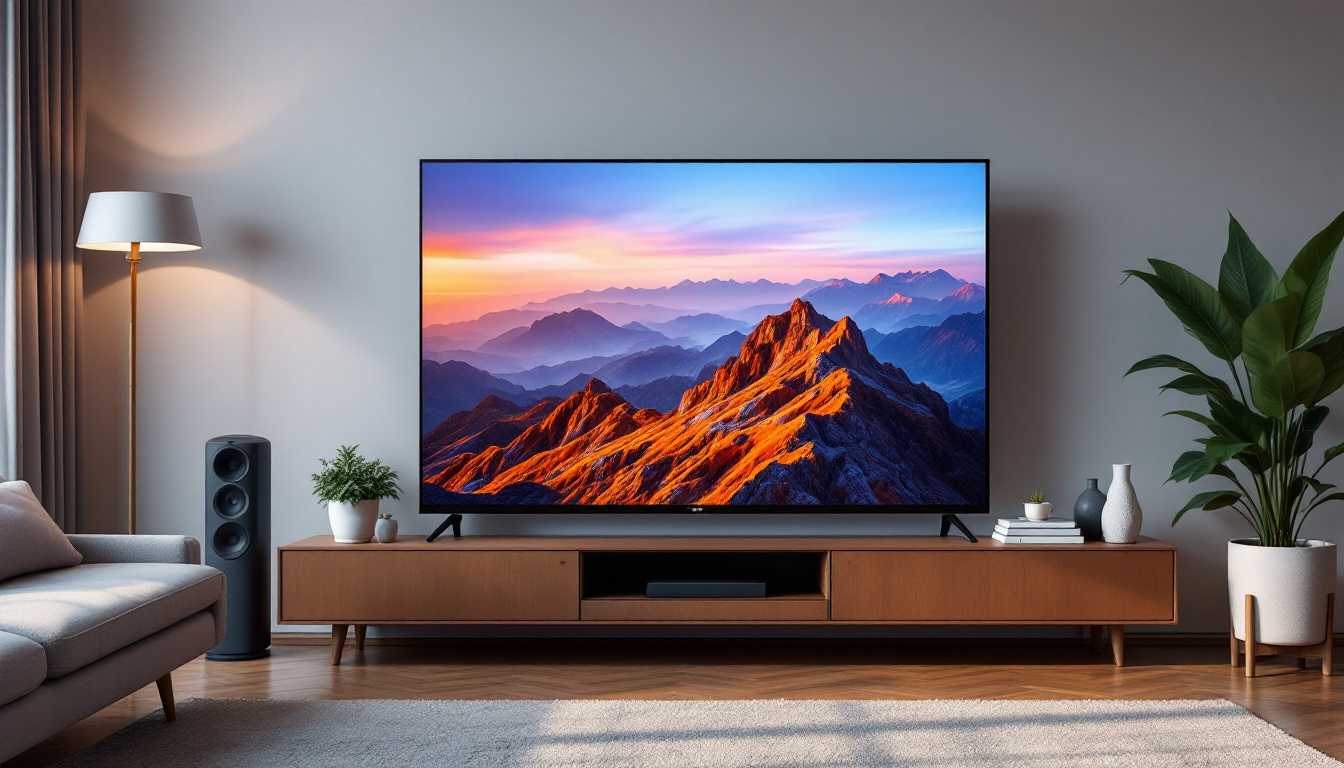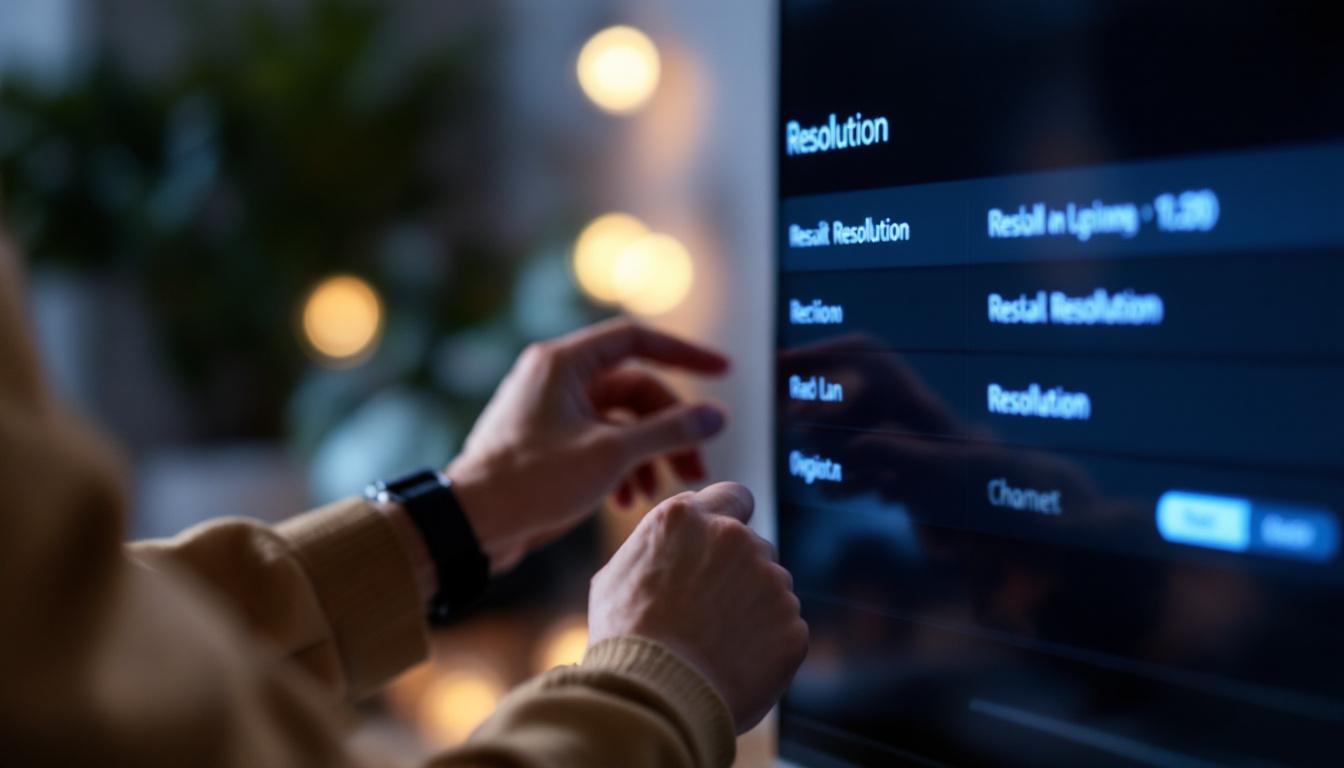
In today’s world of high-definition entertainment, understanding how to optimize your TV’s display settings is essential. Whether you’re streaming your favorite shows, playing video games, or watching a movie, the resolution of your LED TV plays a crucial role in the quality of your viewing experience. This article will guide you through the process of changing your TV’s resolution, explain what LED display technology entails, and offer practical tips to ensure you get the best picture quality possible.
Understanding TV Resolution and LED Displays
What is TV Resolution?
TV resolution refers to the number of pixels displayed on the screen, typically measured in width by height (e.g., 1920×1080). Pixels are the tiny dots that make up the image on your screen, and the more pixels there are, the clearer and sharper the image appears. Common resolutions include HD (1280×720), Full HD (1920×1080), 4K UHD (3840×2160), and the emerging 8K UHD (7680×4320).
Higher resolution means more pixels, which translates to finer detail and better image quality. For example, a 4K TV has four times the pixels of a Full HD TV, offering a much more detailed and immersive viewing experience. However, the source content and the TV’s capability both impact how much benefit you’ll see from increasing resolution. Streaming services, gaming consoles, and Blu-ray players are now starting to offer content in 4K and even 8K, making it essential to have a compatible display to fully appreciate the advancements in resolution technology. As more content becomes available in these higher resolutions, the gap between standard HD and ultra-high-definition experiences continues to widen, making the investment in a higher resolution TV increasingly worthwhile for avid viewers.
What is an LED Display?
LED stands for Light Emitting Diode, a technology used to illuminate the pixels on an LCD (Liquid Crystal Display) screen. Unlike traditional LCD TVs that use cold cathode fluorescent lamps (CCFLs) for backlighting, LED TVs use LEDs, which are more energy-efficient, offer better brightness, and allow for thinner screen designs.
There are two main types of LED backlighting: edge-lit and full-array. Edge-lit LED TVs place LEDs around the edges of the screen, while full-array LED TVs have LEDs distributed evenly behind the screen, often with local dimming capabilities to enhance contrast. Understanding your TV’s LED technology can help you optimize settings for the best picture quality. Additionally, advancements in LED technology, such as Quantum Dot and OLED, are pushing the boundaries of color accuracy and contrast. Quantum Dot technology enhances color reproduction by using tiny semiconductor particles to produce pure colors, while OLED (Organic Light Emitting Diode) displays offer even deeper blacks and wider viewing angles by allowing individual pixels to turn off completely. As these technologies continue to evolve, they promise to deliver even more stunning visual experiences, making it an exciting time for consumers looking to upgrade their home entertainment systems.
Why Changing TV Resolution Matters
Improving Picture Quality
Adjusting your TV’s resolution ensures that the display matches the source content, reducing issues like blurriness, pixelation, or stretched images. For instance, if you’re watching a 4K movie on a TV set to 1080p, the TV will upscale the content, but it may not look as sharp as it could. Conversely, playing lower-resolution content on a 4K TV without proper scaling can result in a less-than-ideal image.
Changing the resolution can also help optimize the TV’s performance, especially if you’re using gaming consoles or PCs connected to your TV. Many modern gaming systems allow you to select the output resolution, which should ideally match your TV’s native resolution for the best experience. This synchronization can significantly enhance the gaming experience, providing smoother graphics and reducing input lag, which is crucial for competitive gaming. Additionally, many TVs come with advanced features like HDR (High Dynamic Range) that work best when the resolution is set correctly, allowing for a broader range of colors and improved contrast that can make scenes more lifelike.
Compatibility with Devices and Content
Different devices and content types support various resolutions. Streaming services like Netflix, Amazon Prime Video, and Disney+ offer content in multiple resolutions, depending on your subscription plan and internet speed. Gaming consoles such as the PlayStation 5 and Xbox Series X support up to 4K resolution, but you need to ensure your TV is set to the correct resolution to take full advantage. Furthermore, as more content becomes available in 8K, having a TV that can handle higher resolutions will future-proof your viewing experience, allowing you to enjoy the latest technology without needing to upgrade your hardware frequently.
Changing the resolution can also resolve compatibility issues. For example, if you connect a device that outputs a resolution your TV doesn’t support, the screen may go blank or display an error. Adjusting the resolution to a supported setting can fix these problems. This is particularly important when using older devices or adapters that may not automatically adjust to the optimal resolution. Moreover, many TVs now feature automatic resolution detection, but knowing how to manually adjust the settings can save you from frustrating moments when your favorite show or game is interrupted by technical glitches. Understanding the nuances of resolution settings can enhance your overall entertainment experience, ensuring that you get the most out of your devices and content.
How to Change TV Resolution on an LED Display
Step-by-Step Guide for Most LED TVs
While the exact steps may vary depending on your TV brand and model, the general process to change the resolution is similar across most LED TVs:
- Access the Settings Menu: Use your TV remote to open the main menu. Look for an icon or option labeled “Settings,” “Setup,” or “System.”
- Navigate to Display or Picture Settings: Within the settings menu, find the section related to display, picture, or screen resolution.
- Select Resolution or Screen Size: Choose the option that allows you to adjust the resolution. Some TVs list resolutions as “HD,” “Full HD,” “4K,” or by pixel counts.
- Choose the Desired Resolution: Select the resolution that matches your content or device output. If unsure, selecting the TV’s native resolution is usually best.
- Confirm and Apply: Save the changes and exit the menu. Your TV may restart or briefly go black while applying the new settings.
If your TV is connected to an external device like a streaming box, gaming console, or PC, you may also need to adjust the resolution settings on that device to match your TV’s capabilities.
Changing Resolution on Connected Devices
For the best results, ensure your source device’s resolution output aligns with your TV’s native resolution:
- Streaming Devices: Devices like Roku, Apple TV, or Amazon Fire Stick often have resolution settings in their system menus. Navigate to video or display settings to select the appropriate resolution.
- Gaming Consoles: Consoles such as PlayStation and Xbox allow you to set the output resolution in their system settings. For example, on a PlayStation 5, go to Settings > Screen and Video > Video Output to adjust resolution.
- PCs and Laptops: On Windows PCs, right-click the desktop, select Display settings, and choose the resolution under Display resolution. Mac users can find this under System Preferences > Displays.
Common Issues and Troubleshooting Tips
Resolution Not Changing or Unsupported Resolution
Sometimes, changing the resolution may not work as expected. The TV might reject the new resolution or display an error message. This usually happens when the selected resolution is not supported by the TV or the connected device.
To fix this, reset the resolution settings to a default or lower resolution. Consult your TV’s user manual for supported resolutions. Additionally, updating your TV’s firmware can sometimes resolve compatibility issues.
Image Distortion or Aspect Ratio Problems
Changing resolution can sometimes cause the image to appear stretched, squished, or cropped. This is often due to mismatched aspect ratios between the content and the TV’s display settings.
Most modern TVs offer aspect ratio settings such as “16:9,” “4:3,” “Zoom,” or “Wide.” Adjust these settings to correct image distortion. Selecting “Auto” or “Original” aspect ratio usually preserves the intended image format.
Color and Brightness Issues After Changing Resolution
Occasionally, adjusting resolution can affect color accuracy or brightness levels. This may be due to changes in the TV’s processing or backlight settings.
To address this, recalibrate your TV’s picture settings after changing resolution. Many TVs include picture presets like “Cinema,” “Standard,” or “Vivid” that can be fine-tuned. Using a calibration tool or professional service can also enhance color accuracy.
Optimizing Your LED TV for the Best Viewing Experience
Use the Native Resolution
Every TV has a native resolution—the fixed number of pixels physically present on the screen. For LED TVs, this is usually Full HD (1920×1080) or 4K UHD (3840×2160). Setting your TV to its native resolution ensures the sharpest and most accurate image, as the TV doesn’t need to upscale or downscale the content.
Adjust Picture Settings Beyond Resolution
Resolution is just one factor in picture quality. Adjust brightness, contrast, sharpness, and color settings to suit your viewing environment. For example, increasing brightness may be necessary in a well-lit room, while lowering it can reduce eye strain in darker settings.
Many TVs offer advanced settings like local dimming, HDR (High Dynamic Range), and motion smoothing. Experiment with these features to find the balance that works best for your content and preferences.
Keep Firmware Updated
Manufacturers regularly release firmware updates that improve TV performance, add new features, and fix bugs. Keeping your LED TV’s firmware up to date can enhance compatibility with new devices and content formats, including resolution handling.
Check your TV’s settings menu or manufacturer’s website for update instructions. Many modern TVs support automatic updates via the internet.
Conclusion
Changing your TV’s resolution is a straightforward yet powerful way to improve your viewing experience. Understanding the relationship between resolution, LED display technology, and content compatibility allows you to make informed adjustments tailored to your needs. Whether you’re watching the latest 4K blockbuster, streaming a favorite series, or gaming, setting the correct resolution ensures you enjoy crisp, vibrant images as intended.
Remember to also consider other picture settings and keep your TV’s firmware updated to maintain optimal performance. With these tips, your LED TV will deliver stunning visuals that bring your entertainment to life.
Discover the Future of Visual Experience with LumenMatrix
Ready to take your viewing experience to the next level? LumenMatrix is at the forefront of LED display innovation, offering a wide array of solutions that transform any space into a dynamic visual spectacle. From the comfort of your home to the excitement of outdoor events, our Indoor and Outdoor LED Wall Displays, Vehicle LED Displays, and more, are designed to deliver unparalleled clarity and performance. Elevate your visual communication and captivate your audience with our cutting-edge LED Sports Displays, Floor LED Displays, and Custom LED solutions. Don’t just watch—immerse yourself in the action with LumenMatrix’s All-in-One and Transparent LED Displays. Check out LumenMatrix LED Display Solutions and join the revolution in high-definition entertainment.