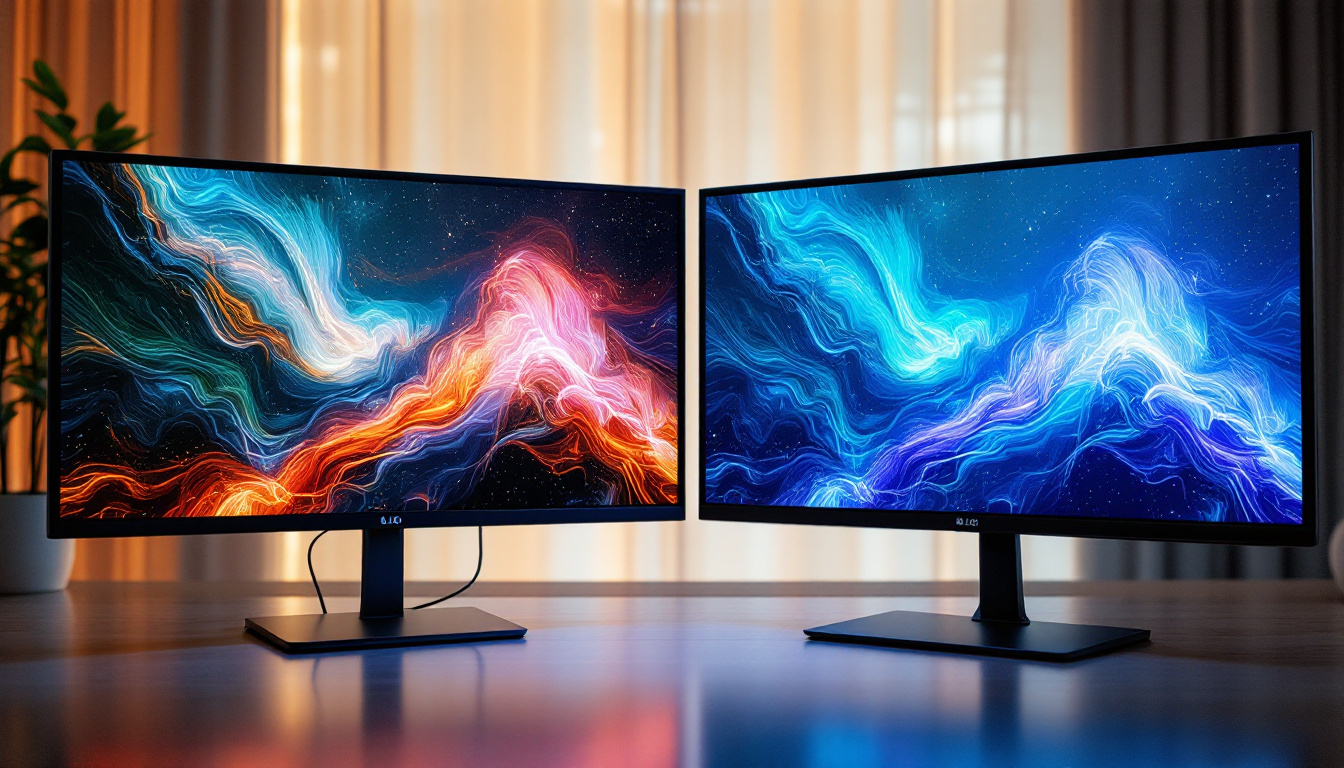
In today’s digital age, computer displays are an essential part of everyday life, whether for work, entertainment, or communication. Among the various display technologies, LED screens have become predominant due to their vibrant colors, energy efficiency, and slim design. However, users sometimes encounter the frustrating issue of a blackout screen—a condition where the computer screen goes completely dark despite the system running. Understanding why blackout screens occur, especially in LED displays, is crucial for troubleshooting and maintaining optimal device performance.
Understanding LED Displays: The Foundation of Modern Screens
LED, or Light Emitting Diode, technology has revolutionized how screens are built and function. Unlike older LCDs that rely on fluorescent backlights, LED displays use an array of tiny diodes that emit light directly or illuminate an LCD panel. This results in better brightness, contrast, and color accuracy.
There are primarily two types of LED displays used in computers:
- Edge-lit LED: LEDs are positioned around the edges of the screen, and light is diffused across the panel.
- Direct-lit or Full-array LED: LEDs are placed directly behind the screen, allowing for better local dimming and contrast.
These technologies enable thinner, more energy-efficient monitors with superior picture quality. However, the complexity of LED systems can sometimes lead to issues like blackout screens.
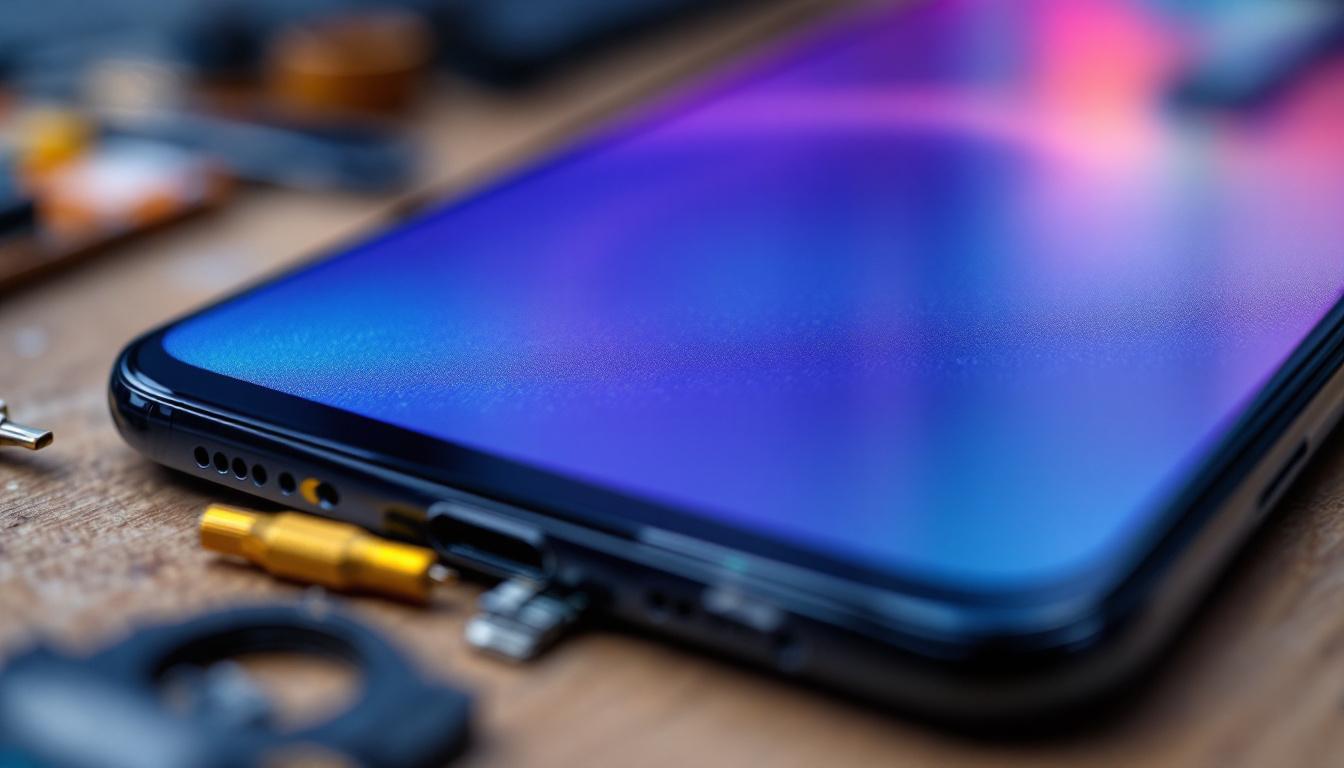
In addition to the basic types of LED displays, advancements in technology have led to the emergence of OLED (Organic Light Emitting Diode) displays, which take the benefits of LED technology a step further. OLED screens consist of organic compounds that emit light when an electric current is applied, allowing each pixel to illuminate independently. This results in deeper blacks and more vibrant colors, making OLED displays particularly appealing for high-end televisions and smartphones. Furthermore, the flexibility of OLED technology has opened the door to innovative designs, such as curved and foldable screens, which are becoming increasingly popular in the market.
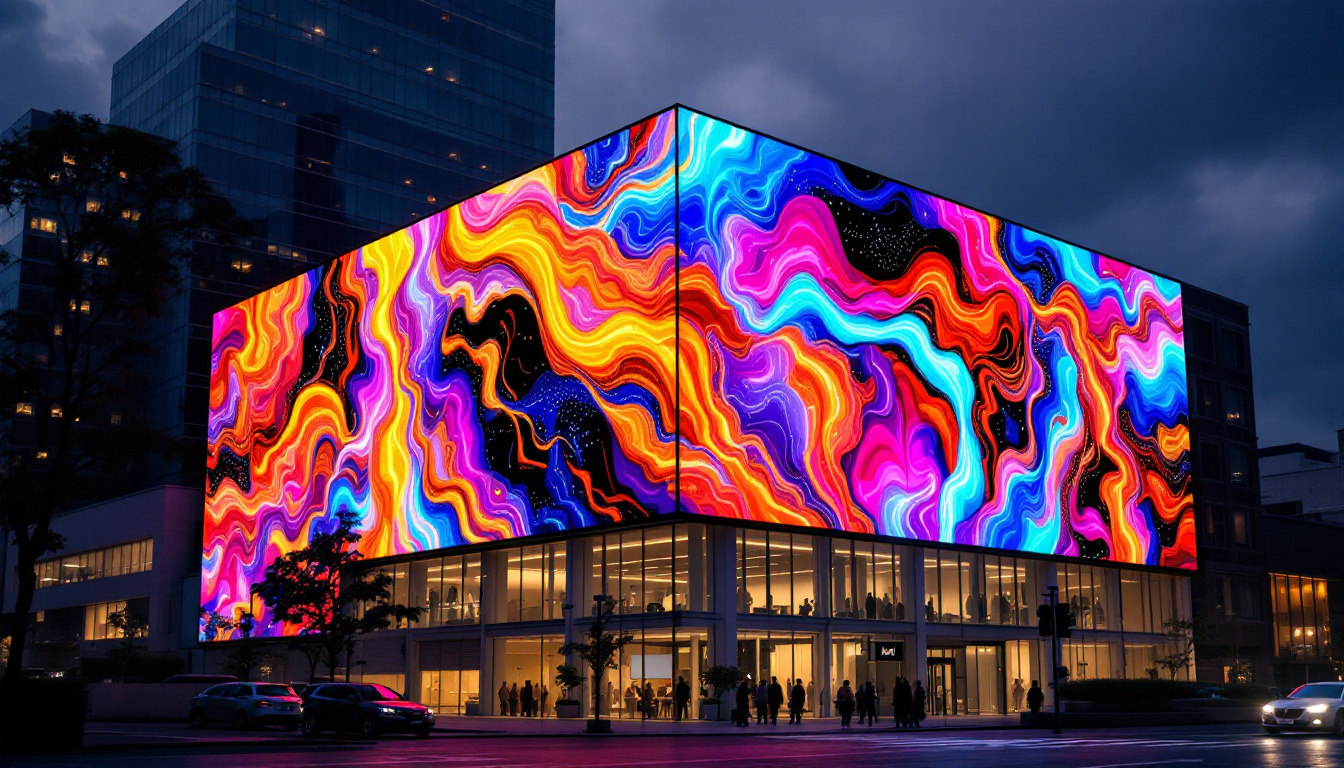
Moreover, the impact of LED technology extends beyond just consumer electronics; it has also transformed the world of advertising and signage. Digital billboards and large-scale displays in public spaces utilize LED technology to deliver eye-catching visuals that can be updated in real-time. This dynamic capability allows businesses to engage with audiences more effectively, showcasing promotions or events that can change throughout the day. As LED technology continues to evolve, we can expect even more sophisticated applications that enhance our visual experiences in both personal and public domains.
What Causes a Blackout Screen on LED Computer Displays?
A blackout screen can be alarming, especially when the computer seems to be functioning normally otherwise. Several factors can cause this phenomenon, ranging from hardware malfunctions to software glitches.
1. Backlight Failure
In LED displays, the backlight is responsible for illuminating the pixels so that images are visible. If the backlight fails, the screen will appear completely black even though the display panel itself might still be working. This is a common cause of blackout screens in LED monitors and laptops.
Backlight failure can be due to:
- Burned-out LEDs
- Faulty power supply to the LEDs
- Damaged inverter circuits (in older LED-backlit LCDs)
Identifying backlight failure can sometimes be tricky. A simple test involves shining a flashlight on the screen; if you can see faint images or outlines, it indicates that the backlight is indeed the issue. Repairing or replacing the backlight can be a complex process, often requiring professional assistance, especially in devices where the screen is not easily accessible.
2. Faulty Display Cable or Connection
The connection between the computer’s motherboard or graphics card and the display is critical. A loose, damaged, or improperly seated cable—such as HDMI, DisplayPort, or internal LVDS cables—can interrupt the signal and cause the screen to go black.
In laptops, the delicate ribbon cables connecting the screen to the motherboard are prone to wear and tear, especially if the device is frequently opened and closed.
In addition to physical damage, environmental factors such as dust accumulation can also affect these connections. Regular maintenance, including cleaning the ports and ensuring cables are securely connected, can help prevent these issues. If a cable is suspected to be faulty, replacing it is often a straightforward solution that can restore functionality.
3. Graphics Card or Driver Issues
The graphics processing unit (GPU) and its drivers control the rendering of images on the screen. If the GPU malfunctions or the drivers become corrupted or outdated, the display may fail to output correctly, resulting in a blackout screen.
Symptoms may include intermittent blackouts, flickering, or distorted images before the screen goes fully dark.
Updating graphics drivers can often resolve these issues, as manufacturers frequently release patches to fix bugs and improve performance. However, if the GPU itself is failing, it may require replacement or professional repair, especially in high-performance systems where the GPU is integral to overall functionality.
4. Power Supply Problems
Insufficient or unstable power to the monitor or laptop can cause the screen to turn off unexpectedly. This can stem from:
- Faulty power adapters or cables
- Battery issues in laptops
- Internal power circuitry failures
Power supply issues can often be diagnosed by testing the device with a different power source or adapter. For laptops, checking the battery health through system diagnostics can provide insight into whether the battery is contributing to the blackout. In some cases, power management settings in the operating system can also lead to unintended screen shutdowns, so reviewing these settings is advisable.
5. Software and Firmware Glitches
Sometimes, operating system bugs, corrupted system files, or firmware issues can cause the screen to black out. For example, a failed update or incompatible software can interfere with the display output.
In rare cases, malware or viruses can also cause display malfunctions.
To mitigate these risks, keeping the operating system and software updated is essential. Additionally, running regular antivirus scans can help protect against malicious software that could disrupt display functionality. If software issues are suspected, booting the computer in safe mode can help isolate the problem, allowing users to troubleshoot effectively without the interference of third-party applications.
Diagnosing the Blackout Screen: Step-by-Step Approach
Before rushing to replace hardware or seek professional help, it’s important to systematically diagnose the cause of the blackout screen. This approach helps save time and money.
Step 1: Check Power and Connections
Ensure the monitor or laptop is properly powered. For external monitors, verify that the power cable is securely connected and the power indicator light is on. For laptops, confirm the battery is charged or the power adapter is functioning.
Next, inspect all video cables for damage or loose connections. Re-seat or replace cables as necessary.
Step 2: Test with External Displays
If using a laptop, connect it to an external monitor or TV to check if the display works externally. If the external display functions correctly, the issue likely lies with the laptop’s screen or internal connections.
Step 3: Adjust Brightness and Display Settings
Sometimes, the screen may appear black due to brightness being turned all the way down or incorrect display settings. Use keyboard shortcuts or system controls to increase brightness and reset display modes.
Step 4: Boot in Safe Mode or BIOS
Booting the computer in Safe Mode or accessing the BIOS screen can help determine if the issue is software-related. If the screen displays normally in these modes, it suggests a driver or operating system problem.
Step 5: Update or Reinstall Graphics Drivers
Download and install the latest drivers from the GPU manufacturer’s website. If the problem persists, try rolling back to a previous driver version or performing a clean driver installation.
Step 6: Inspect for Hardware Damage
If all else fails, inspect for physical damage to the screen, cables, or internal components. In laptops, screen replacement or professional repair may be necessary if the backlight or display panel is damaged.
Preventing Blackout Screens: Best Practices for LED Display Care
While some blackout screen causes are unavoidable, many can be prevented through proper care and maintenance of LED displays.
Maintain Optimal Operating Conditions
Keep computers and monitors in environments with stable temperature and humidity. Extreme heat or cold can damage electronic components, including LED backlights.
Handle Devices Gently
Avoid dropping or applying excessive pressure to screens and cables. For laptops, be mindful when opening and closing the lid to prevent cable wear.
Regularly Update Software and Drivers
Keeping the operating system and graphics drivers up to date ensures compatibility and reduces the risk of software-induced blackouts.
Use Surge Protectors
Power surges can damage internal components. Using surge protectors or uninterruptible power supplies (UPS) can safeguard devices from electrical spikes.
Clean Screens and Vents
Dust accumulation can cause overheating and damage. Regularly clean screens with appropriate materials and ensure ventilation ports are unobstructed.
When to Seek Professional Help
Despite best efforts, some blackout screen issues require expert diagnosis and repair. If the screen remains black after all basic troubleshooting, or if there are signs of physical damage, it is advisable to consult a certified technician.
Professional repair services can accurately identify backlight failures, replace faulty components, and ensure the longevity of the device. Attempting complex repairs without proper tools or knowledge can lead to further damage.
The Future of LED Displays and Blackout Screen Solutions
LED technology continues to evolve rapidly. Innovations such as Mini-LED and Micro-LED promise even better brightness, contrast, and energy efficiency. These advancements also aim to improve durability and reduce common issues like backlight failure.
Manufacturers are increasingly integrating smarter diagnostics and self-healing software to detect and resolve display problems proactively. Additionally, improved manufacturing standards and quality control help minimize hardware failures that cause blackout screens.
As LED displays become more sophisticated, users can expect fewer disruptions and longer-lasting, more reliable screens. However, understanding the fundamentals of LED technology and common blackout causes remains essential for effective troubleshooting and maintenance.
Conclusion
Blackout screens on LED computer displays can be caused by a variety of hardware and software issues, from backlight failures to driver problems. By understanding how LED displays work and following a systematic troubleshooting approach, users can often identify and resolve the issue without unnecessary expense.
Preventive care, including proper handling, regular updates, and environmental control, plays a vital role in minimizing the risk of blackout screens. When problems persist, seeking professional assistance ensures safe and effective repairs.
With ongoing advancements in LED technology, the future holds promise for even more resilient and high-performing computer displays, reducing the incidence of blackout screens and enhancing user experience.
Explore Cutting-Edge LED Display Solutions
As you seek to prevent blackout screens and enhance your visual experience, consider the innovative solutions offered by LumenMatrix. With a commitment to revolutionizing visual communication, LumenMatrix provides a wide array of LED display modules, from captivating Indoor and Outdoor LED Wall Displays to dynamic Vehicle and Sports LED Displays. Whether you’re looking to create an immersive environment with Floor LED Displays or make a bold statement with Custom and All-in-One LED solutions, LumenMatrix has the technology to bring your vision to life. Elevate your brand visibility and engage your audience like never before. Check out LumenMatrix LED Display Solutions today and experience the future of digital signage.