Autodesk Revit is a powerful Building Information Modeling (BIM) software widely used by architects, engineers, and construction professionals. As the software continues to evolve with more advanced features and higher graphical demands, understanding the hardware requirements becomes crucial for optimal performance. One aspect that often causes confusion is the role of LED displays in the context of Revit’s hardware needs. This article explores the hardware requirements for Autodesk Revit, with a detailed explanation of LED display technology and its impact on user experience and productivity.
Understanding Autodesk Revit’s Hardware Requirements
Revit is a resource-intensive application designed to handle complex 3D models, detailed construction documentation, and multidisciplinary collaboration. To run Revit smoothly, the hardware must meet certain minimum and recommended specifications. These requirements ensure that the software performs efficiently without lag, crashes, or rendering issues.
Autodesk regularly updates the official hardware requirements for Revit, reflecting changes in software capabilities and industry standards. As of 2024, the key hardware components to focus on include the CPU, GPU, RAM, storage, and display technology.
Processor (CPU)
The CPU is the brain of your computer and plays a pivotal role in Revit’s performance. Revit benefits from high clock speeds and multiple cores, especially when performing tasks such as rendering, model regeneration, and running complex simulations. Autodesk recommends a multi-core processor with a base clock speed of at least 3.0 GHz for optimal performance.
For example, Intel’s 12th or 13th generation Core i7 or i9 processors, or AMD Ryzen 7 or 9 series, are well-suited for professional Revit users. These CPUs provide the necessary speed and multitasking capabilities to handle large models and concurrent workflows.
Graphics Processing Unit (GPU)
Revit’s graphical demands have increased significantly, especially with the introduction of real-time visualization and enhanced rendering features. A dedicated GPU is essential for smooth navigation, realistic shading, and faster rendering times.
Autodesk recommends a certified graphics card with at least 4GB of VRAM. NVIDIA’s Quadro RTX or AMD’s Radeon Pro series are preferred for professional use due to their optimized drivers and stability in CAD applications. However, high-end consumer GPUs like the NVIDIA GeForce RTX 30 or 40 series can also deliver excellent performance for Revit users on a budget.
Memory (RAM)
RAM is critical for managing large datasets and multitasking. Autodesk suggests a minimum of 16GB of RAM for basic projects, but 32GB or more is advisable for complex models, large datasets, or when running multiple applications simultaneously.
Insufficient RAM can lead to slow performance, frequent crashes, and longer load times. Investing in faster DDR4 or DDR5 RAM modules with higher bandwidth can further enhance performance.
Storage
Storage speed impacts how quickly Revit loads files, saves projects, and accesses libraries. Solid State Drives (SSDs) are strongly recommended over traditional Hard Disk Drives (HDDs) due to their superior read/write speeds.
NVMe SSDs, which connect via PCIe slots, offer the fastest data transfer rates and significantly reduce project load times. A minimum of 512GB SSD storage is recommended, with 1TB or more preferred for users managing extensive project archives.
The Role of LED Displays in Autodesk Revit Performance
While CPU, GPU, RAM, and storage are often the primary focus when discussing Revit hardware, the display technology, particularly LED displays, plays a crucial role in the overall user experience. Understanding how LED displays work and their impact on Revit workflows can help professionals make informed decisions when selecting monitors for their workstations.
What is an LED Display?
LED (Light Emitting Diode) displays are a type of flat-panel display technology that uses LEDs to illuminate the screen. Unlike older LCD displays that use cold cathode fluorescent lamps (CCFL) for backlighting, LED displays employ light-emitting diodes, which offer several advantages:
- Improved brightness and contrast: LED backlighting provides more uniform and brighter illumination, enhancing image clarity.
- Better color accuracy: LEDs enable a wider color gamut, which is essential for visualizing architectural designs and renderings accurately.
- Energy efficiency: LED displays consume less power compared to CCFL-backlit LCDs.
- Thinner and lighter panels: LED technology allows for slimmer monitor designs, saving desk space.
In the context of Revit, these benefits translate into clearer, more detailed visuals, reducing eye strain during long working hours and enabling precise inspection of design elements.
Types of LED Displays Relevant to Revit Users
There are several types of LED display technologies, each with distinct characteristics that can influence Revit workflows:
- Edge-Lit LED: LEDs are placed along the edges of the screen, with light guided across the panel. These displays are typically thinner and more affordable but may have less uniform brightness.
- Direct-Lit LED: LEDs are positioned directly behind the screen, offering better brightness uniformity and contrast.
- Mini-LED: A newer technology that uses thousands of tiny LEDs for backlighting, enabling precise local dimming and superior contrast ratios.
- OLED (Organic LED): While technically different from traditional LED displays, OLEDs offer exceptional color accuracy and contrast but are less common in professional CAD environments due to cost and burn-in concerns.
For Revit users, direct-lit and mini-LED displays are often preferred due to their superior image quality, which aids in detailed design review and reduces visual fatigue.
Resolution and Screen Size Considerations
Resolution and screen size are critical factors when selecting an LED display for Revit. Higher resolution monitors (such as 4K UHD – 3840 x 2160 pixels) provide more screen real estate and sharper images, allowing users to view intricate details without excessive zooming or scrolling.
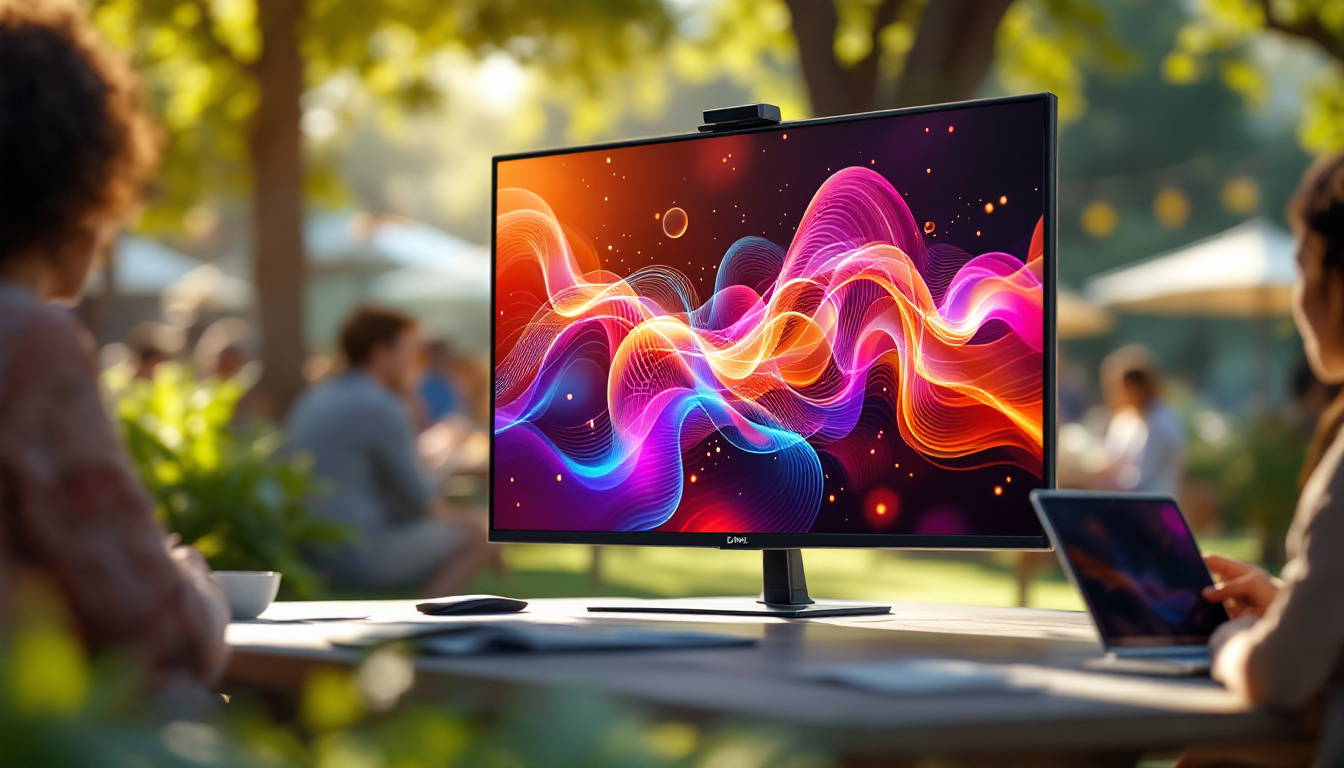
A larger screen size, typically between 27 to 32 inches, combined with high resolution, enhances productivity by enabling multiple windows or views to be open simultaneously. This is particularly useful in Revit’s multi-disciplinary environment where users often work with several design aspects at once.
However, it is important to balance resolution with scaling settings in the operating system to ensure that interface elements remain readable and comfortable to work with over extended periods.
Optimizing Revit Performance with the Right LED Display Setup
Choosing the right LED display is only part of the equation. Proper configuration and calibration can significantly improve the visual experience and reduce fatigue during long design sessions.
Color Calibration
Accurate color representation is vital in architectural visualization to ensure that materials, lighting, and finishes are depicted realistically. Using a color calibration tool or software can help maintain consistent color accuracy across different devices and project stages.
Many professional-grade LED monitors come factory-calibrated, but periodic recalibration is recommended to compensate for color drift over time.
Refresh Rate and Response Time
While Revit is not a gaming application, a higher refresh rate (e.g., 75 Hz or above) and low response time can improve the smoothness of viewport navigation and reduce motion blur when rotating or panning 3D models.
Standard 60 Hz displays are generally sufficient, but users who frequently perform walkthroughs or presentations may benefit from monitors with faster refresh rates.
Multi-Monitor Setups
Many professionals use multi-monitor configurations to maximize workspace. LED displays with thin bezels and consistent color profiles across screens are ideal for such setups.
Using multiple screens allows users to dedicate one monitor to 3D views, another to documentation or schedules, and a third to reference materials or communication tools, streamlining workflow and reducing the need to switch windows constantly.
Common Misconceptions About LED Displays and Revit Hardware
There are several myths regarding LED displays and their role in Revit performance that can mislead users. Clarifying these misconceptions helps professionals make better purchasing decisions.
Myth 1: Higher Resolution Always Means Better Performance
While higher resolution improves image clarity, it also demands more from the GPU and CPU. Running Revit on a 4K monitor without an adequately powerful graphics card can lead to sluggish performance. It is essential to balance display resolution with hardware capabilities.
Myth 2: Any LED Display is Suitable for Professional Use
Not all LED displays are created equal. Consumer-grade monitors may lack the color accuracy, brightness uniformity, and build quality needed for professional BIM work. Investing in displays designed for CAD or graphic design ensures better reliability and visual fidelity.
Myth 3: Display Technology Does Not Affect Productivity
Visual comfort and clarity directly impact user productivity. Poor display quality can cause eye strain, headaches, and reduced focus, ultimately slowing down work and increasing errors. High-quality LED displays enhance comfort and efficiency.
Future Trends: LED Displays and BIM Software
As BIM software like Autodesk Revit continues to advance, display technology is also evolving. Emerging trends that will shape the future of Revit hardware include:
- HDR (High Dynamic Range) Displays: Offering greater contrast and color depth, HDR monitors will enable more realistic visualization of lighting and materials.
- OLED and MicroLED Technology: These displays promise even better color accuracy and contrast, potentially transforming how architects and engineers review models.
- Curved and Ultrawide Monitors: Providing immersive workspaces that accommodate complex project views without clutter.
- Integration with VR and AR: Advanced displays will support virtual and augmented reality workflows, allowing more interactive design reviews.
Keeping abreast of these developments will help professionals future-proof their hardware investments and maintain competitive advantage.
Conclusion
Autodesk Revit’s hardware requirements extend beyond just the CPU, GPU, RAM, and storage. The choice of LED display technology significantly influences the user experience, accuracy, and productivity of BIM professionals. Understanding the types of LED displays, their characteristics, and how they integrate with other hardware components is essential for creating an efficient Revit workstation.
Investing in a high-quality LED display with appropriate resolution, color accuracy, and refresh rate, combined with a powerful CPU, GPU, ample RAM, and fast storage, ensures that Revit runs smoothly and that users can focus on delivering outstanding architectural and engineering designs.
As technology evolves, staying informed about the latest hardware trends will empower Revit users to optimize their workflows and embrace new possibilities in BIM and digital construction.
Enhance Your Revit Workstation with LumenMatrix LED Displays
Ready to elevate your Autodesk Revit experience? LumenMatrix, a pioneer in LED display technology, offers an extensive range of cutting-edge LED display solutions tailored to meet the demands of BIM professionals. From the precision of Indoor LED Wall Displays to the robustness of Outdoor LED Wall Displays, and the innovation of Custom and All-in-One LED Displays, LumenMatrix ensures your Revit projects are showcased with unparalleled clarity and impact. Don’t settle for less—check out LumenMatrix LED Display Solutions today and transform your digital construction workspace into a hub of productivity and visual excellence.