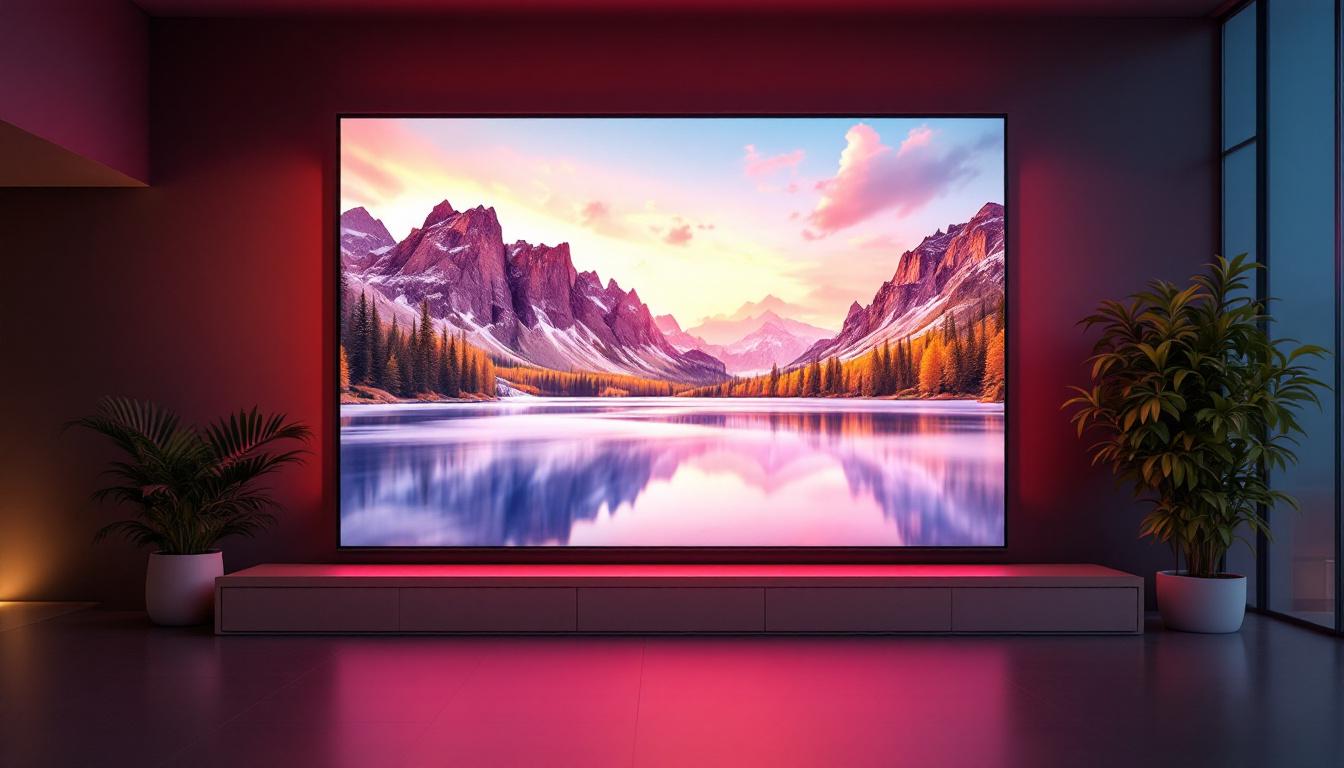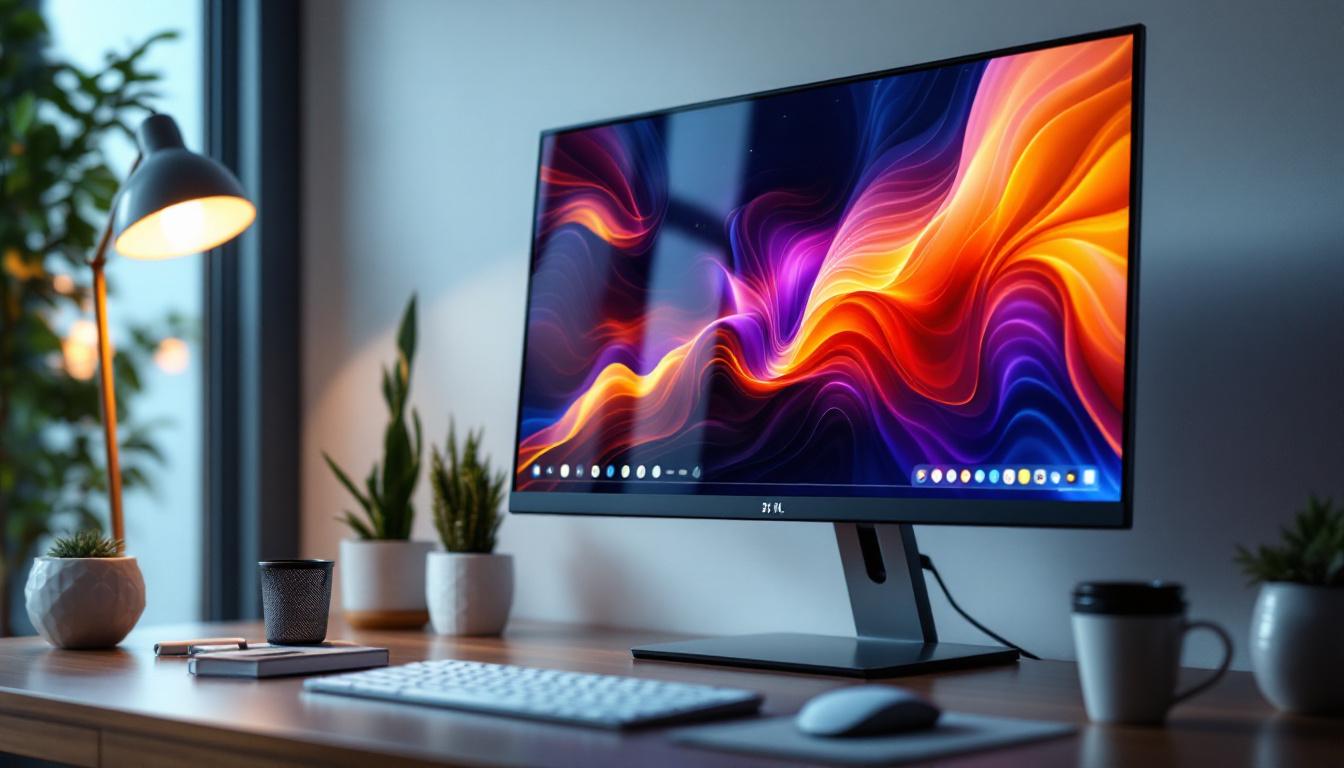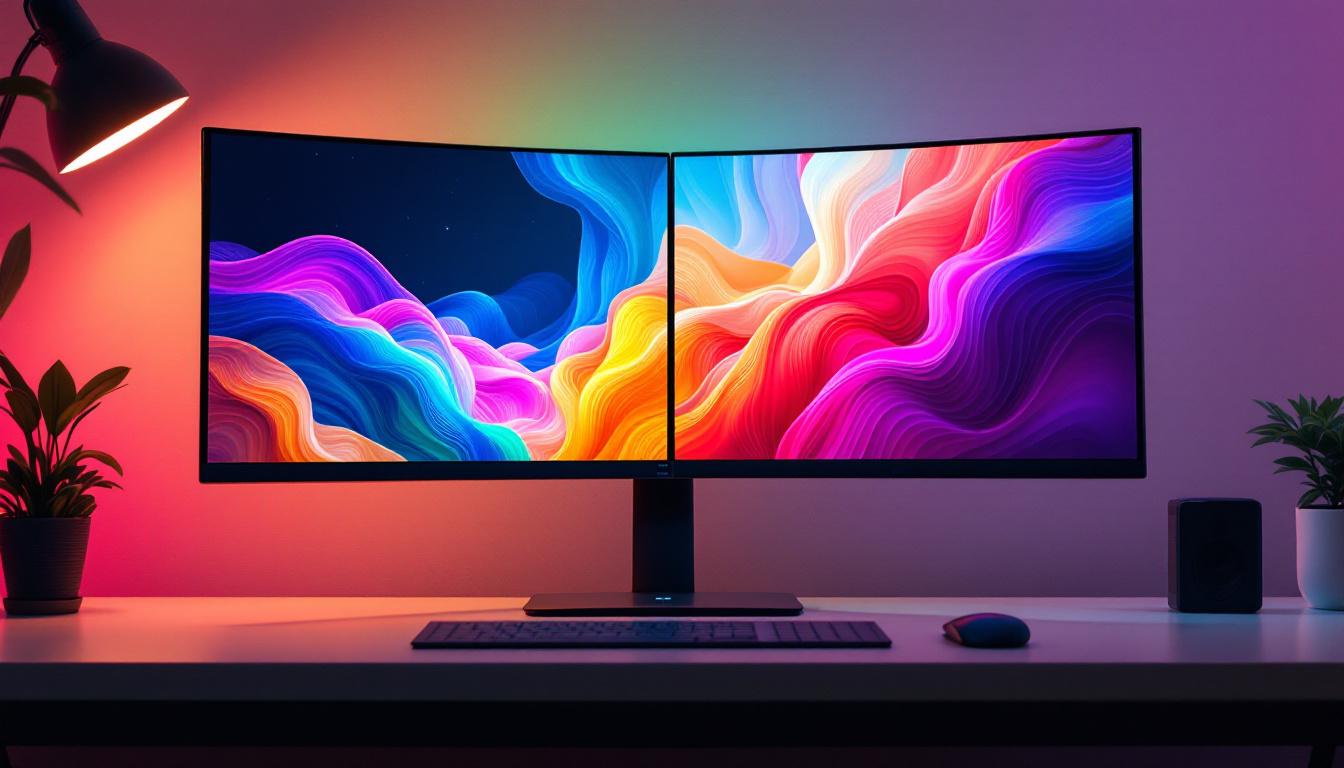
In today’s digital workspace, dual-monitor setups have become increasingly popular among professionals, gamers, and creatives alike. The ability to extend your desktop across two screens not only boosts productivity but also enhances the visual experience. One of the key elements that users often overlook is the desktop wallpaper configuration for dual monitors, especially when using LED displays. This article delves into the nuances of setting up desktop wallpapers for two monitors, with a particular focus on LED display technology, offering insights into optimization, aesthetics, and technical considerations.
Understanding Dual Monitor Setups
Before diving into wallpaper specifics, it’s essential to understand the basics of dual monitor configurations. A dual monitor setup typically involves connecting two display screens to a single computer, allowing users to extend their workspace. This setup is widely adopted in various fields, including software development, graphic design, financial trading, and gaming.
According to a 2023 survey by Statista, approximately 35% of office workers in the United States use dual or multiple monitor setups, reflecting a steady increase from previous years. The primary reasons cited include improved multitasking capabilities and enhanced workflow efficiency.
Types of Dual Monitor Arrangements
There are two common ways to arrange dual monitors:
- Extended Mode: The desktop spans across both monitors, effectively creating one large workspace. This mode is ideal for users who want to drag windows and applications seamlessly between screens.
- Duplicated Mode: Both monitors display the same content. This setup is often used for presentations or when multiple viewers need to see the same screen.
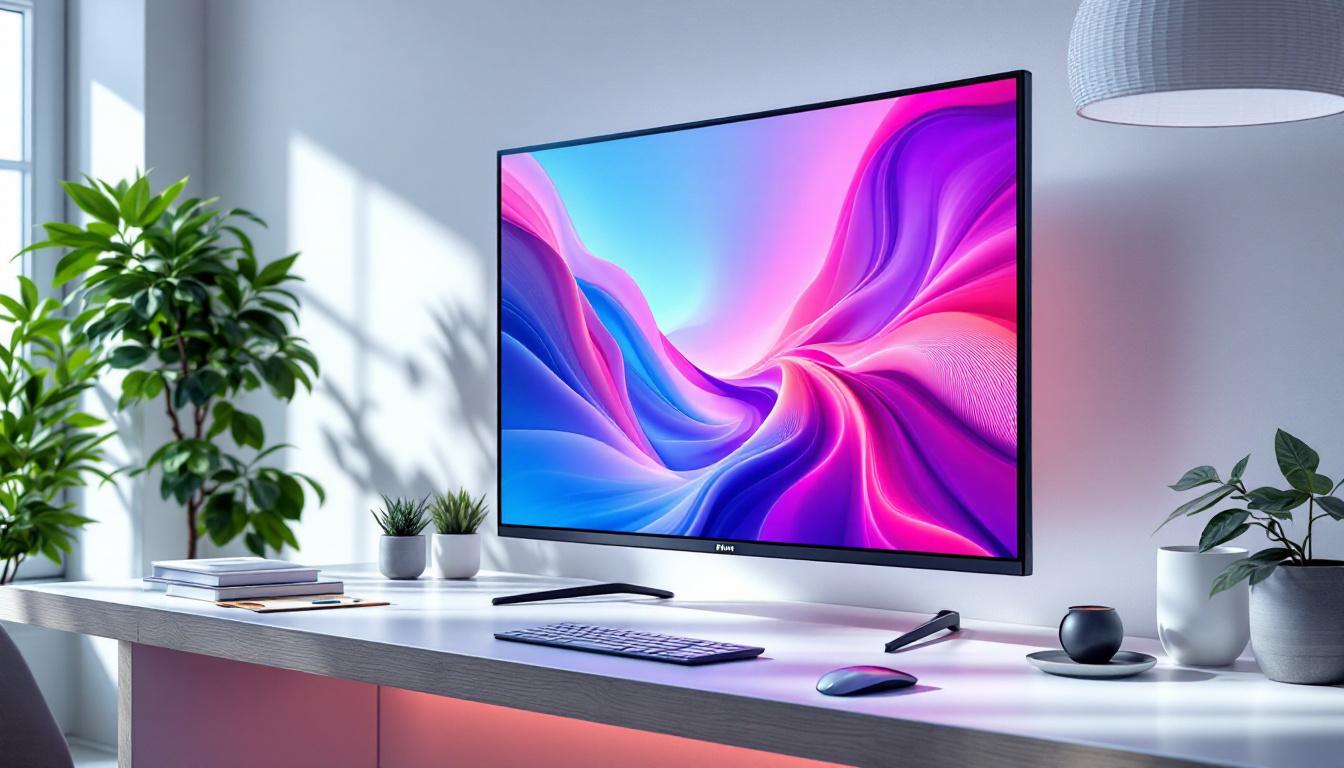
Extended mode is most relevant when discussing desktop wallpapers for two monitors, as it allows for panoramic or dual-image wallpapers that stretch or complement across both screens.
LED Display Technology and Its Impact on Dual Monitor Usage
Light Emitting Diode (LED) displays are the most common type of screens used in modern monitors. They offer several advantages over older technologies such as LCDs with CCFL backlighting or CRT monitors. Understanding LED technology helps in optimizing wallpaper choices and display settings.
What Makes LED Displays Stand Out?
LED monitors use light-emitting diodes for backlighting, which provides better brightness, contrast, and energy efficiency. They also tend to have thinner panels and more vibrant color reproduction. These features make LED displays ideal for dual monitor setups, especially when image quality and color accuracy are critical.
For example, professional photographers and video editors often prefer LED monitors because they can display a broader color gamut and higher dynamic range, which is essential for accurate color grading.
Considerations for Dual LED Monitors
When using two LED monitors side by side, it’s important to consider the following:
- Color Calibration: Even identical models can have slight color variations. Calibrating both monitors ensures consistent color display across screens.
- Brightness and Contrast Matching: Differences in brightness or contrast can be distracting when a wallpaper spans both monitors.
- Resolution and Aspect Ratio: Matching resolutions and aspect ratios simplifies wallpaper design and ensures seamless display.
Addressing these factors improves the overall visual experience, especially when using panoramic wallpapers or images that stretch across both screens.
Choosing the Right Desktop Wallpaper for Two Monitors
Wallpaper selection is more than just aesthetics; it influences focus, mood, and even productivity. When dealing with two monitors, the challenge is to find or create wallpapers that complement the extended workspace without causing visual fatigue.
Types of Dual Monitor Wallpapers
There are several approaches to wallpapers for two monitors:
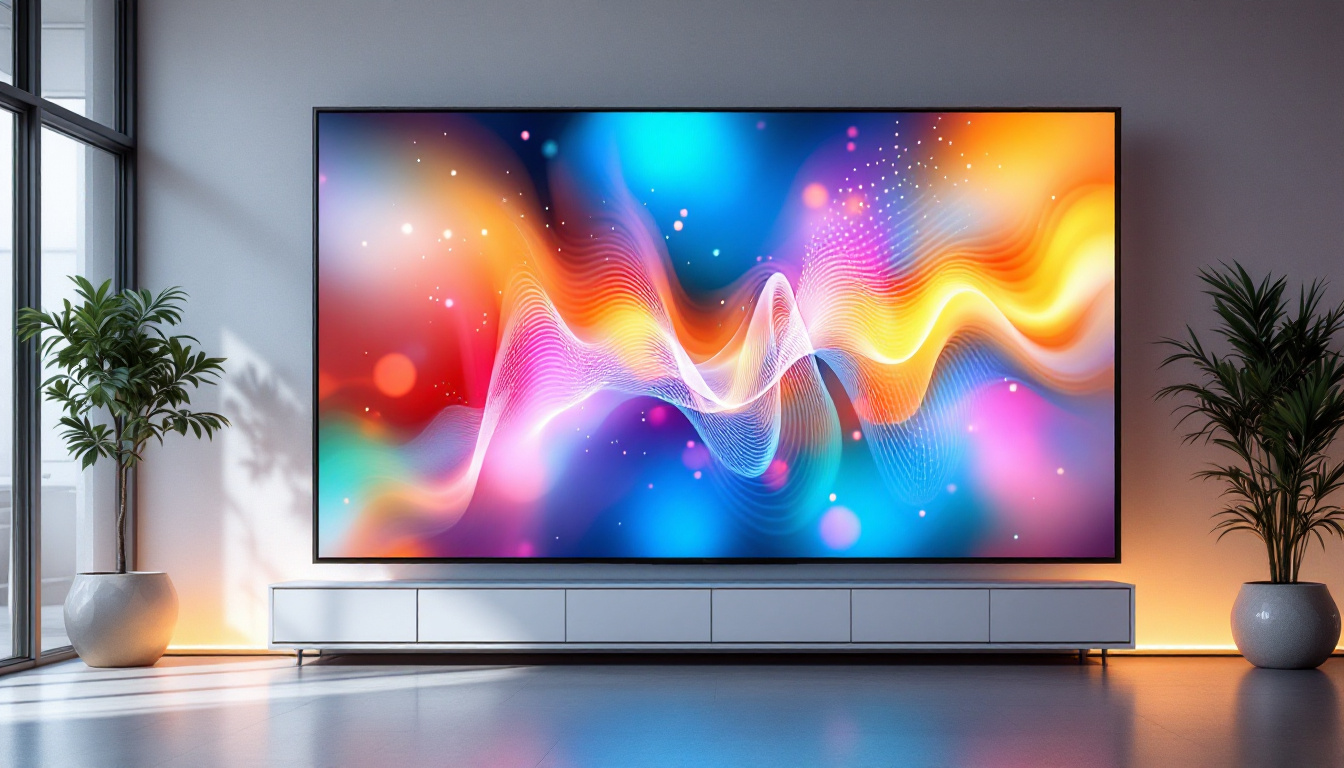
- Single Panoramic Image: A wide image that spans both screens, creating a continuous visual flow. This is popular for landscapes, cityscapes, or abstract art.
- Complementary Images: Two separate but related images that sit side by side, such as matching patterns or thematic visuals.
- Independent Wallpapers: Different images on each monitor, allowing for personalization or functional separation (e.g., work on one screen, leisure on the other).
Each option has its merits. Panoramic images offer immersive aesthetics, while complementary or independent wallpapers provide flexibility and personalization.
Technical Requirements for Dual Monitor Wallpapers
To ensure the wallpaper displays correctly across two LED monitors, consider these technical aspects:
- Resolution: The wallpaper’s resolution should match the combined resolution of both monitors. For example, two 1920×1080 monitors side by side require a 3840×1080 image for a seamless panoramic wallpaper.
- Aspect Ratio: Maintaining consistent aspect ratios prevents distortion. If monitors differ in size or resolution, adjustments may be necessary.
- File Format and Size: High-quality JPEG or PNG files are preferred. Large images may consume more system resources, so balance quality with performance.
Many wallpaper websites and design tools now offer dual monitor-specific images, making it easier to find suitable wallpapers without manual editing.
How to Set Up Dual Monitor Wallpapers on Different Operating Systems
Configuring wallpapers for two monitors varies depending on the operating system. Below is a guide for the most common platforms.
Windows 10 and Windows 11
Windows provides built-in support for dual monitor wallpapers with multiple customization options:
- Right-click on the desktop and select Personalize.
- Navigate to the Background section.
- Choose Picture as the background type.
- Click Browse to select your wallpaper image.
- Right-click on the image thumbnails to assign specific images to each monitor.
- For panoramic images, set the Choose a fit option to Span to stretch the image across both monitors.
This flexibility allows users to either span a single image across both screens or assign unique images to each monitor.
macOS
macOS also supports dual monitor wallpapers but with some limitations:
- Open System Preferences and select Desktop & Screen Saver.
- Drag the preferences window to the monitor you want to change.
- Select the wallpaper for that monitor.
- Repeat for the second monitor.
macOS does not natively support spanning a single image across multiple monitors. To achieve this effect, users often rely on third-party applications or manually create combined images that are then split and assigned to each monitor.
Linux (Ubuntu and Others)
Linux desktop environments vary, but many support dual monitor wallpaper configuration:
- GNOME: Use the Settings app, navigate to Background, and select images for each monitor individually.
- KDE Plasma: Offers more advanced options, including spanning a single image across multiple monitors via the Wallpaper settings.
Linux users often have more control over wallpaper customization due to the open-source nature of their systems but may require additional tools for advanced setups.
Optimizing Wallpaper Experience on LED Dual Monitors
Beyond selecting and setting wallpapers, optimizing the overall experience on LED dual monitors involves several best practices.
Color Calibration and Consistency
As mentioned earlier, color consistency between monitors is crucial. Using hardware calibration tools like the X-Rite i1Display Pro or Datacolor SpyderX can help align color profiles, ensuring that wallpapers and other visuals appear uniform across both screens.
Managing Display Settings
Adjusting brightness, contrast, and color temperature settings on both monitors helps reduce eye strain and enhances the wallpaper’s appearance. Many LED monitors come with presets such as “Reading,” “Gaming,” or “Movie” modes, which can be customized to suit personal preferences.
Using Wallpaper Management Software
Several third-party applications offer enhanced wallpaper management for dual monitors:
- DisplayFusion: A popular Windows tool that simplifies multi-monitor wallpaper management, including scheduling and image sourcing.
- Wallpaper Engine: Allows animated and interactive wallpapers across multiple monitors, leveraging LED display capabilities.
- John’s Background Switcher: Automatically changes wallpapers from various sources and supports multi-monitor setups.
These tools provide additional customization and automation, making it easier to maintain a fresh and inspiring desktop environment.
Common Challenges and Solutions
While dual monitor setups offer many benefits, users may encounter some challenges related to wallpapers and LED displays.
Wallpaper Stretching and Distortion
Using images that don’t match the combined resolution or aspect ratio can lead to stretching or distortion. To avoid this, always use wallpapers designed for dual monitors or create custom images using photo editing software like Adobe Photoshop or GIMP.
Color Mismatch Between Monitors
Even with calibration, slight color differences may persist due to panel manufacturing variances. Regular recalibration and using monitors from the same manufacturer and model series can minimize this issue.
Performance Impact
High-resolution or animated wallpapers can consume system resources, potentially affecting performance, especially on older hardware. Balancing wallpaper quality with system capabilities is essential for a smooth user experience.
The Future of Dual Monitor Wallpaper and LED Displays
As display technology continues to evolve, so too will the possibilities for desktop wallpapers on dual monitors. Emerging trends include:
Ultra-Wide and Curved LED Monitors
Ultra-wide monitors with aspect ratios like 21:9 or 32:9 are blurring the lines between single and dual monitor setups. Wallpapers designed for these screens offer immersive experiences without bezels interrupting the image.
Mini-LED and Micro-LED Technologies
Newer LED technologies such as Mini-LED and Micro-LED promise even better brightness, contrast, and color accuracy. These advancements will enhance wallpaper vibrancy and detail, making desktop environments more visually appealing.
Dynamic and Interactive Wallpapers
With increased processing power and LED display capabilities, dynamic wallpapers that respond to system events, time of day, or user interaction are becoming more common. These wallpapers can adapt seamlessly across dual monitors, providing a personalized and engaging desktop experience.
Conclusion
Setting up desktop wallpapers for two monitors, especially when using LED displays, requires a thoughtful approach that balances aesthetics, technical specifications, and user preferences. Understanding the underlying technology of LED monitors, choosing the right wallpaper type, and optimizing display settings can significantly enhance both productivity and enjoyment.
Whether opting for panoramic images that span both screens or complementary wallpapers that reflect different moods or functions, the dual monitor setup offers a versatile canvas. As LED display technology advances, the potential for richer, more immersive desktop environments continues to grow, making the desktop wallpaper an integral part of the modern computing experience.
Explore Cutting-Edge LED Display Solutions with LumenMatrix
Ready to elevate your dual monitor setup to the next level? Discover LumenMatrix’s innovative LED display technology, designed to transform your visual experience. From captivating Indoor and Outdoor LED Wall Displays to dynamic Vehicle and Sports LED Displays, LumenMatrix offers a wide range of solutions tailored to your needs. Experience the future of digital signage with our Custom, All-in-One, and Transparent LED Displays, each crafted to deliver unparalleled brand visibility and audience engagement. Don’t just take our word for it—check out LumenMatrix LED Display Solutions today and see the difference for yourself!